How to download a full backup of my website?
Which method applies to you?
| Premium Backup download | Manually download files + database export | |
| Best for | Saving time and effort | Any website, or when you want full control |
| Available on | All SiteGround web hosting plans (shared and cloud) | All hosting platforms and plans |
| Backups kept |
You can download each backup as many times |
Whatever you save yourself |
| Effort | A few clicks | Archive and download the files, then export the database. Medium effort |
Download an automatic or manual backup from Site Tools
This gets you a complete copy of an existing automatic or manual backup as a single download. It requires the Premium Backup service, available to all SiteGround users.
- Log in to Site Tools and go to Security > Backups.
- Find the backup you want in the list.
- Click the three dots (Actions) menu for the chosen backup.
- Select Download.
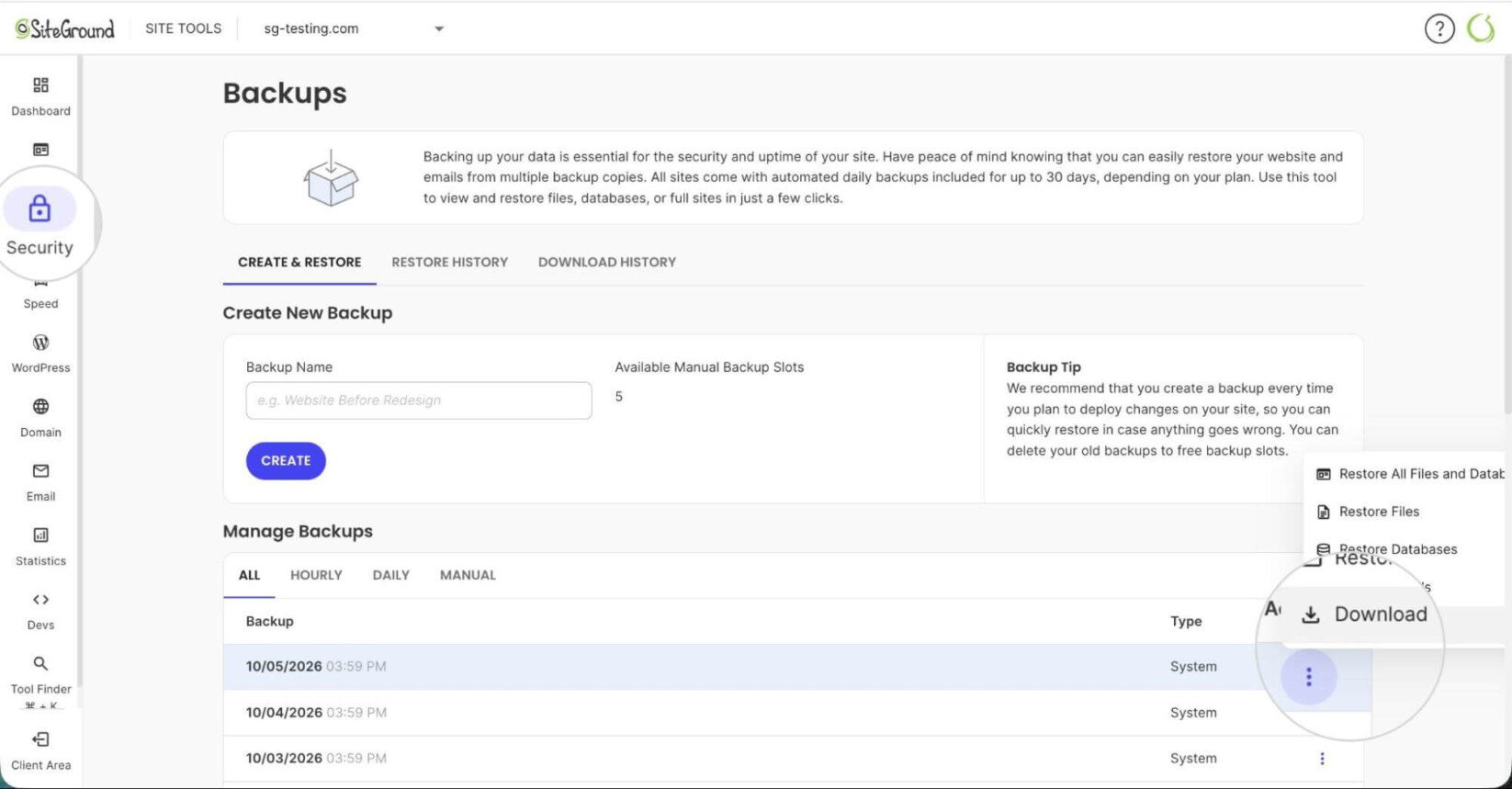
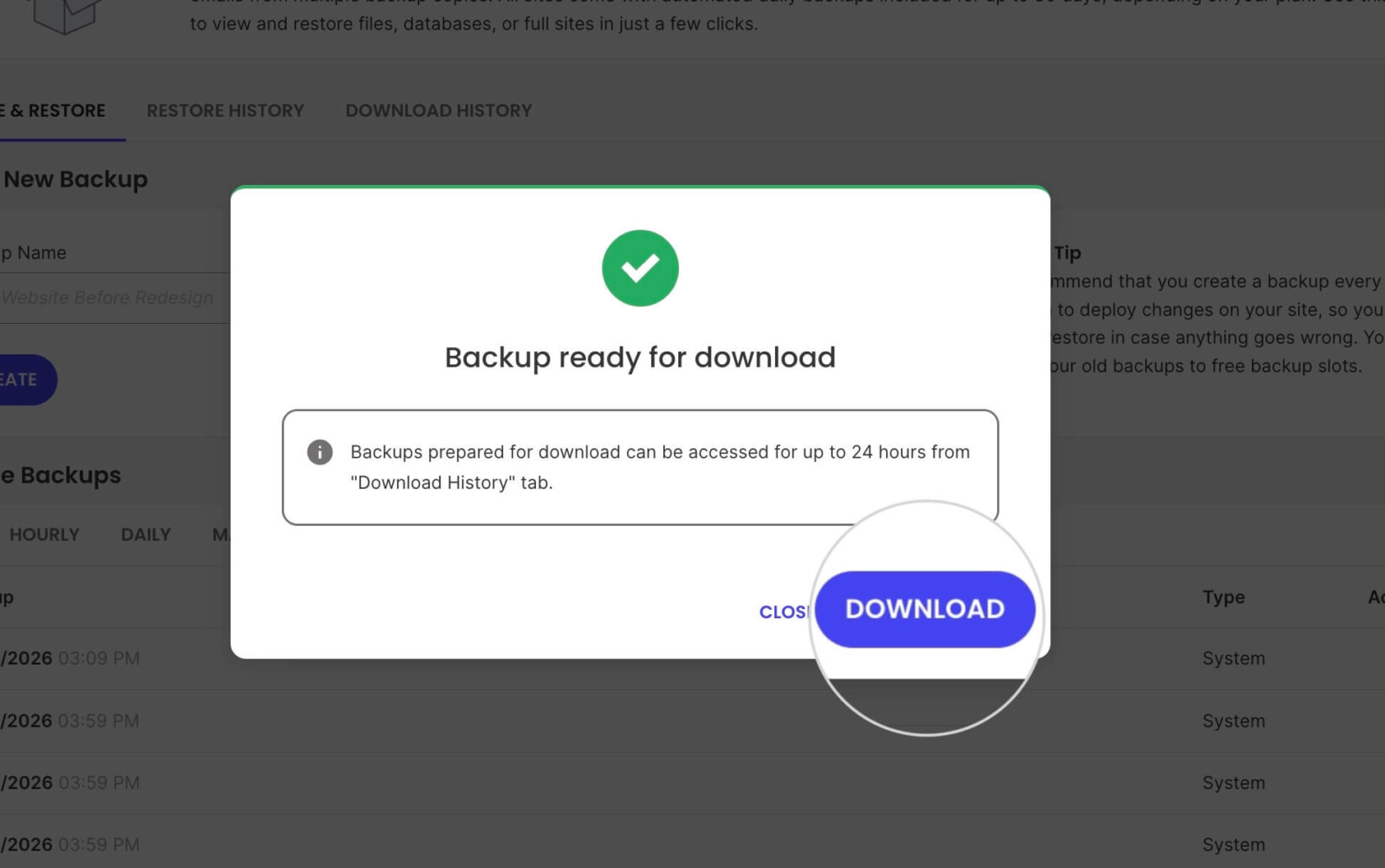
- Wait while our system prepares the backup for download. When it’s ready, click the blue Download button in the pop-up screen. You can also download it later from the Download History tab in the Backups tool.
For in-depth instructions, read this guide about the Premium Backup service.
Alternatively, you may manually download your site files and export your databases by following the instructions below.
Manually download a website backup
This method applies to every website, regardless of its hosting platform. It has two major steps – downloading the files and exporting the database.
Step 1. Download your files
This produces an archive containing everything in your site’s public_html folder. Your files live in:
/home/customer/www/yourdomainname.com/public_html- Go to Site Tools > Site > File Manager.
- In the navigation panel on the right, right-click the public_html folder.
- Select Archive.
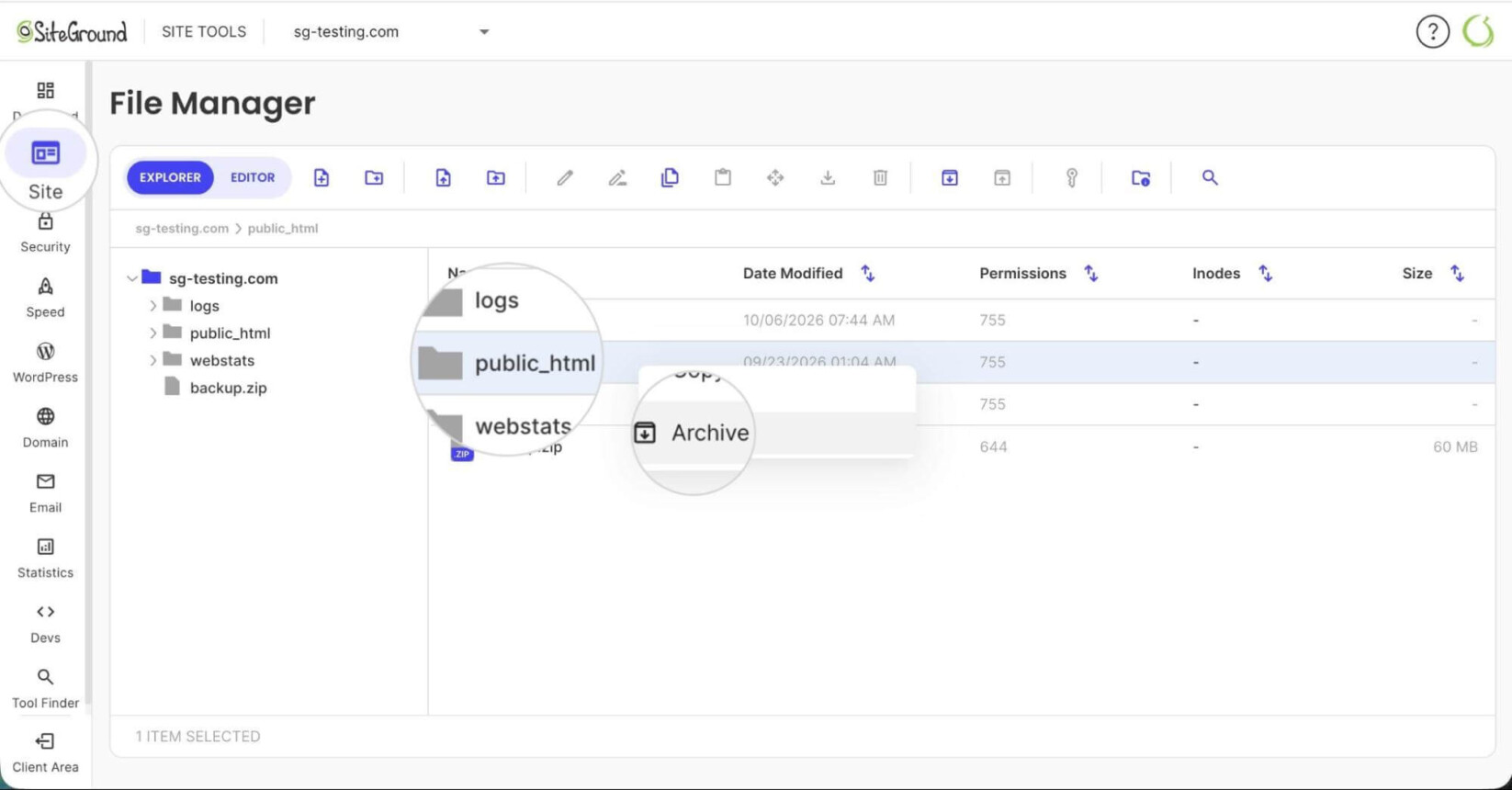
- In the following pop-up window, assign a file name.
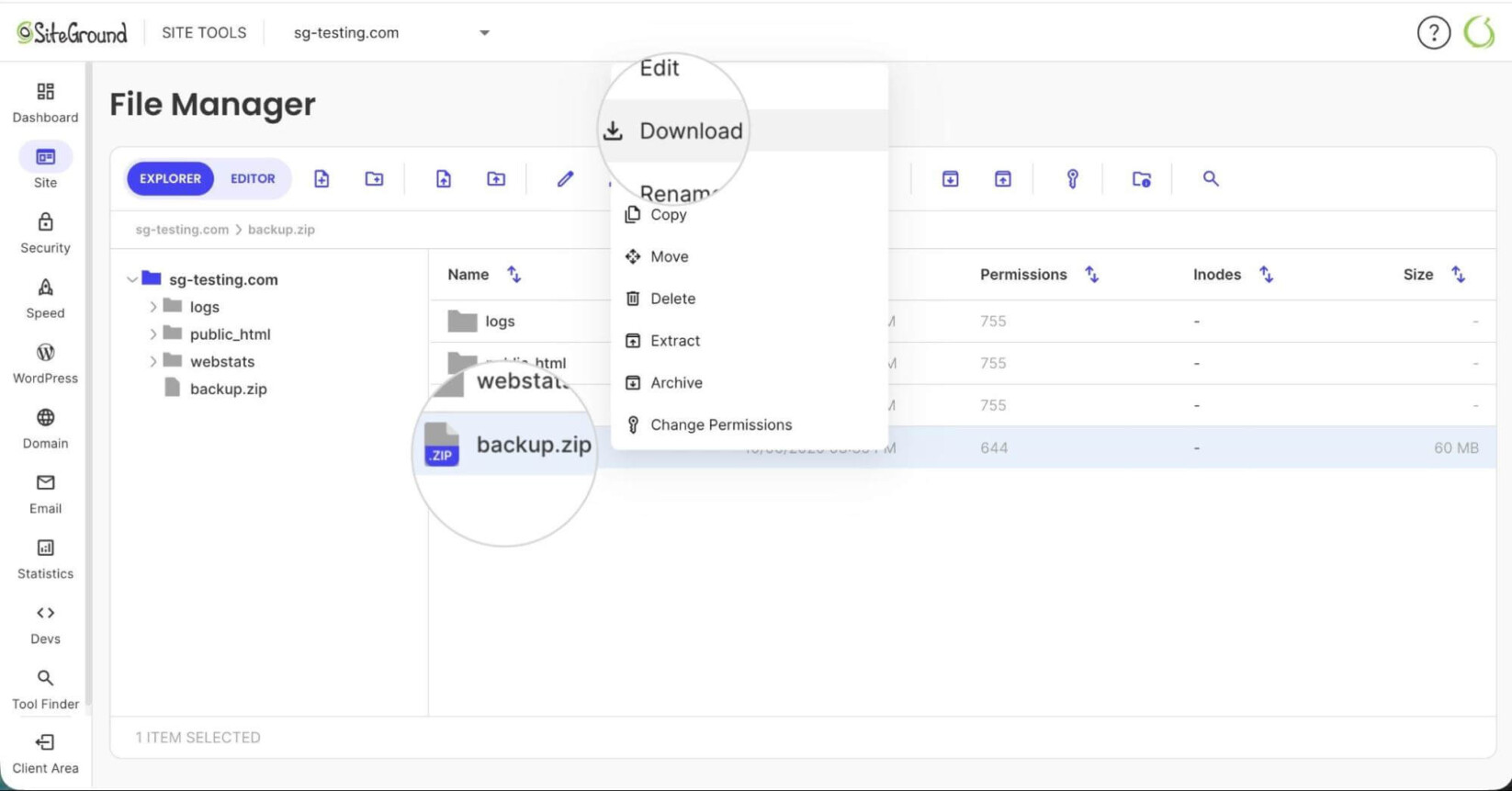
- The file will appear in the same parent folder as public_html. Right-click the newly created archive and select Download.
You can also download your files via FTP.
Step 2: Export your database
If your website uses a database (like WordPress), you must download it along with the files. This saves your site’s content and settings (posts, users, configuration) as a single file.
- Go to Site Tools > Site > MySQL > phpMyAdmin.
- Press Access phpMyAdmin.
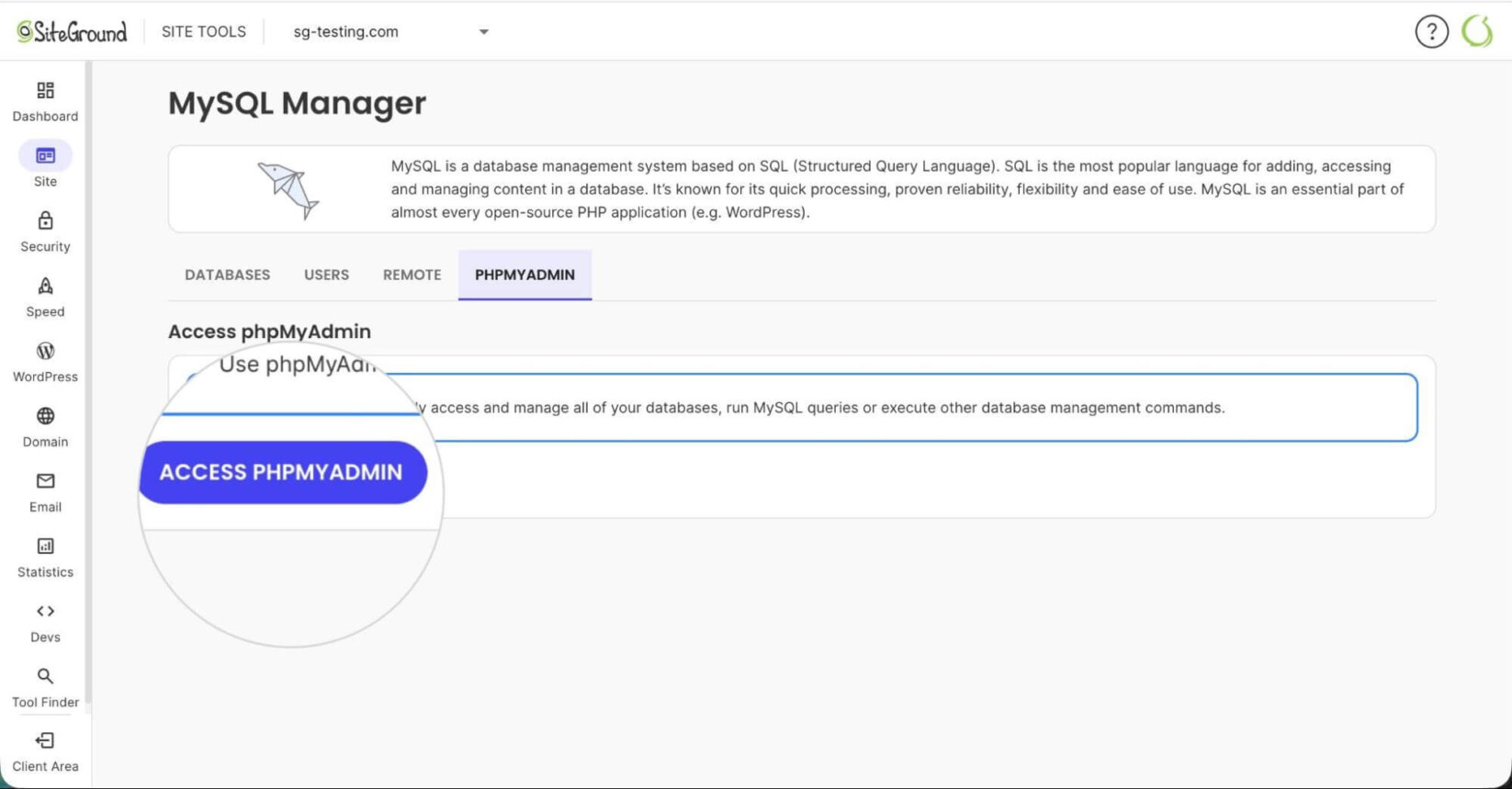
- Inside phpMyAdmin, select your database from the left-side menu.
- Open the Export tab and press the Export button inside.
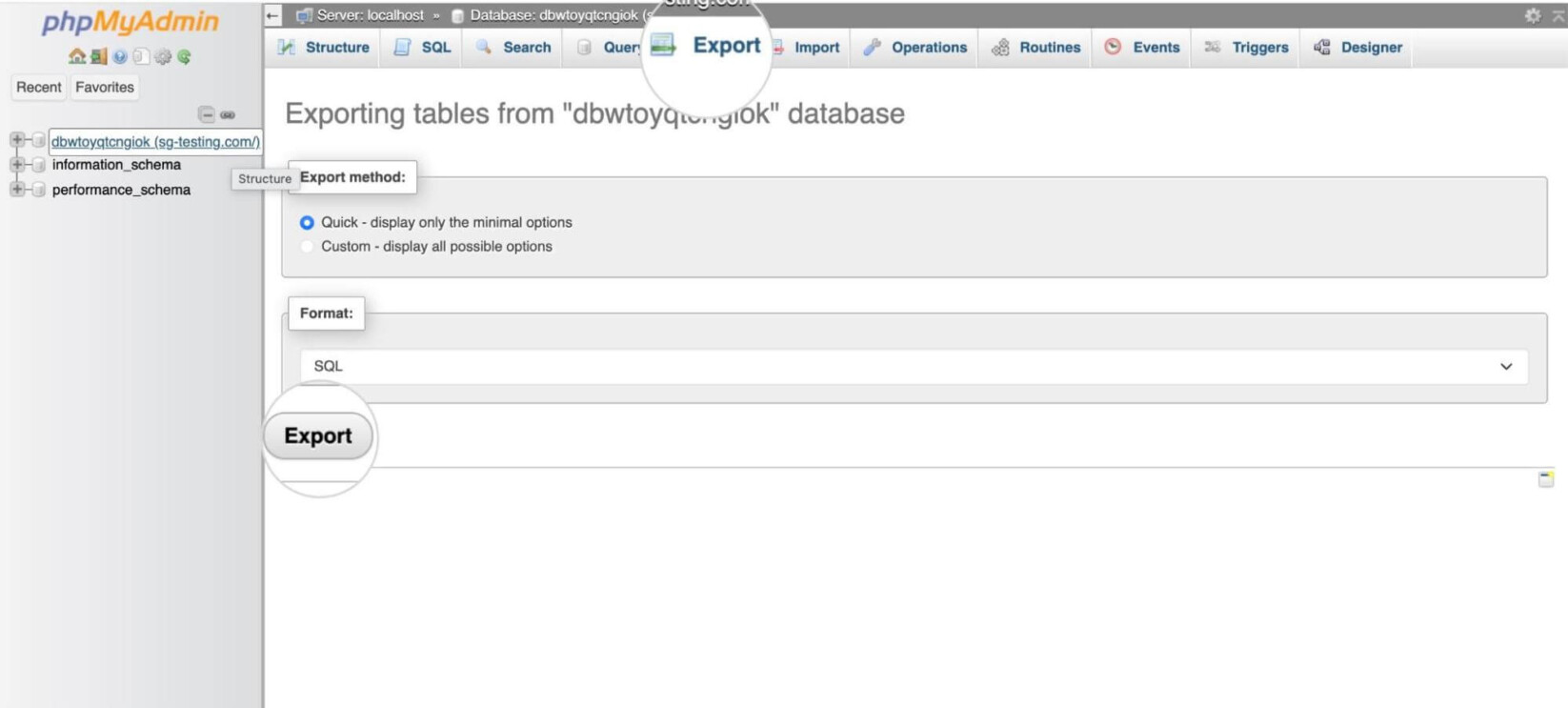
For the full walkthrough, see our MySQL backup tutorial.
Keep the files archive and the database export together. You need both to restore the site.
Troubleshooting common problems when downloading a backup
The backup won’t generate
The file is most likely not generated due to insufficient disk space. Free up space or upgrade your plan to a higher disk space usage.
The site has more than one database
Repeat the database export for each database the site uses. A WordPress site’s wp-config.php shows which database it uses.
The subdomain websites are not included in the main website backup
Subdomain website have their own separate folders. Archive and download each one’s public_html as well, not only the main public_html.
Frequently asked questions
Do I need Premium Backup to download a full backup
No. Premium Backup lets you download an existing backup with one click, but you can also back up manually by downloading your files and exporting your database.
How long does it take to prepare a backup for download?
It depends on the size of your site. Allow a few minutes for small sites, and longer for large ones.
Where are my website files stored?
The website’s root folder is /home/customer/www/yourdomainname.com/public_html. Replace yourdomainname.com with your actual domain.
Does a manual backup of public_html include my database?
No. The File Manager archive only contains files. Export the database separately from phpMyAdmin.
Can I back up my site over FTP?
Yes. Connect via FTP and download the public_html folder. You still need to export the database from phpMyAdmin.
How often should I back up my website?
You should back up your website before any major change, such as an update, migration, or redesign. Also, regularly back up your website if you often change its content. If you have Premium Backups, you have hourly backups for the last 48 hours.