What is DNS_PROBE_FINISHED_NXDOMAIN, and how to fix it in 9 steps
Internet users may sometimes stumble upon a “This site can’t be reached” error. Due to it, the browser cannot redirect the user to the desired website. Instead, a message with DNS_PROBE_FINISHED_NXDOMAIN error comes up in the browser.
This type of error is related to DNS (Domain Name System) issues or internet connectivity problems. The Domain Name System organizes the internet traffic by mapping domain names to particular server IPs. A DNS resolver server plays a significant role in DNS transactions. It serves to translate the alphabetic domain names to numeric IP addresses.
However, there are specific reasons that can obstruct these transactions.
Because of them, the domain-to-IP translation fails. Therefore, your browser can not serve the web page you are trying to reach.
Since the DNS server couldn’t resolve the domain to an IP, your Chrome browser will display an error message. The error states, “Server IP address could not be found” with “dns_probe_finished_nxdomain” beneath it. Depending on which browser you are using, the error may look different.
The most common causes are:
- A mistyped, unregistered, or expired domain
- Missing or wrong DNS records
- Expired local DNS settings
- VPN connection or security software interference
- ISP DNS misconfigurations
Quick domain checks and fixes:
- Double-check the domain name address
- Check the DNS settings
- Look it up in the ICANN Lookup Tool to check if it has expired, and renew it if needed
- Check your hosts file for any settings related to the domain
What to do if the domain is fine:
- Renew your IP address
- Flush the DNS cache
- Change DNS servers
Still stuck? Then:
- Restart your computer and router
- Contact your ISP
How to fix the DNS_PROBE_FINISHED_NXDOMAIN error?
Several reasons can contribute to the occurrence of this DNS error. For instance, your domain name may be mistyped, expired, or simply not registered.
Secondly, a local issue with DNS settings can obstruct the proper domain resolution and trigger the error. Furthermore, corrupted browser settings or VPN/Antivirus software may be causing the error.
Alternatively, there may be an issue with your internet connection, resulting in a DNS error.
Below, you will find an easy guide with fixes for each probable cause of this DNS error.
1. Check your domain name
1.1 Check the spelling
First and foremost, you should check your website’s domain name and make sure you are typing it correctly. If you have mistyped it, the browser will open a nonexistent domain and won’t resolve it to an IP address. A prompt to “Check if there is a typo” in your domain name will also appear within the error message displayed.
1.2 Check the domain registration
If you have confirmed the proper spelling of the domain and still see the error, the domain may have expired. To check your domain’s status, you may use this popular ICANN Lookup Tool.
If the domain has indeed expired or there is a problem with its registration, contact your domain registrar to remedy the situation.
1.3 Check for incorrect DNS settings
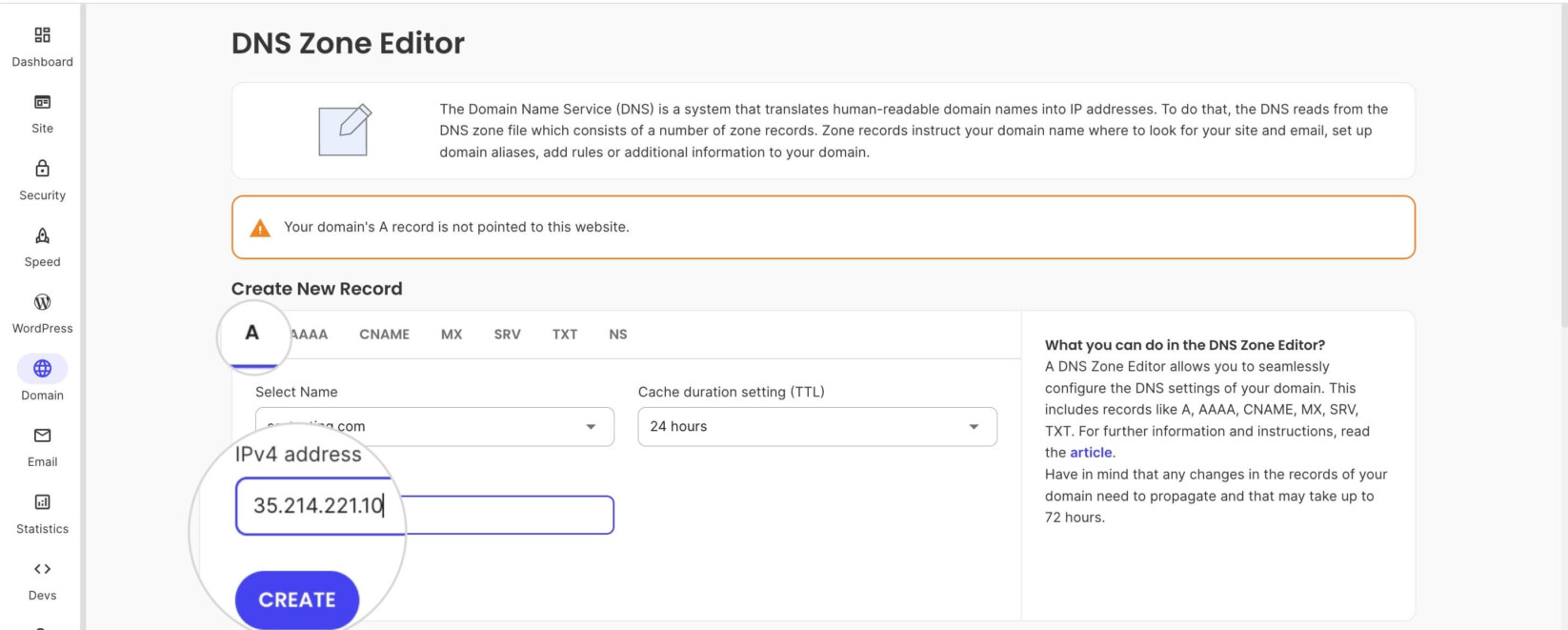
In addition, you may want to check the DNS settings for your domain name. It may be pointed to the correct nameservers, but if it misses an A record or is connected to the wrong IP address, the domain will trigger the dns_probe_finished_nxdomain error when you try to visit the website. Obtain the proper IP address and ensure the A records point to the server hosting your website.
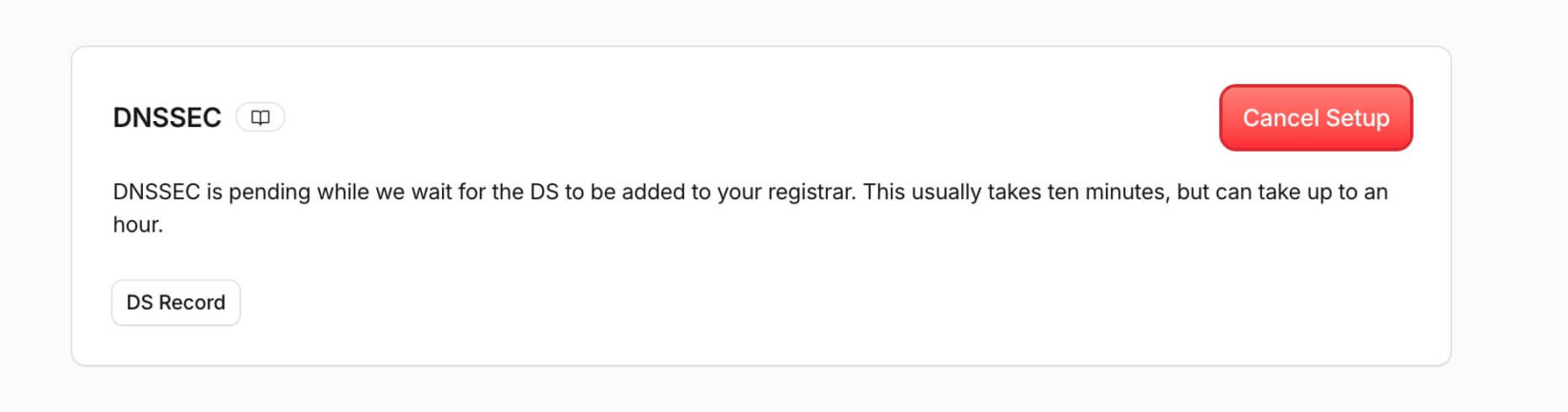
One other DNS setting that may interfere with the DNS resolution is DNSSEC (Domain Name System Security Extensions), which adds cryptographic signatures to your DNS settings. However, if your hosting server doesn’t support it, DNSSEC will prevent a successful DNS name resolution, and the dns_probe_finished_nxdomain error may occur.
Look up your DNS settings at your DNS host and try disabling DNSSEC. Then, reload the website to test if the error is gone.
2. Renew your computer’s IP address
As this is most often a client-end error, you should start by releasing and renewing your computer’s IP address. That is necessary when you are not getting a valid IP address from your internet router.
First, you have to release your computer’s IP to be able to renew it afterward. Renewing your IP will initiate a request to a DHCP server, which will assign you a new IP address.
Below, you will find step-by-step instructions for doing that on Windows OS and Mac OS.
-
Windows
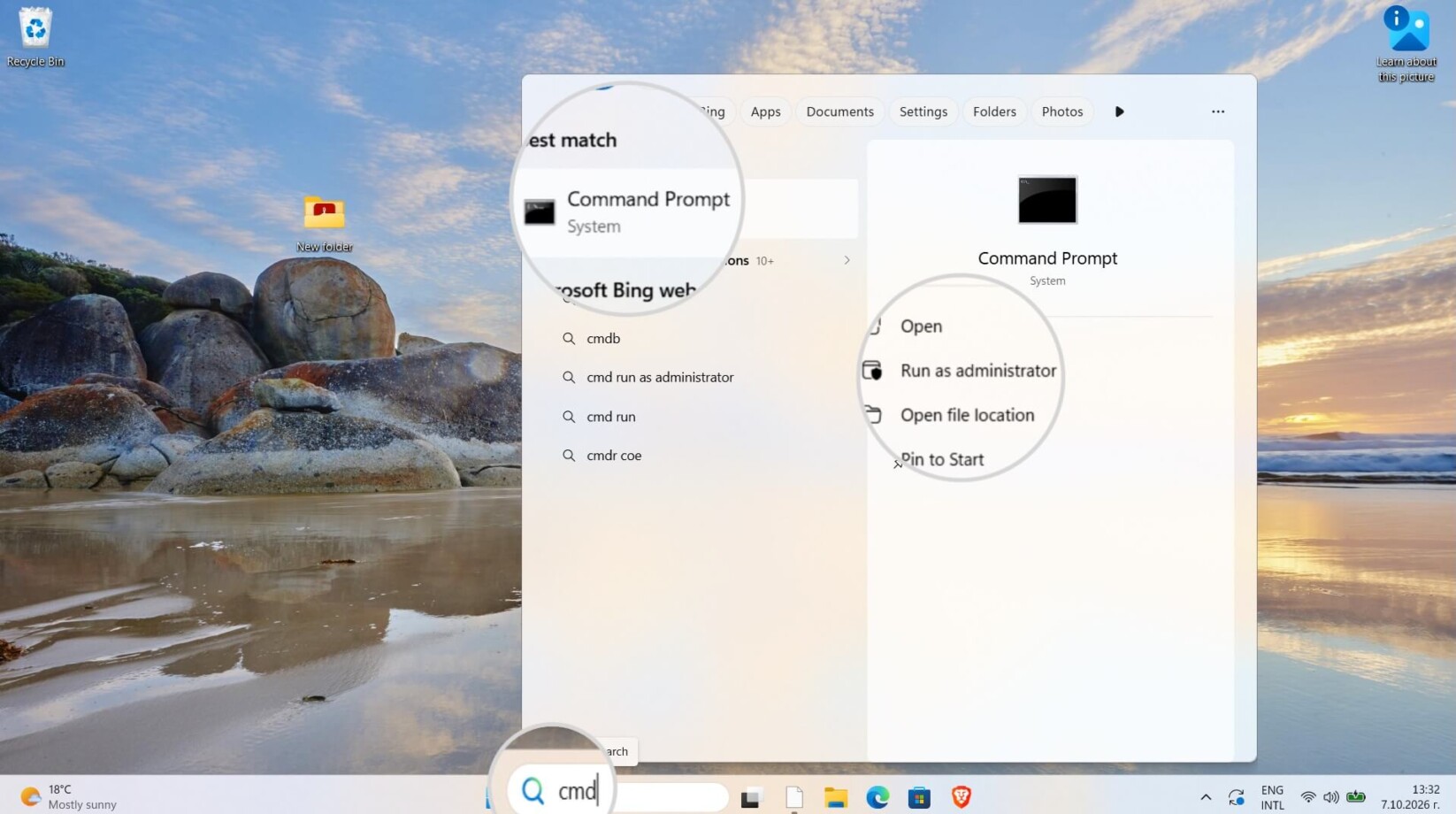
On a Windows PC, you can renew your IP using the Command Prompt application as an administrator. To find this app, click on the Start menu, and in the search bar, type “cmd,” then select “Run as administrator.”
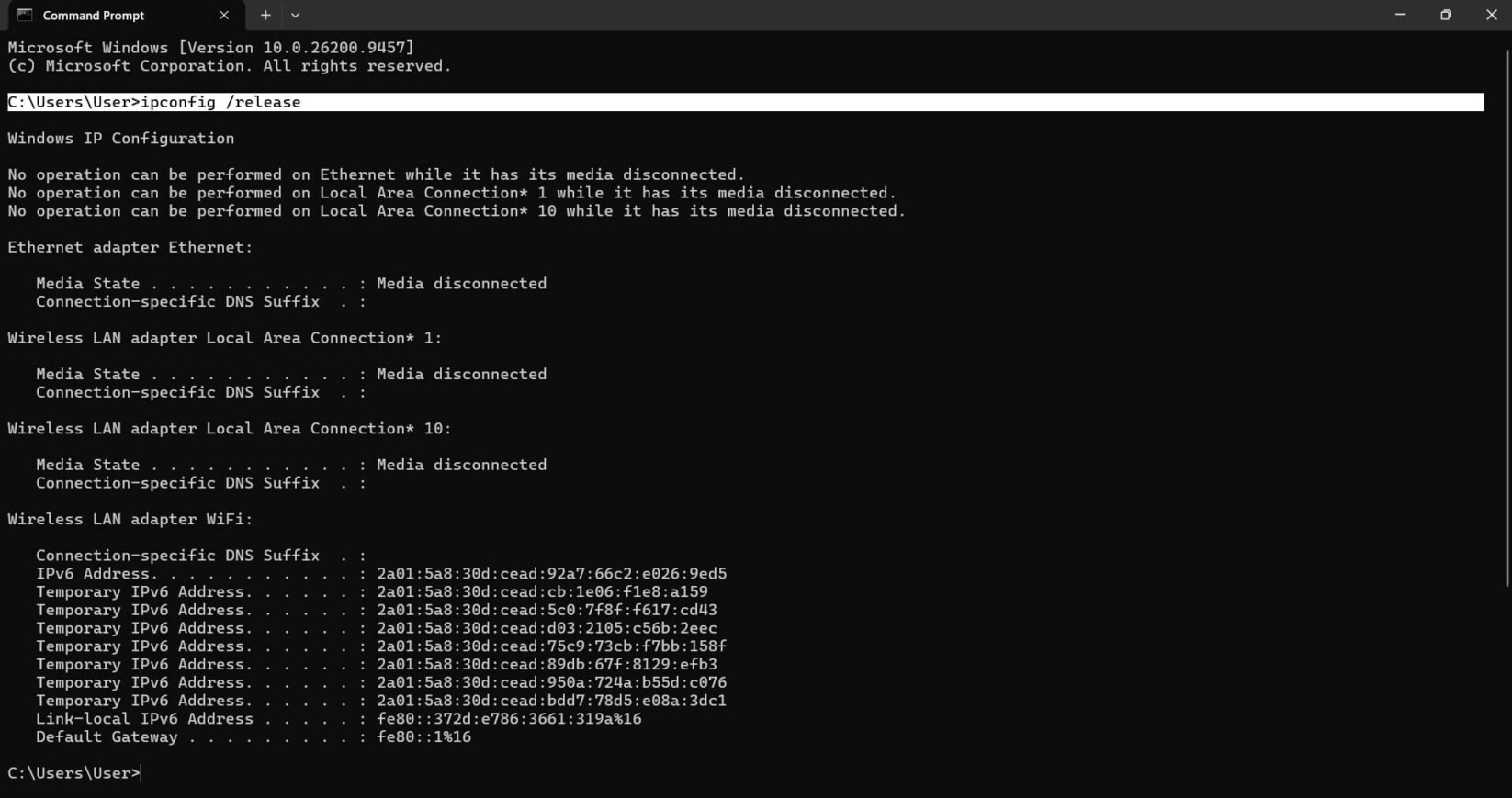
When the Command Prompt screen comes up, type the command:
ipconfig /releaseThen, hit Enter.
After the current IP is released, you can request a new one with the command:
ipconfig /renewTo confirm this action, pressEnter again.
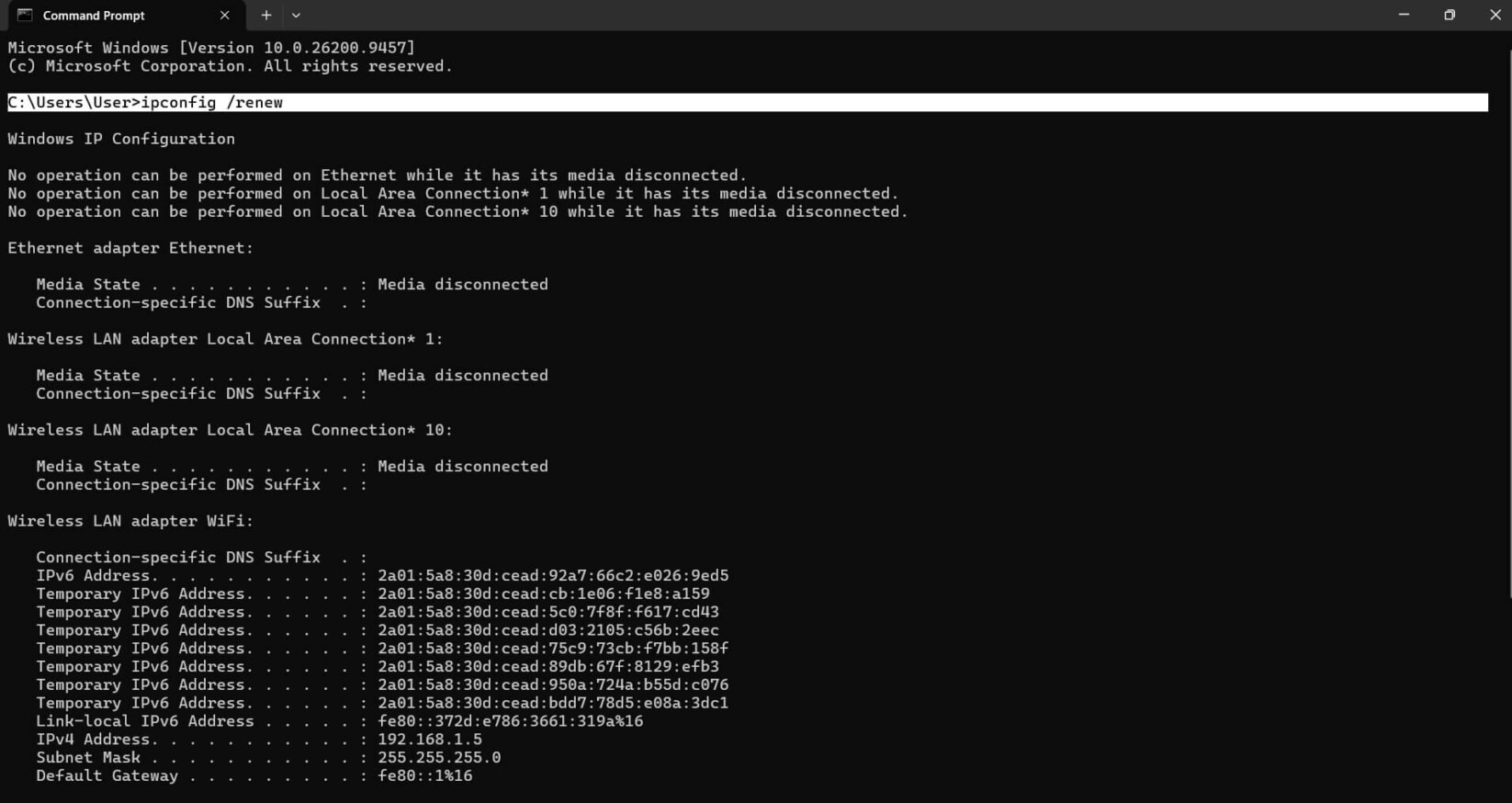
If your connection was failing due to an invalid IP, it should now be fixed.
However, if you still see the DNS_PROBE_FINISHED_NXDOMAIN error in Windows 7 or later versions, you may restart the Winsock. This interface defines how the Windows network should access IP/TCP services. To reboot it, you can use the following command:
netsh winsock reset-
Mac OS
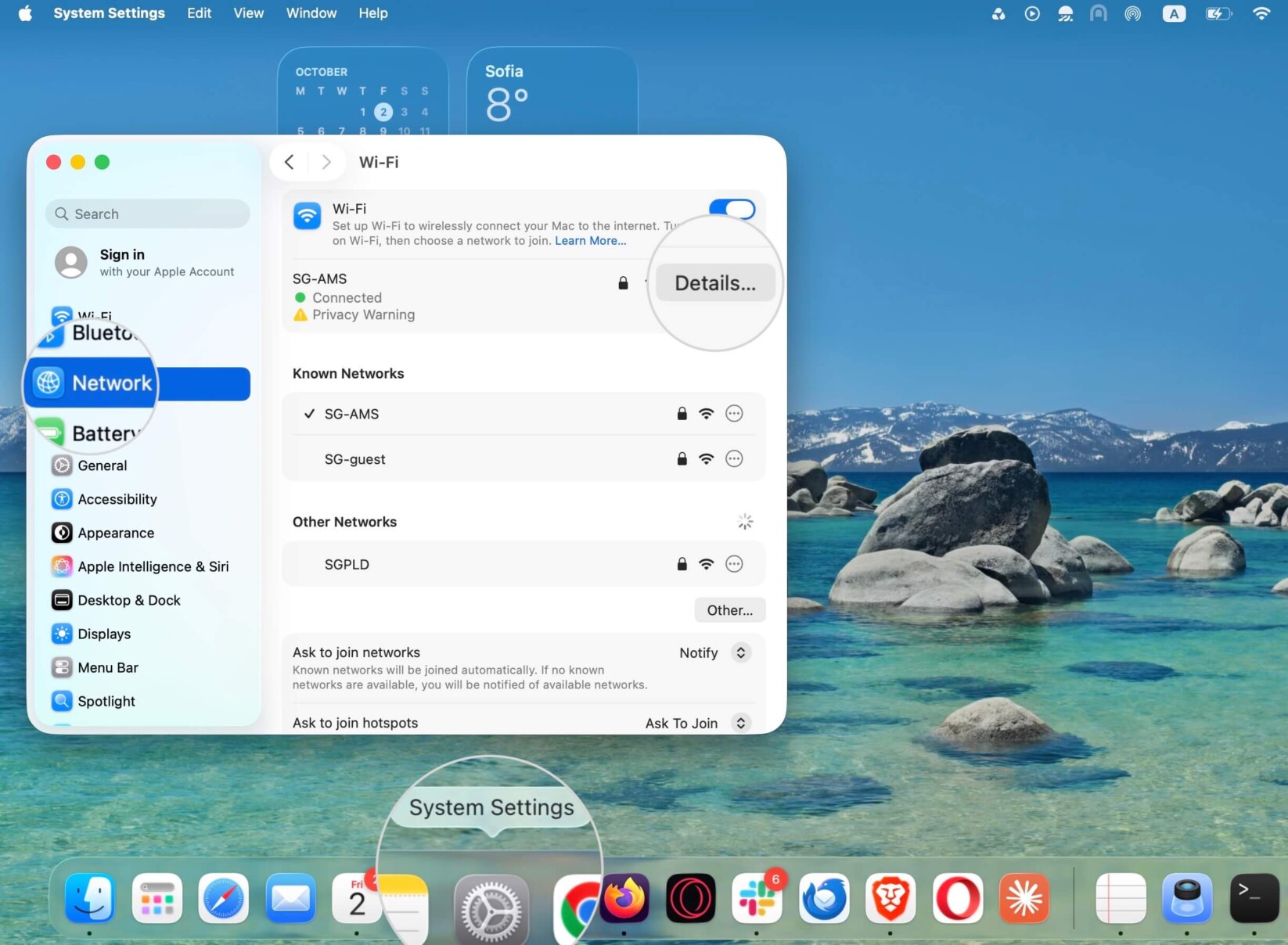
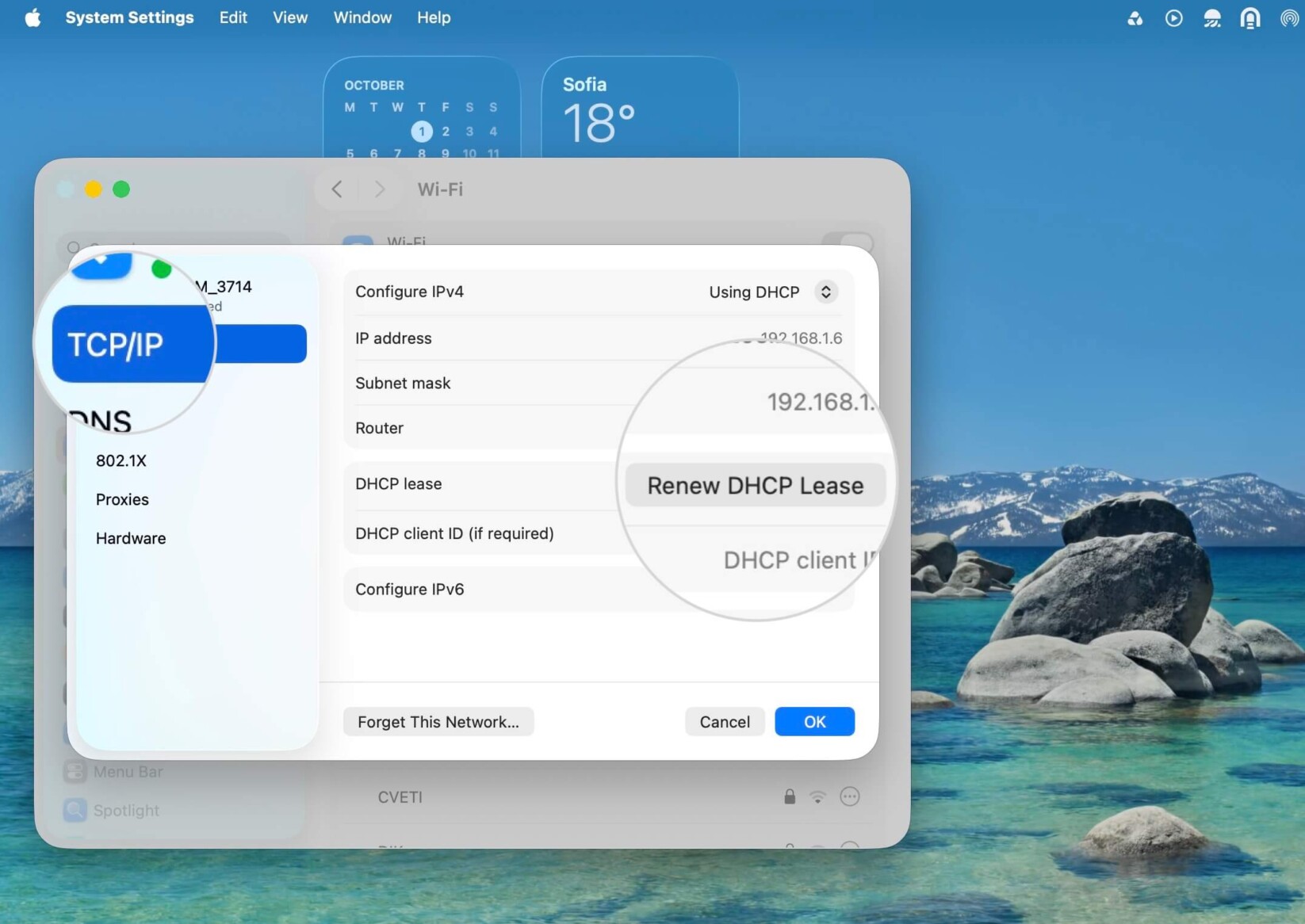
When experiencing the DNS_PROBE_FINISHED_NXDOMAIN error on a Mac, you should release and renew its IP. You need to open the System Settings from your Mac’s Dock. Select Network, click on your active network, and press the Details button.
Then, under the TCP/IP tab, hit “Renew DHCP lease,” which will renew your computer’s IP address.
3. Flush DNS cache
The DNS cache is your operating system (OS) catalog of domain-to-IP translations for sites you have previously browsed. The stored history may be outdated or corrupted, which in turn could be causing the DNS_PROBE_FINISHED_NXDOMAIN error. Resetting your local DNS cache will clear all DNS records your OS has gathered.
The steps to flush the DNS resolver cache vary depending on your computer’s OS. You can find links to detailed articles below:
4. Clear Chrome’s DNS Cache
The Google Chrome browser also collects the DNS cache for the websites you visit. Thus, flushing it may help you fix the DNS_PROBE_FINISHED_NXDOMAIN error on Chrome.
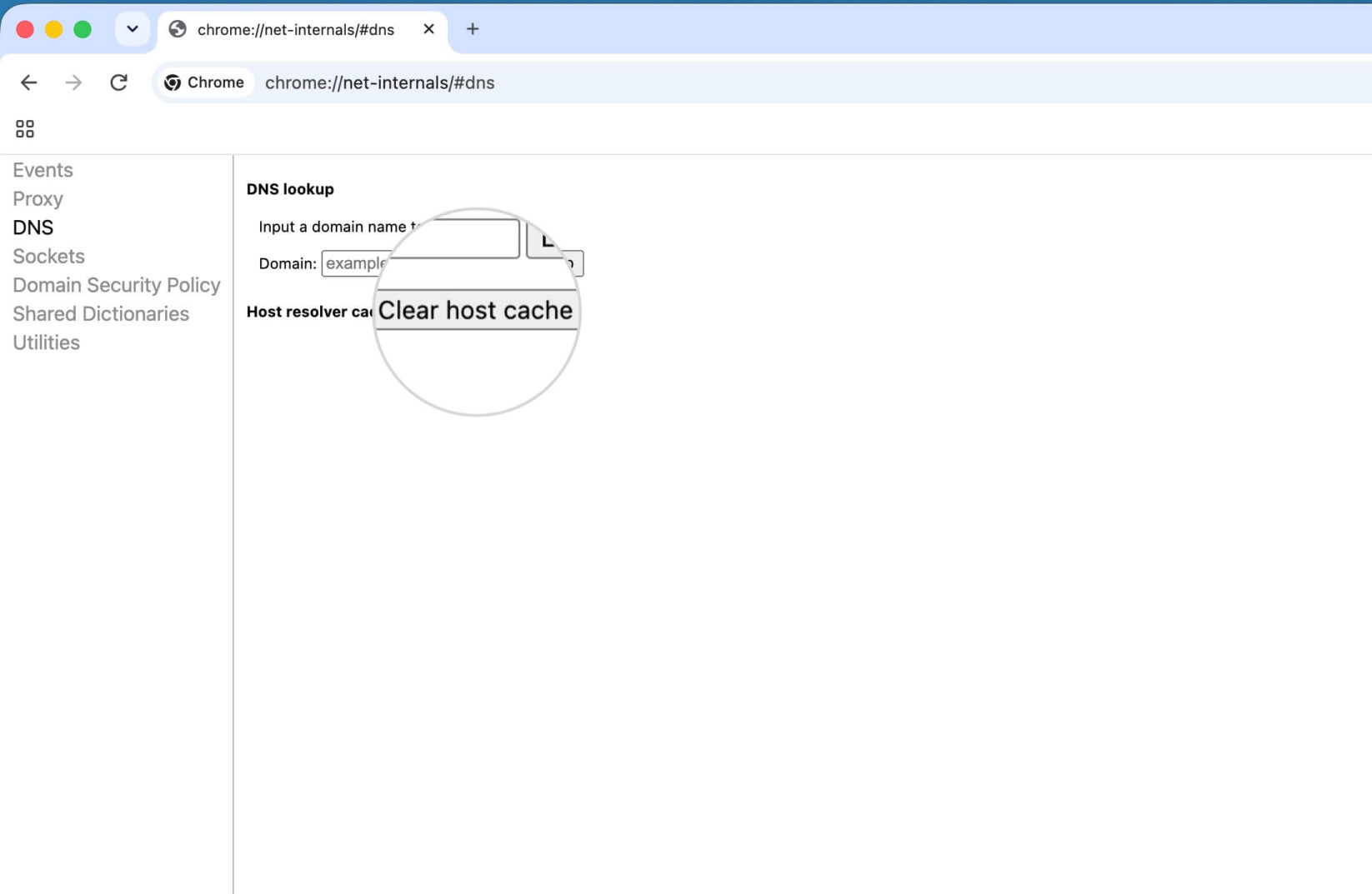
To do that, simply open the browser and type the following in the address bar:
chrome://net-internals/#dns
The browser will direct you to the internal network settings page of Chrome, where you should press the “Clear host cache” button.
5. Restart DNS Client service
For Windows users bumping into such a DNS probe error, we suggest restarting the DNS Client service. The DNS Client service is the local DNS resolver of your computer. It queries the DNS cache in your computer and, if necessary, the DNS servers.
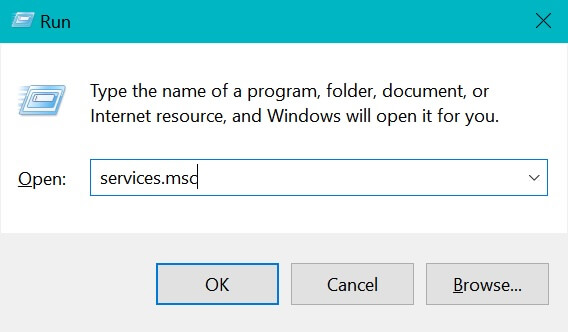
To restart this service on your Windows PC, you may use the Run dialogue box. To start it, simply click the Windows button + “R” key, and when the command line window comes up, type “services.msc”.
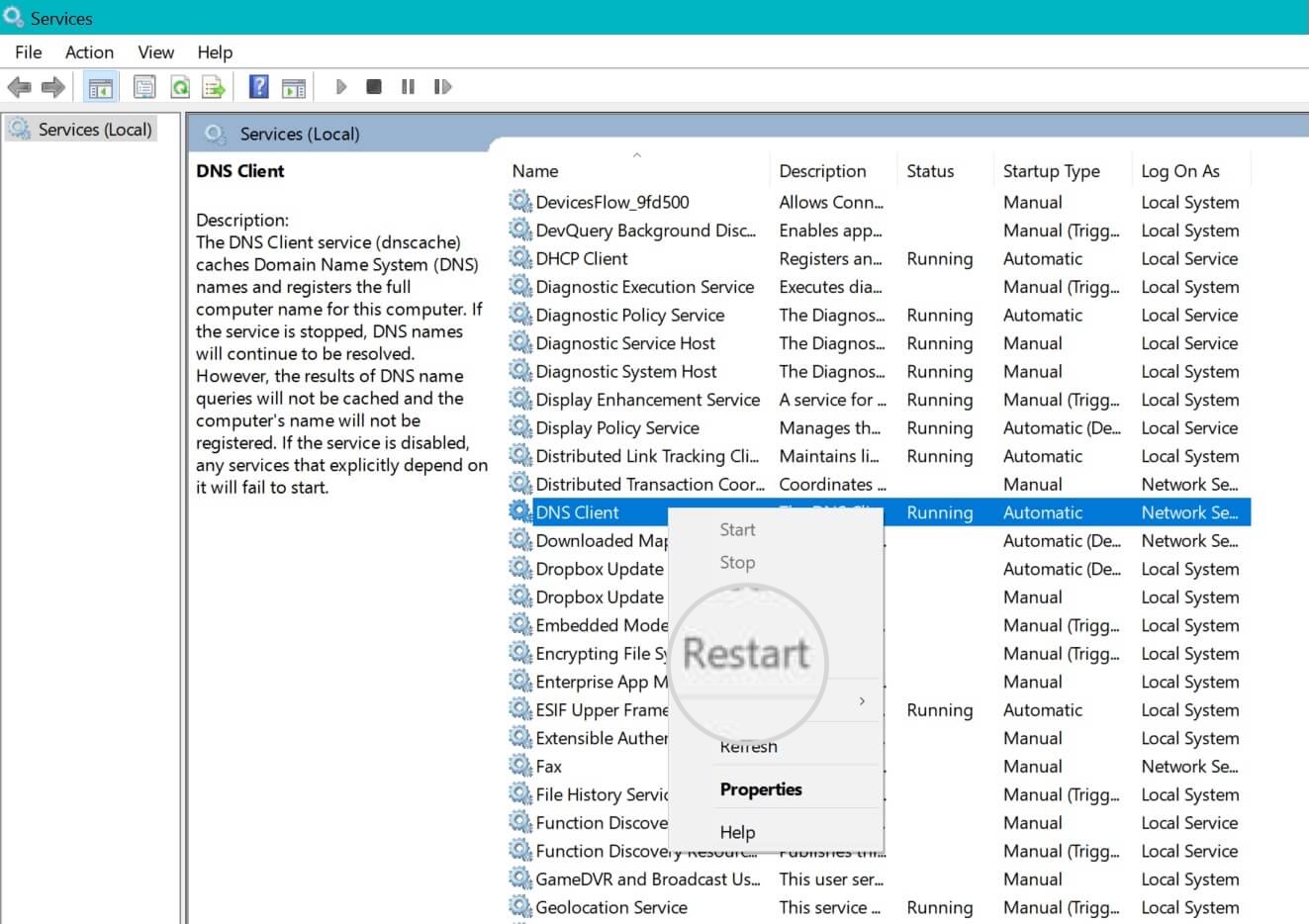
Another page will load, where you can see all services the OS is using in alphabetical order. Scroll down to find “DNS client” and right-click on it to select “Restart.”
An alternative is restarting the DNS Client service on your Windows OS by using the commands provided below via Command Prompt. The first one stops the DNS Client service, and the second one starts it again:
net stop dnscachenet start dnscache6. Change DNS servers
Another solution you can try is to use different DNS servers from the ones your computer is using. Usually, your ISP assigns the DNS service for your network automatically. However, you can switch to public DNS servers when you need to rectify an error like the dns_probe_finished_nxdomain. For instance, such preferred DNS server addresses are:
- Google DNS —8.8.8.8 and 8.8.4.4
- Cloudflare DNS —1.1.1.1 and 1.0.0.1
The most commonly used Public DNS is Google’s, so we will show you the steps with it. The steps for using Cloudflare DNS are the same; you only need to use the respective IP addresses.
-
Windows
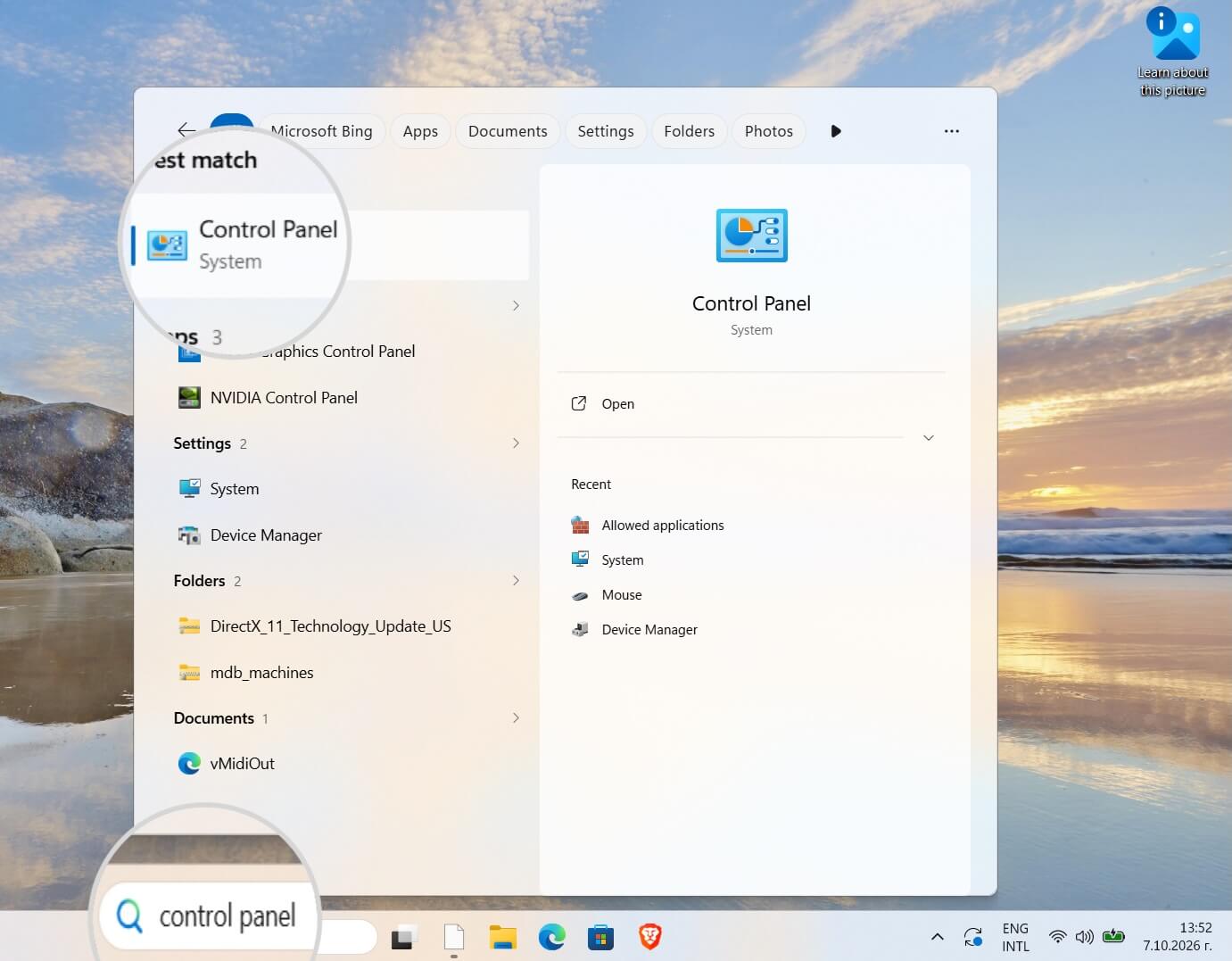
To use Google’s Public DNS on a Windows computer, you should start by opening the Control Panel.
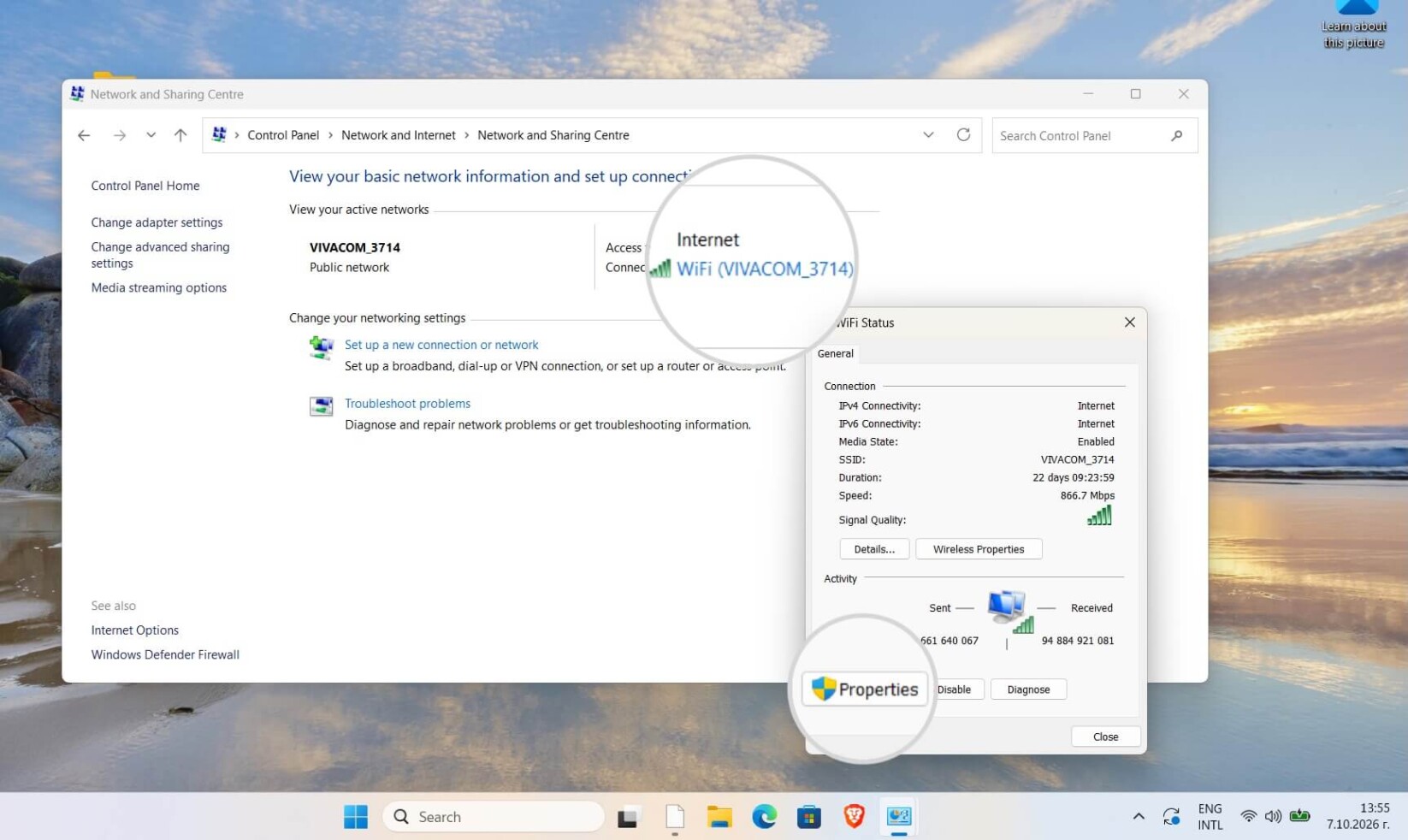
When the Control Panel’s main window opens, select “Network and Internet” and click “Network and Sharing Center.” On the next screen, click your network name, and on the following pop-up screen, chooseProperties.
Select “Internet Protocol Version 4 (TCP/IPv4)” to load another window for inputting Google’s DNS server IP address.
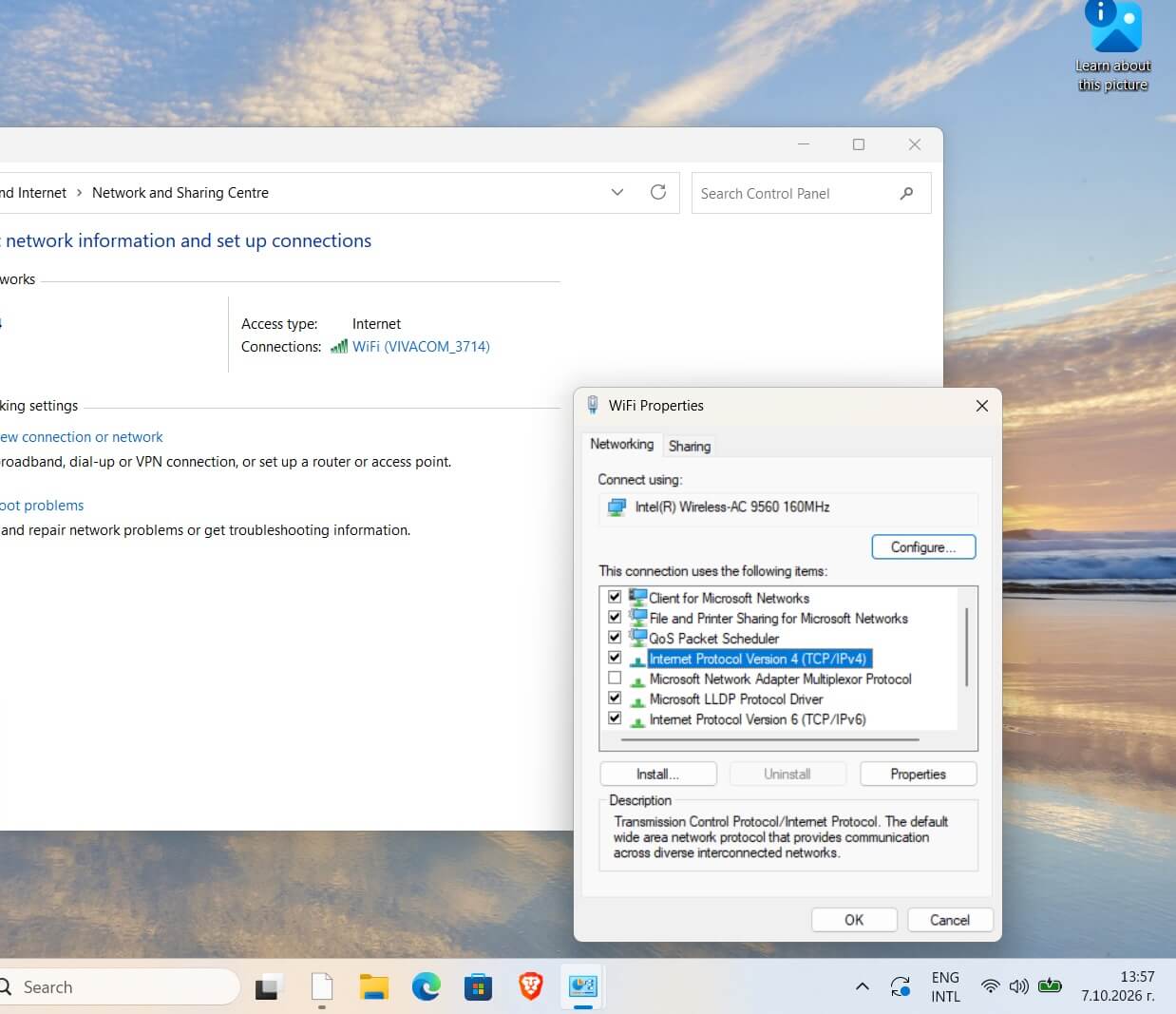
When the next window comes up, select “Use the following DNS server address” when the next window comes up. Type in the two IPs for Google’s Public DNS server in the Preffered DNS server and Alternate DNS server fields.
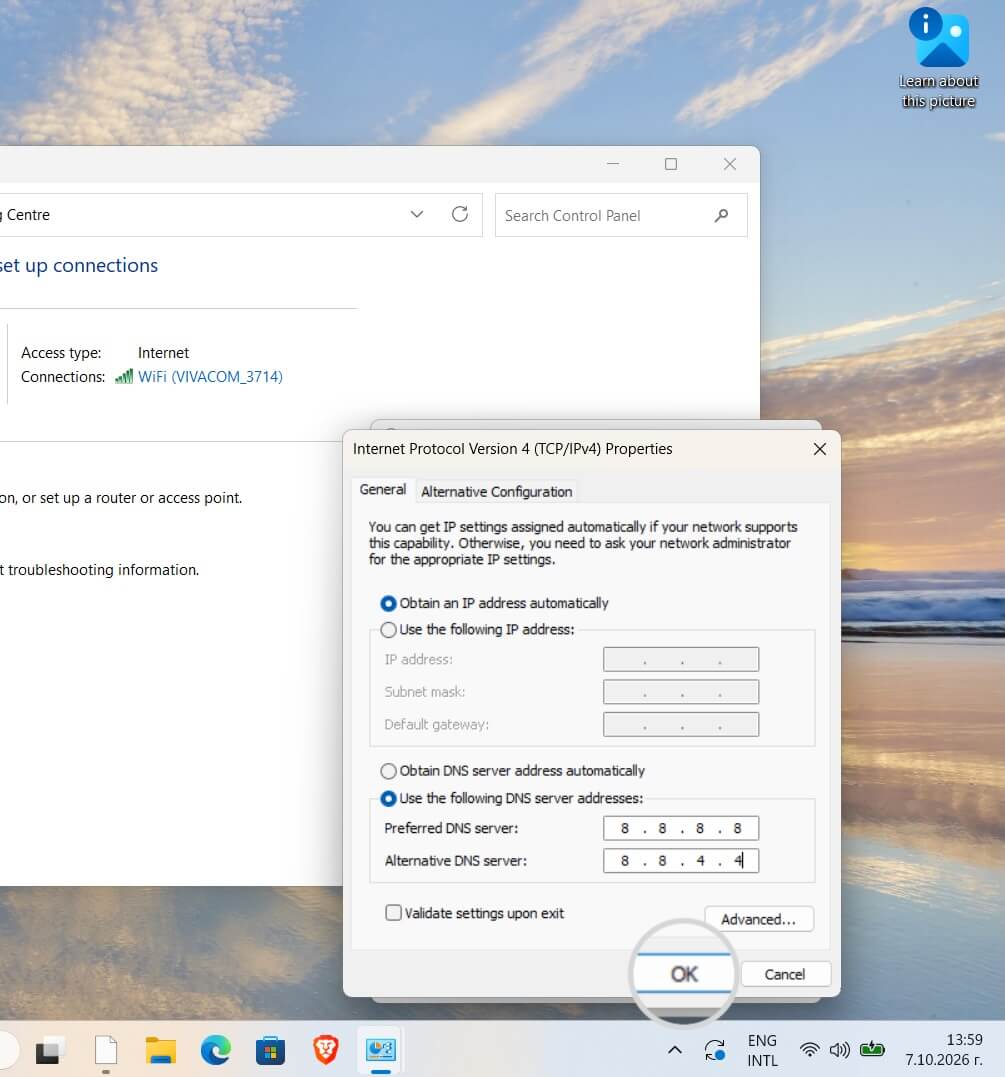
After setting that, you will need to restart your browser and see if the website you are trying to reach is available.
-
MacOS
To set a Public DNS server for your Mac, navigate to System Settings as previously shown. Then click the Network icon, select your active network, and click the Details button.
Under the DNS tab, you can find the “+” sign to add an IPv4 or an IPv6 address. Replace the current ones with the Google DNS addresses.
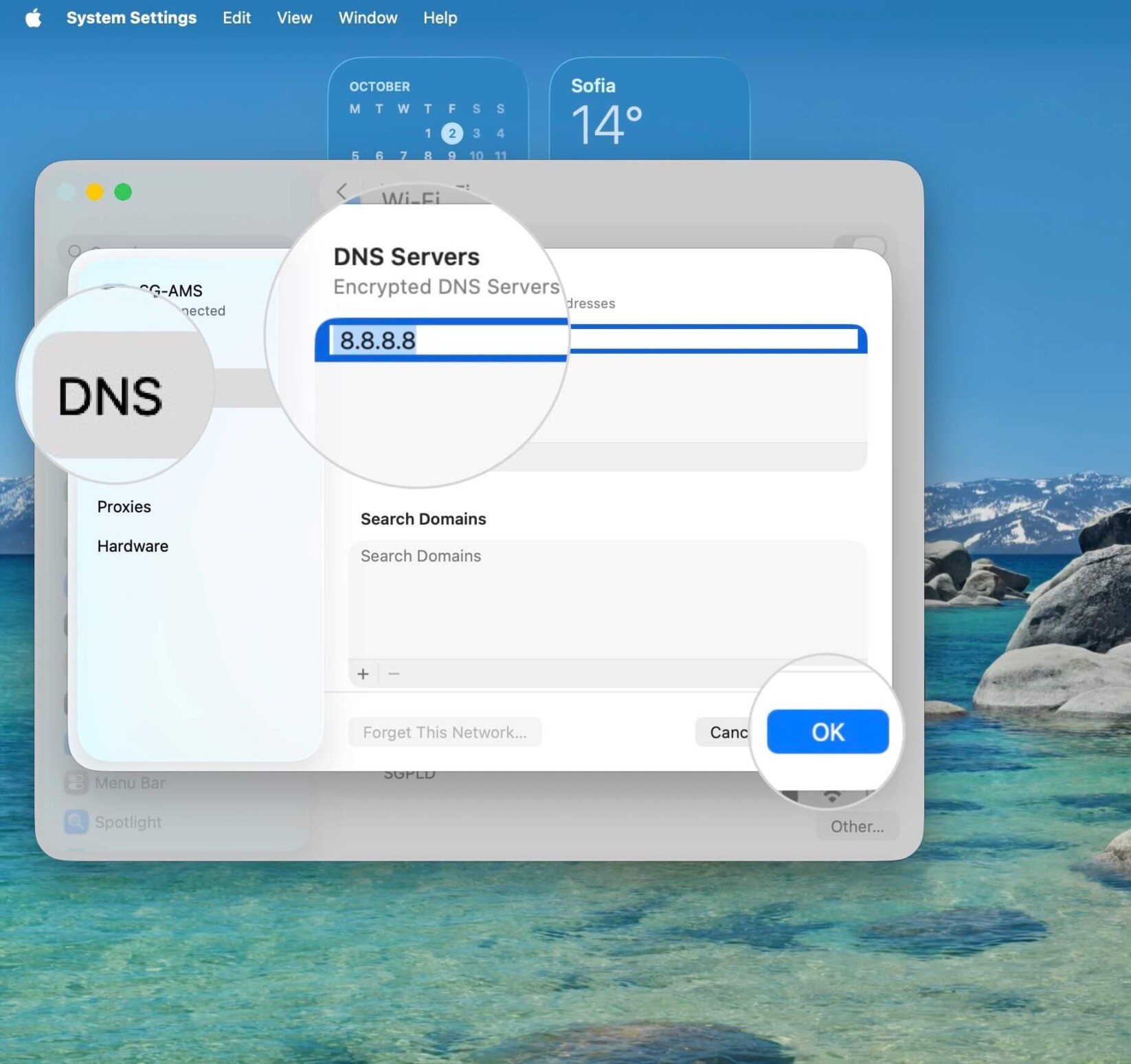
Clicking the “OK” button will complete the setup, and after restarting your browser, you should be able to reach the target website.
7. Disable VPN and Antivirus
On some occasions, your VPN or Antivirus software may interfere with your network connections and DNS settings. Therefore, we recommend temporarily disabling them to see if that will amend the DNS probe error you see in your browser.
8. Check hosts file settings
Furthermore, you may also check your computer’s hosts file. The hosts file is a system file where you can manually enter DNS translations (domain to IP). You would generally edit this file to preview your website’s content on another server while the domain is not pointed to it yet.
There may be some alterations to that file that could hamper your connection.
For this reason, we advise reviewing your local hosts file contents to ensure it is not creating a conflict for your computer, ultimately leading to the DNS probe error.
You can read our article on the hosts file to see how to find and edit it in different operating systems.
9. Restart your computer
Restarting helps your computer run efficiently and catch up on system file changes/updates. If you still see the dns_probe_finished_nxdomain error in your browser, you may need to reboot your computer.
Along with that, you should also restart your Internet router device.
Given that none of the above-mentioned fixes solved the domain name system error, you can also contact your ISP (Internet service provider) or hosting provider.
What causes the DNS_PROBE_FINISHED_NXDOMAIN error
The DNS_PROBE_FINISHED_NXDOMAIN error is caused by domain configuration or network issues. Here are the most common causes:
- Unregistered or expired domain
Your browser cannot locate the target website if the domain name is not registered or the registration has expired. When this happens, there’s no valid record linking the domain to any specific IP addresses. - Missing or incorrect DNS records
The domain may not point to an IP address because its DNS records are missing or misconfigured. Without these records, the browser doesn’t know where to connect. - Local DNS configuration issues
Incorrect or outdated DNS settings on your computer can prevent it from resolving the domain properly. This might include using the wrong DNS server or having a corrupted local DNS cache. - Interference from VPN or security software
Sometimes, VPNs, antivirus programs, or firewalls modify network settings or block DNS requests. This interference can stop your browser from communicating with DNS servers. - Problems with the internet service provider (ISP)
In some cases, the issue originates from your ISP’s DNS servers. If they’re down or misconfigured, your computer won’t be able to resolve domain names correctly.
How does dns_probe_finished_nxdomain look in different browsers?
Various browsers can present the DNS_PROBE_FINISHED_NXDOMAIN error in multiple ways. Below, you can see how the most popular browsers display the error.
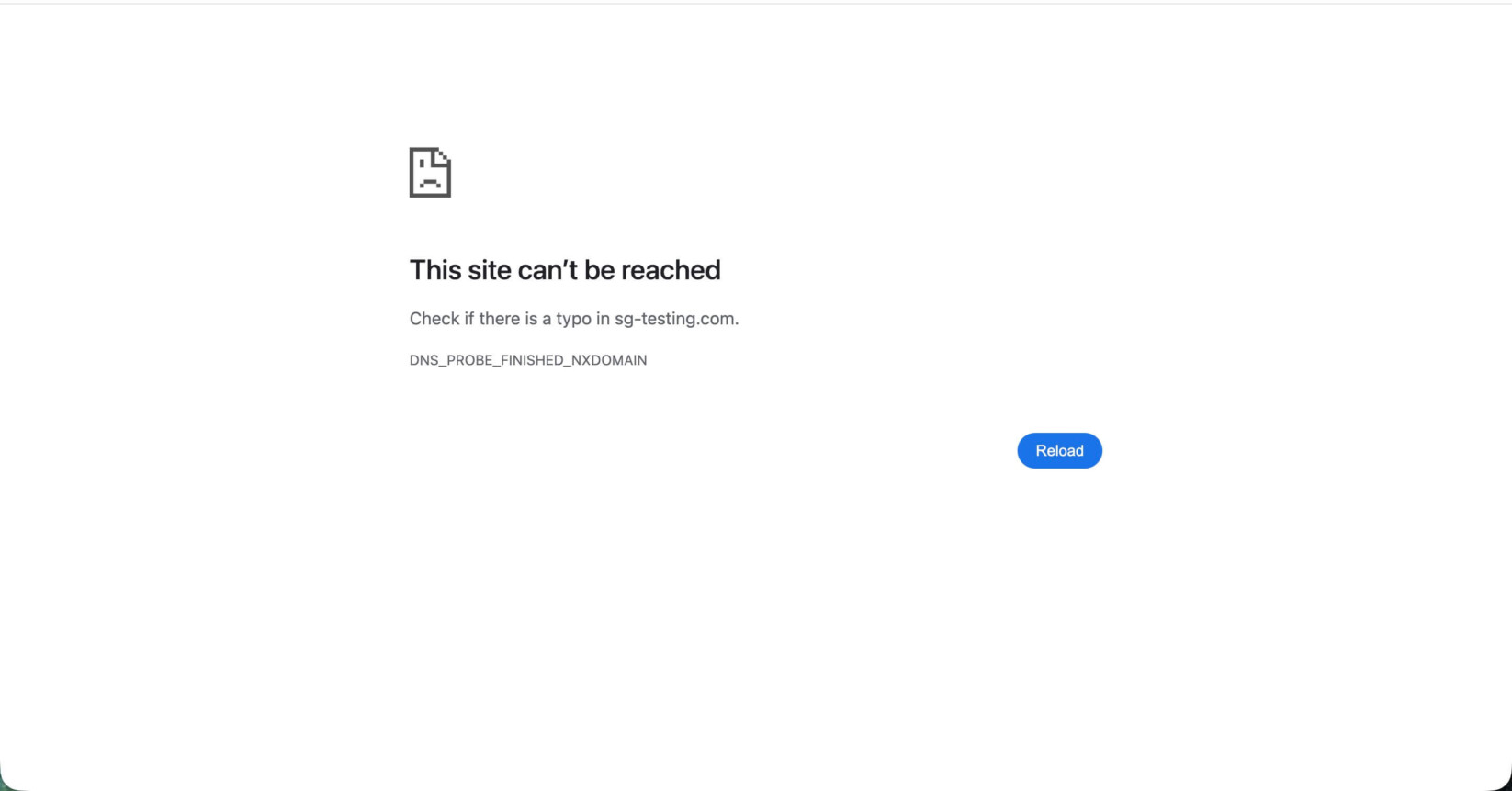
- Google Chrome’s DNS_PROBE_FINISHED_NXDOMAIN error version would most often show up along with “This site can’t be reached” and “Check if there is a typo in domain.com”:
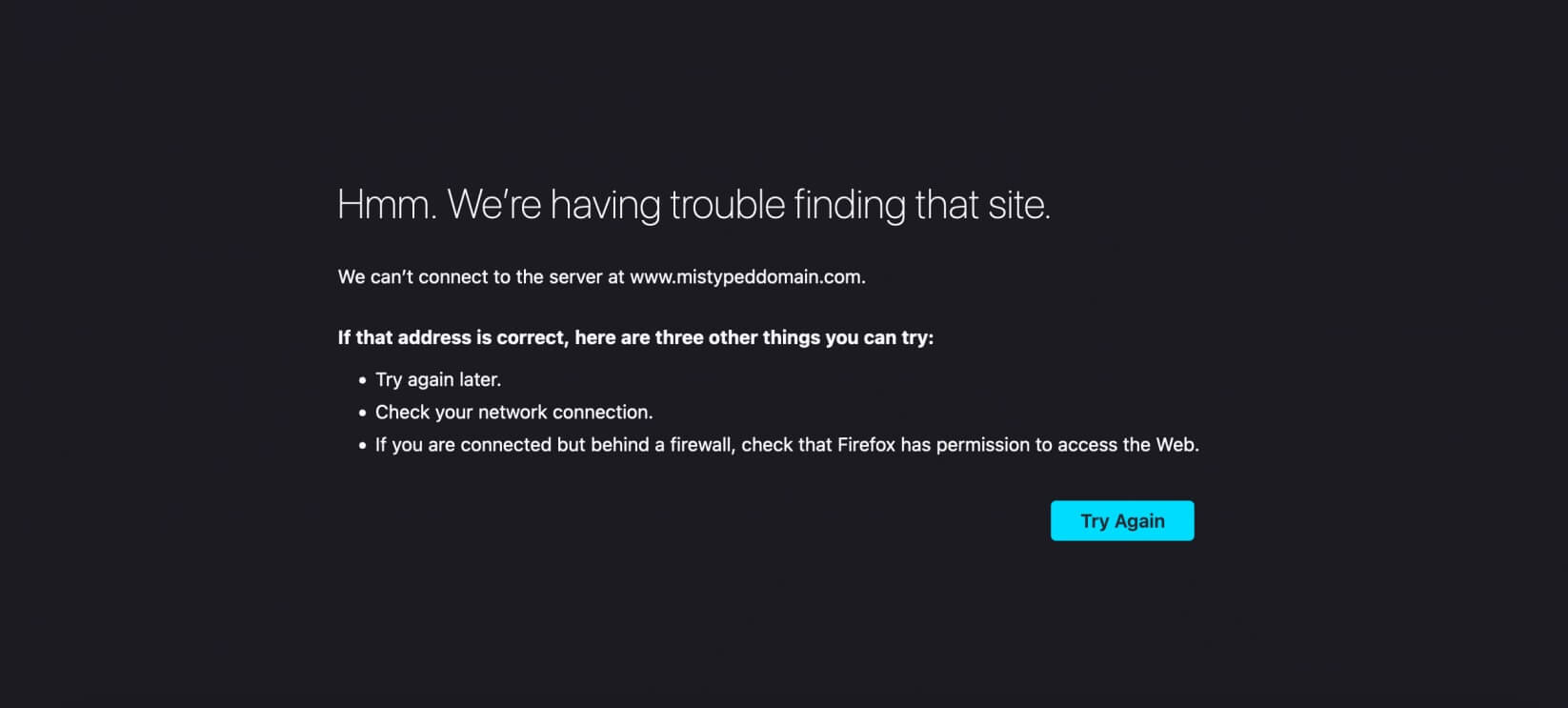
- In Mozilla Firefox, the error states, ”Hmm. We’re having trouble finding that site. We can’t connect to the server at www.domain.com” Additionally, the browser provides a few suggestions on how to address the issue, as in the screenshot below:
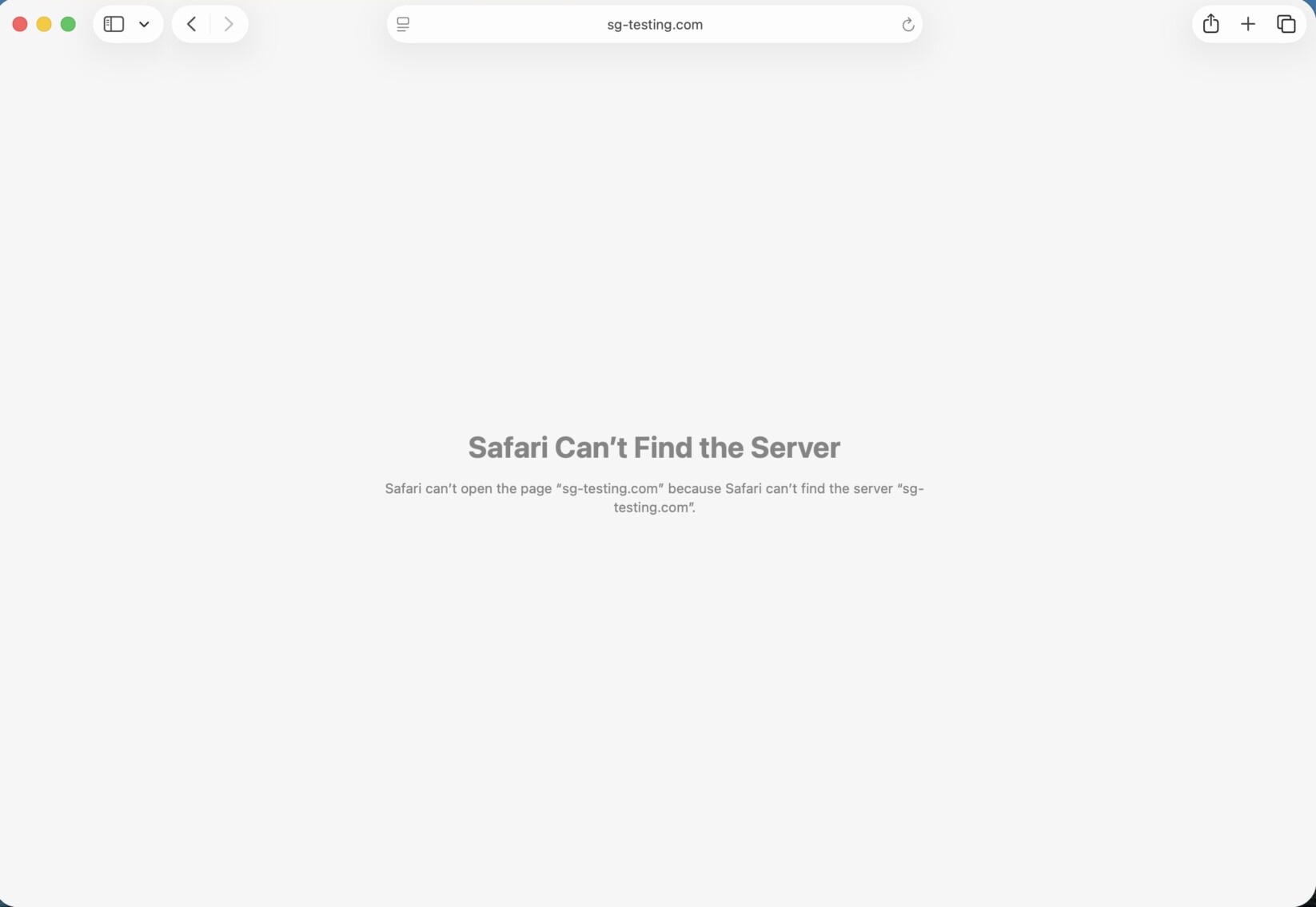
- The Safari browser’s wording for the error is more elaborate. However, it does not give any troubleshooting hints or mention the actual error. It displays “Safari Can’t Find the Server,” followed by “Safari can’t open the page ‘domain.com’ because Safari can’t find the server ‘domain.com.”
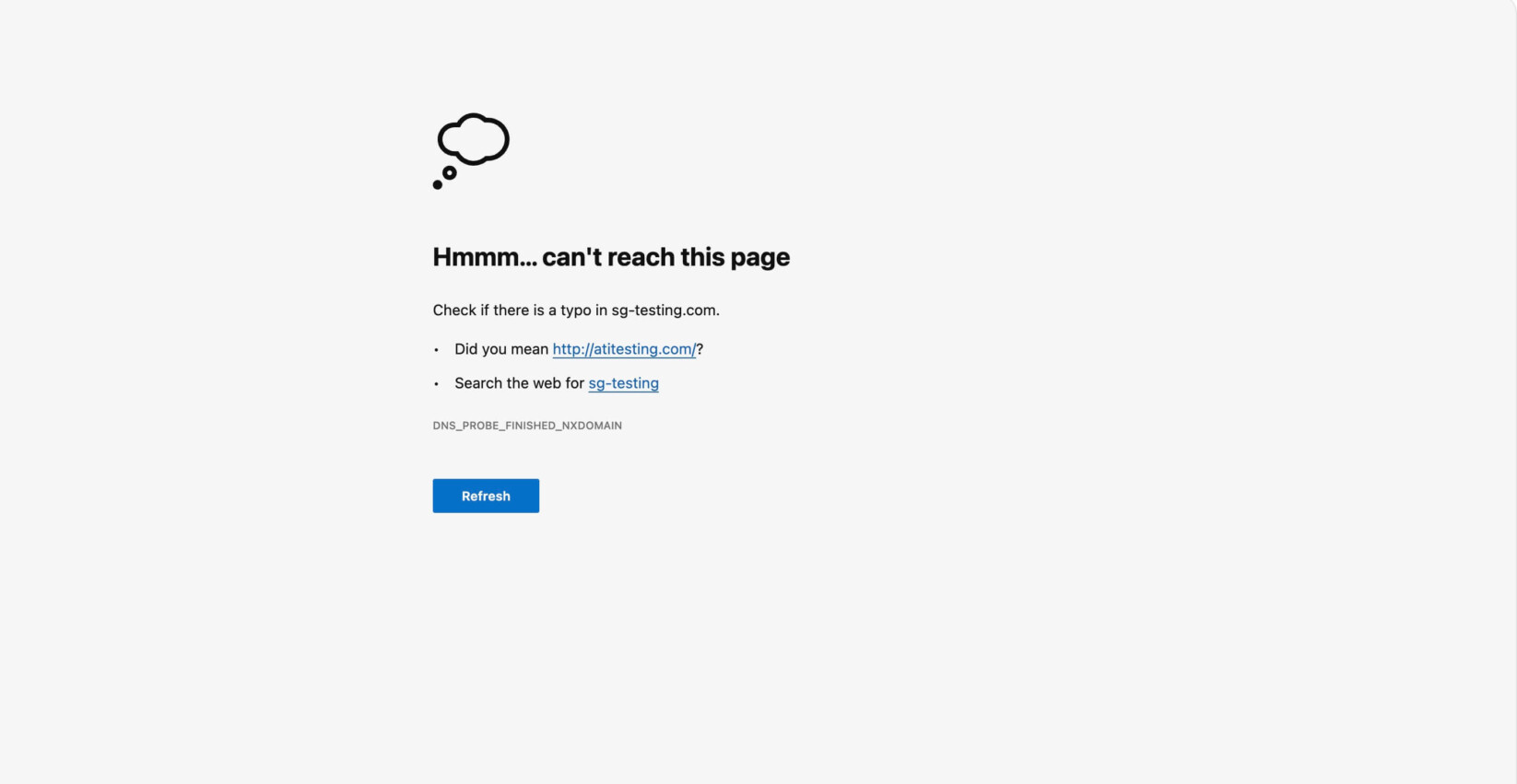
- Microsoft Edge declares, “Hmm… can’t reach this page,” and advises you to “Check if there is a typo” in your domain. It also gives you the options to “Search the web” or try running a network diagnostics.
Summary
To sum it all up, the DNS_PROBE_FINISHED_NXDOMAIN error is quite standard, and it can be due to many factors. Applying the suggested solutions will help you resolve this error with confidence.
Want to learn more about DNS and network troubleshooting? Download our comprehensive ebook – it is all that you need to solve similar errors with ease!
FAQ
Is DNS_PROBE_FINISHED_NXDOMAIN a problem with my computer or with the website?
It could be either. If the site loads on another device or network, the problem is local: your DNS cache, DNS settings, VPN or router. If it fails everywhere, the domain is likely expired, unregistered, or missing DNS records.
What does NXDOMAIN stand for?
“Non-Existent Domain”. It’s the DNS response code a DNS server returns when it has no record for the requested domain name.
Why does the DNS_PROBE_FINISHED_NXDOMAIN error show for a site I just launched?
New DNS records and nameserver changes can take time to propagate, and some resolvers cache a “doesn’t exist” answer for a while. Perform a DNS lookup to verify the records are correct, then wait and flush your DNS cache. You can use DNSWatch to confirm your domain resolves to the right IP settings.
Does the DNS_PROBE_FINISHED_NXDOMAIN error affect my site’s SEO?
If visitors see it because of a local problem, no. If your own domain’s DNS records are missing or wrong, nobody can reach your site, and search engines can’t crawl it either. Fix the records as soon as possible.
Why do I see the DNS_PROBE_FINISHED_NXDOMAIN error in Chrome but not in Firefox?
Chrome keeps its own DNS cache, separate from the system’s. Clear it at chrome://net-internals/#dns, as described above.
Can a VPN or antivirus cause the DNS_PROBE_FINISHED_NXDOMAIN error?
Yes. They can change your DNS settings or block DNS requests. Disable them temporarily to test.