How to manage my files via File Manager?
File Manager in Site Tools lets you manage your website’s files from your browser, without an FTP client. This article shows how to create, upload, edit, archive, extract and delete files and folders, how to find hidden files like .htaccess, and how to change file permissions.
Key takeaways
- Open File Manager from Site Tools > Site > File Manager.
- Most actions are in the toolbar at the top, and also in the menu that opens when you right-click a file or folder.
- Hidden files, such as .htaccess, are shown by default.
- File Manager uploads have no file size limit, unlike uploads through WordPress or other PHP applications.
- Deleted files can’t be restored from File Manager, so keep a backup before you delete or edit important files.
What you need: access to the website’s Site Tools.
How to create files/folders through File Manager?
- Go to Site Tools > Site > File Manager.
- In the folder tree on the left, open the folder where you want to create the file or folder.
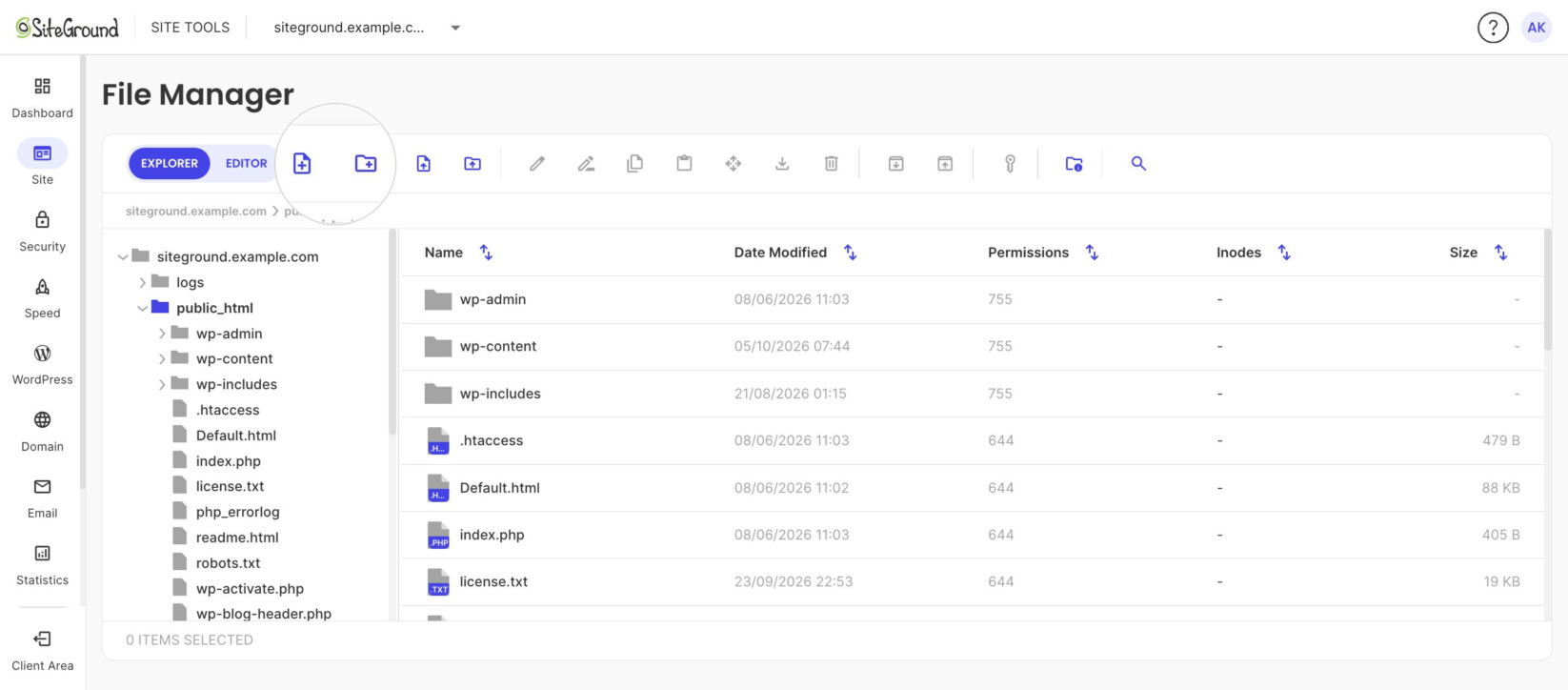
- Click New File or New Folder in the top toolbar.
- Enter a name and click Confirm.
How to upload files/folders to my website?
- In the folder tree on the left, open the folder you want to upload to.
- Click File Upload or Folder Upload in the top toolbar.
- Choose the file or folder on your computer.
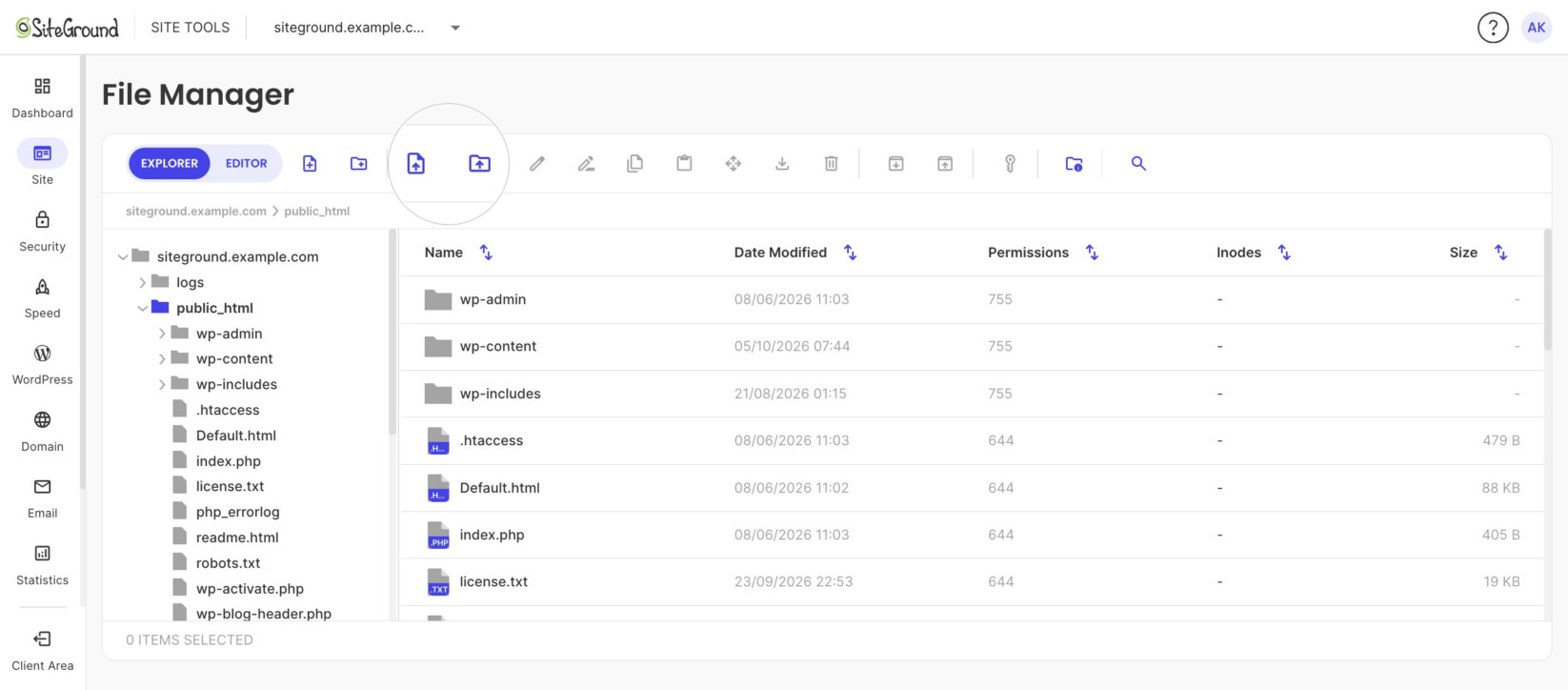
There is no file size limit for uploads in the File Manager. This is different from uploads through WordPress or other PHP applications, which are limited to 256 MB on shared hosting (see How to increase PHP upload_max_filesize). File Manager is a good way to upload files larger than that.
How to edit website files?
- Open the folder that contains the file.
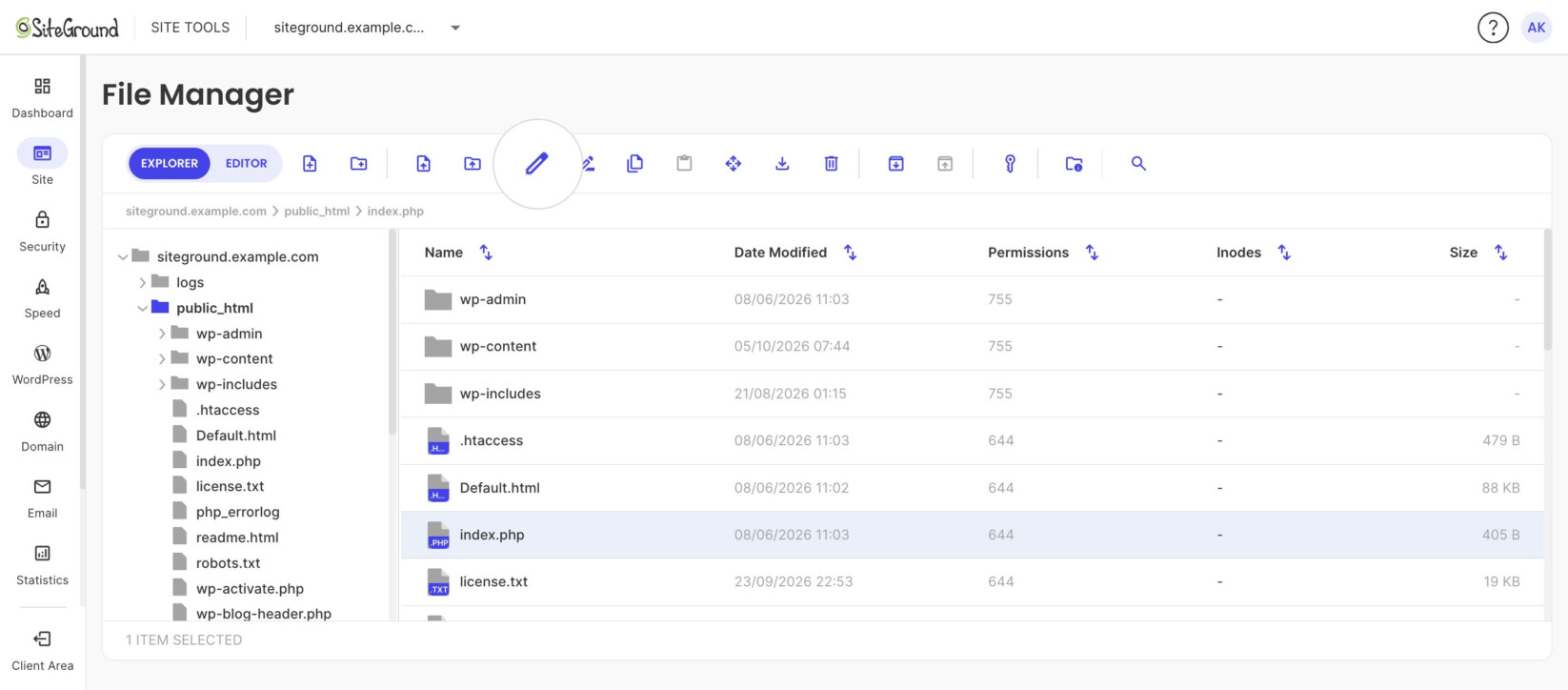
- Select the file and click Edit (pencil icon) in the top toolbar. You can also right-click the file and choose Edit.
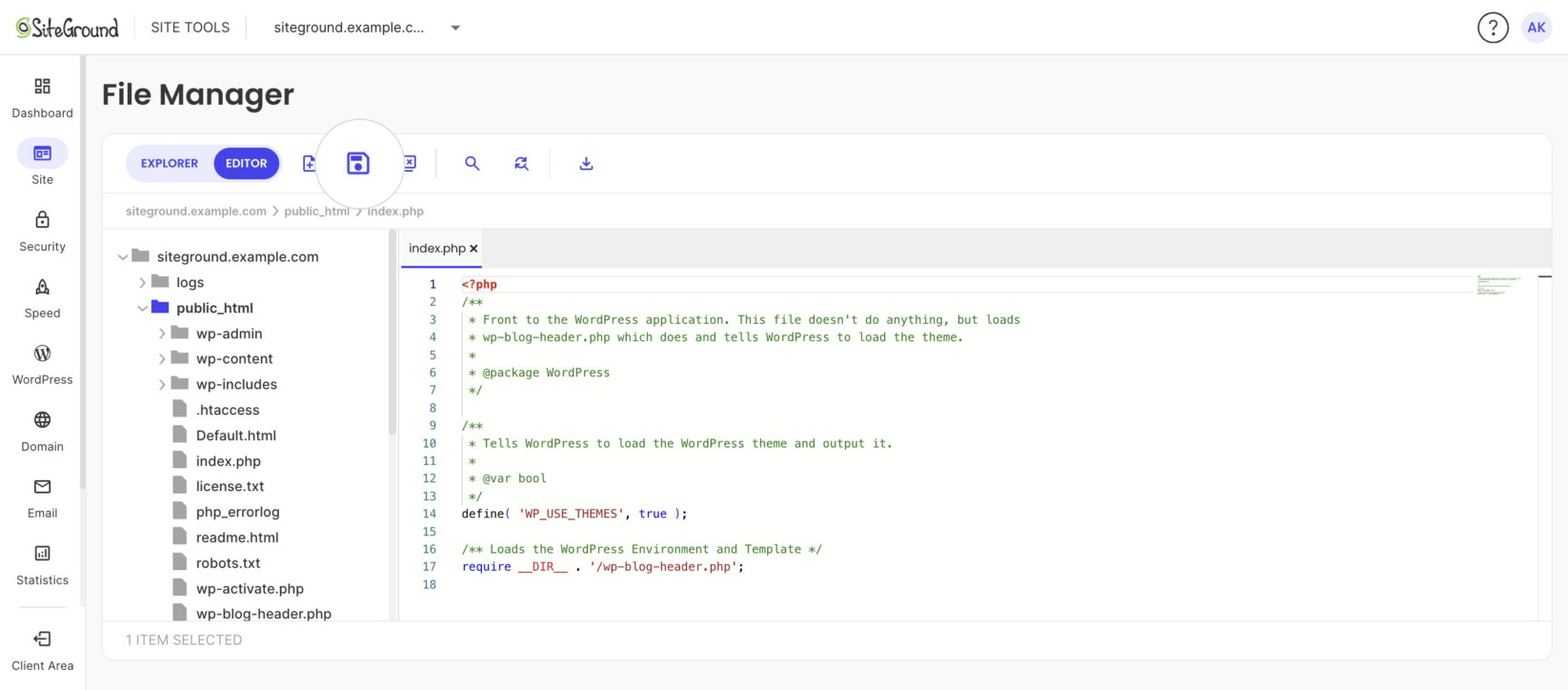
- Make your changes in the editor and click Save (save icon) in the toolbar.
How to edit hidden/system files?
In the Linux operating system, a hidden file is any file that begins with a “.” (dot). An example of such a file is .htaccess.Such hidden files can be edited in two ways:
- Using File Manager in Site Tools. By default, all hidden files are displayed there.
- The alternative method for editing your hidden files is by using the edit functionality included in your FTP client. For example, if you wish to see a hidden file in your FileZilla select Force Showing Hidden Files which is located in the Server menu.
How to find .htaccess file in File Manager?
Click on “public_html” from the left sidebar in the File Manager and locate the .htaccess file.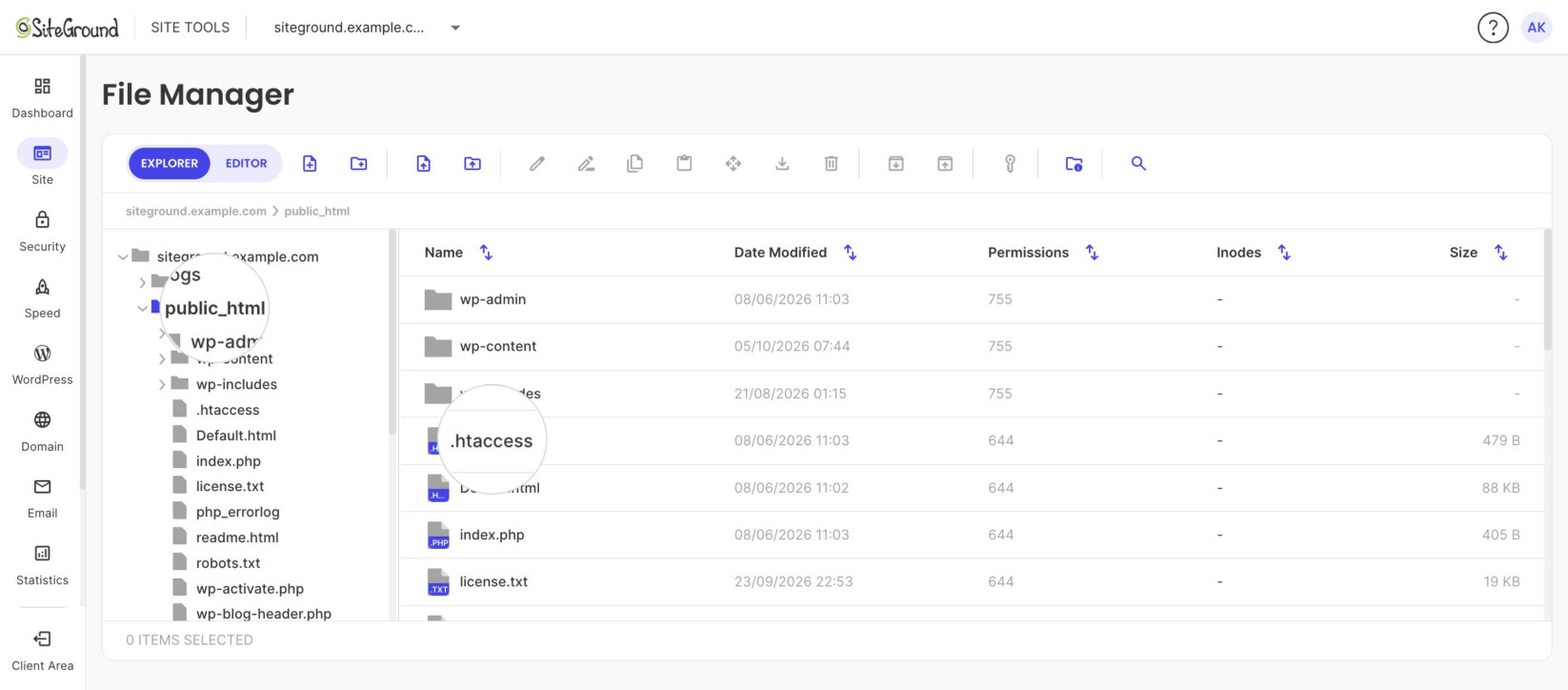
How to see your file/folder size and inodes in File Manager?
To see your file/folder size and inodes, click on the Show Folder Size & Inodes icon in the top navigation bar.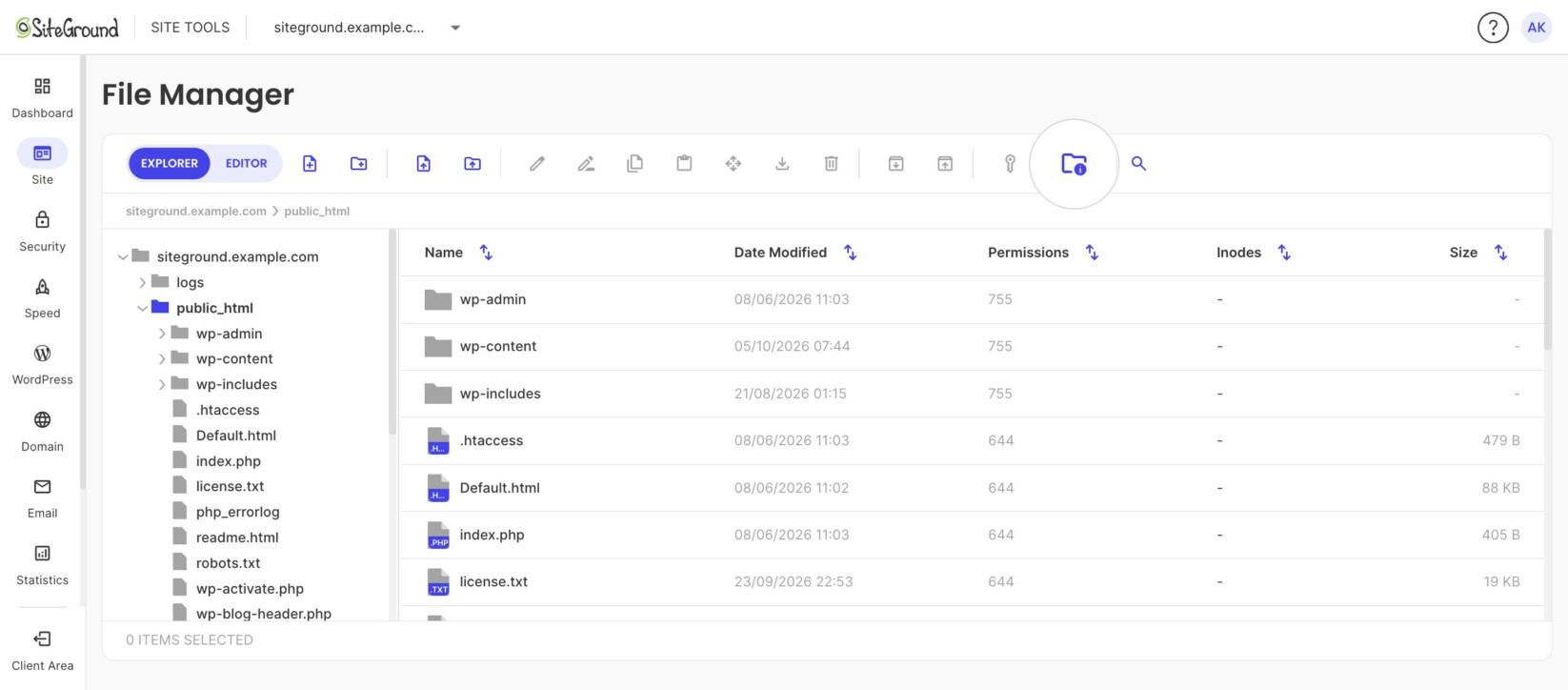
How to manage file permissions?
- Select the file or folder and click Change Permissions (key icon) in the top toolbar.
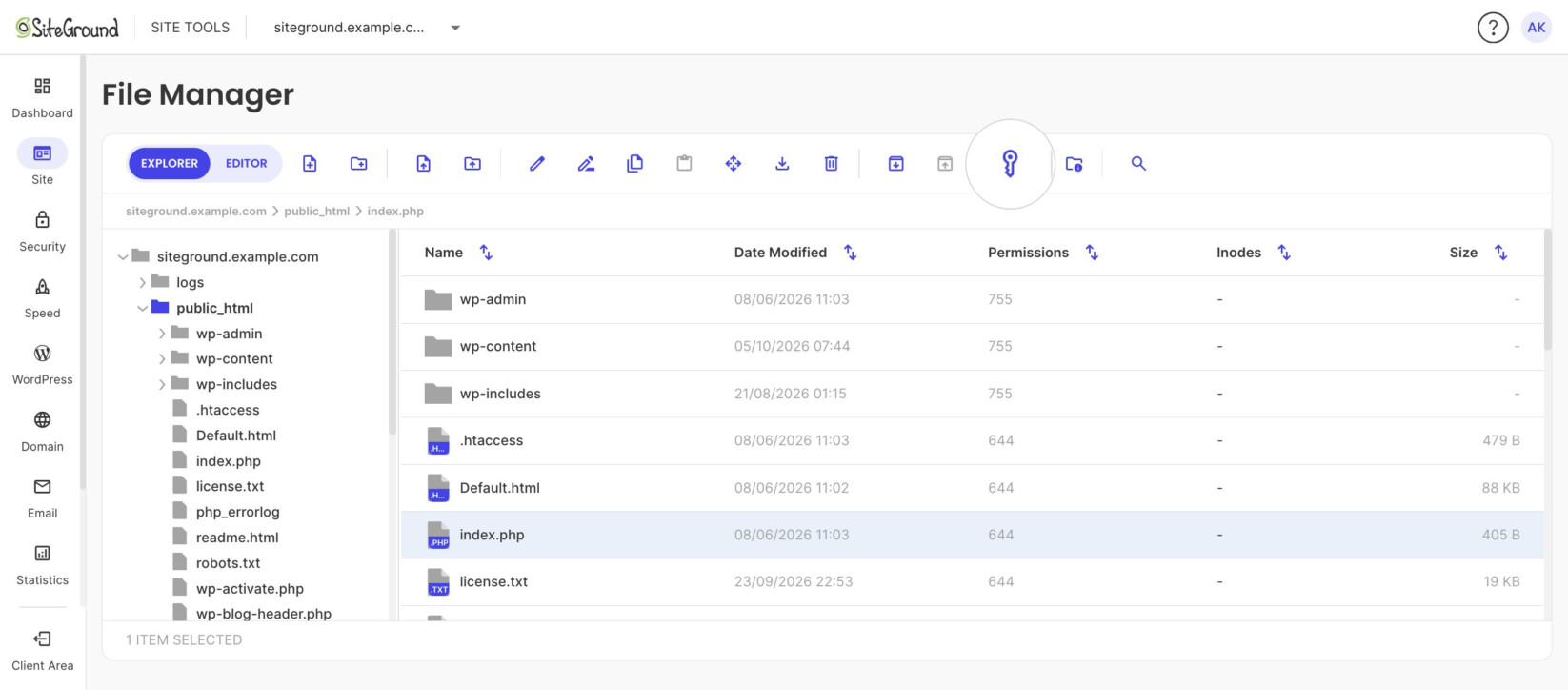
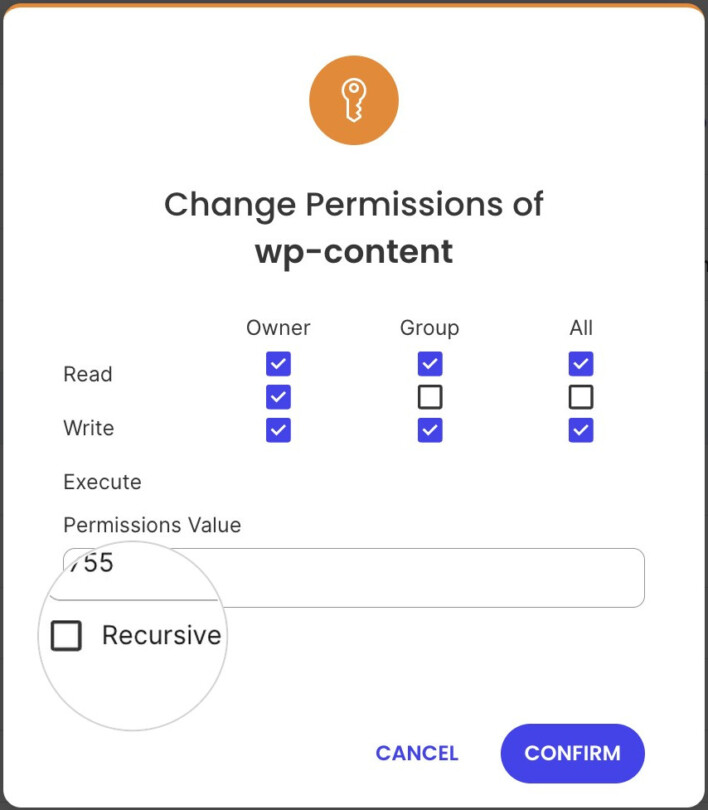
- In the pop-up window, set the permissions with the checkboxes or the Permissions Value field.
- To apply the change to all subfolders and files of a folder, select Recursive.
- Click Confirm.
The following permissions need to be set in order for your website to function properly.
- All HTML files and images need to be readable by others. The permission for this is 644 (readable by User, Group, and World, and writable by User). It is set automatically when you upload files.
- All folders need to be executable by others. The permission for this is 755 (readable by User, Group, and World, writable by User, executable by User, Group, and World). It is set automatically when you create a folder.
- All CGI files (all files in the CGI-bin folder) need to be executable by others. The value for this is 755 (readable by User, Group, and World, writable by User, executable by User, Group, and World). It is not set automatically when you upload files. You need to change the file permissions manually.
How to archive files/folders?
- In the folder tree on the left, open the folder that contains the items you want to archive.
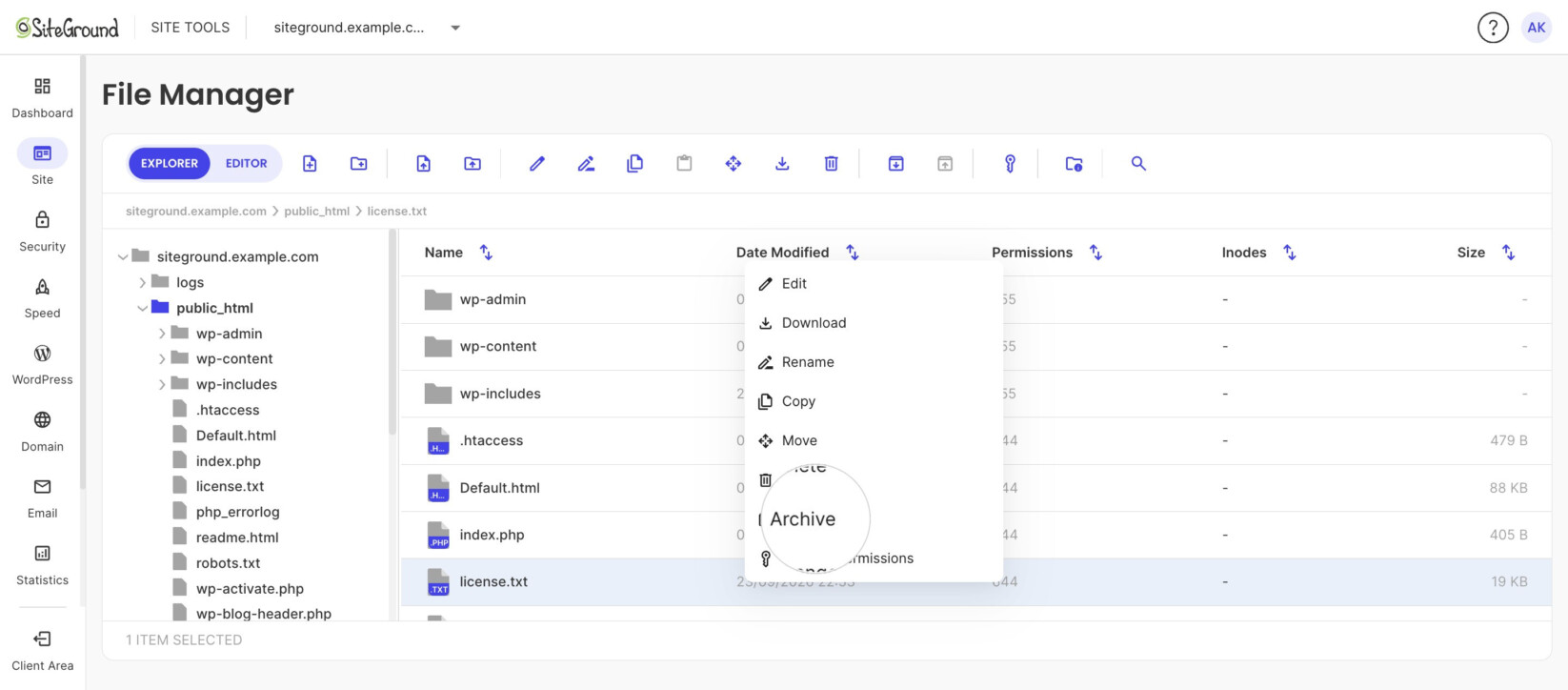
- Select the files and folders in the list on the right, right-click them and choose Archive. You can also click Archive in the top toolbar.
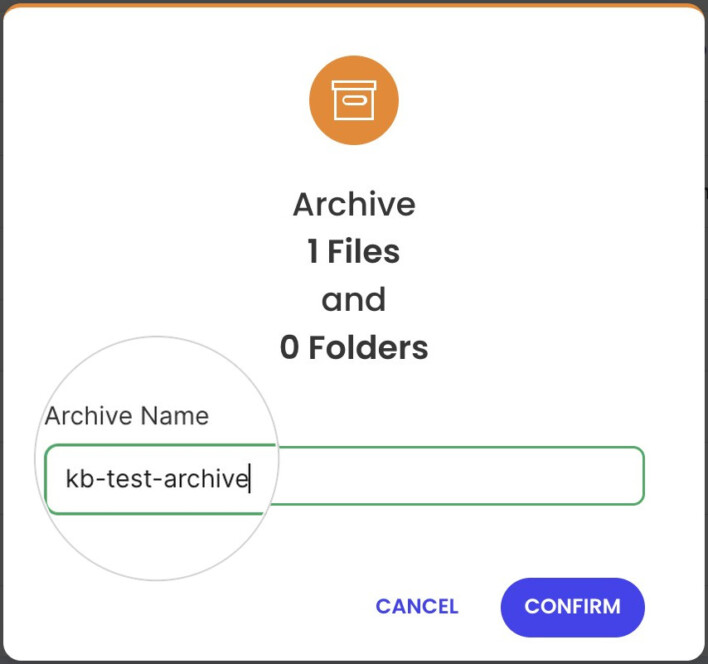
- Enter an Archive Name and click Confirm. The archive is created as a .zip file in the same folder.
How to extract an archive?
- Open the folder that contains the archive and select it.
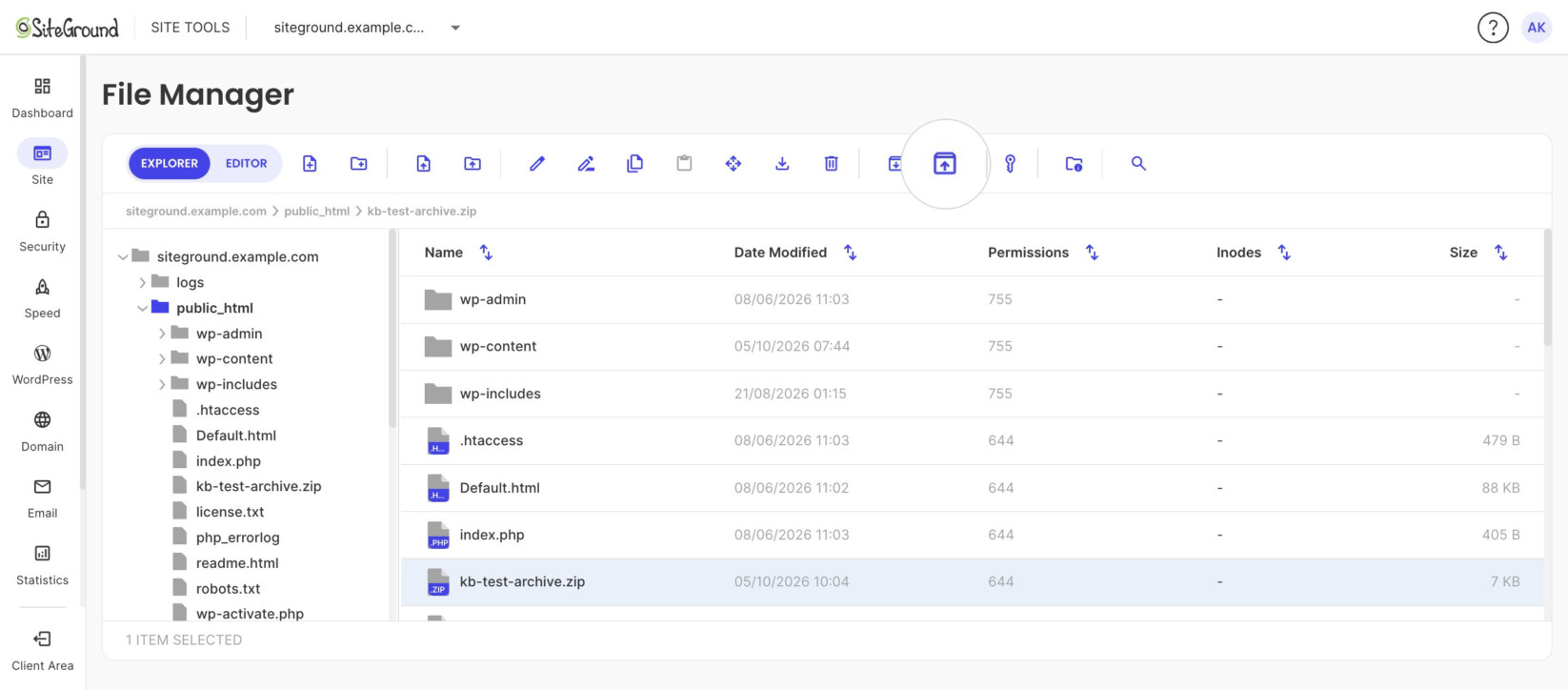
- Click Extract in the top toolbar.
The contents are extracted right away into a new folder with the archive’s name, next to the archive.
How to remove website files/folders?
- Open the folder that contains the file or folder you want to delete.
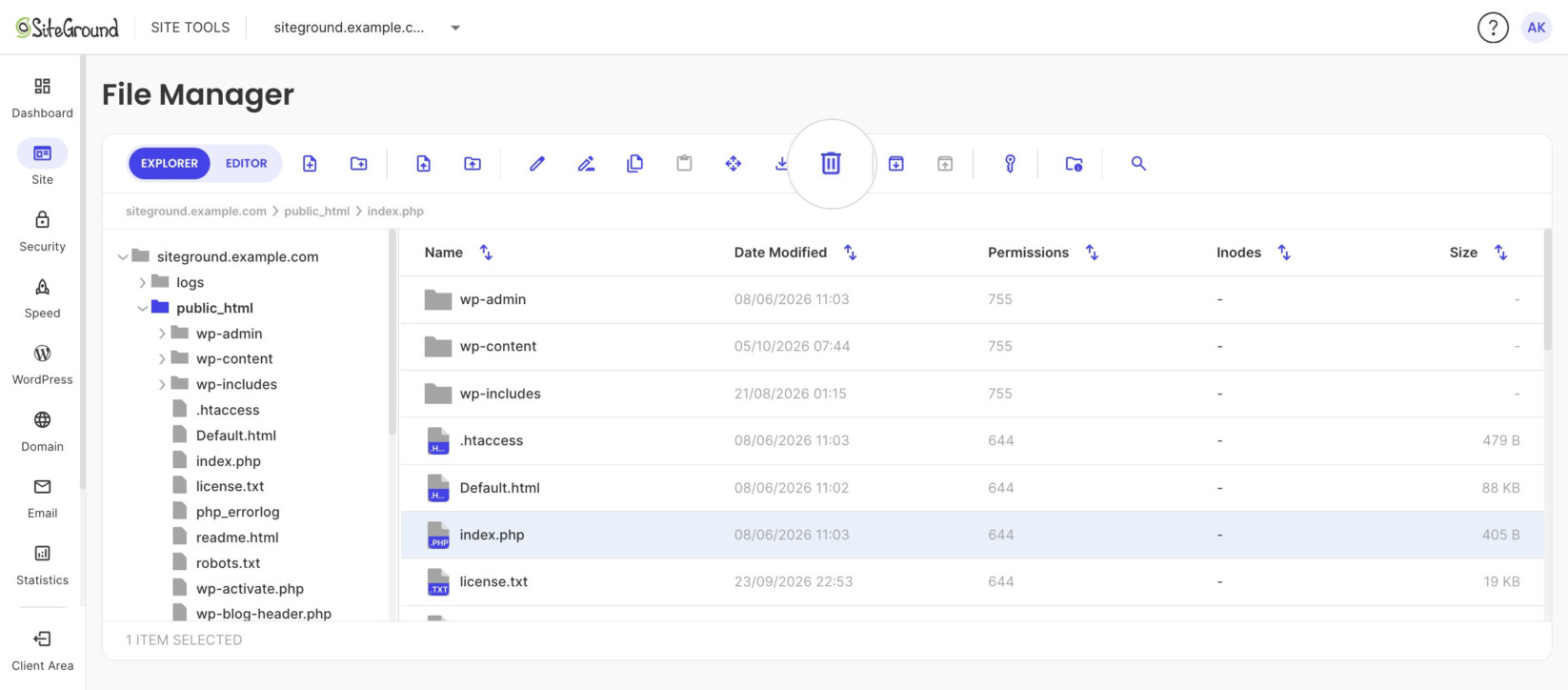
- Select it and click Delete (trash can icon) in the top toolbar. You can also right-click it and choose Delete.
- In the pop-up window, click Confirm. The item is permanently removed from your website.
Frequently asked questions
Is there a file size limit for uploads?
Not in File Manager. Uploads through WordPress or other PHP applications are limited to 256 MB on shared hosting. On Cloud servers, our support team can increase that limit on request.
I can’t find the .htaccess file. Where is it?
Open the public_html folder. File Manager shows hidden files by default, so if .htaccess isn’t listed, your website doesn’t have one yet. You can create it with New File.
My website shows a 403 Forbidden error after I changed permissions. What should I do?
Check that files are set to 644 and folders to 755, as described above. For other causes, see How to fix 403 Forbidden error.
Can I recover a file I deleted in File Manager?
Not from File Manager, because deletion is permanent. You can restore it from a backup in Site Tools > Security > Backups.
How can I upload many files at once?
Use Folder Upload to upload a whole folder, or upload a .zip archive and extract it in File Manager.