How to Change the Color Palette of My Site
- To change the color palette of your site, first go to Site Admin > Website Builder, and press the Edit Website button.
- Then navigate to the Styles tab and click Colors from the left column.
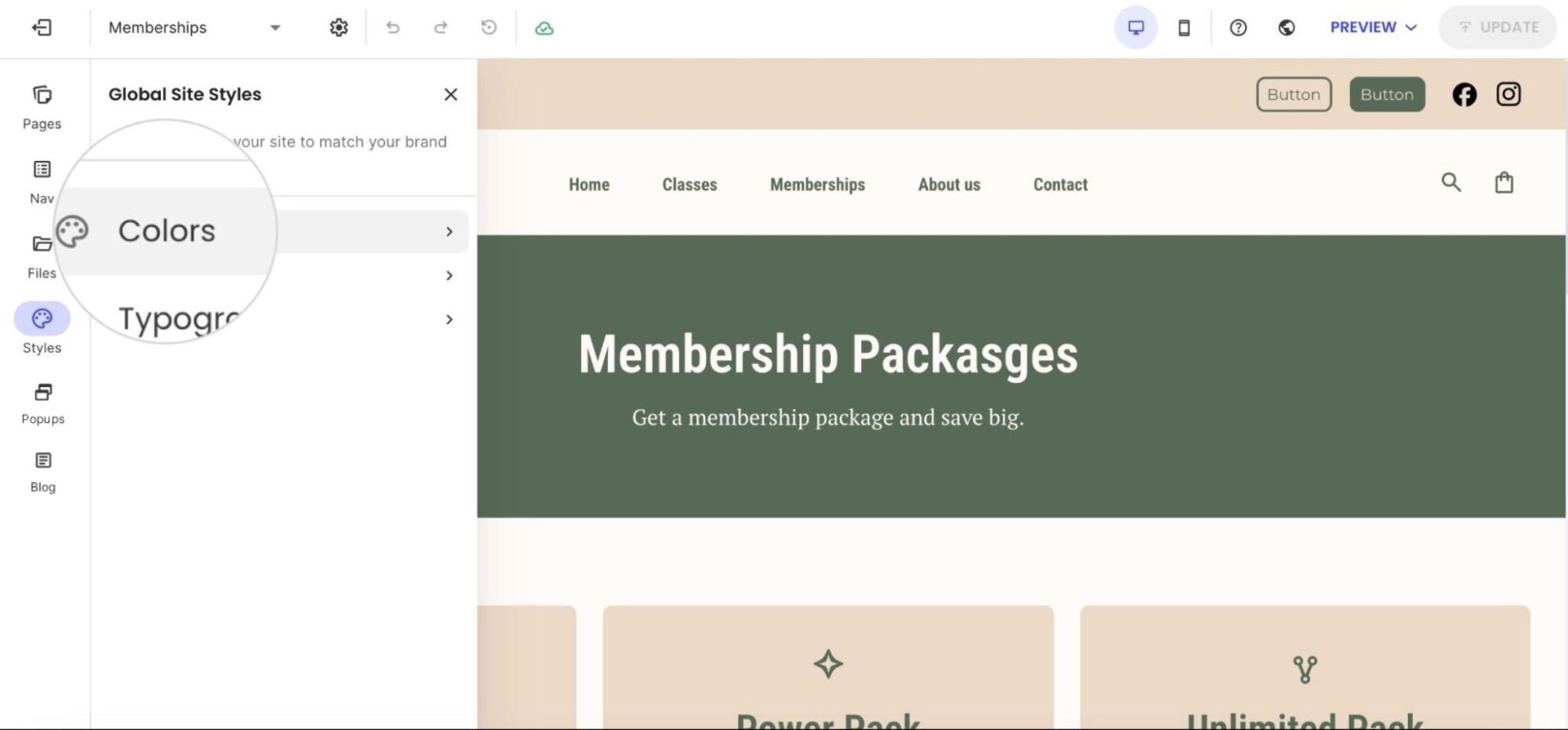
- From there, you can select an existing palette or customize specific colors. Simply click on each color to choose a new text and background combination via the color box.
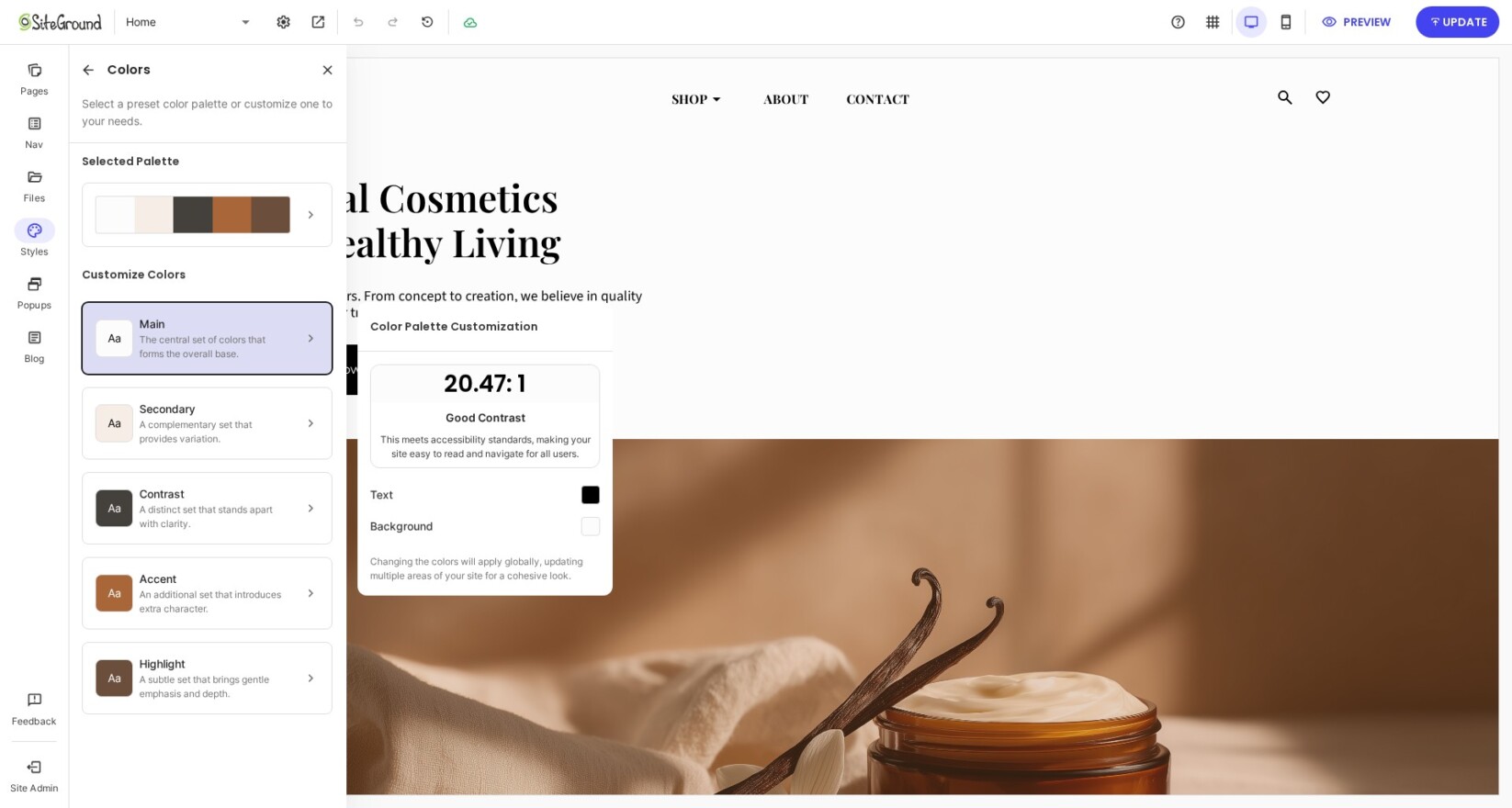
When choosing colors, a contrast indicator will appear to show how well they work together. We strongly encourage you to follow our recommendations, as low contrast can negatively impact your users’ experience.