SiteGround Auto Update tools
SiteGround has created Autoupdate tools in cPanel for both WordPress and Joomla! 3.x that allow you to automatically upgrade your applications. Below you will find more information on how to access and use WordPress and Joomla! 3.x Autoupdate tools in cPanel:
How to Access the WordPress Auto Update Tool?
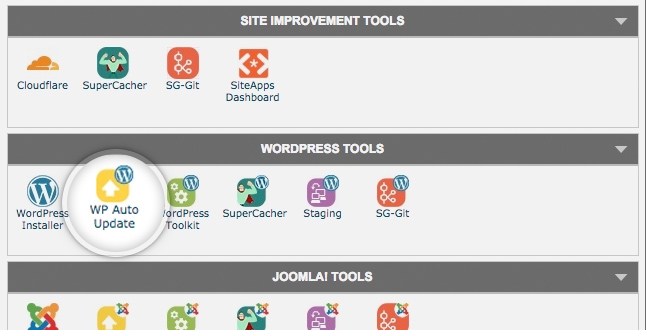
First, you need to log into your cPanel account and open the WP Auto Update tool located in the WordPress Tools section.
WordPress Auto Update Overview
In the home page of the tool you can find information about the latest available WordPress version and a list of all WordPress installations opted for autoupdates. You can see the current version of each installation, as well as its autoupdate status. All WordPress applications installed via Softaculous or the SiteGround Getting Started Wizard will be listed in the tool by default. If you want to add another installation you can do it from the link at the bottom of the page.
WordPress Auto Update Settings
In the setting you can control the following: how soon after a new version is released you’d like to get your WordPress autoupdated and whether the plugins in your installation should be updated together with the main WordPress update.
You can set different update intervals for WordPress minor or major releases. Minor releases include security improvements and bug fixes and we recommend immediate update for these. Major releases introduce functionality updates and more significant changes. Default settings in the tool are: immediate update for minor releases and 24 hours for major releases. If the plugin update option is ticked, on each WordPress update we perform, we will check if your plugins are up-to-date too and if not, we will update them.
Backup Restoration
If any issues with your website occur due to the automatic update feature, you can always restore your site to its state before the update. WordPress Autoupdate stores a backup of your website each time it performs an automatic update. If something goes wrong, simply select your site and select the Restore button.
Skip or Disable the Autoupdate
Having an updated WordPress website is crucial for your security and this is why we don’t recommend skipping updates. If you insist to do it, though, you can skip scheduled updates in the interval between the time when the new version is released and your scheduled autoupdate. Doing this will skip only the current update but not the upcoming ones.
How to Access the Joomla! 3.x Auto Update Tool?
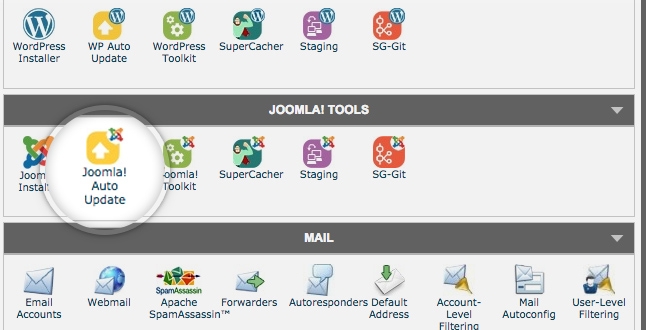
The Joomla! 3.x Auto Update tool is located located in the Joomla! 3.x Tools section of your cPanel.
How to have your Joomla! 3.x listed in the tool
All Joomla! 3.x installations you make through SiteGround install tools will be listed in the Auto Update tool by default. The tools will show their current versions and information if newer version is available. If you have a manually installed Joomla! 3.x, or do not see any of your Joomla 3 installs, just use the “Add URL” button in the bottom right corner.
What will happen when Auto Update is enabled?
When your Joomla! 3.x Auto Update is enabled you will be notified by email when there is a new Joomla! 3.x version and your website will be automatically updated 24 hour later. Thus you do not need to keep track of new versions neither perform any manual updates. However, you can still be in control of the process as we send you an early notification and you can decide to skip any update you do not want to be performed.
How to use the tool for immediate Joomla! 3.x update?
In addition to scheduled auto updates, the tool can also be used for immediate one-click updates of your Joomla! 3.x. This option is available for all Joomla! 3.x installations, including the ones for which the automatic function is disabled.
How to disable the Auto Update?
You can cancel any scheduled update using the Actions drop-down. Thus the particular Joomla! 3.x version will not be applied to your Joomla! 3.x. However, this action does not disable the autoupdater in general and once the next version is released it will be applied normally. If you want to disable the Auto Update function completely, choose the disable action from the drop-down.
How to revert an update that has already taken place?
Note, that if any issues with your website occur due to the automatic update feature, you can always restore your site to its state before the update. Joomla! 3.x Auto Update stores a backup of your website each time, it performs an automatic update. If something goes wrong, simply select your site and select the Restore latest backup action.