How to change my site template
You can easily switch your site template, following these steps:
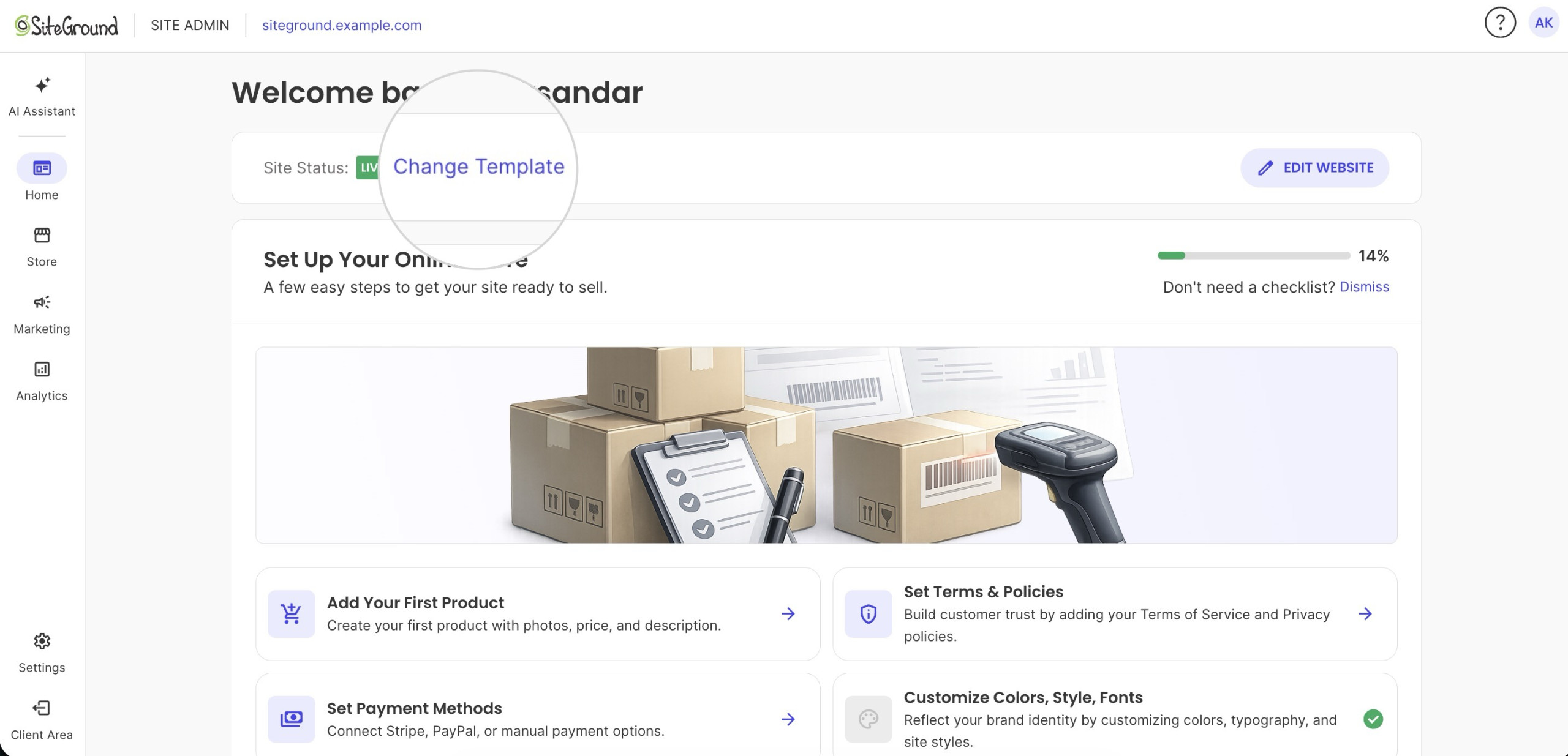
- Navigate to Site Admin > Website Builder.
- Click the Change Template button.
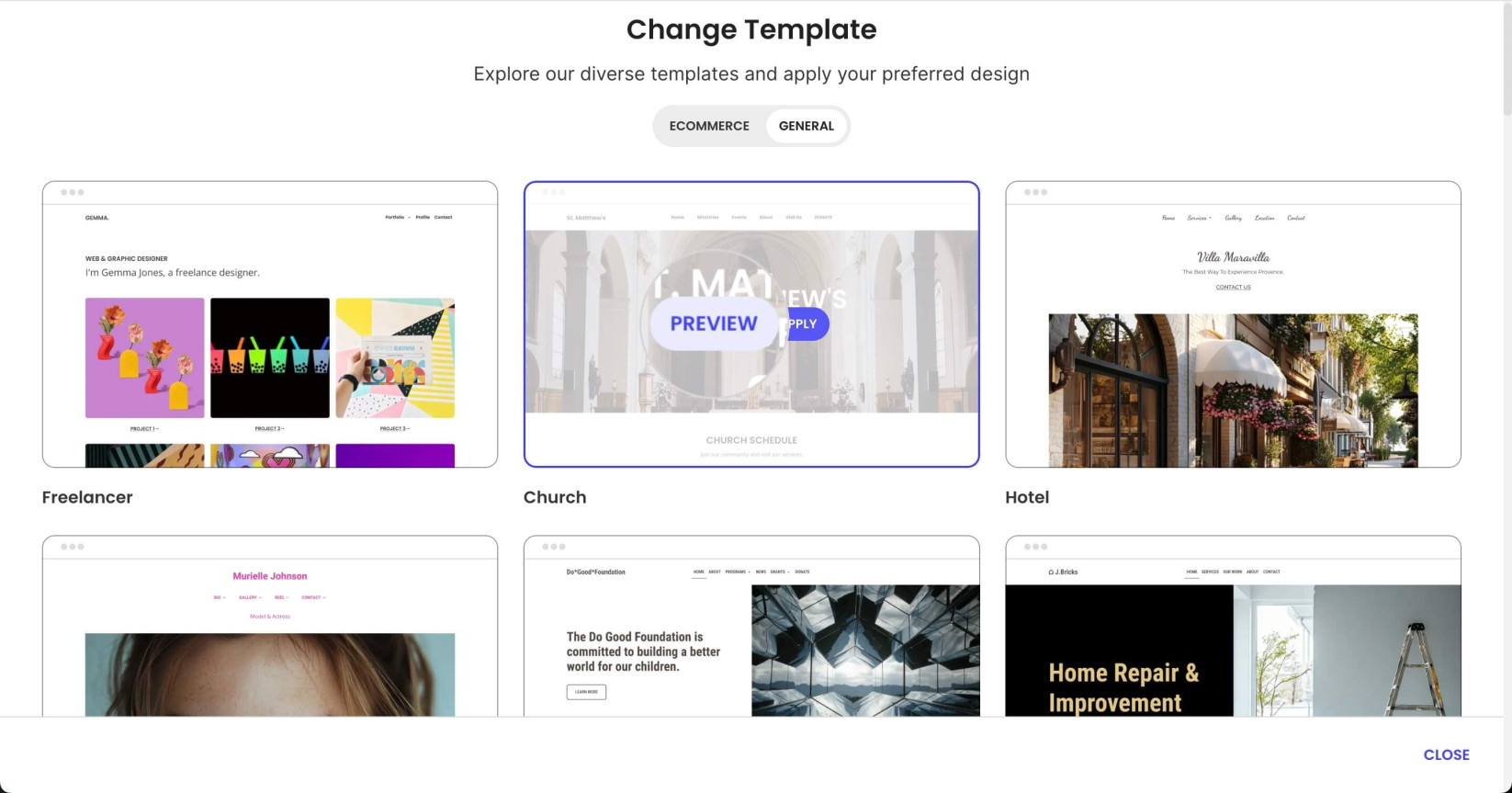
- Browse through our selection of handcrafted templates to find the one that best suits your needs. To interact with a template and view it in full-screen mode, click the Preview button.
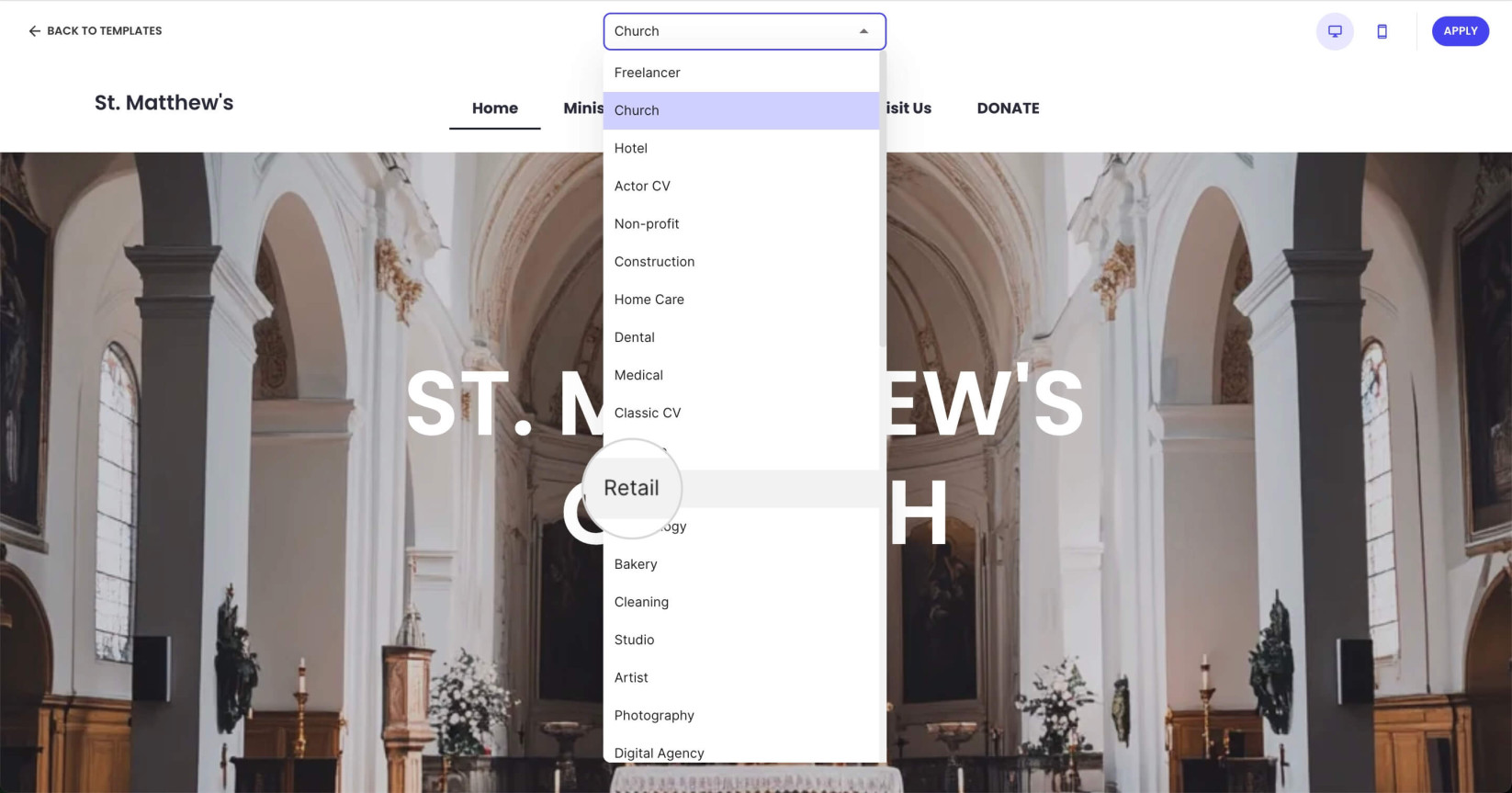
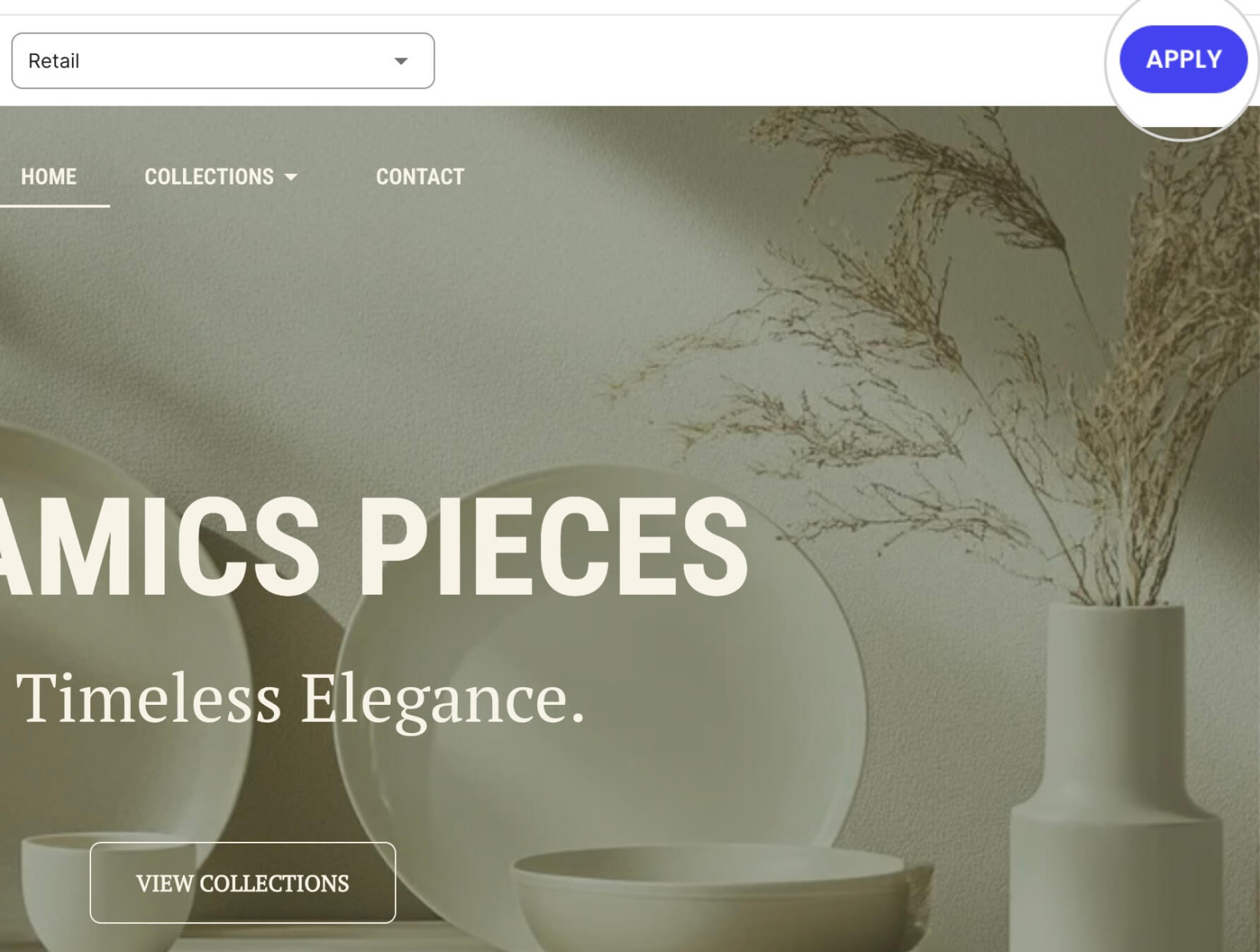
- While in the preview mode, you can easily switch between templates using the dropdown menu at the top.
- Once you find a suitable template, click the Apply button in the top-right corner to apply it to your site.
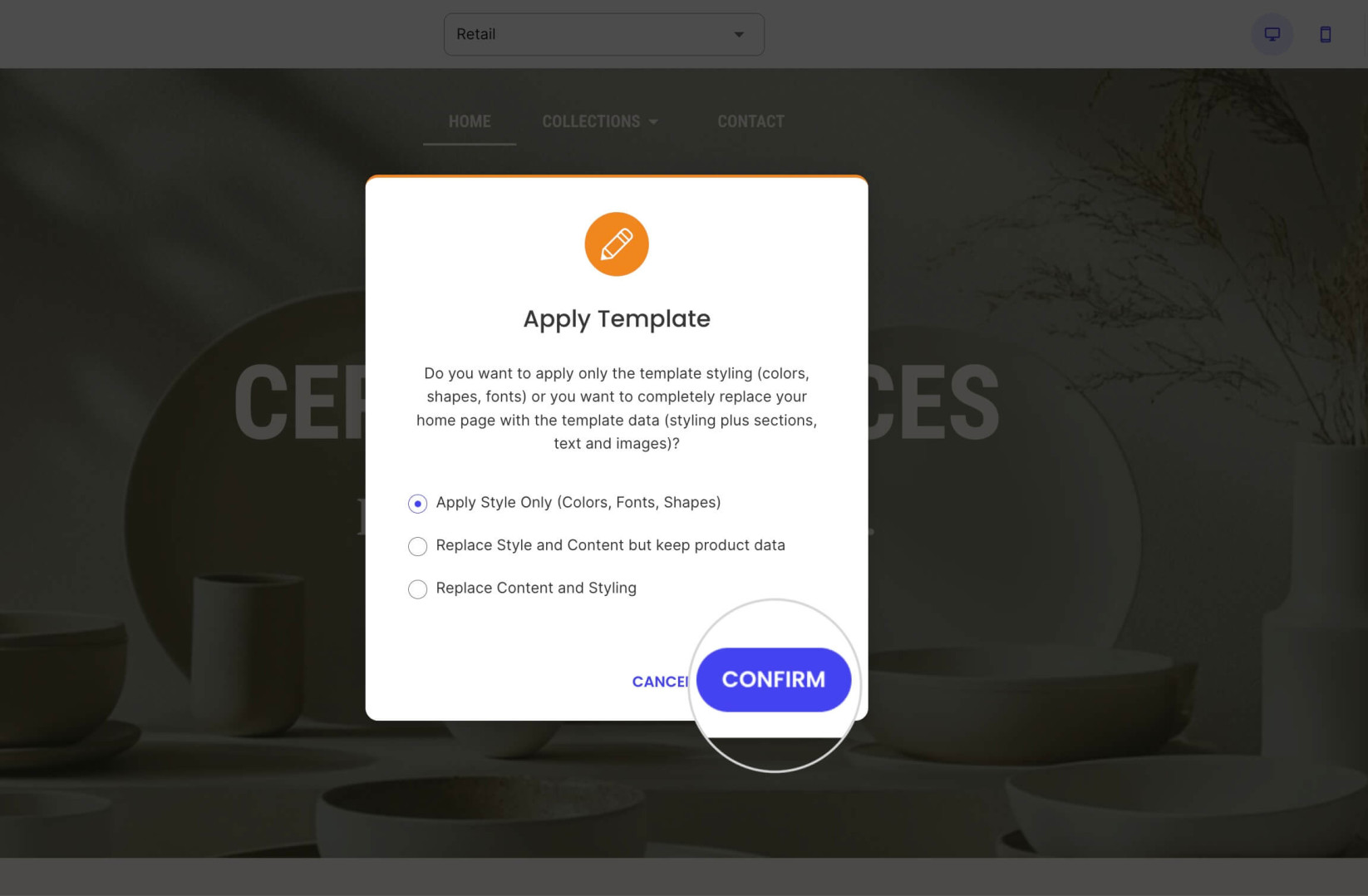
- In the following window, choose between the following options:
- Apply Style Only – implement only the style elements, such as shapes, fonts, and color palette, from the selected template
- Replace Style and Content but keep product data (for Ecommerce) – an option available for Ecommerce sites. It replaces the style and contents but keeps the data for your store products
- Replace Content and Styling – update both your content and styles with those from the template
- Press Confirm to apply the template.