How to Clear Cache and Cookies on Your Browser
This guide shows you how to clear the cache and cookies in Chrome, Firefox, Safari, Edge, Opera, and Brave, and explains when doing so can fix a website that looks broken or outdated.
Browsers cache a site’s images, files, and cookies so pages load faster and remember your previous visits. Occasionally, though, that stored data becomes outdated or corrupted, which can prevent a page from loading correctly or slow down your device.
To learn more, read this article about how cache works.
Key takeaways:
- Cache and cookies generally improve browsing, but they can sometimes hurt performance or cause loading issues.
- When developing a site, cached files can hide your recent updates, making it look like changes haven’t taken effect.
- Expired or corrupted cached files can cause a site to load with errors even when the live site is working fine.
- If a website error was fixed but your browser cached the broken version, clearing cache resolves the mismatch.
- Login problems can happen when stored cookies become expired or invalid, causing the site to reject them.
- Excess cached data can eat up local storage and slow down your device, so clearing it can free up space and improve performance.
How to Clear Cache and Cookies on Different Browsers?
The process of clearing cache and cookies for the different browsers is similar. Still, the specific menus and paths vary for the different applications. Below, you can see instructions for the most popular browsers.
Google Chrome
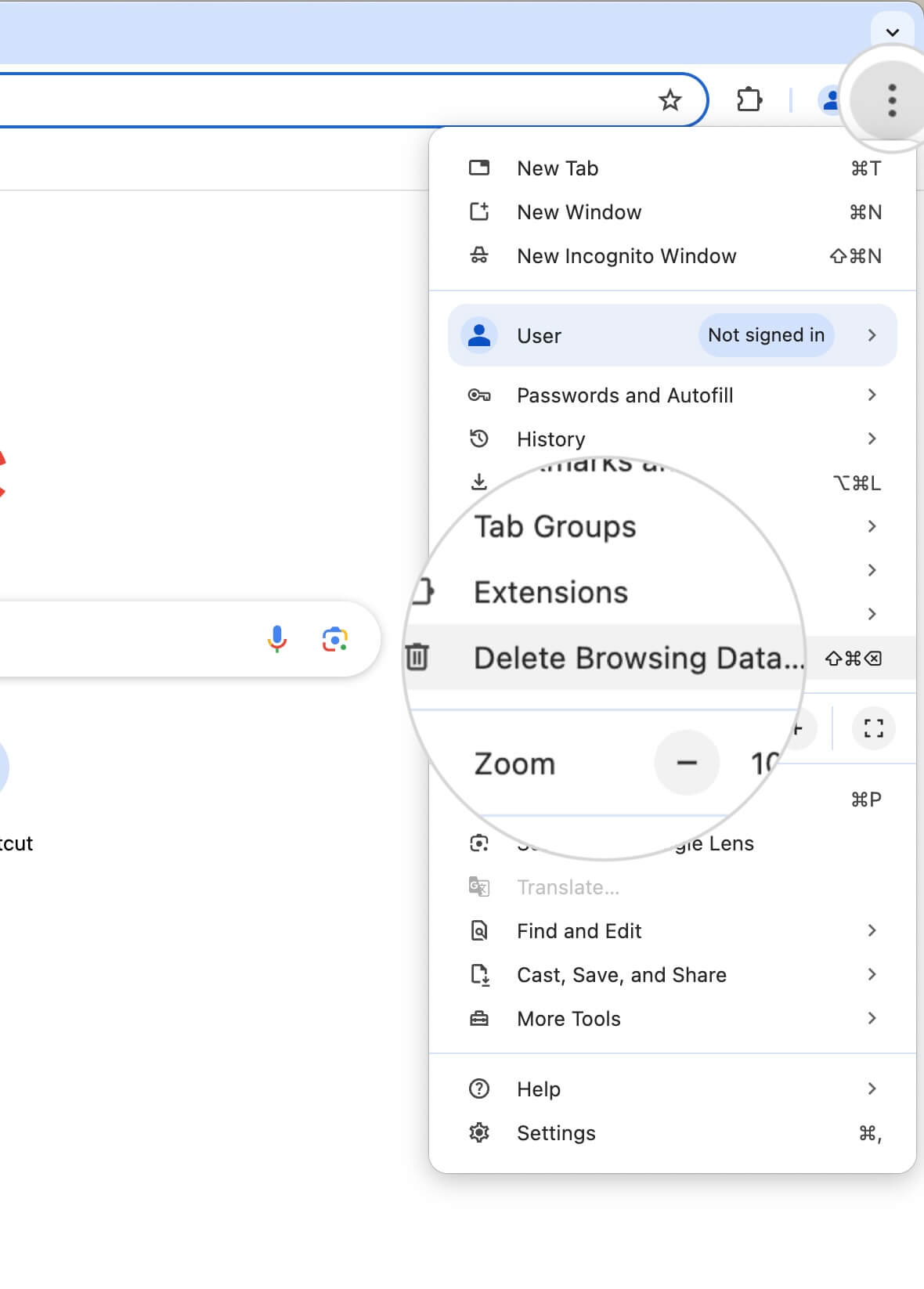
Clearing cache and cookies in Chrome takes under a minute from the Delete Browsing Data screen.
- Open the kebab menu (three dots) in the top right corner.
- Select Delete Browsing Data.
- Choose the time period for which to delete the data from the Time range menu. To make sure all cached data is cleared, select All time.
- Select the type of website data to delete. The most essential cached data to clear is Cookies and other site data and Cached images and files.
Choose Browsing history if you wish to delete your search history and addresses you visited previously. - Confirm your choice with the button Delete Data.
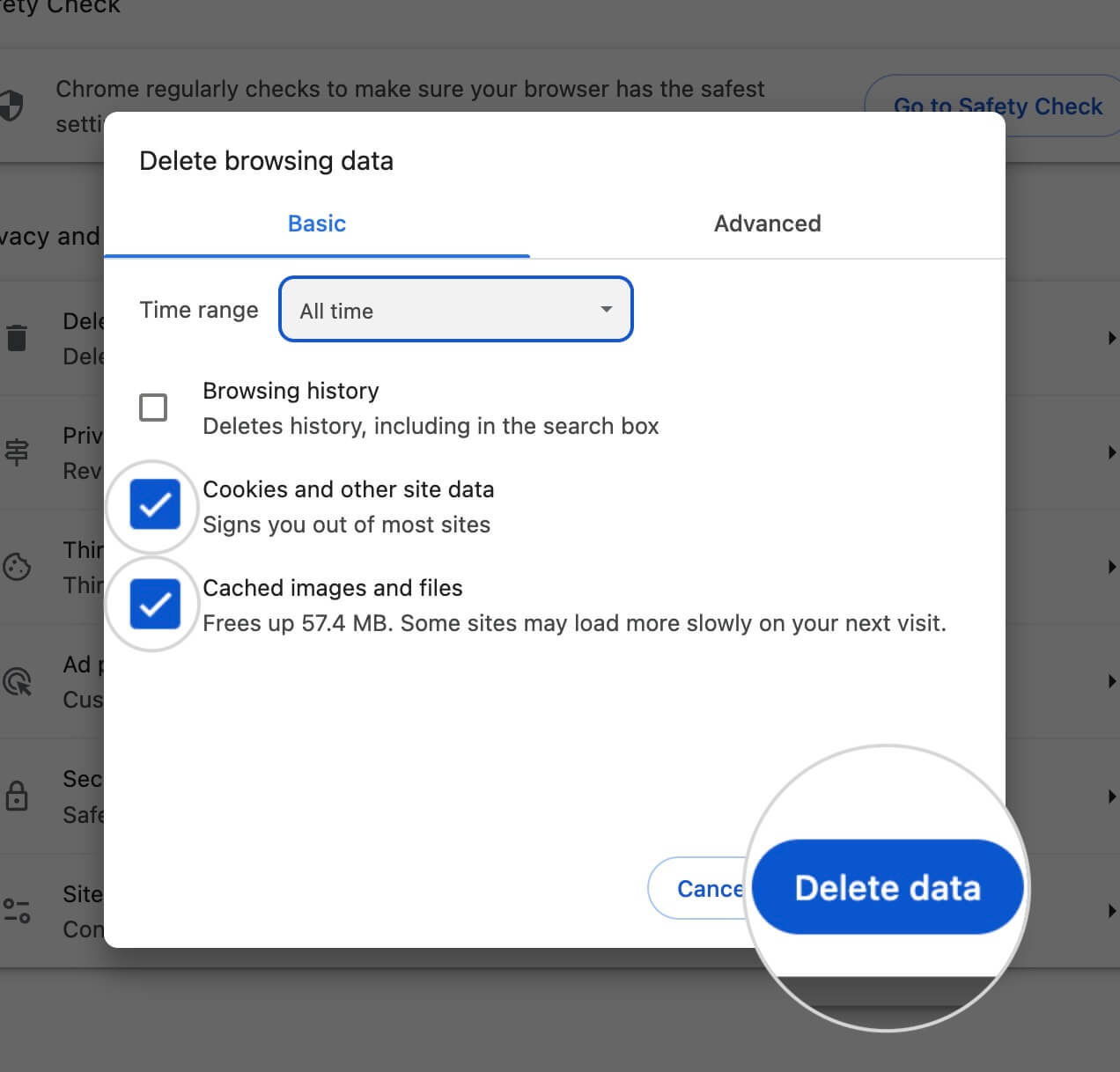
- In the Advanced section, you can select more site data types to be deleted.
Mozilla Firefox
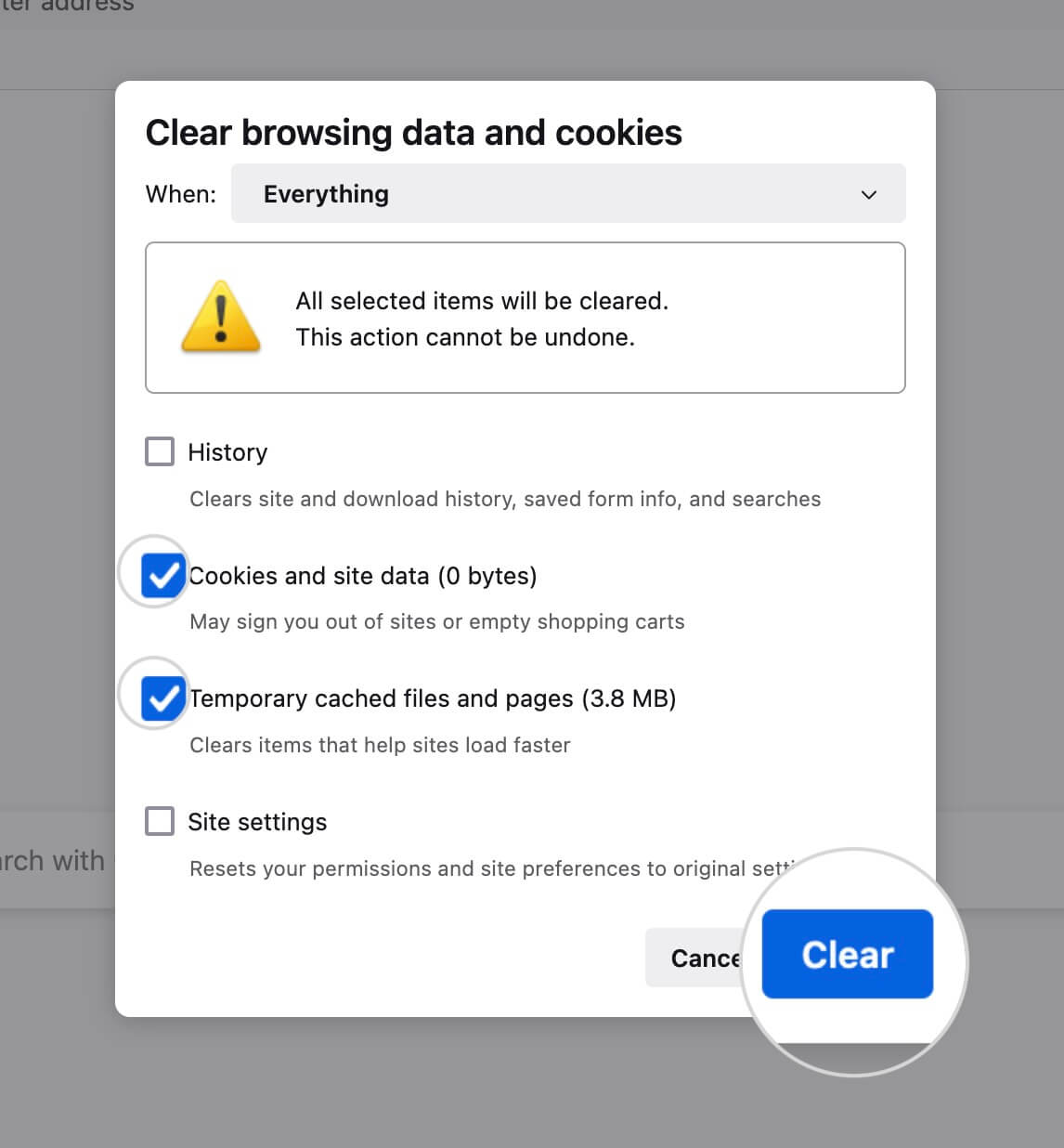
Mozilla Firefox clears cache and cookies together from its Clear Recent History panel.
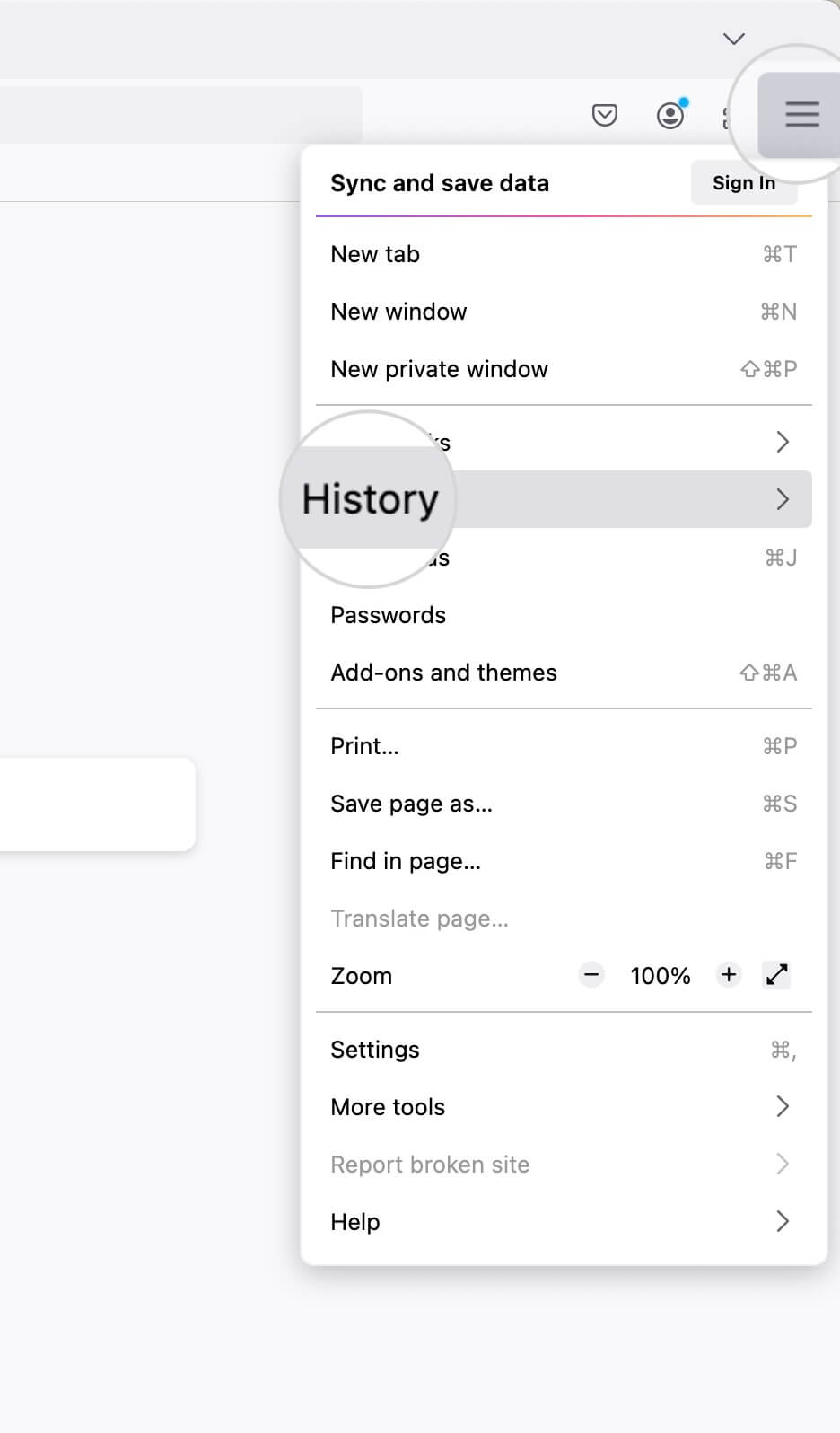
- Open the hamburger menu in the top right corner.
- Select the History section.
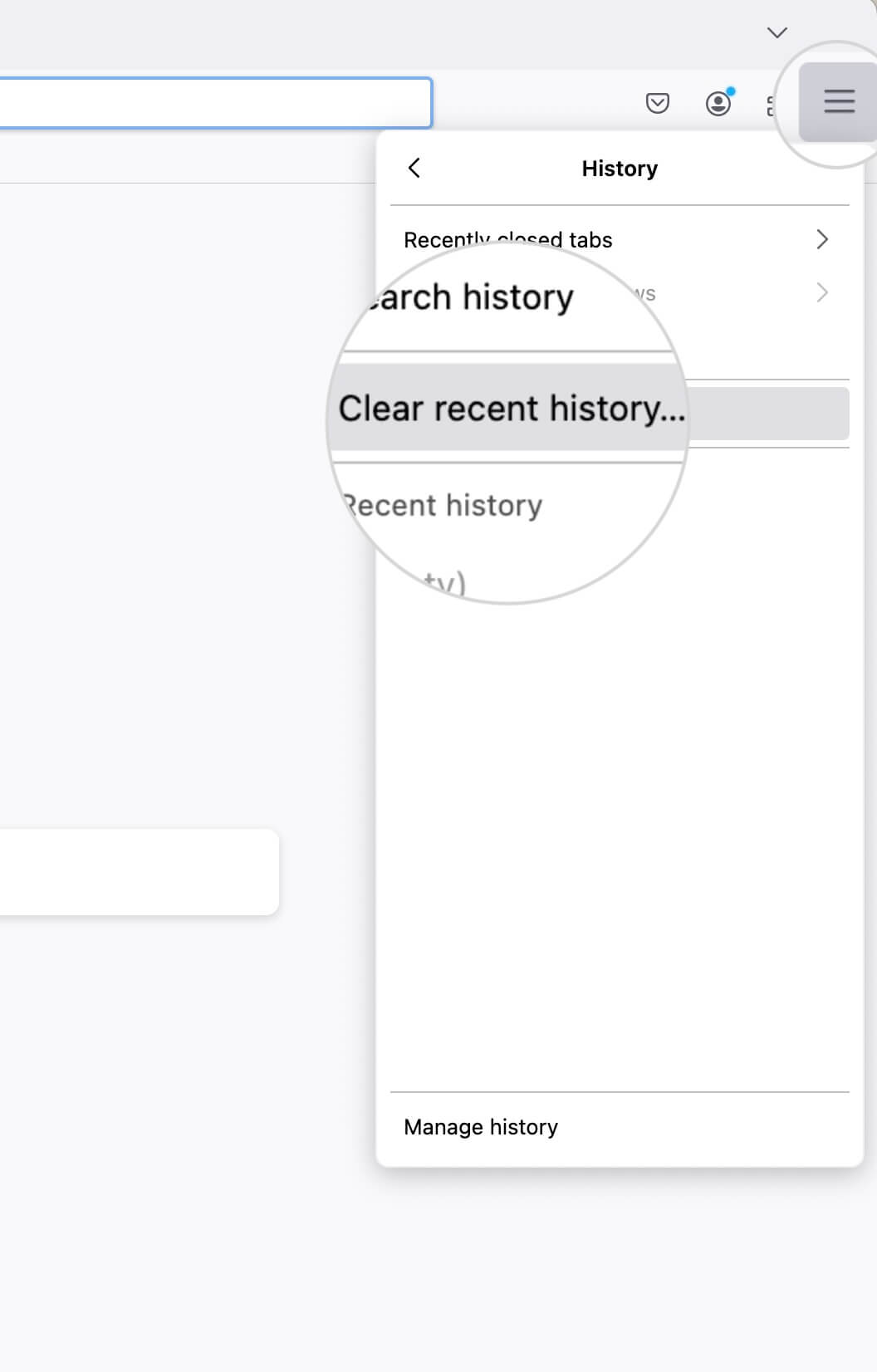
- Choose Clear recent history.
- Select the period from the When menu. To make sure that all browser cache and cookies are deleted, choose Everything.
- Check the boxes for the type of cached data to delete. The most essential data are Temporary cached files and pages, and Cookies and site data.
You also have the option to delete passwords from sites and your search and browsing history. - Confirm with the button Clear.
Safari
Safari clears cache and cookies through two separate menus: cookies can be cleared at any time from Safari’s Privacy settings, while clearing the cache requires briefly enabling Safari’s Develop menu.
Clear cookies and website data in Safari
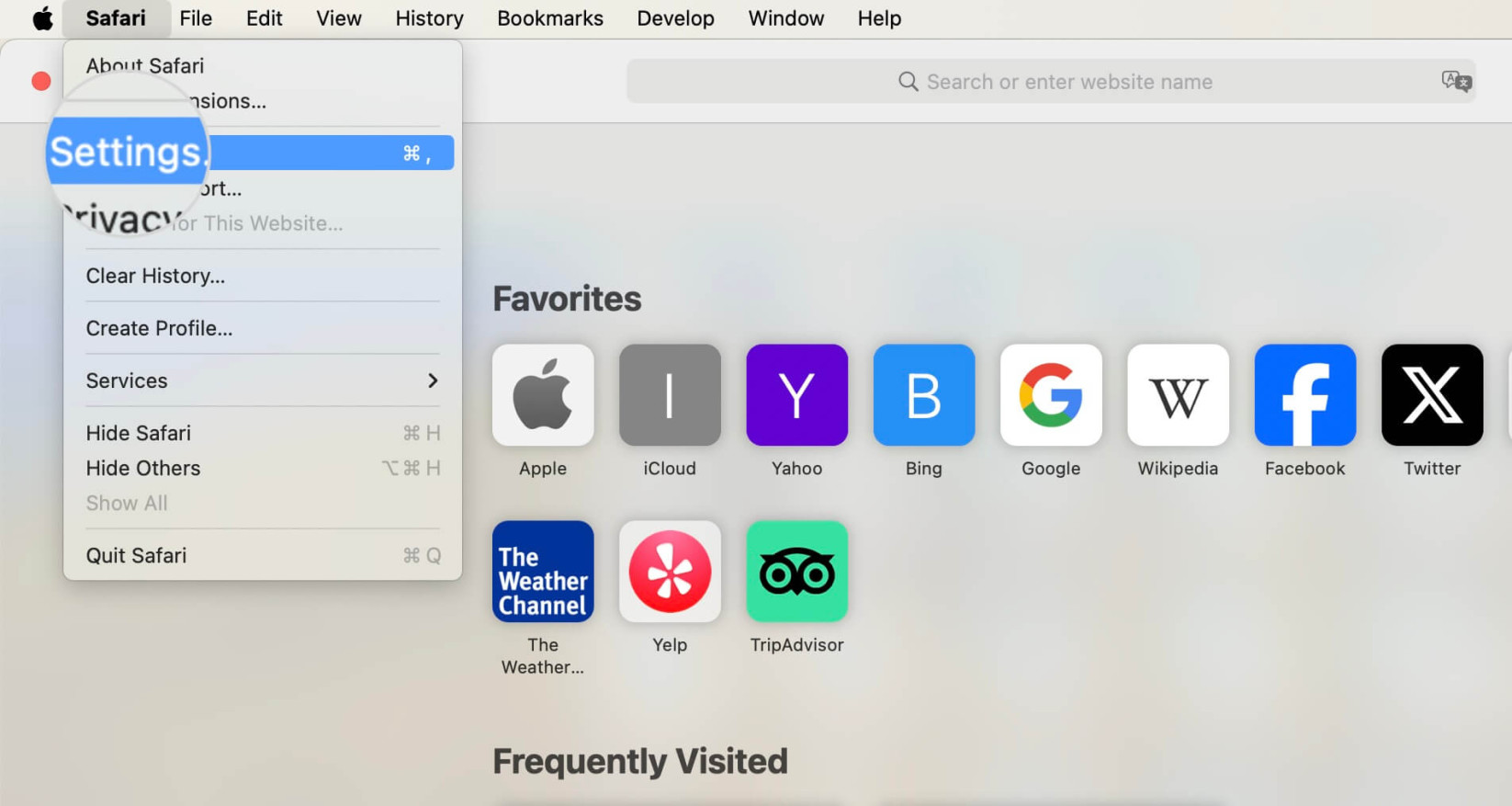
- Open the Safari menu from the menu bar and choose Settings.
- Click Privacy.
- Click Manage Website Data.
- Select a site and click Remove, or click Remove All to clear cookies and stored data for every site, then confirm.
Clear the cache in Safari
By default, Safari doesn’t show a dedicated cache-clearing control in its main menus. You can reach one by enabling Safari’s web developer features, which adds a Develop menu. Note that this only clears the cache — use the cookie steps above to clear cookies.
- Open the Safari menu from the menu bar.
- Choose Settings.
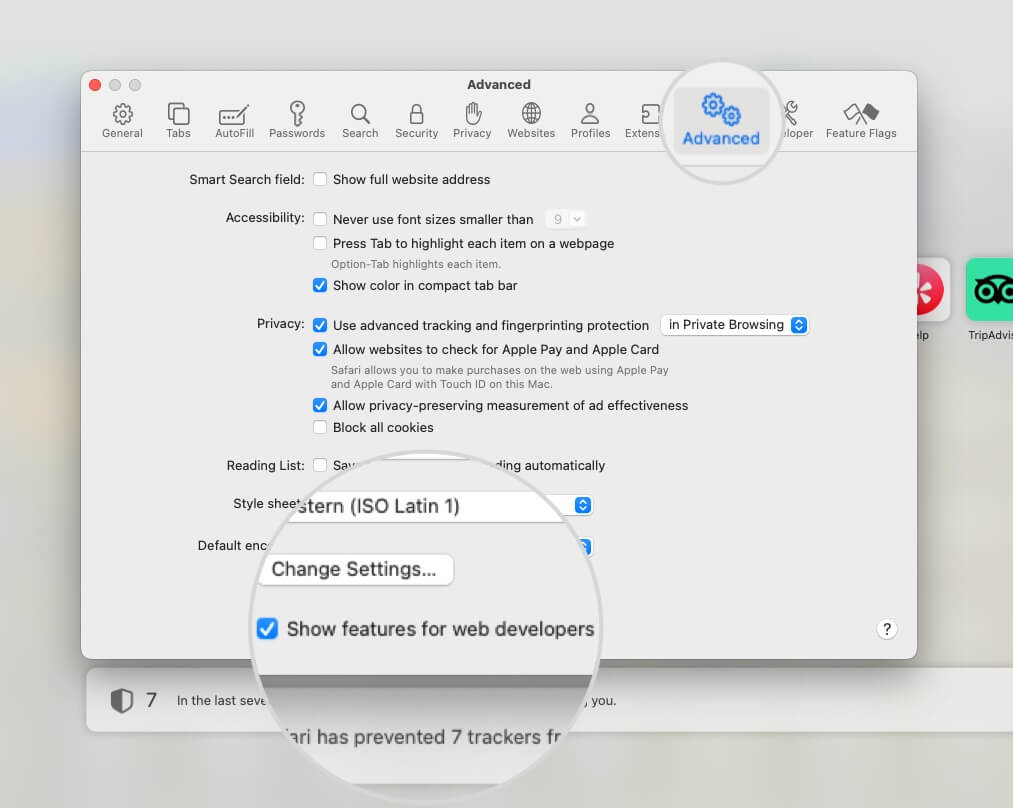
- Open the Advanced section.
- Check the box for Show features for web developers. A new Develop menu will appear in the Safari menu bar.
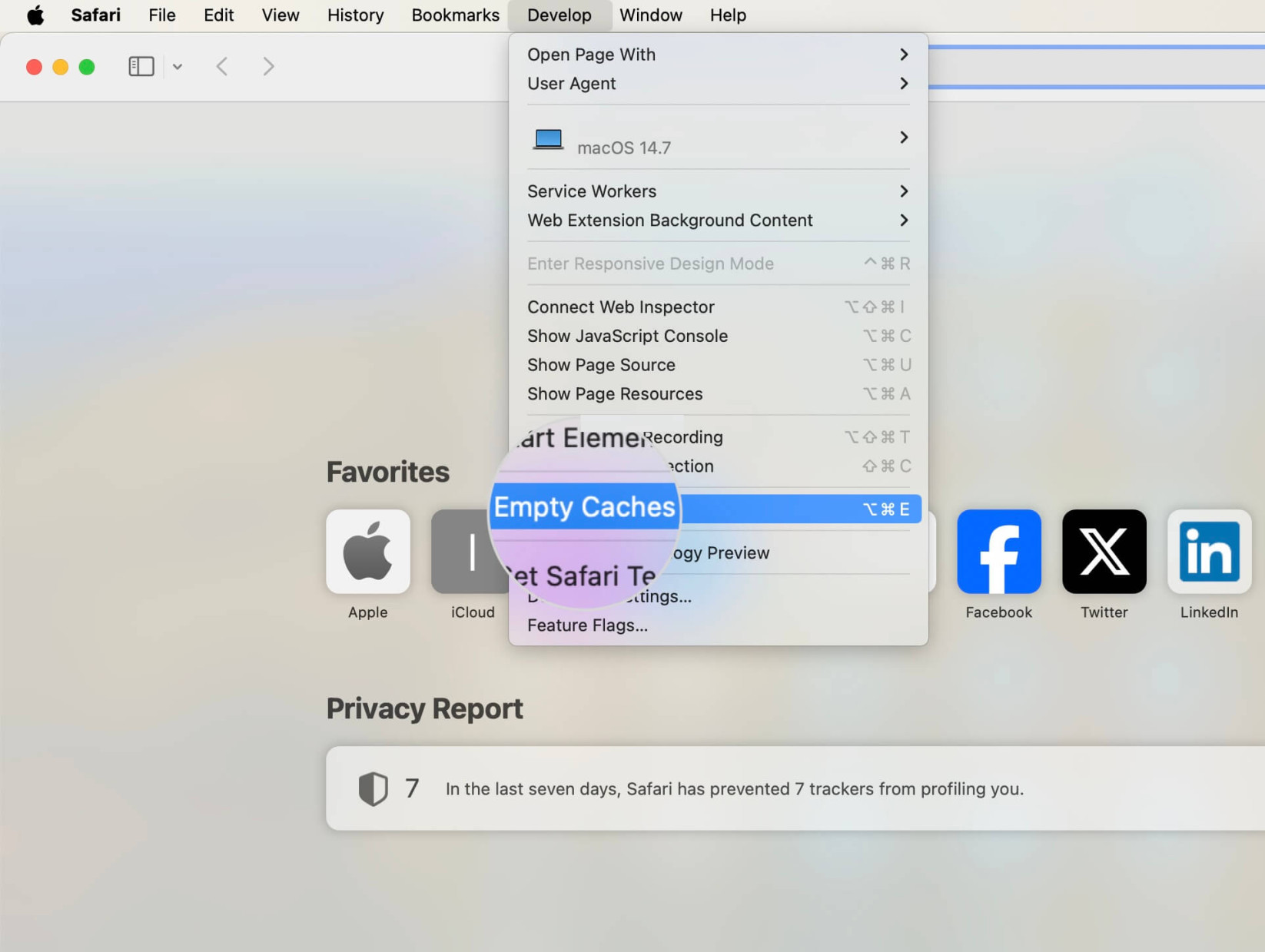
- Open the Develop menu.
- Choose Empty Caches.
Opera
Opera clears both cache and cookies from its Clear Browsing Data screen.
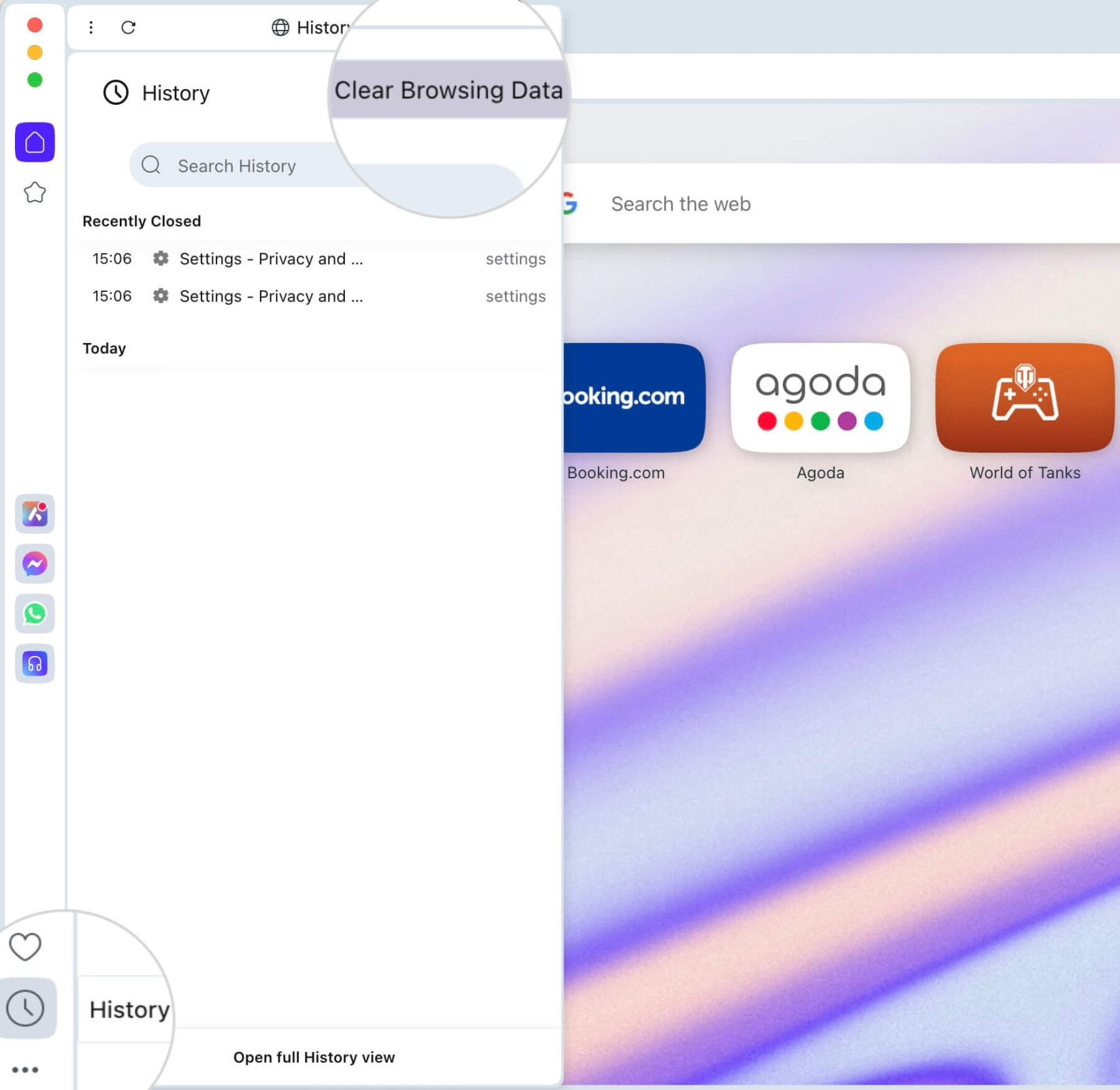
- Click on the History icon in the left side panel.
- Choose Clear Browsing Data.
- Choose the timeframe for the browsing data from the Time range menu. Select All time to clear data from the start.
- Choose what type of data to delete. If you wish to keep your sites’ passwords and browsing history, check the boxes only for Cookies and other site data and Cached images and files.
- Confirm your choice with the button Delete data.
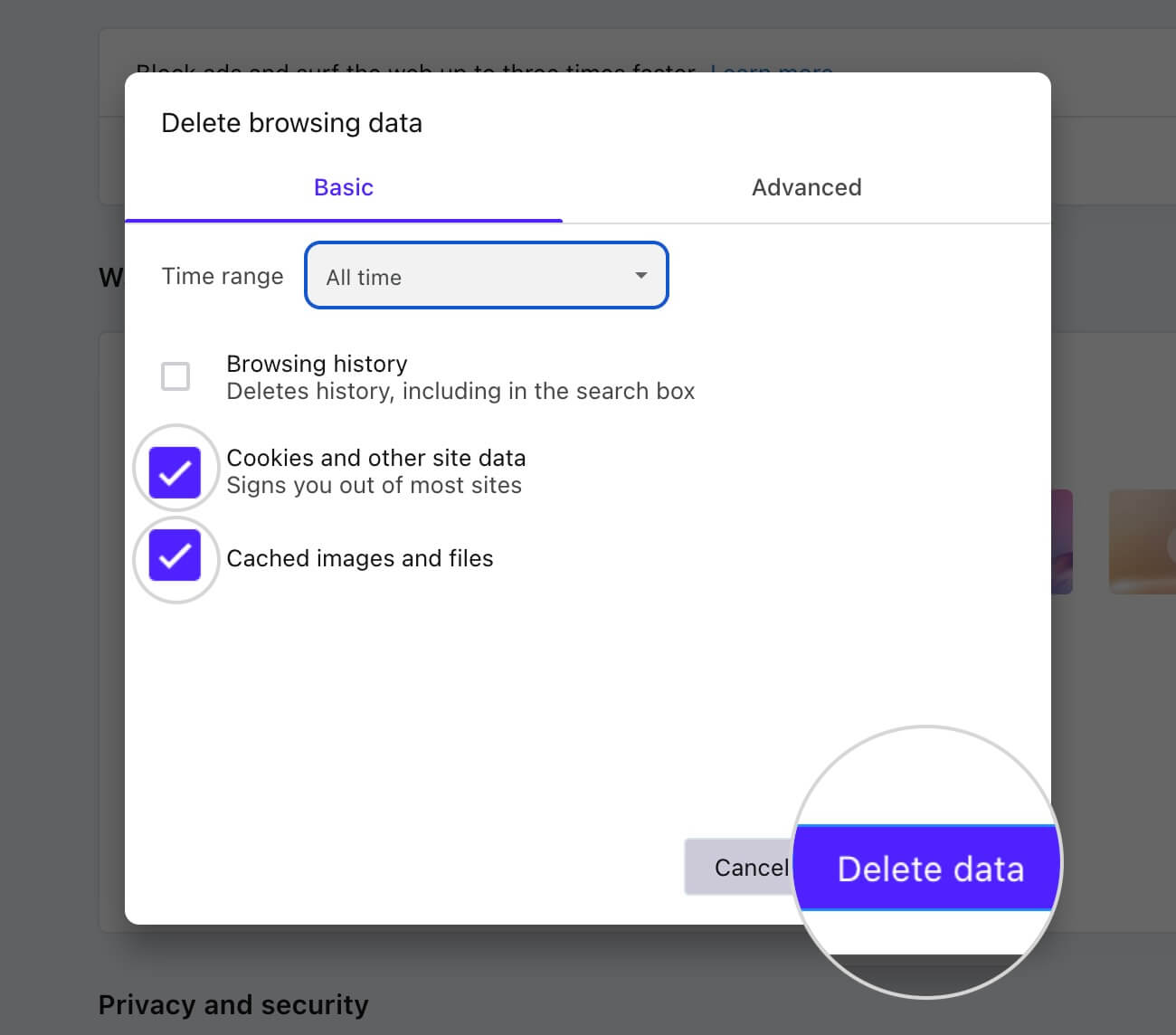
- Select the section Advanced for more options to clear data & cached data types.
Microsoft Edge
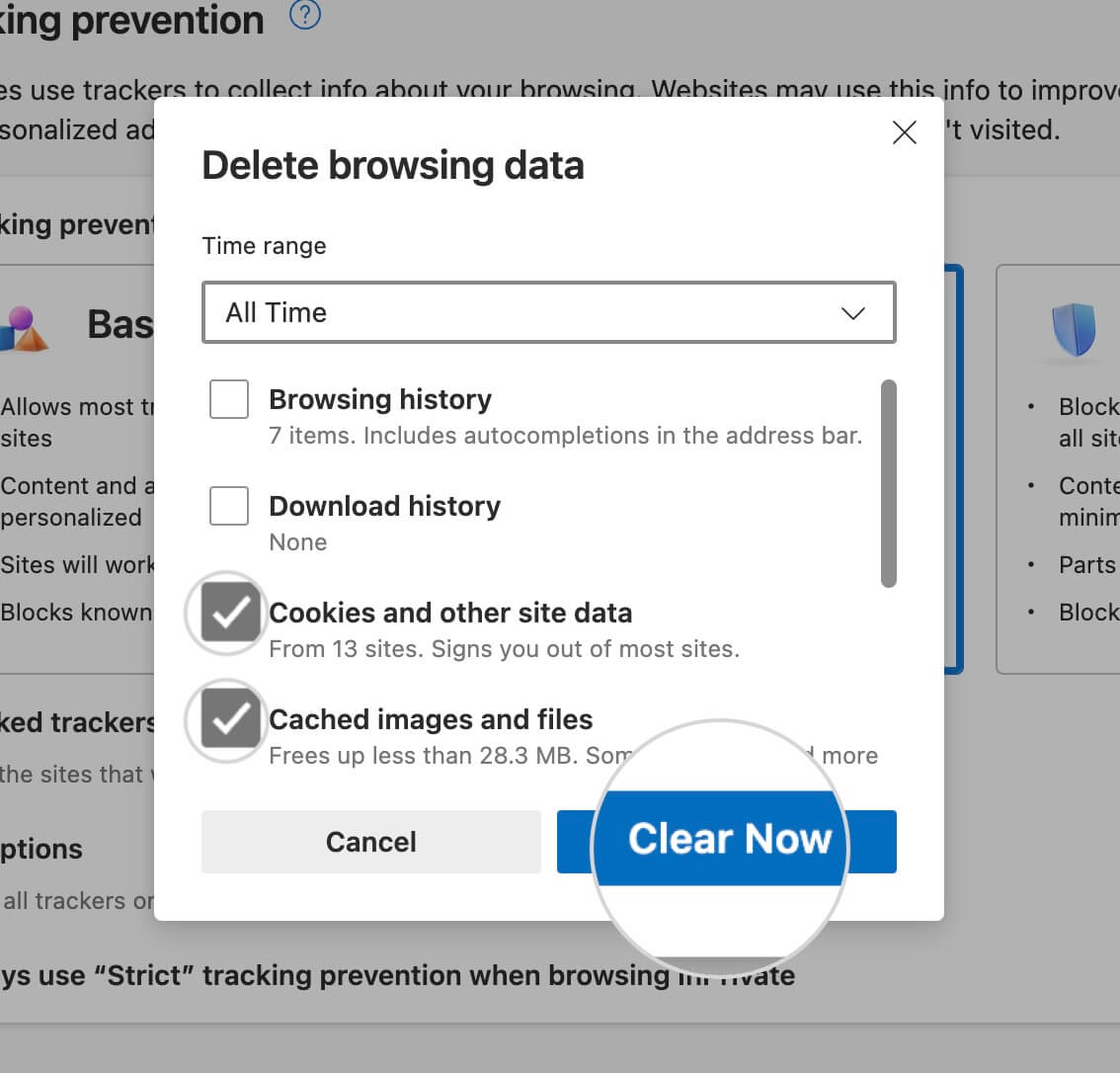
Similar to the others, you can clear the browser cache and cookies in Edge from the section Delete browsing data. Here is how to reach it.
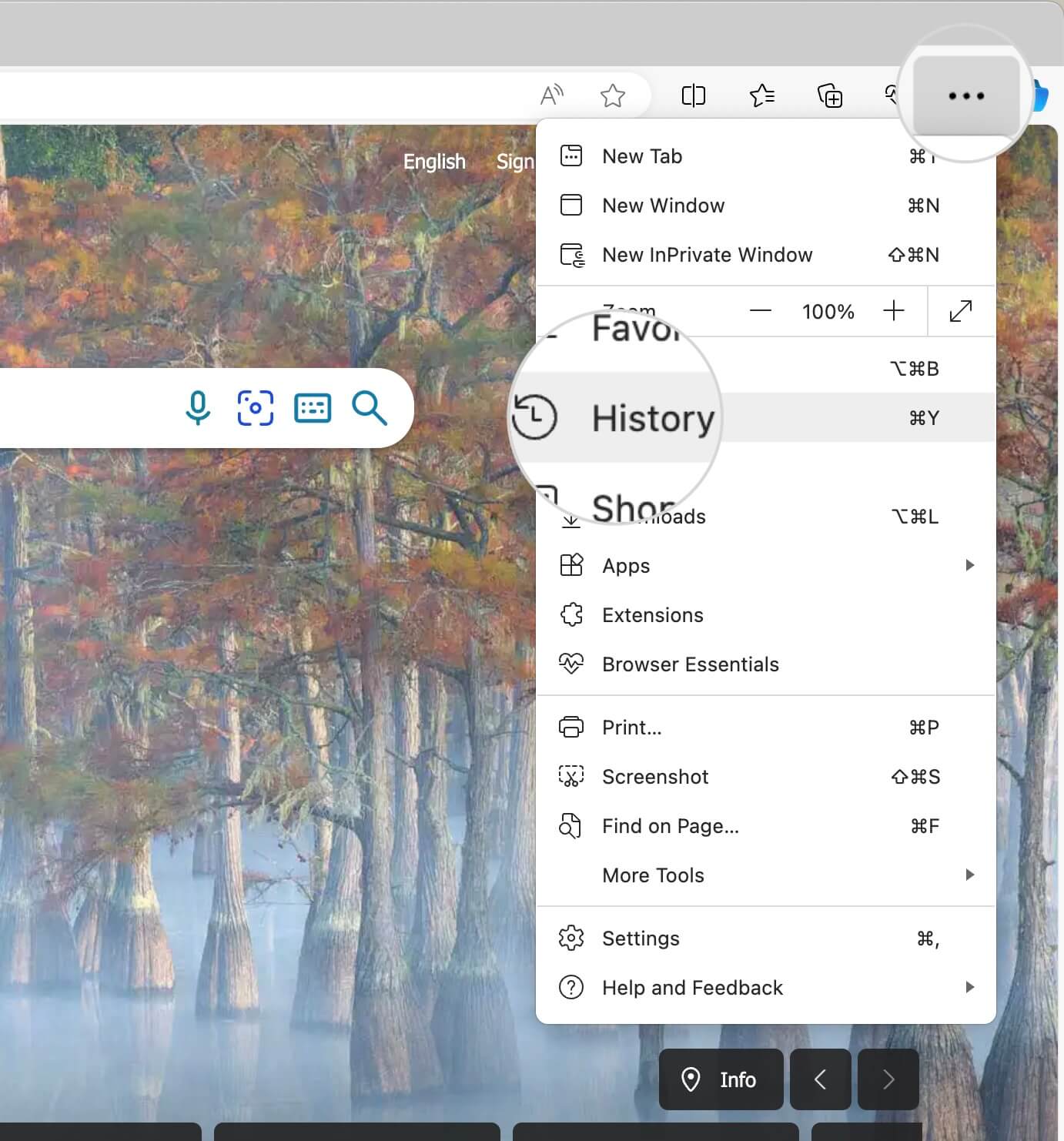
- Open the three dots menu in the top right corner.
- Select History.
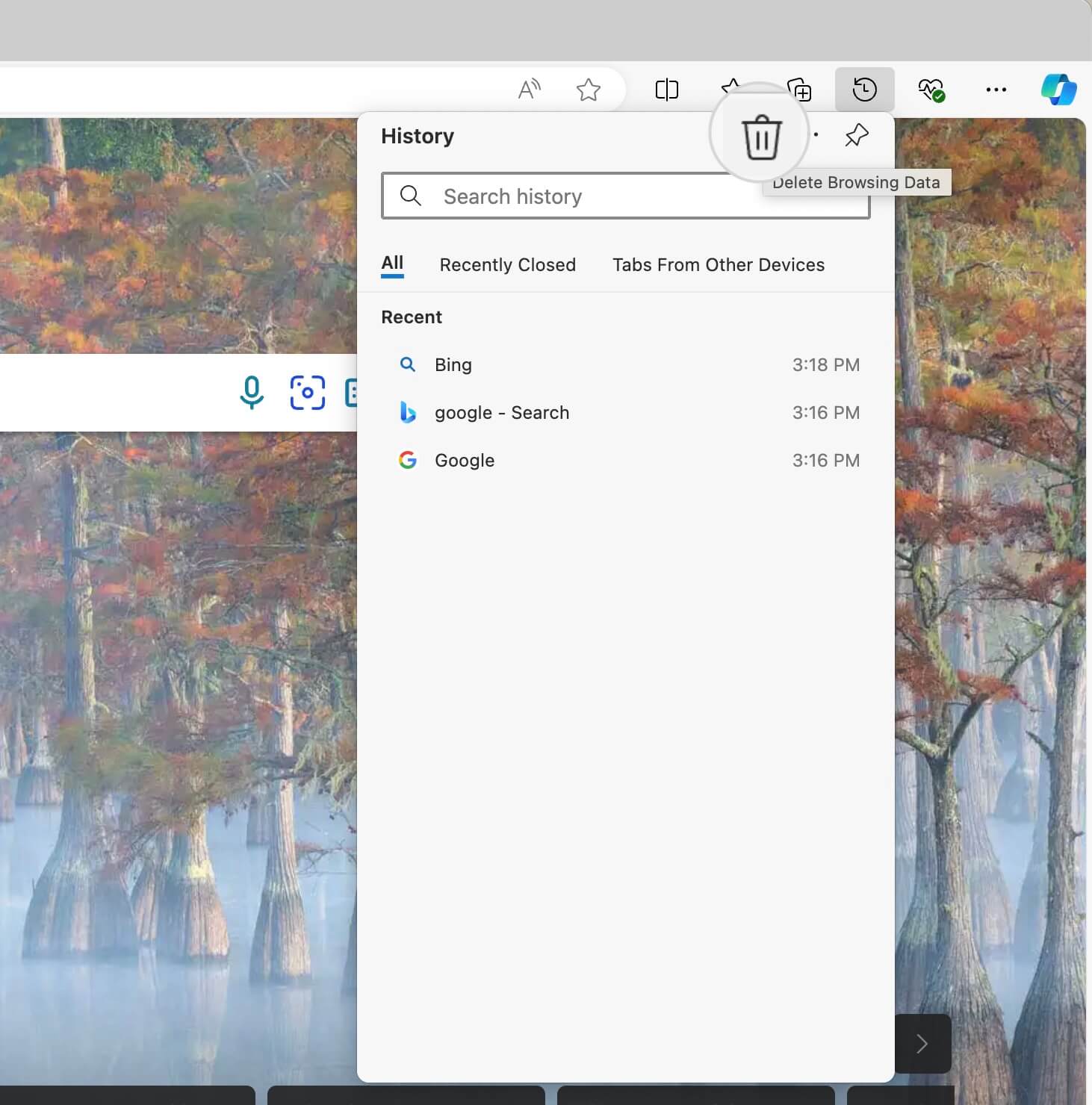
- Click on the Delete Browsing Data (bin) icon.
- From the drop-down menu Time range, select the period from which the data will be deleted. To make sure that all data is cleared, select All Time.
- Check the boxes for the data types. To clear cache and cookies only, tick Cookies and other site data and Cached images and files.
- Confirm your choice with the button Clear Now.
Brave
Clearing cache and cookies in Brave is similar to other browsers. Below, you’ll find the steps.
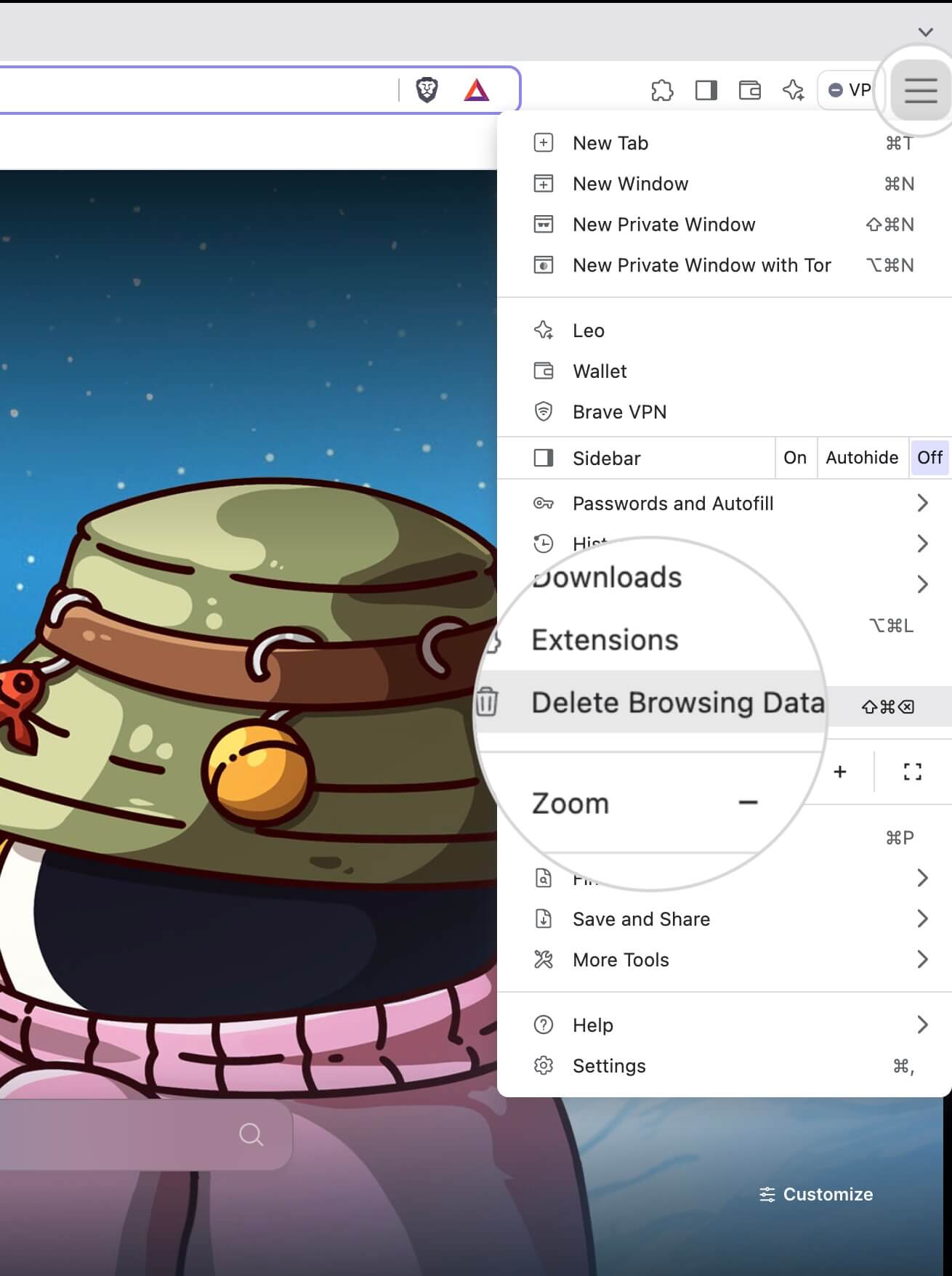
- Open the hamburger menu in the top right corner.
- Choose Delete Browsing Data.
- From the Time range menu, select the period for which the data should be cleared. To ensure that all data is cleared, select All time.
- Choose what type of data to delete. To clear cached files and cookies, tick the boxes for Cookies and other sites data and Cached images and files.
- Confirm your choice with the button Delete data.
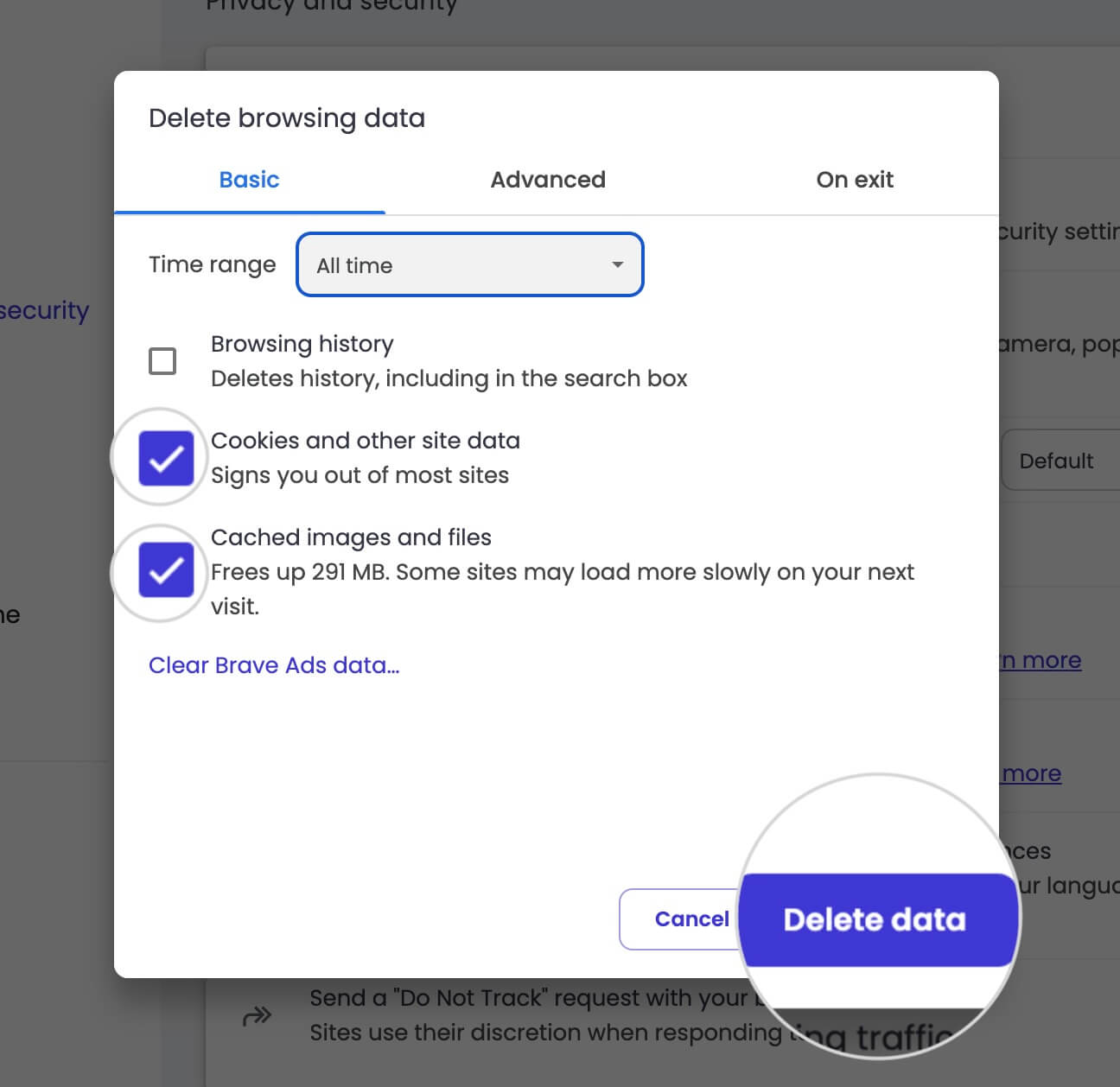
- For more data type options, select Advanced.
- In the section On exit, you can also set what types of data to be deleted automatically when you exit Brave.
Lastly, keep in mind that sometimes, you may also need to clear your device’s DNS cache.
Below, you can see detailed guides on how to clear the DNS cache for the different systems.
- How to clear the DNS cache in Windows?
- How to clear the DNS cache in Mac OS?
- How to clear the DNS cache in Linux?
Your site may also generate cached data. Read this guide on how to clear your site’s cache.