How to manage Coming Soon mode
When launching a new website or making significant updates, it’s crucial to keep your audience informed while you work behind the scenes. The “Coming Soon” mode is an effective way to temporarily redirect visitors to a landing page that builds anticipation. In this article, we’ll walk you through the steps to enable and manage the “Coming Soon” mode, ensuring a smooth transition from building to launching your site.
Checking your Site’s Status
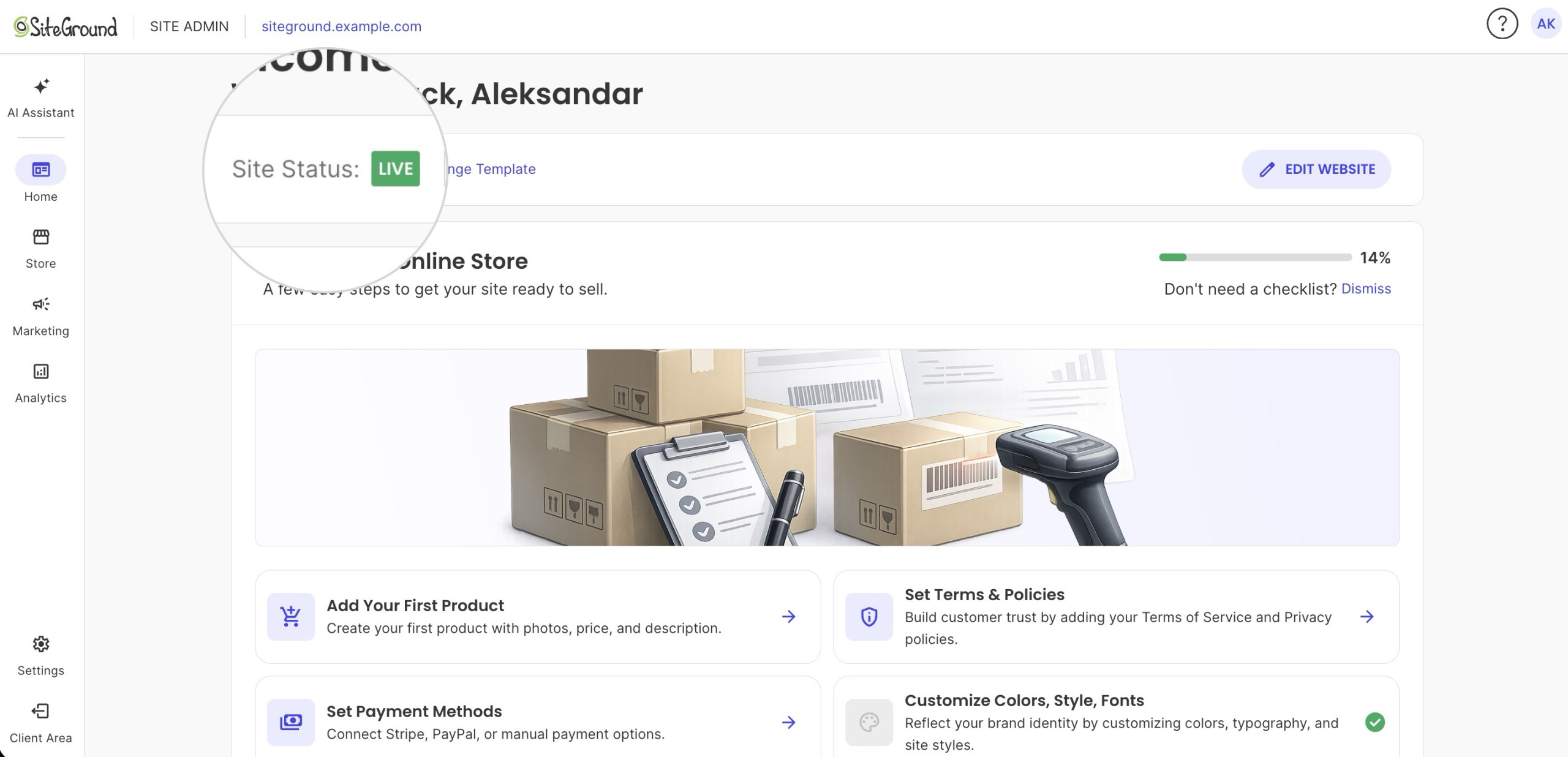
You can check your site’s status (e.g., “Coming Soon” or “Live”) in the Site Admin > Website Builder.
How to enable Coming Soon mode
To activate the Coming Soon mode, follow these steps:
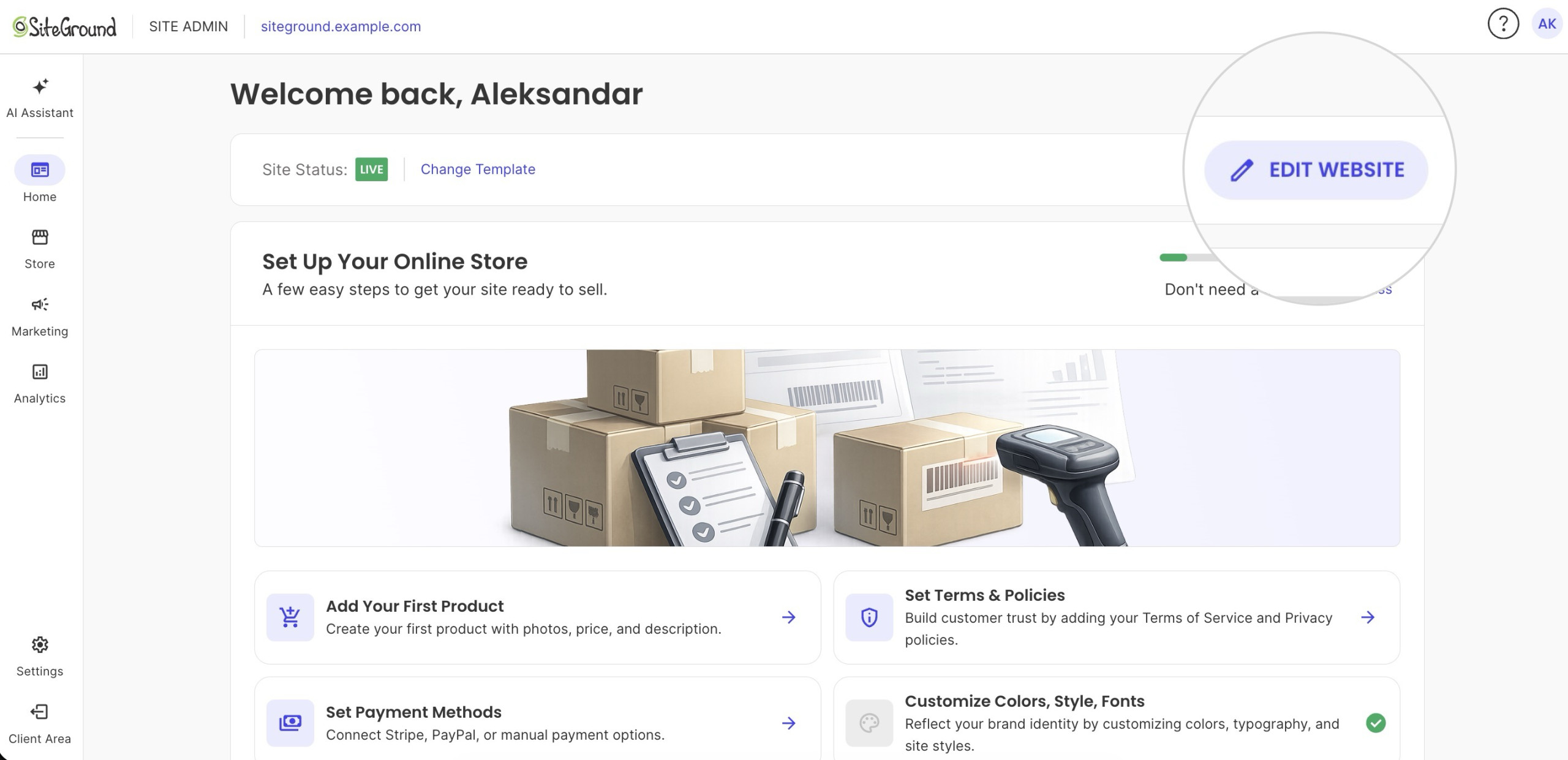
- Press Edit Website in Site Admin > Website Builder.
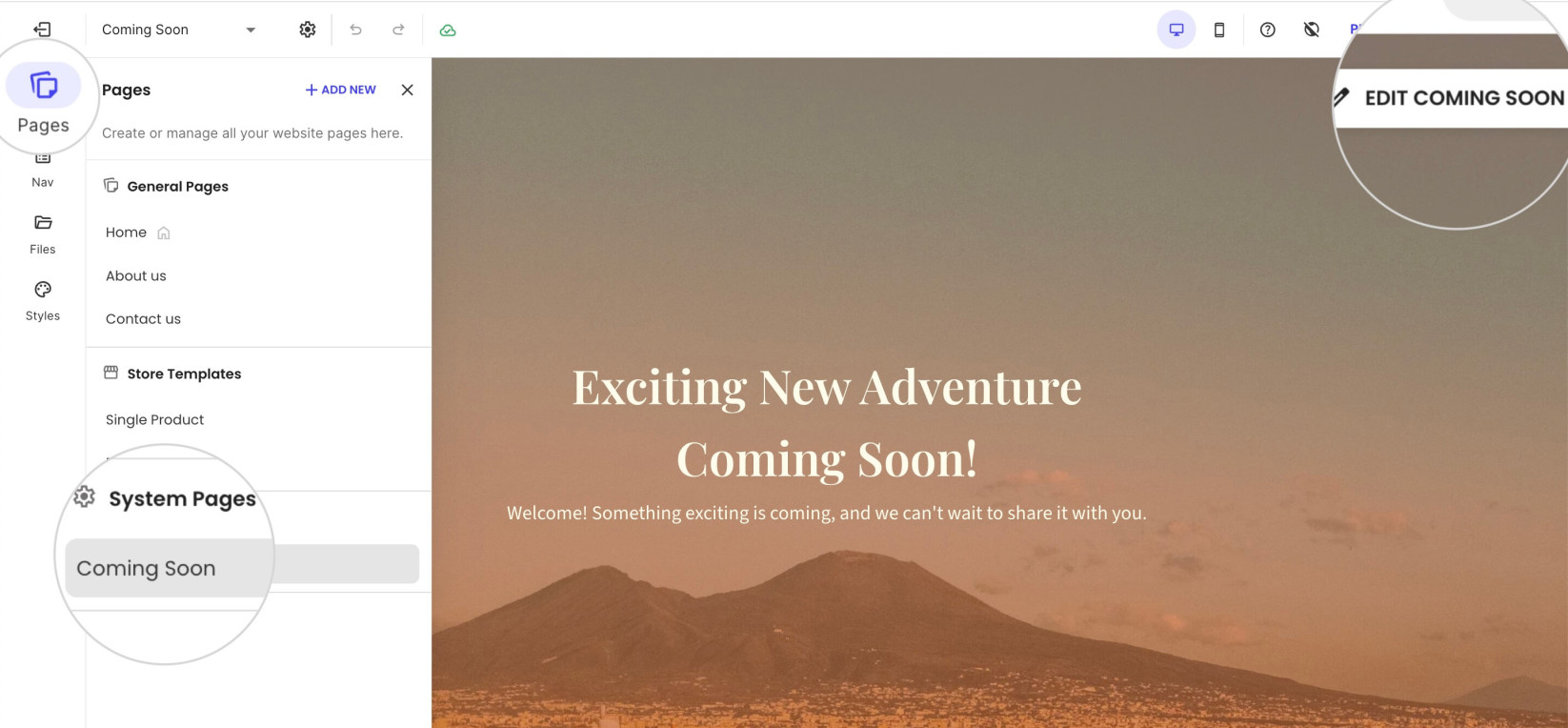
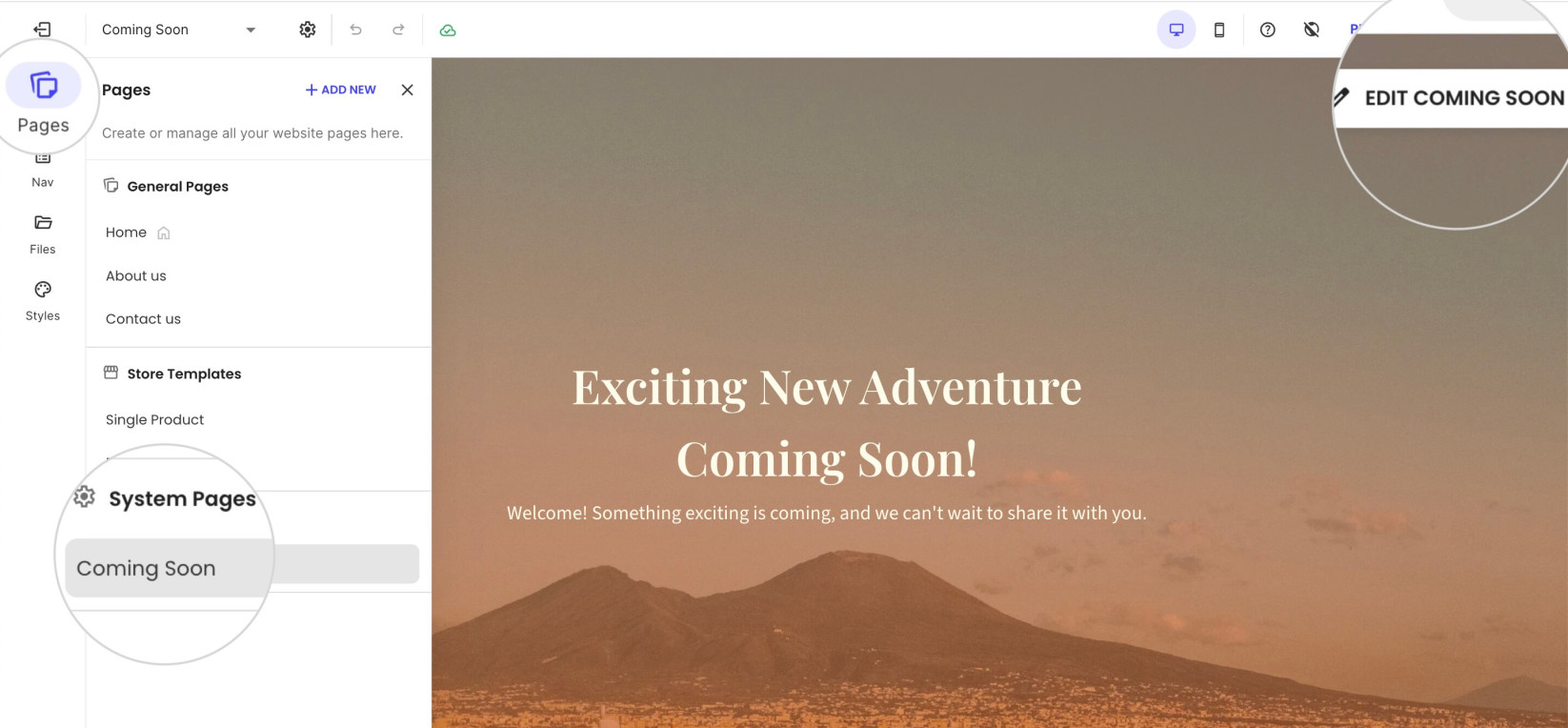
- Open the Pages tab from the left menu toolbar.
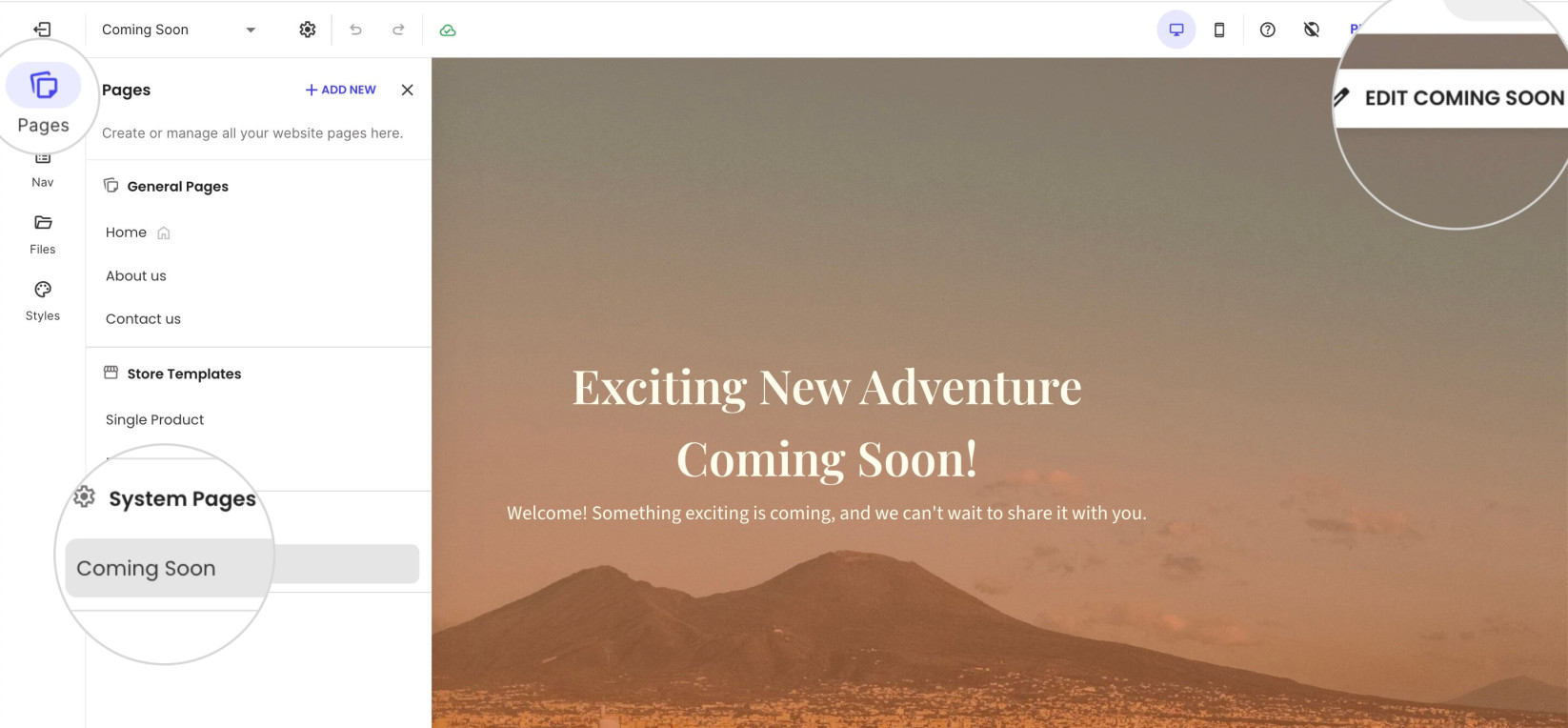
- Navigate to the System Pages section and click on the Coming Soon page.
- Press the Edit Coming Soon button in the top-right corner of the page in the visual editor.
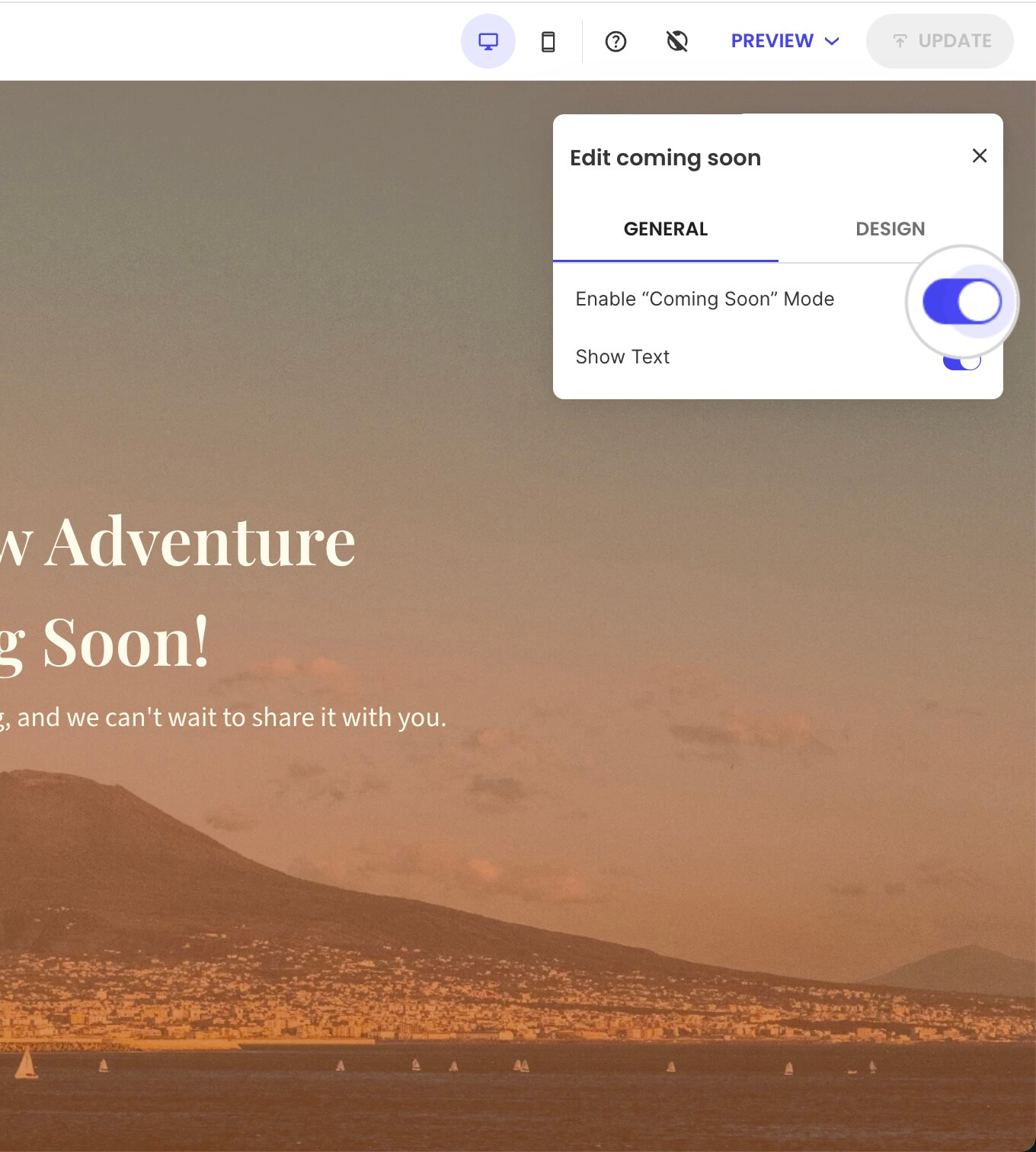
- Turn on Enable “Coming Soon” Mode.
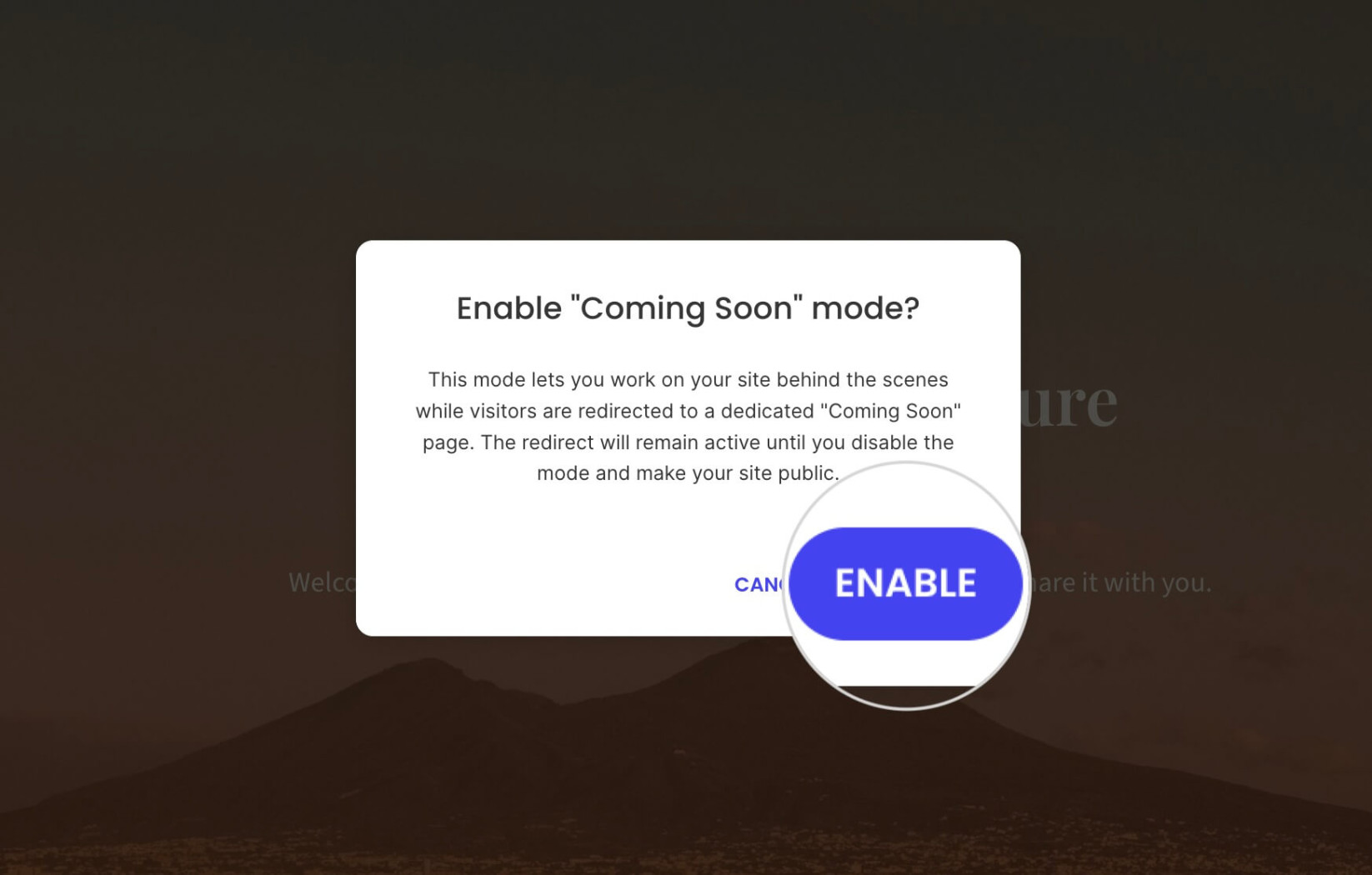
- Press Enable to confirm Coming Soon in the following pop-up window.
How to customize the Coming Soon page
To customize the Coming Soon page, open the Pages tab from the left menu toolbar and select the Coming Soon page from the System Pages section.
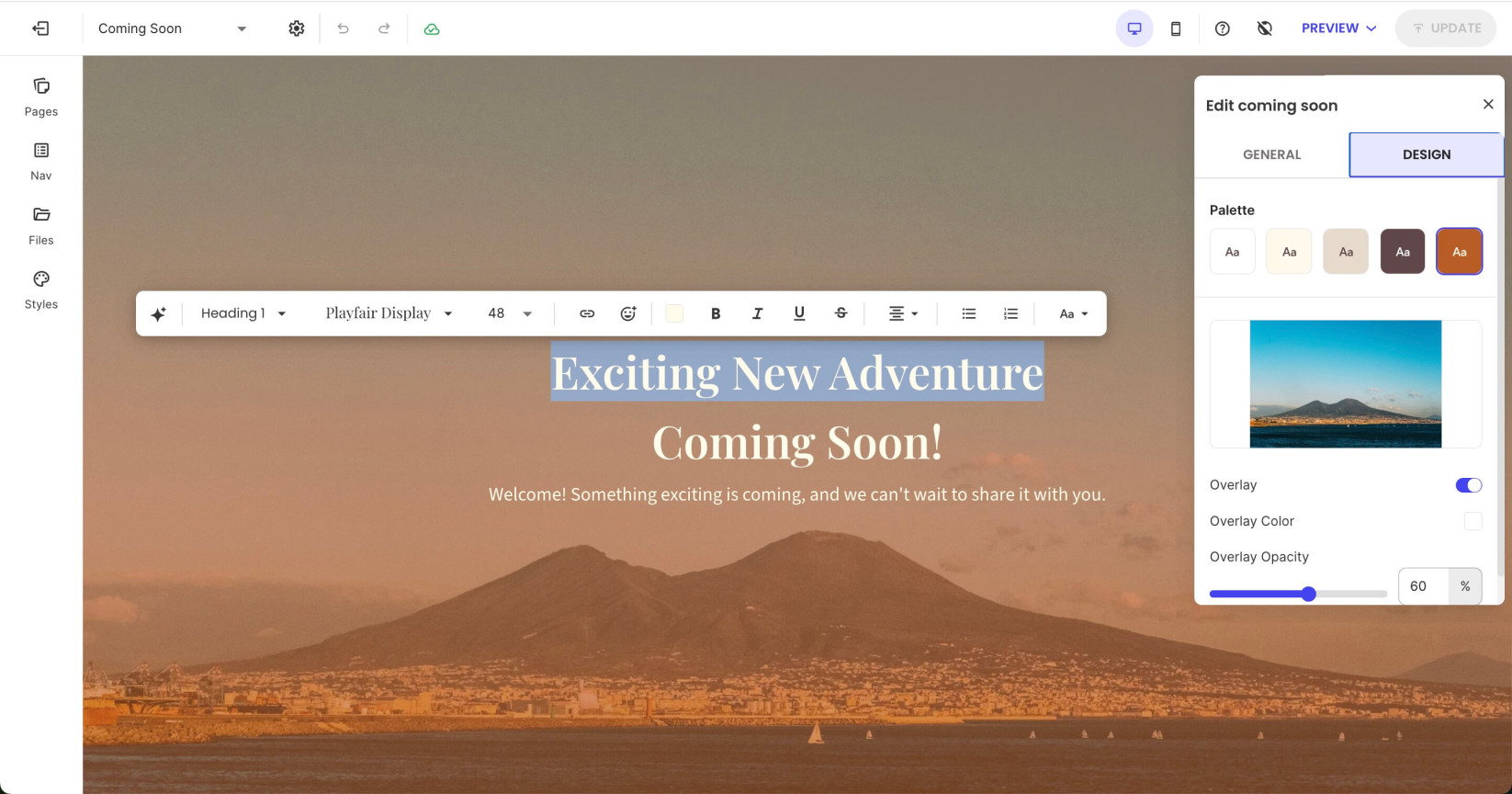
Press the Edit Coming Soon button in the top-right corner of the page, and open the Design tab to change its overlay options, background image, and text color.
Change the page text directly in the visual editor.
How to manage the SEO and social sharing settings
To access the SEO and Social sharing settings of the Coming Soon page, go to the Pages tab, hover over the Coming Soon page, and click its Settings (kebab) menu.
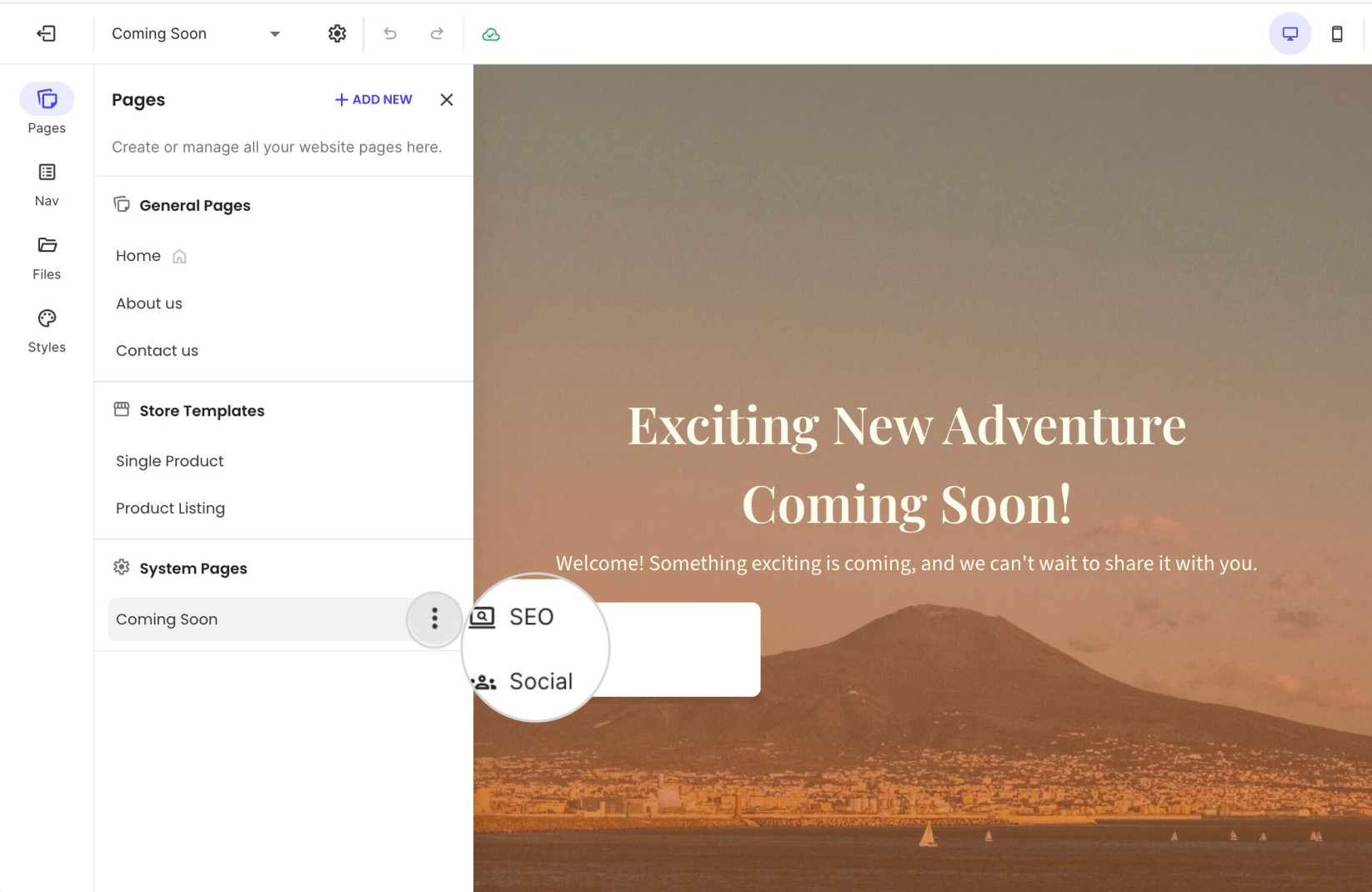
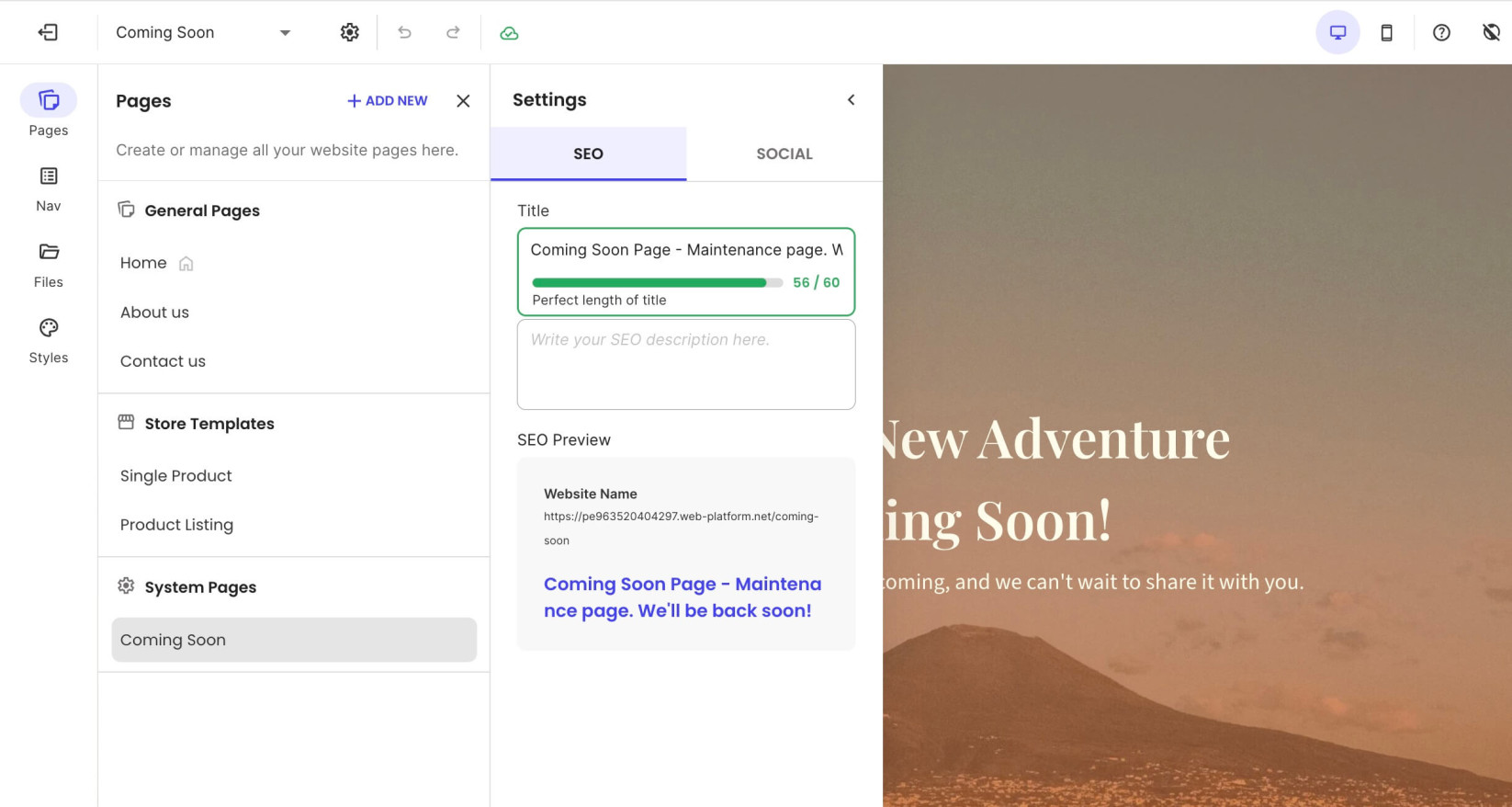
Click SEO to set an SEO Title and SEO Description for the Coming Soon page.
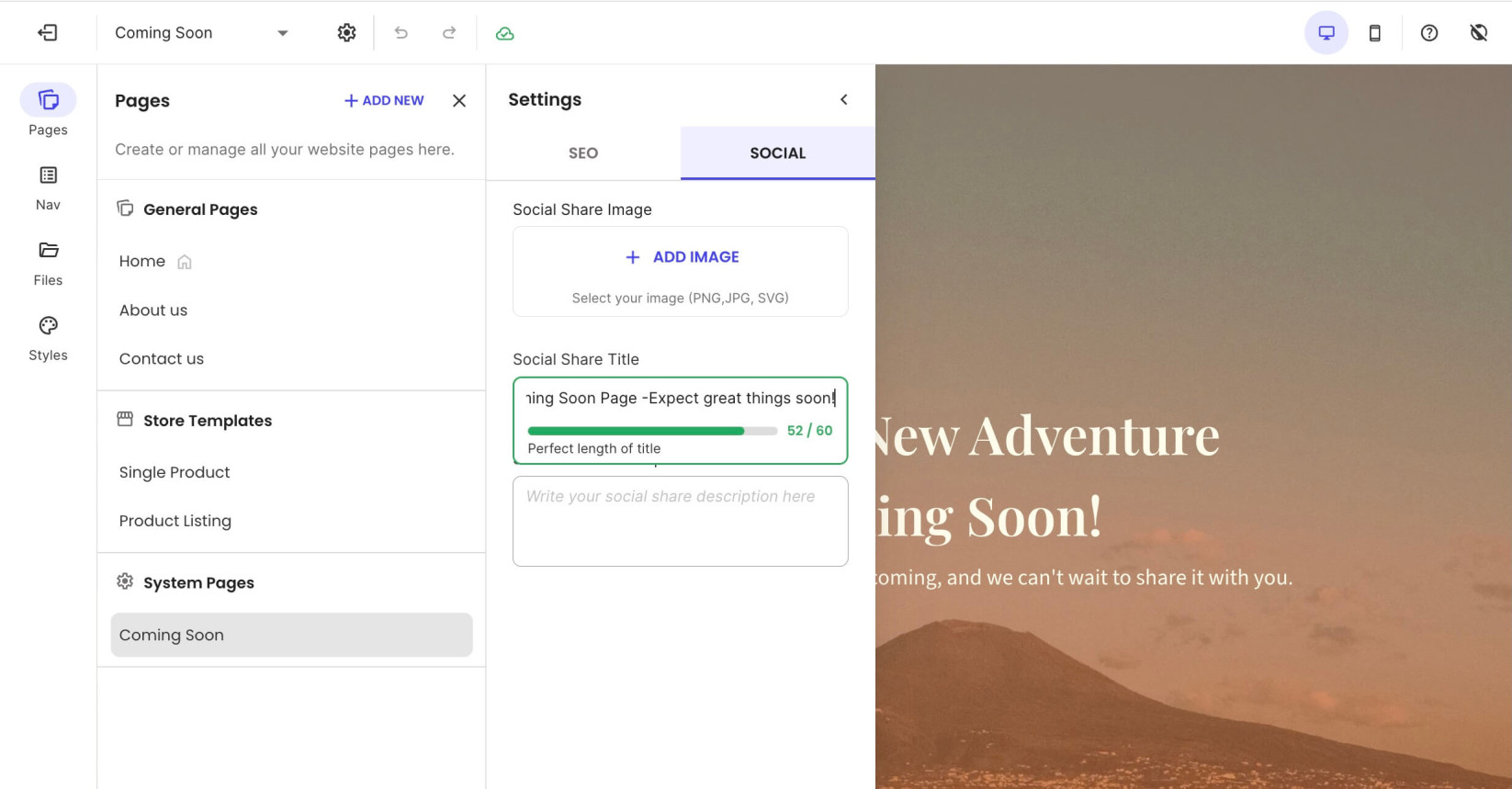
Select Social to add a Social Share Image, Social Share Title, and Social Share Description.
How to deactivate the Coming Soon Mode and go live
To deactivate the Coming Soon mode and make your site publicly accessible, follow these steps:
- Click Edit Website in Site Admin > Website Builder.
- Open the Pages tab from the left menu toolbar.
- Navigate to the System Pages section and click Coming Soon.
- Press the Edit Coming Soon button in the top-right corner of the visual editor.
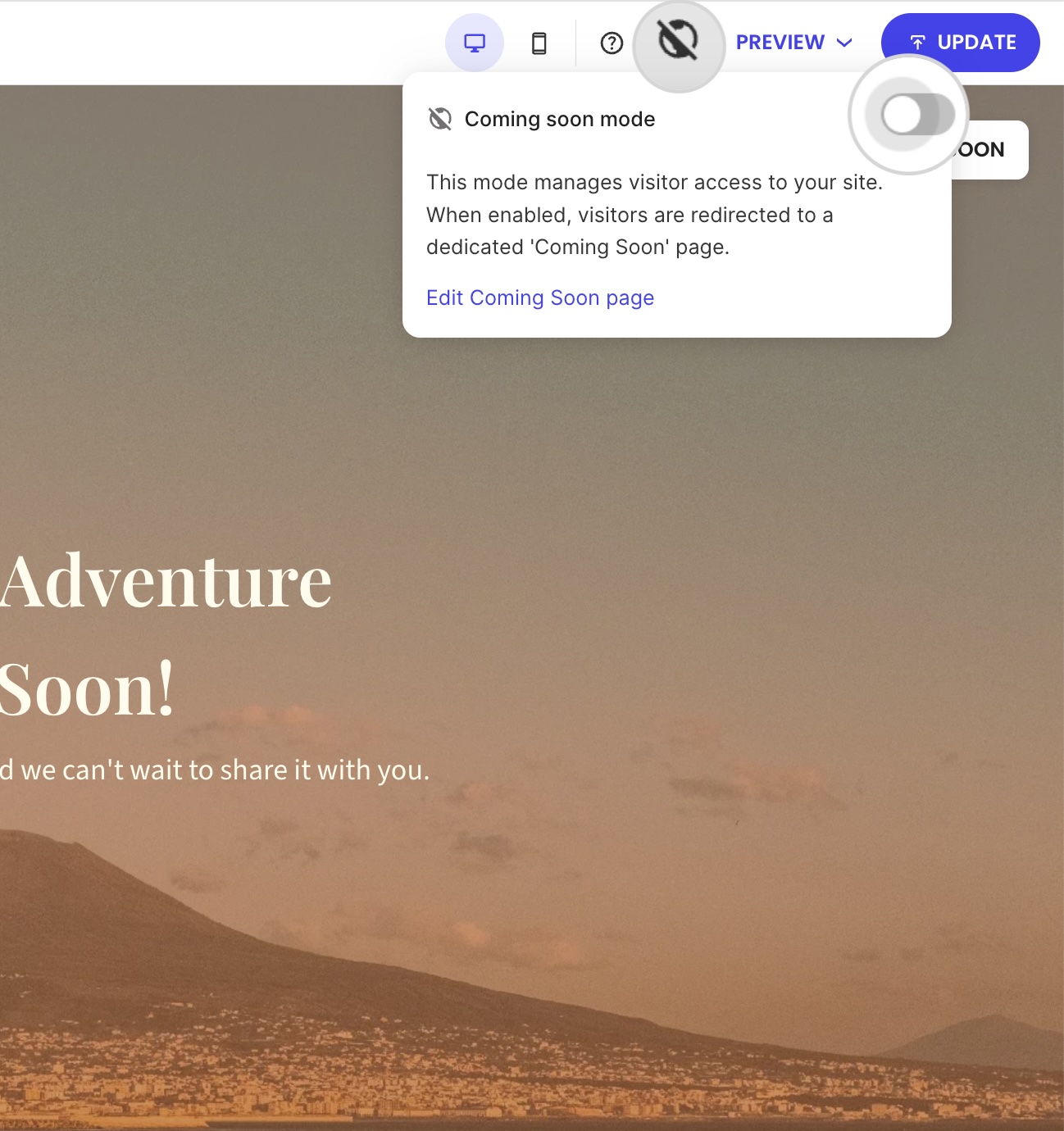
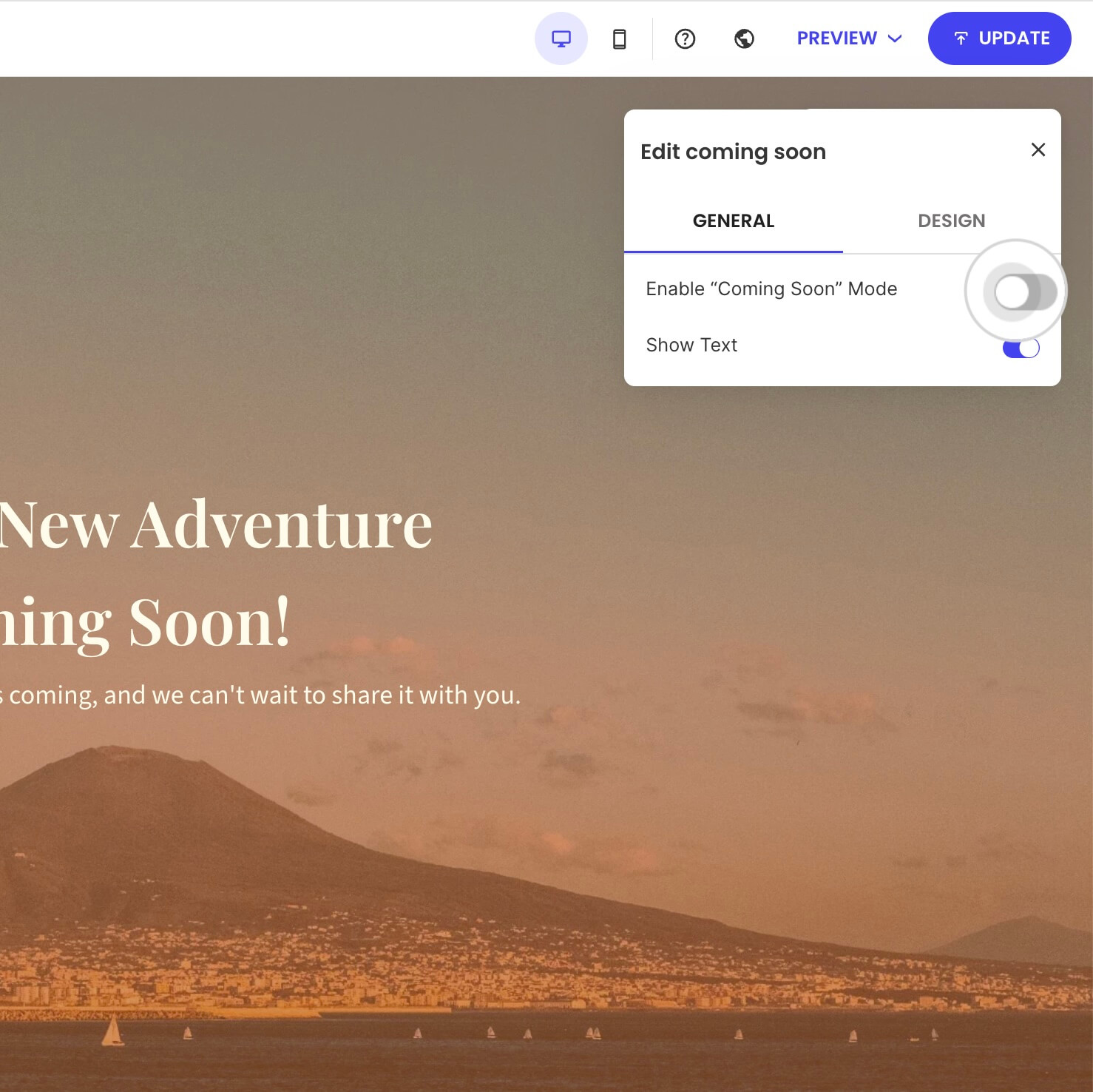
- Turn off the button Enable “Coming Soon” Mode to make your site publicly available.
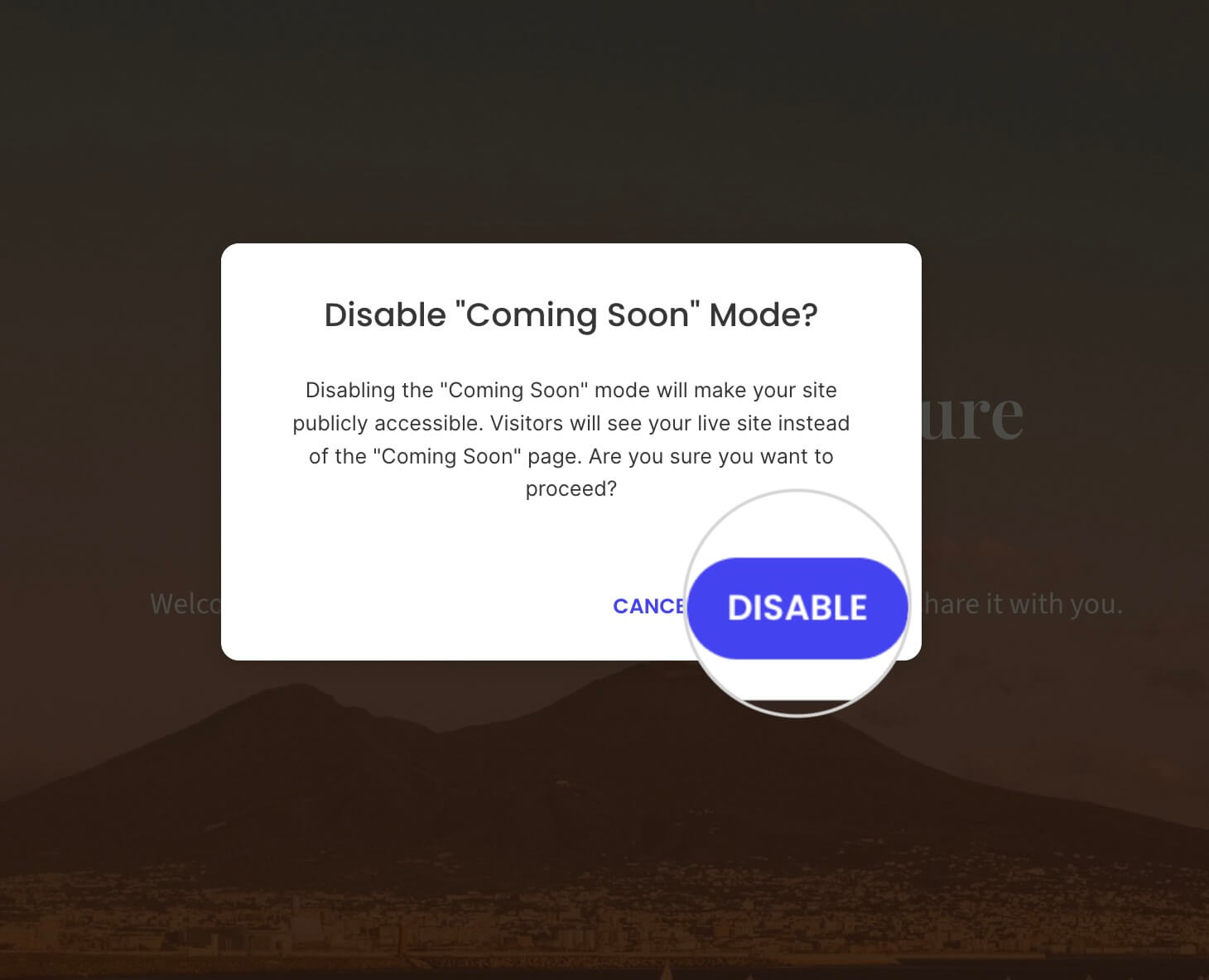
- In the confirmation screen, press Disable to turn off the Coming Soon mode.
Alternatively, click the crossed-out globe icon in the top-right corner, next to the preview button. Then, turn off Coming soon mode, and press Disable in the confirmation window.