How to change the name servers of my domain?
As long as your domain is registered through SiteGround, there will be no problem changing its name servers.
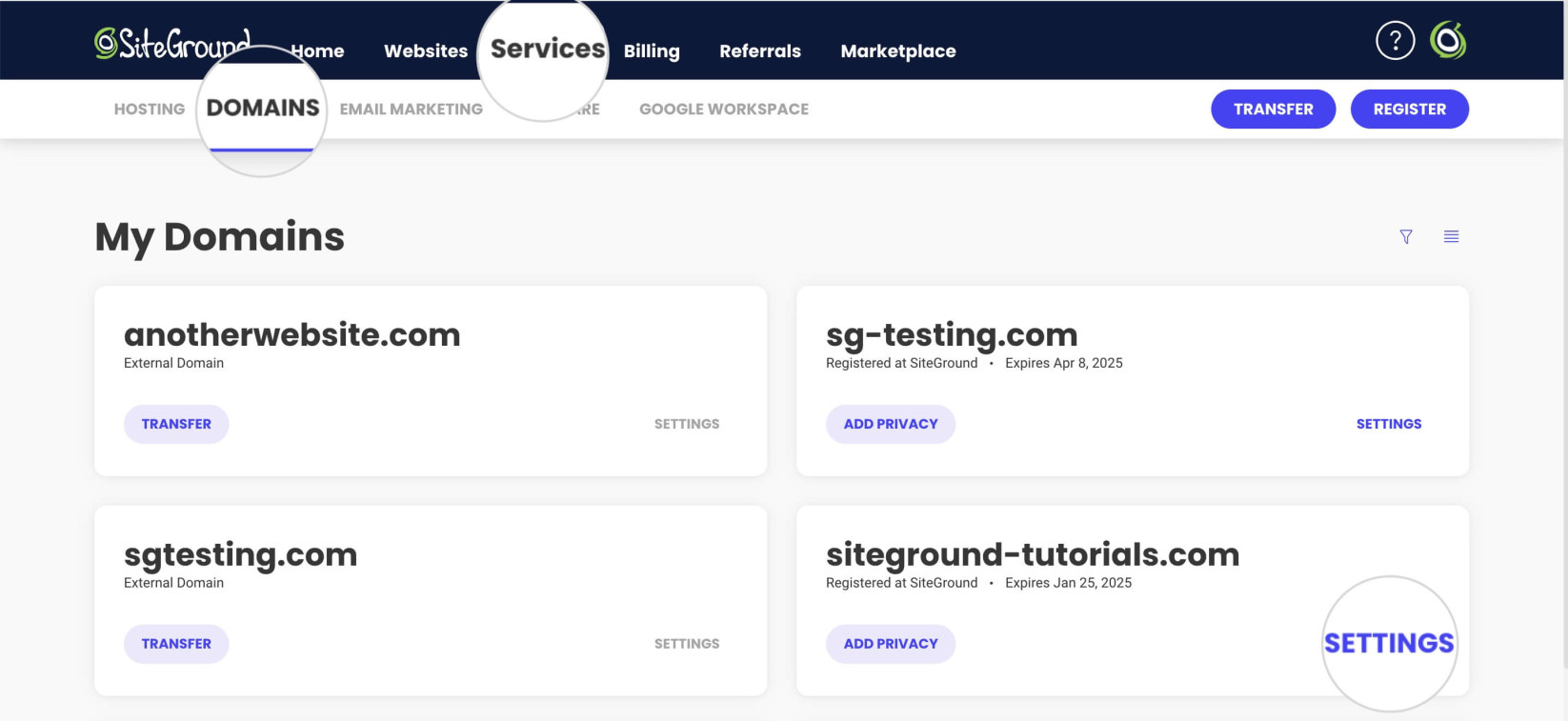
This can be done from Client Area > Services > Domains > Settings.
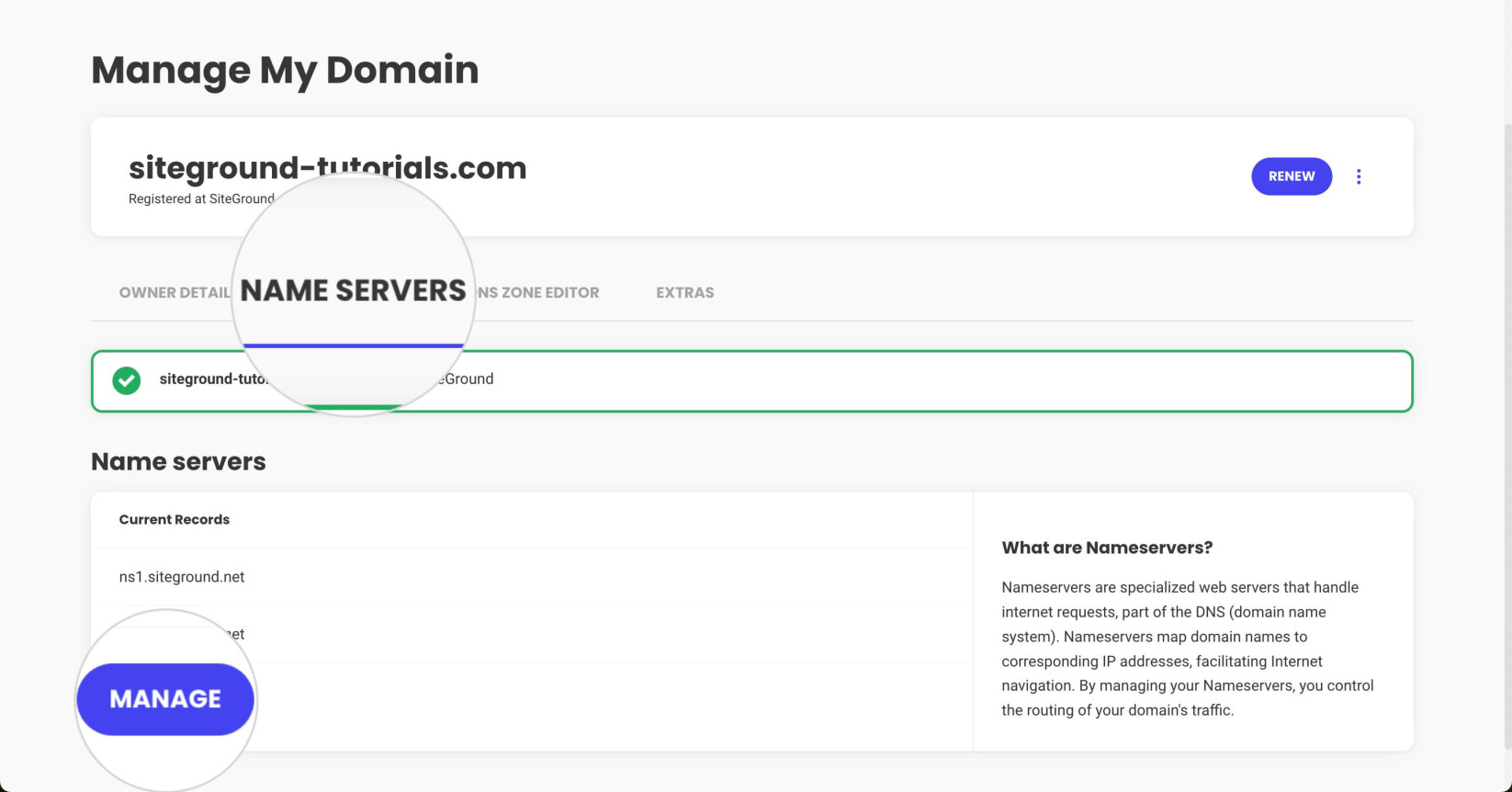
Open the Name Servers tab and click on Manage.
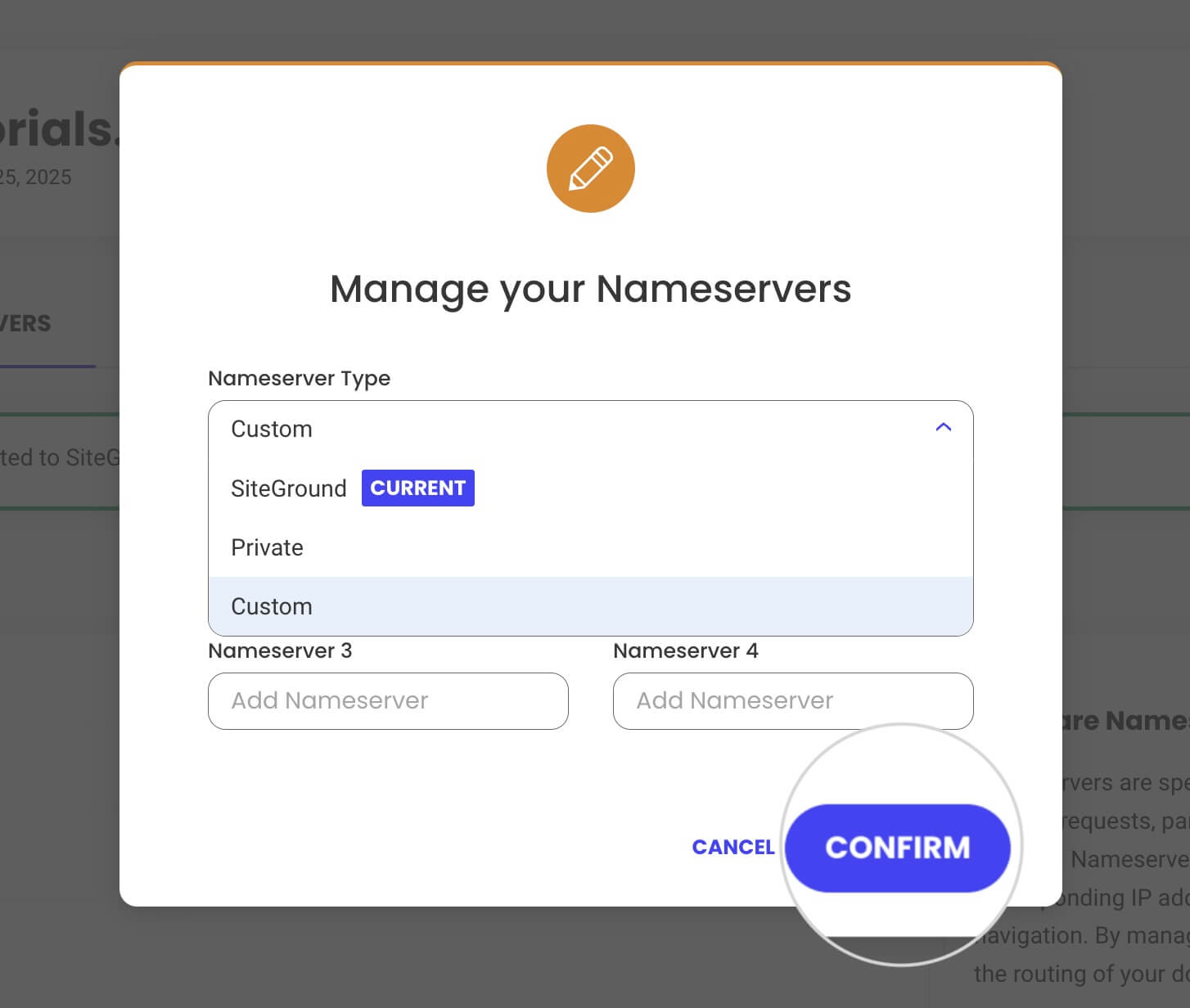
In the pop-up window, choose one of the available options in Nameserver Type.
- SiteGround – Choose this option if you want to manage your DNS records with SiteGround.
- Private – Choose this if you wish to use your own private nameservers as an alias of SiteGround nameservers. Suitable for white-label hosting where you want to manage the DNS records through SiteGround.
- Custom – Choose this option if you want to manage your domain through third-party nameservers. You can type the nameserver hostnames in the Nameservers fields.
Once ready, press the Confirm button.
If you are not a SiteGround customer, you should be able to edit your name servers from the control panel at your host/domain Registrar. For more information on how to do this, you will have to contact your host/Registrar.
How to change the nameservers of a subdomain
You can set separate nameservers for a subdomain of the primary domain. This will let you manage the subdomain’s DNS settings in another DNS zone.
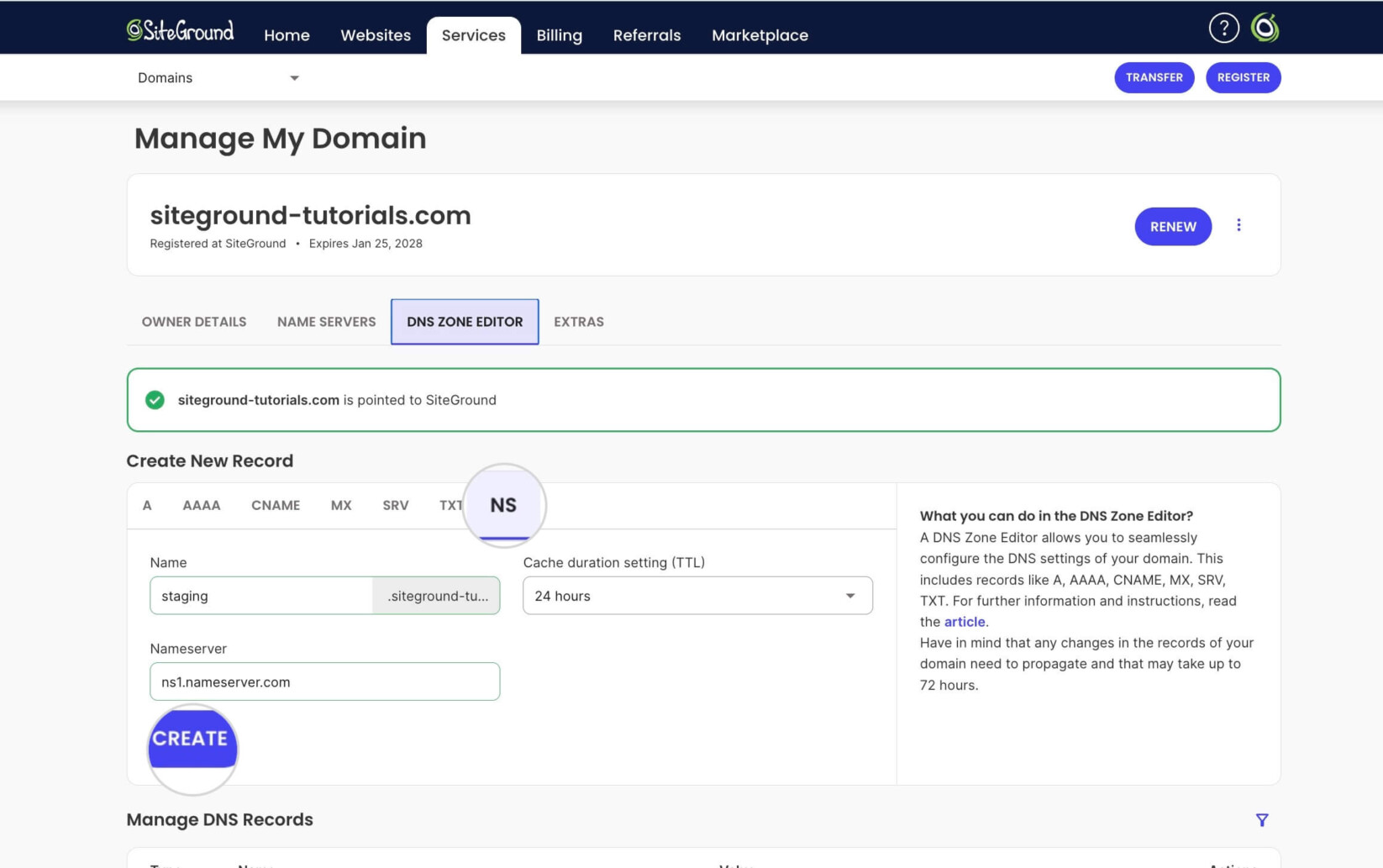
To change the nameservers of a subdomain, access the domain’s Settings page and open the DNS Zone Editor tab.
In the Create New Record section, choose the NS type. Write the subdomain’s name in the Name field.
Choose the duration for the DNS record’s cache refresh period from the TTL menu.
Type the nameserver’s address in the Nameserver field.
Click Create to confirm the nameserver. Repeat the process for as many nameservers as are required.