Website Builder and Ecommerce Site Integration with SiteGround Email Marketing
How to Connect Your Website Builder or Ecommerce Site with Email Marketing?
Integrating your Website Builder or Ecommerce site with SiteGround’s Email Marketing tool allows you to collect leads directly from your website.
You can initiate the integration through your Site Admin > Marketing > Lead Generation section. If your site is not yet connected, you will see an Email Marketing banner. Just click on the View Options button in the banner.
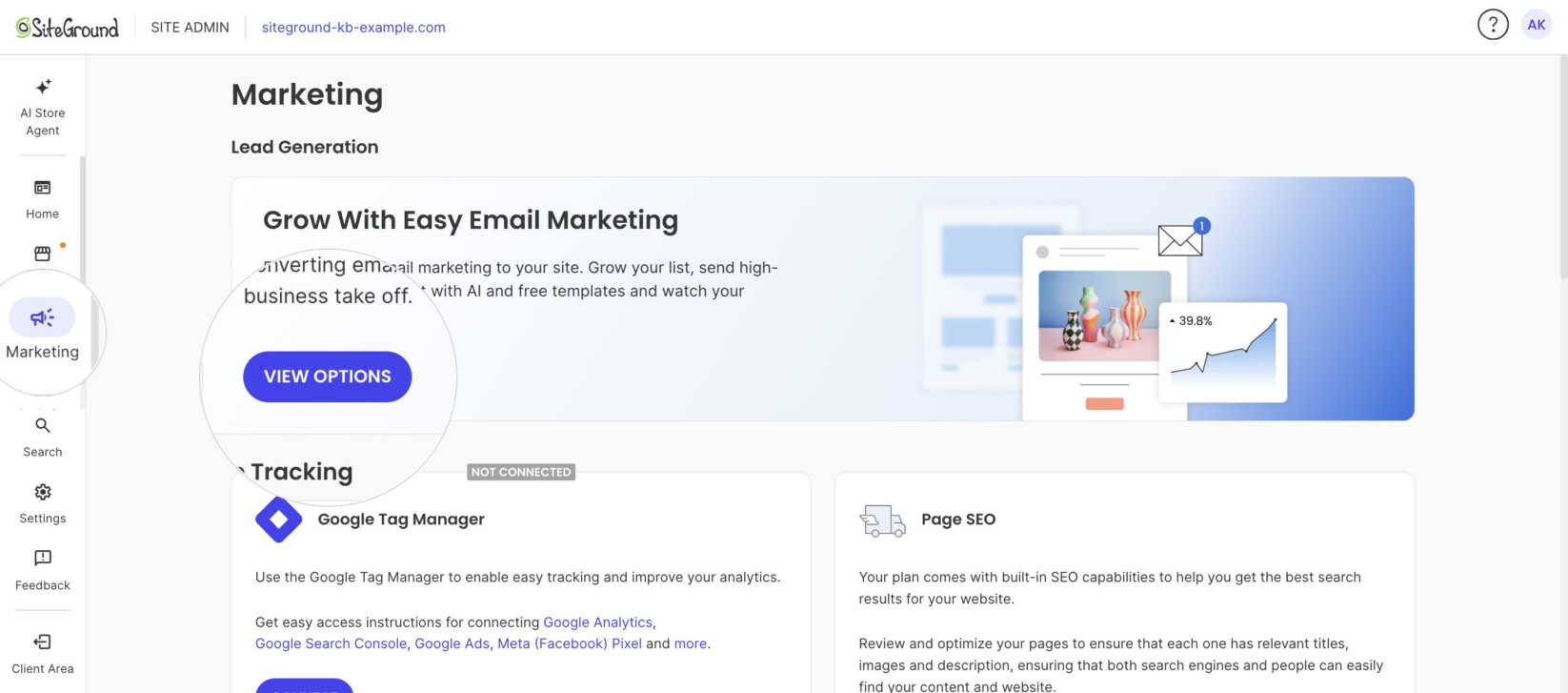
This will take you to your SiteGround Client Area, where you can purchase a new Email Marketing plan or connect your site to an existing one.
Once you have successfully connected an Email Marketing plan to your Website Builder or Ecommerce site, you will be able to set up a subscription form through the site’s Website Builder.
How Can You Disconnect a Site from Email Marketing?
You can stop the integration from either the Email Marketing control panel or the website’s Site Admin.
How to Stop the Integration from Email Marketing?
- Open the panel for your Email Marketing service.
- Navigate to Connect Website > Website Builder sites.
- Under the section Manage Email Marketing Integrations with Website Builder and Ecommerce sites, click on the Delete (trash bin) icon of the website you wish to disconnect.
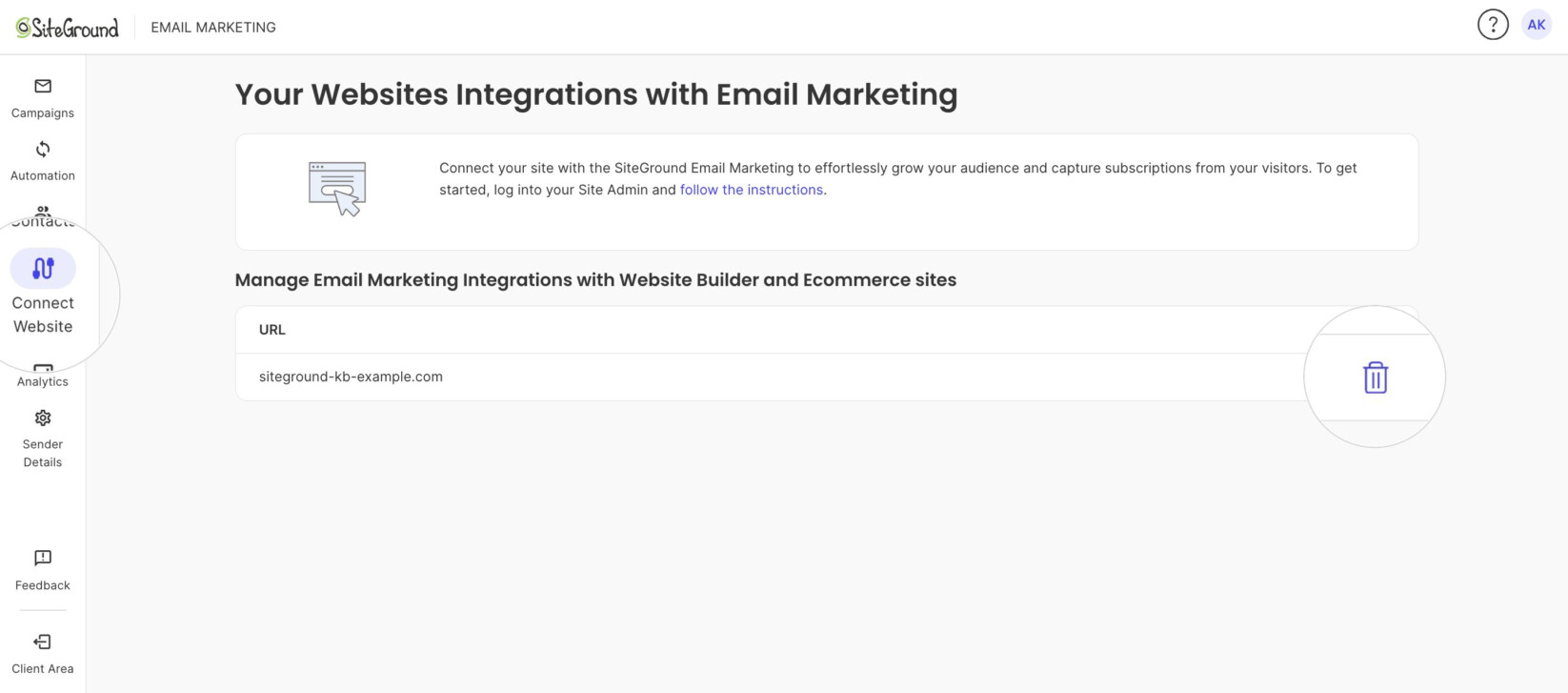
- In the following pop-up window, press Confirm.
How To Disconnect the Integration from Site Admin?
- Open Site Admin for your website built with Website Builder or Ecommerce.
- Navigate to the Marketing tab.
- Scroll down to the Lead Generation section where the SiteGround Email Marketing card is located.
- Click on the disconnect link at the bottom of the card.
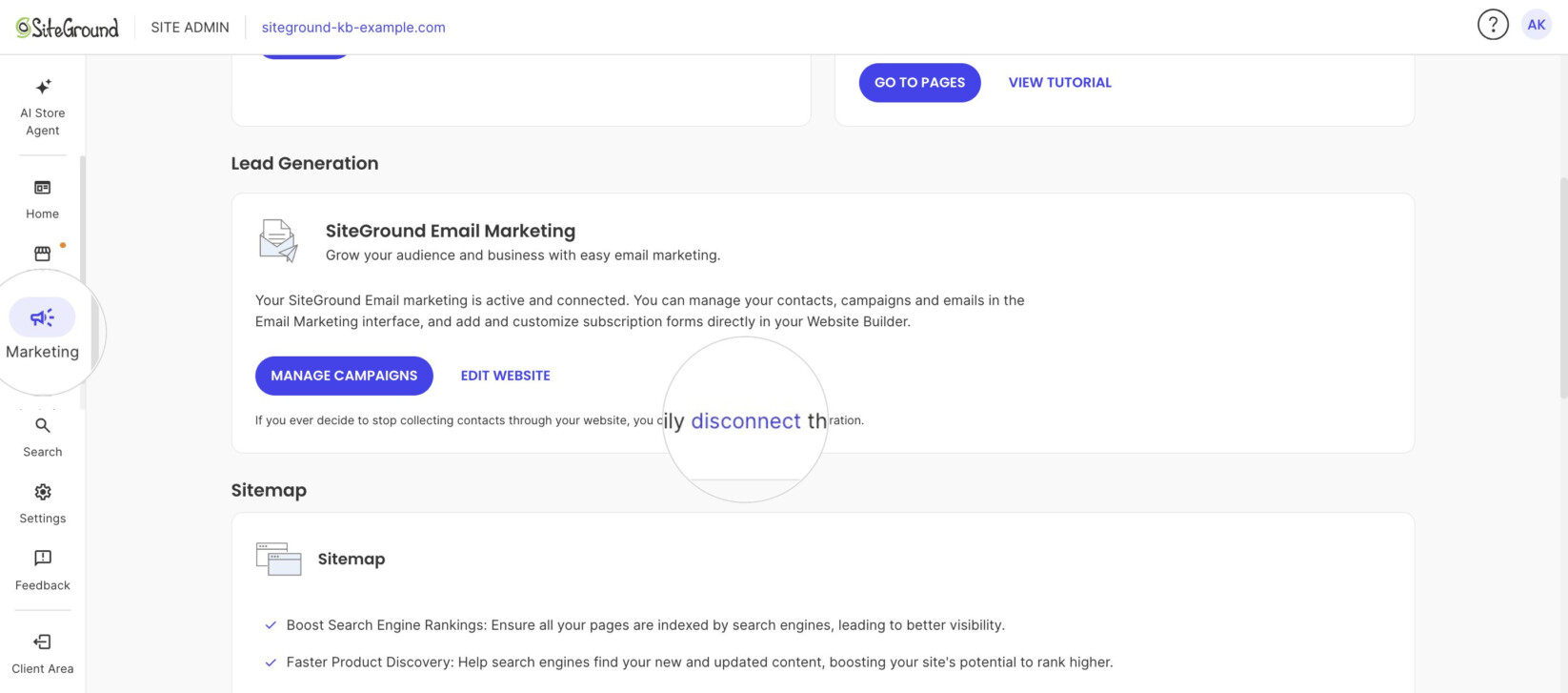
- In the following pop-up window, confirm by pressing the Disconnect button.
Subscription Forms on a Disconnected Site
New Forms Cannot Be Added
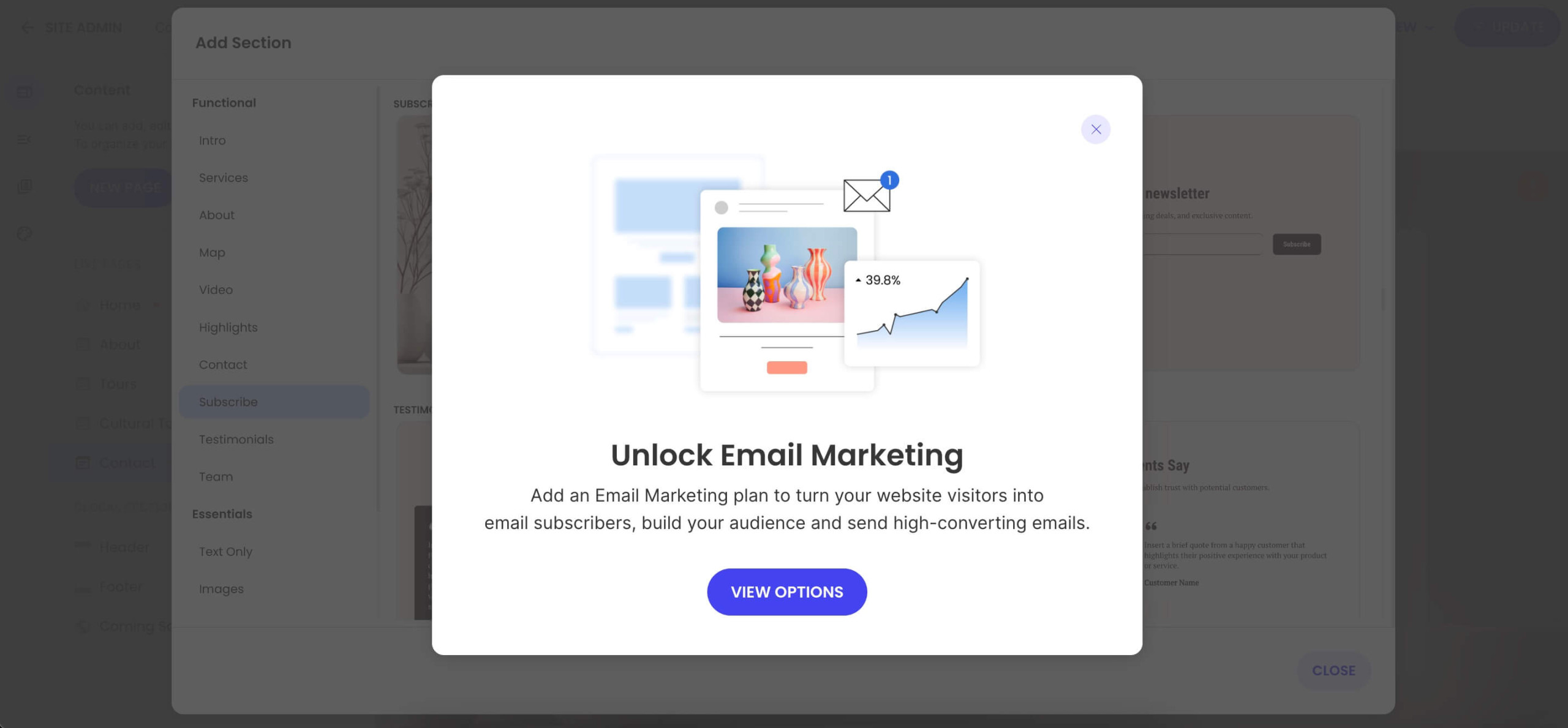
If your site is not connected to Email Marketing, you won’t be able to add new subscriptions forms. When trying to add a new section in Website Builder or Ecommerce, the Subscribe category will display a notification offering the option to integrate an Email Marketing service into your site.
Existing Forms Will Not Work
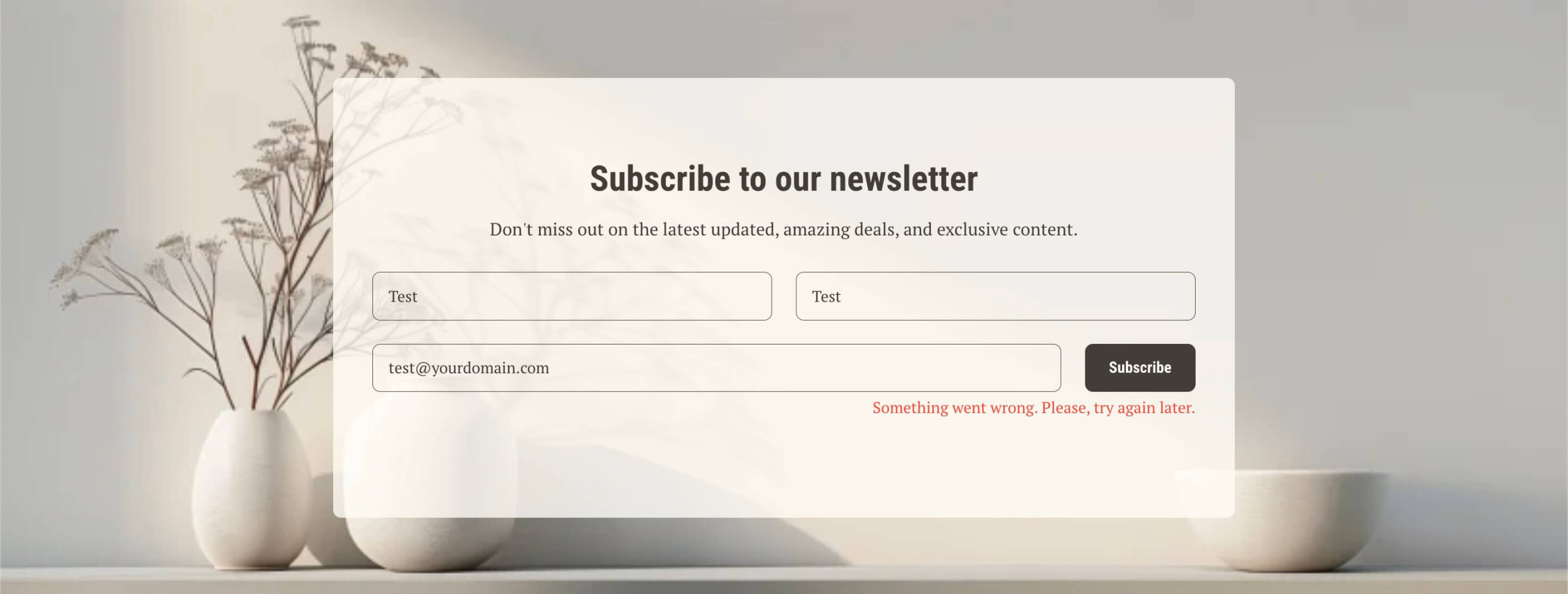
If it’s is not connected to Email Marketing, your site will keep displaying the already published forms. However, their submission will result in an error message and no leads will be collected.
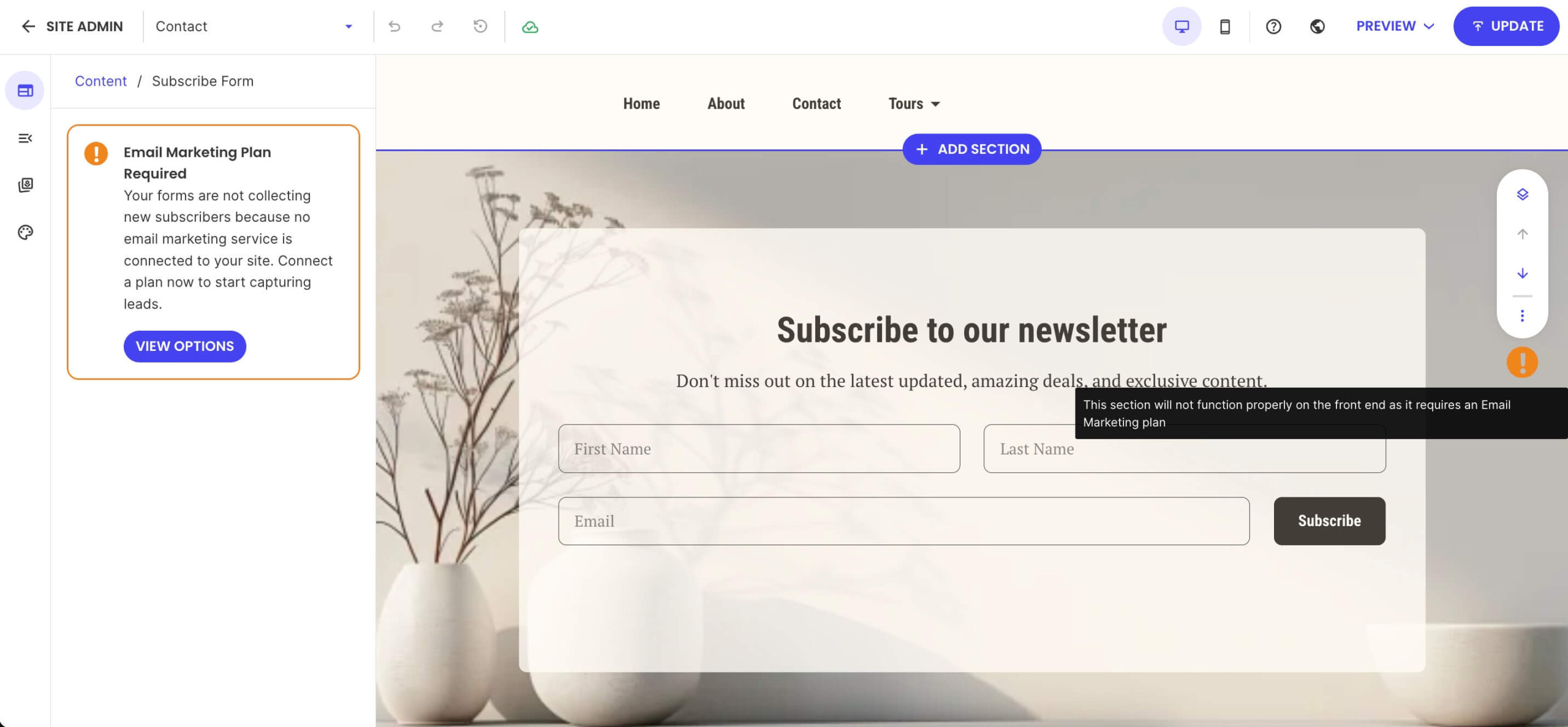
When you access published subscription forms through Website Builder, you will see a notification that they are currently not working and need to have Email Marketing connected to be functional.