Contact Our Support Team
When you need advanced technical help for issues that can’t be resolved with our knowledge base, you can always count on our friendly support agents. They provide assistance 24/7 via chat and tickets; phone support is available as well.
How to get help from our team?
- To get help from our team, first, log in to the Client Area.
- Click your profile icon in the top right corner and from the drop-down menu, select Help.
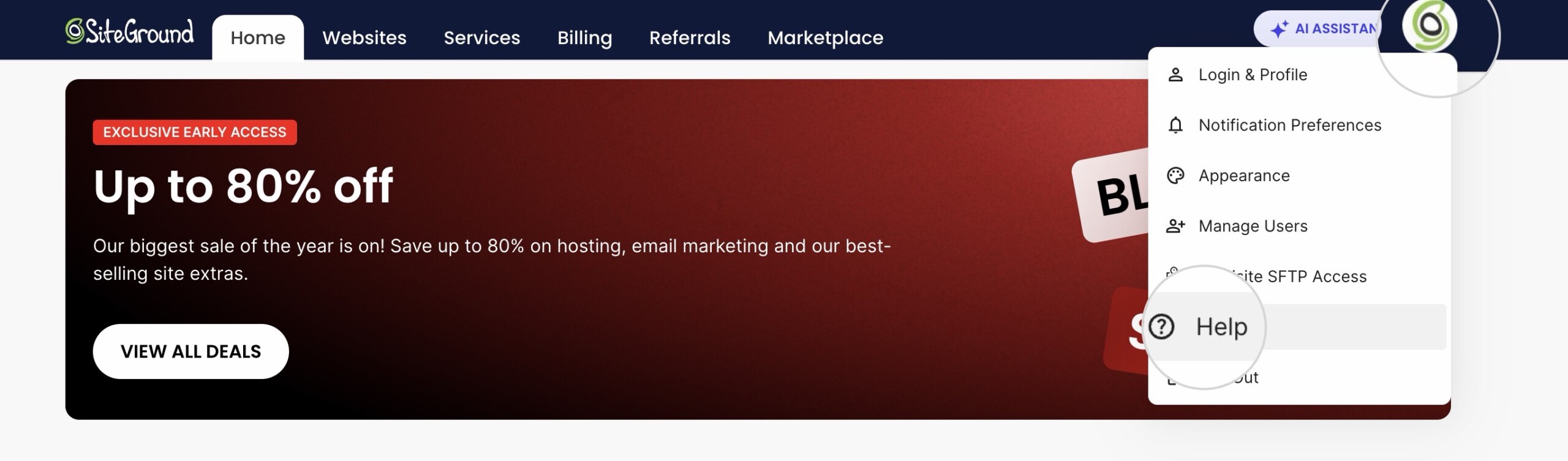
- This will take you to the Help Center home page.
- Next, click on the Contact Us tab and choose the category closest to the question you have.
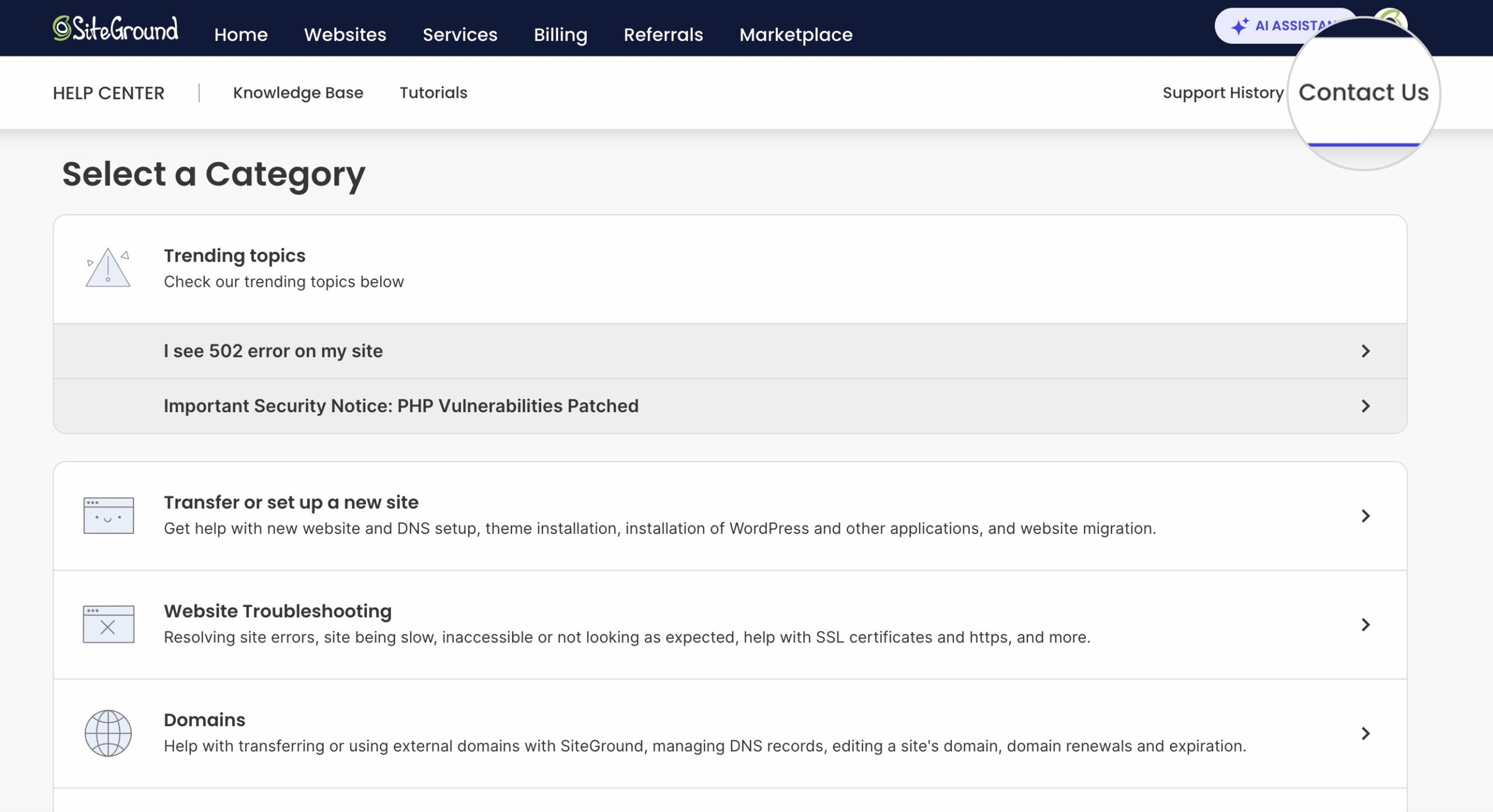
- After you choose the correct category, select the most appropriate topic for your request in order to get assistance in the fastest and most appropriate manner.
Depending on your selection, we may request additional information from you to better understand the issue you are experiencing and suggest an immediate solution. You may also be asked to go through our Instant AI Assistant.
If our suggested solution did not help you fix the issue, we will recommend the best channel for your particular inquiry, taking into consideration the current load on our support channels and the complexity of your report. Note that only some of the below support channels may be available for your specific request. Use the suggested channel for the quickest resolution.

If you choose the chat option, you will be redirected to chat with one of our support agents. At the end of the chat, you will be able to rate it and leave feedback.
If you prefer to get support via phone, the phone number will be displayed аs an option and it will be different depending on the country you’re loading the site from. Note that a 1-time access code will be required for identification.
If you prefer the ticketing channel, you will see a simple form to report your issue.
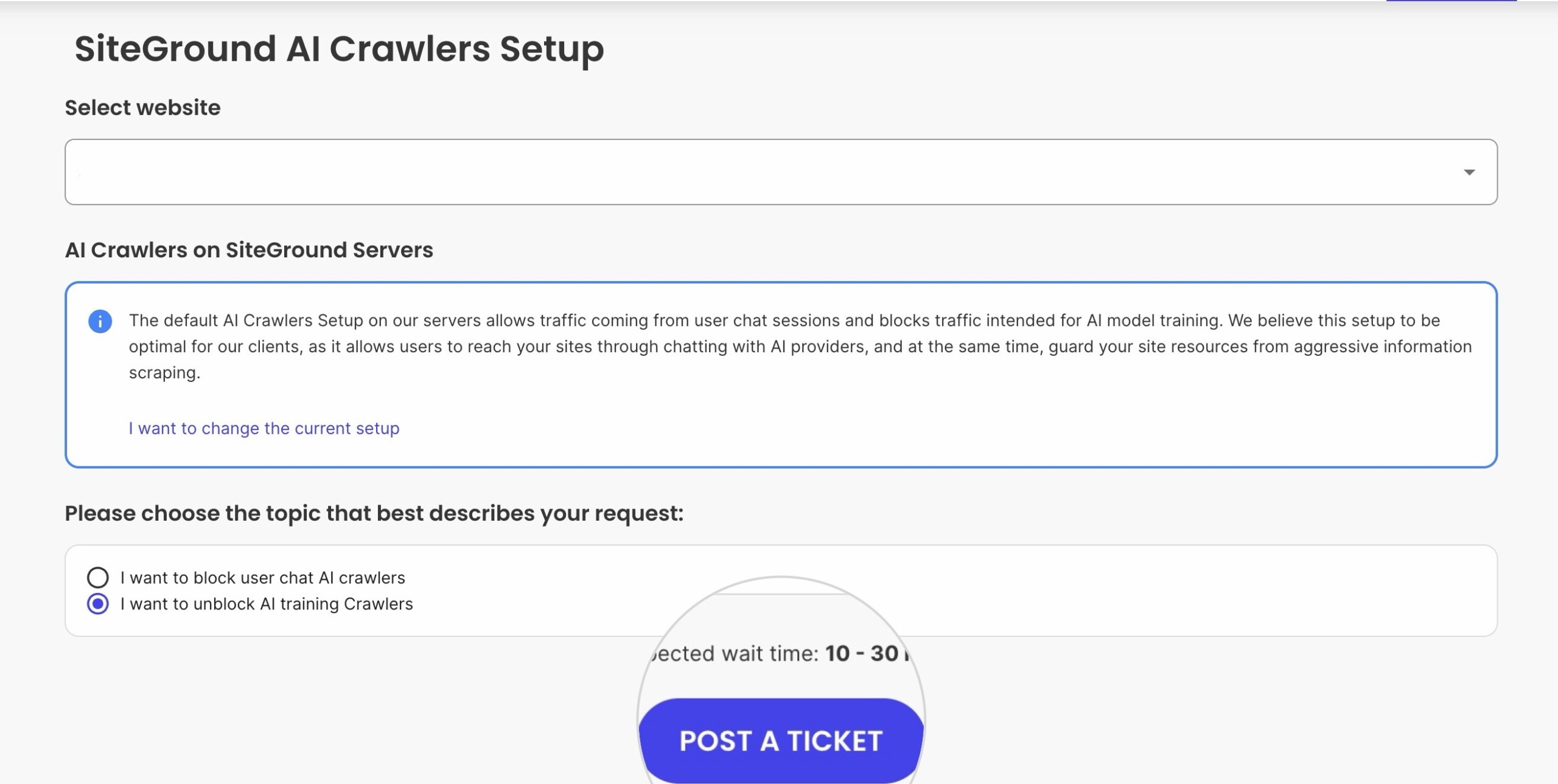
The support category, the topic of your request, as well as your website, will be automatically filled in. You can edit the subject of your ticket and describe your issue in detail. Note that you can upload a file if you need to.
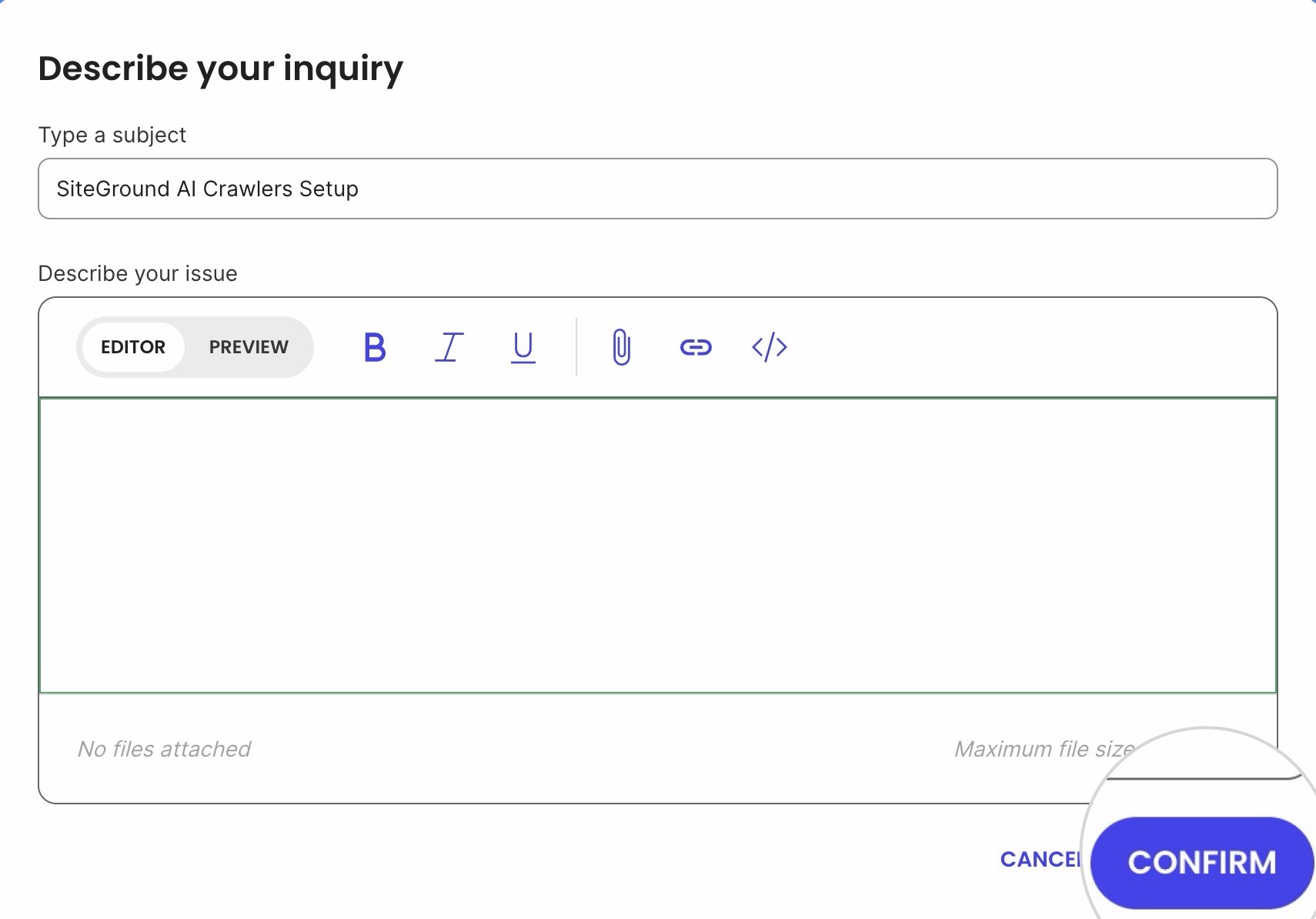
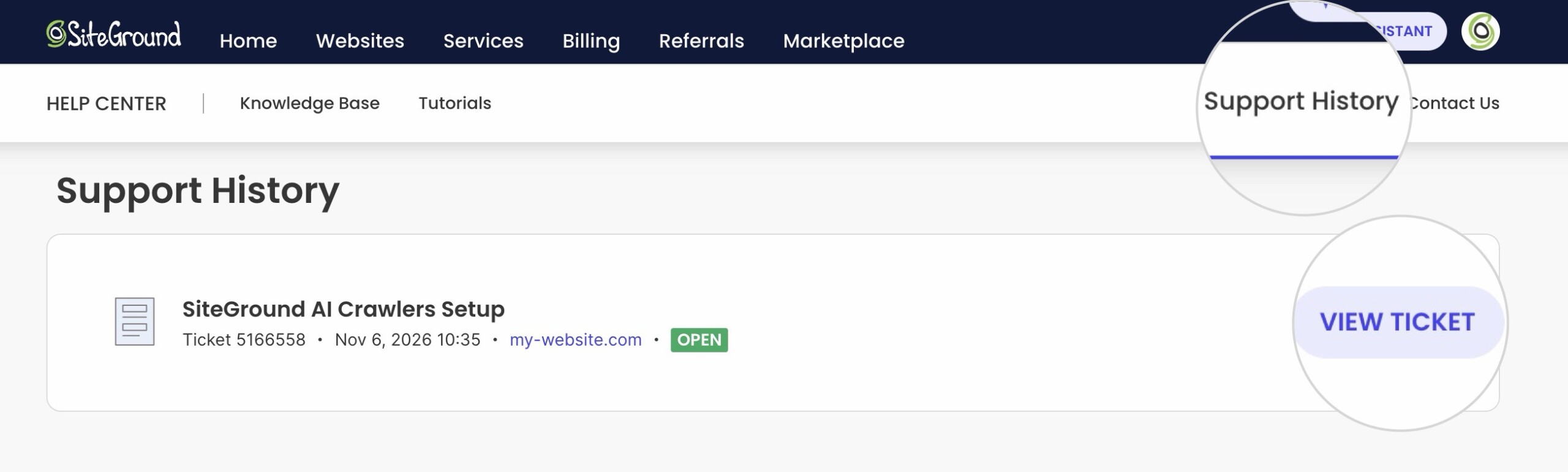
Once you confirm and submit your ticket, you can view it from your Help Center > Support History. If you are unsatisfied with the resolution from the ticket channel, you can ask to have your ticket escalated to a supervisor.
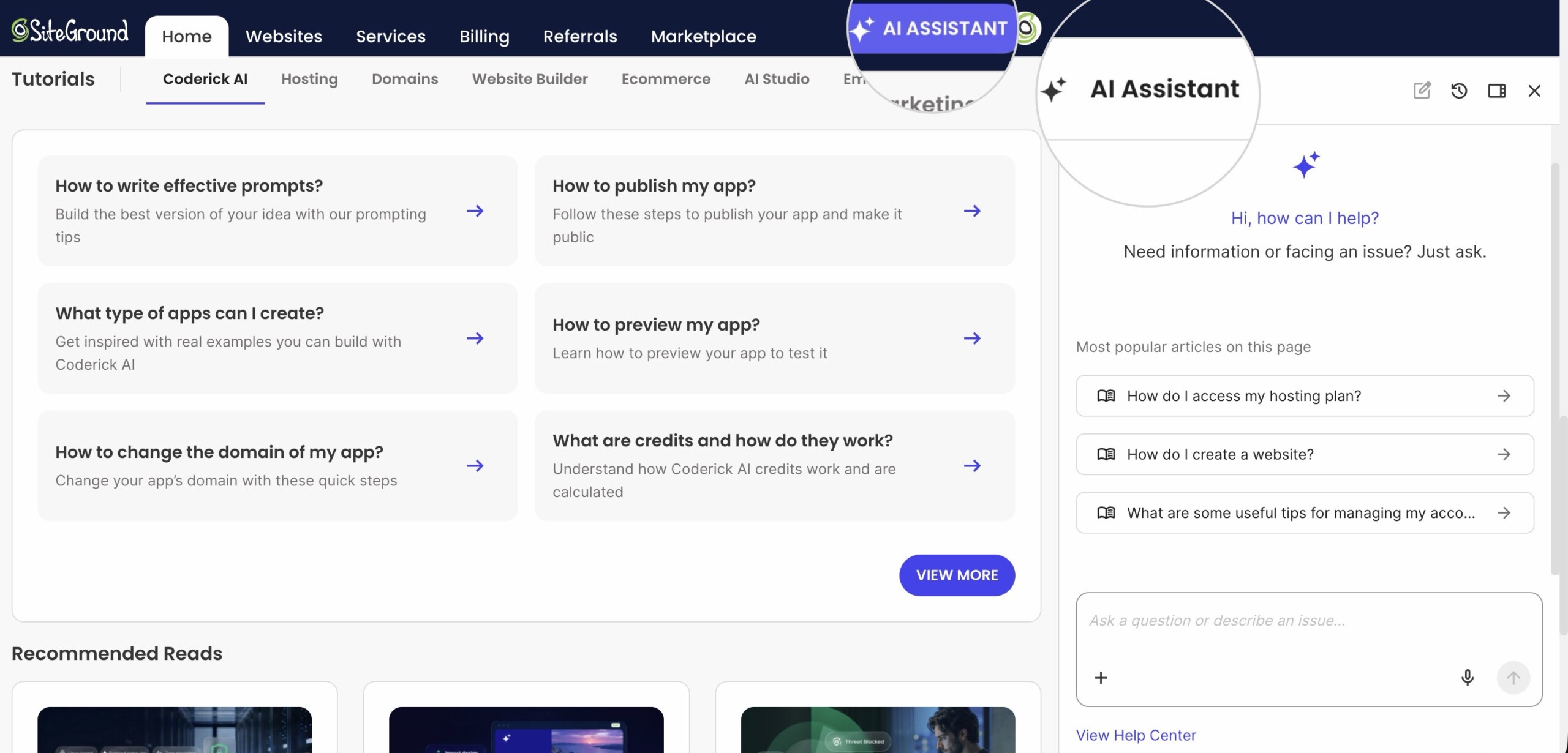
For quick answers, you can also click AI Assistant in the top right corner of your Client area, next to your profile icon.