Caching in Speed Optimizer
This tutorial shows you how to configure caching for your WordPress site in the Speed Optimizer plugin: Dynamic Caching, File-Based Caching, and Memcached, plus the settings for purging, excluding, and testing the cache.
Sites hosted at SiteGround use SuperCacher, SiteGround’s 3-layered server caching system: NGINX Direct Delivery, Dynamic Caching, and Memcached. NGINX Direct Delivery handles static cache, provides the first base of caching, and is active for all SiteGround-hosted sites. Dynamic Caching, which is also enabled by default, and Memcached add up to a 5x boost on top of the static cache and are the most effective caching mechanisms for WordPress sites. You manage SuperCacher in Site Tools > Speed > Caching, and the Speed Optimizer plugin gives you additional Dynamic Caching and Memcached settings for your WordPress site.
Before you start
- You need a WordPress site with the Speed Optimizer plugin installed and activated.
- Dynamic Caching and Memcached are available only for sites hosted at SiteGround. File-Based Caching also works on other hosts.
How to Open the Caching Settings
- Log in to your WordPress dashboard.
- Go to Speed Optimizer > Caching.
The page is split into Caching Types (Dynamic Caching, File-Based Caching, and Memcached) and Caching Settings (purge, exclusion, and browser-specific options), with the Test URL Caching Status tool at the bottom.
Speed Optimizer – SuperCacher Settings Video Guide
Dynamic Caching
Dynamic Caching is a full-page caching mechanism powered by NGINX.
The full-page caching is enabled by default on a server level for all sites hosted at SiteGround. SiteGround will cache your WordPress, even if you don’t have the plugin installed. However, the Speed Optimizer gives you far more control over this process, and we strongly advise you to utilize it for the best dynamic caching results and complete access to the configuration possibilities.
Through the main switch, you can control whether your website is cached or not.
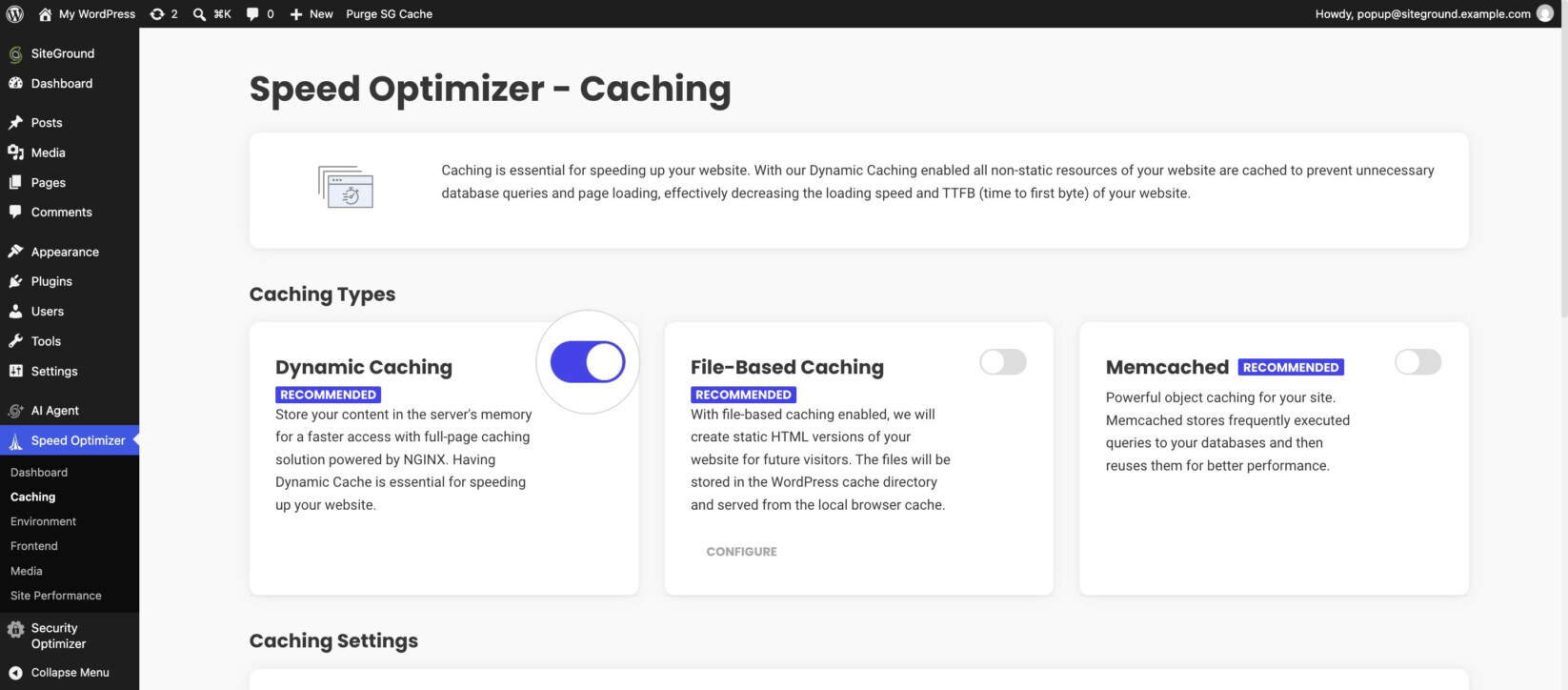
Dynamic Caching relies on SiteGround’s server configuration, so it isn’t available for sites hosted elsewhere. If your site is hosted with another provider, you can still use File-Based Caching, or transfer your website to SiteGround.
File-based Caching
With file-based caching, every visit to your site will be faster. Our plugin will create a static HTML version of your website and store it in the WordPress cache directory.
To use File-Based Caching, SiteGround clients must have Dynamic Caching enabled, because the two work together for the best performance.
If your site isn’t hosted at SiteGround, you can use File-Based Caching on its own.
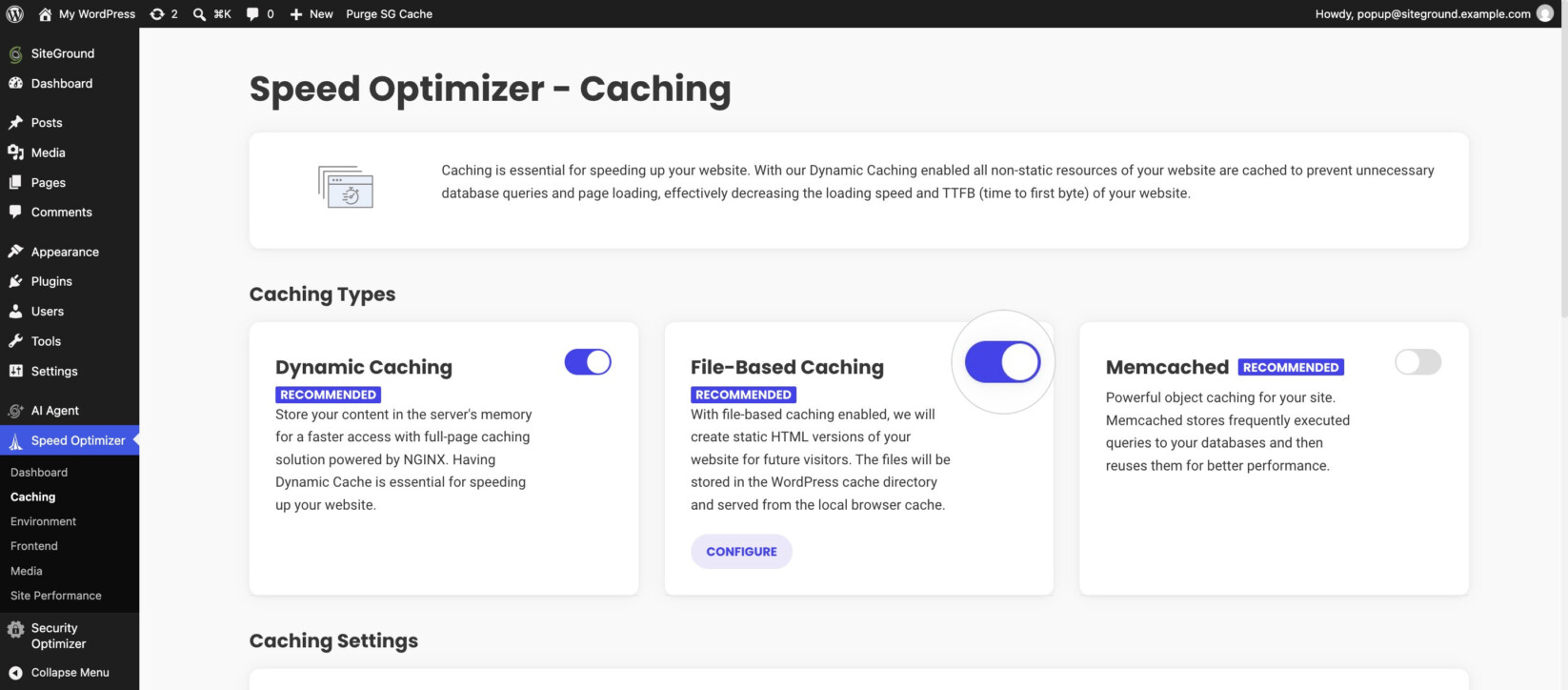
The file-based caching is disabled by default and you can manage it by the main switch.
Configure File-Based Caching
To change these settings, turn on File-Based Caching and click Configure. The button is inactive while File-Based Caching is off.
Clean up interval
- Off
- 12 hours
- 24 hours
- 48 hours
- 1 week – default option
Preheat Cache
When Preheating is enabled, our system will reload the cache once it is purged after content update in order to serve the fastest possible results to your real visitors. It is pre-selected by default.
Note that the preheat feature only works with the WordPress built-in cron functionality.
Logged-in Users Cache
By default, we do not cache content for logged in users. Once Logged In Cache is enabled, we will store separate caches for each user. Note, that if you have many users, the size of the stored cache may be increased.
Automatic Purge
Enabling this option will allow our plugin to flush parts of your cache once it detects changes in your content. We’ve developed a set of rules to purge the dynamic and/or file-based caching in a smart, efficient way depending on the change that has occurred on your site. We do a full cache flush on events like category deletion, plugin and theme update or switch, WordPress core update, etc. On the other hand, we do smart flush when a post is modified, a comment is added or a category is updated for example.
You can also choose to automatically flush the WordPress REST API cache too. This could be useful if you are using the API with external third party WordPress tools that depend on it to ensure there is no delay in the information they receive about your website.

We highly recommend this option to be ON, as it ensures that new content is timely shown on your site. However it is recommended to leave the REST API automatic cache purge option disabled unless you are actively using the REST API at the moment and you are experiencing problems with it.
Manual Cache Purge
You can use this option when you’re modifying new content and don’t have automatic purge enabled to make sure that you’re loading the latest version of your site. Click Purge Cache to clear the cache right away. You can also use the Purge SG Cache button in the WordPress admin bar.

Exclude URLs from Caching
In certain cases, you may want to exclude parts of your website from the cache. We’ve developed an easy interface to do that. To exclude a URL:
- Click the pencil icon next to Exclude URLs from Caching.
- In the window that opens, paste the relative path of the URL you want to exclude, or the entire URL. The plugin parses it and adds it in the right format.
- To add another URL, click the plus icon next to the field.
- Click Confirm.
This function works for both dynamic and file-based caching.

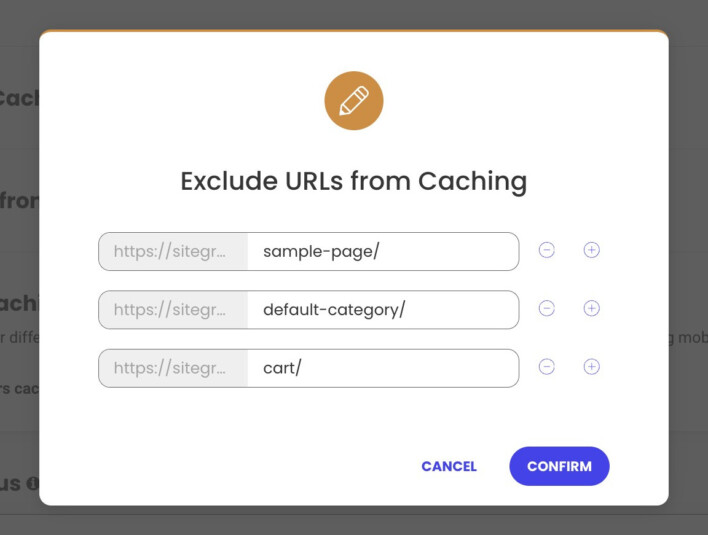
In addition to exact URLs, you can use the wildcard sign “ * ” to exclude entire sections of your site. For example, if you want to exclude all posts in the “business” category, you can add:
https://yoursite.com/category/business/*
Or, if you want to exclude all URLs that have the word “business” in it, you can add:
*business*
Exclude Post Types
With this optimization, you can exclude all posts from the specific post type being cached by the Dynamic Caching. This will make sure all of them are served non-cached for all users. Click the pencil icon next to Exclude Post Types from Caching, select one or more post types, and click Confirm.

How to Enable Browser-Specific Caching
We recommend you to enable this feature only if you’re experiencing issues with plugins, generating mobile version of your site or similar functionality. Once enabled, the cache has to be generated separately for different browsers which lowers its efficiency. To enable this feature move the Browser-Specific Caching toggle to ON.

Test Cache Status
Our caching system relies on headers and can be a bit tricky, especially for new users to tell if a certain result is served dynamically or from the cache. That’s why we’ve developed a quick cache testing tool to verify whether your URLs are properly cached. In addition to that, it’s a great way to test if URLs you’ve excluded from the cache are actually dynamic.
- Scroll to Test URL Caching Status at the bottom of the Caching page.
- Enter the path of the URL you want to check.
- Click Test.

Memcached
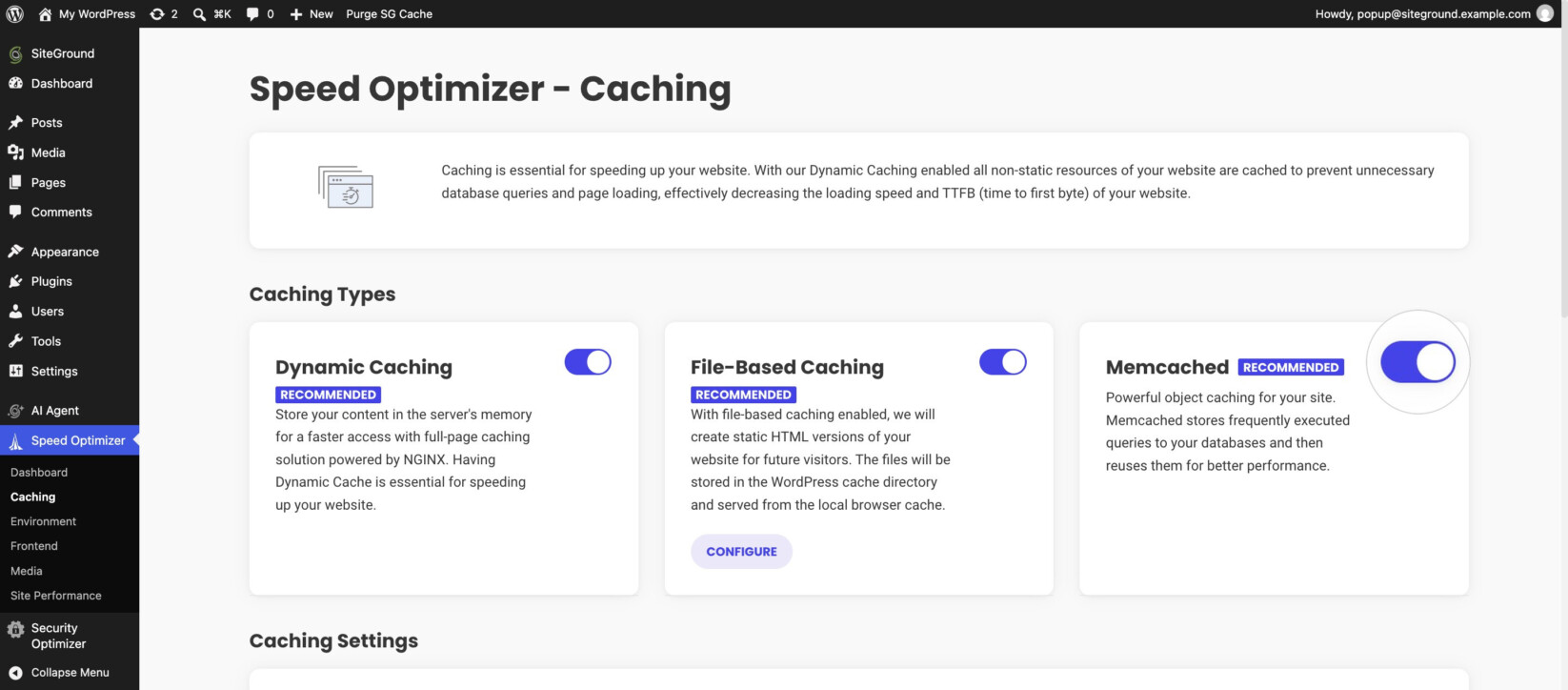
Memcached is one of the most popular object caching solutions. To use it, enable it in Site Tools first, and then in the plugin:
- In Site Tools, go to Speed > Caching and open the Memcached tab.
- Switch Memcached on.
- In your WordPress dashboard, go to Speed Optimizer > Caching and turn on the Memcached toggle. This configures your site to use the service.
If Memcached isn’t enabled in Site Tools, the plugin shows a message that it was unable to connect to the Memcached server.
Frequently Asked Questions
Do I need the Speed Optimizer plugin for caching to work on SiteGround?
No. Dynamic Caching is enabled at server level for all sites hosted at SiteGround, even without the plugin. The plugin gives you control over it, including automatic purging, exclusions, and File-Based Caching.
Why don’t I see my latest changes on my site?
You may be seeing a cached version of the page. Make sure Automatic Purge is on, or purge the cache yourself with Purge Cache on the Caching page or Purge SG Cache in the WordPress admin bar.
Can I use Speed Optimizer if my site isn’t hosted at SiteGround?
Yes. You can use File-Based Caching and the settings that depend on it, such as Automatic Purge and Browser-specific Caching. Dynamic Caching and Memcached rely on SiteGround’s servers, so they are available only for sites hosted at SiteGround.
The plugin says it was unable to connect to the Memcached server. What should I do?
Memcached is probably switched off for your site in Site Tools. Go to Speed > Caching > Memcached in Site Tools, switch it on, and then turn on Memcached in the plugin again.
How can I check whether a page is cached?
Use the Test URL Caching Status tool at the bottom of Speed Optimizer > Caching. Enter the page’s path and click Test.