How to clear cache on iPhone: Step-by-step guide (2026)
Sometimes, your iPhone may experience performance or connectivity issues. The most common advice you will see online is to “Clear your phone’s cache.”
This suggestion may seem very general, but it’s often an effective solution. Although the cached data improves your overall browsing experience, it may be the reason why your iPhone underperforms.
This guide will teach you how to clear cache data on an iPhone, give you some extra tips, and answer some of the most common questions.
How to clear Safari cache on iPhone
When it comes to cache, we usually mean the browser’s cache. Safari is the default browser for iOS devices, hence the most widely used on iPhones and iPads. So clearing the browser cache for an iPhone usually means clearing the cache for Safari.
How to clear cache for all websites
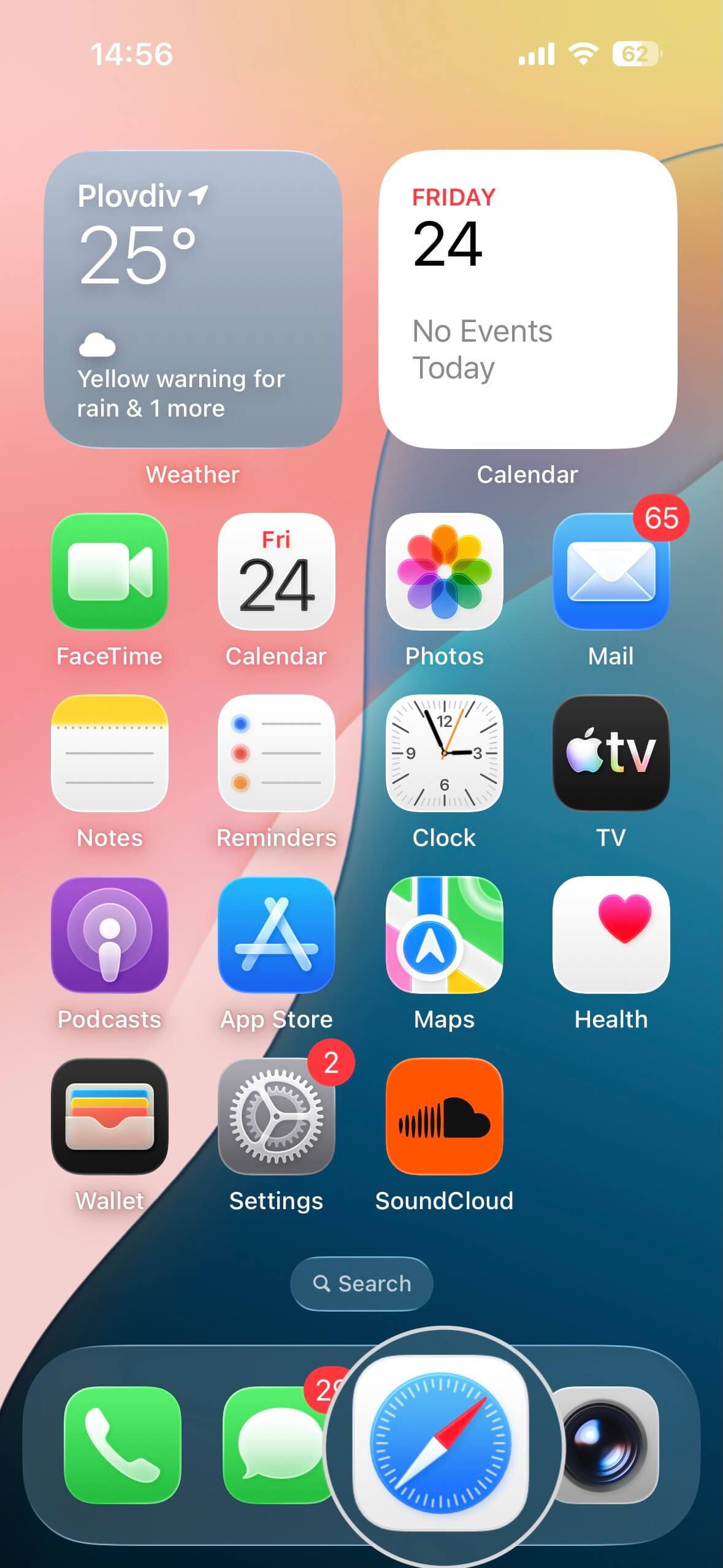
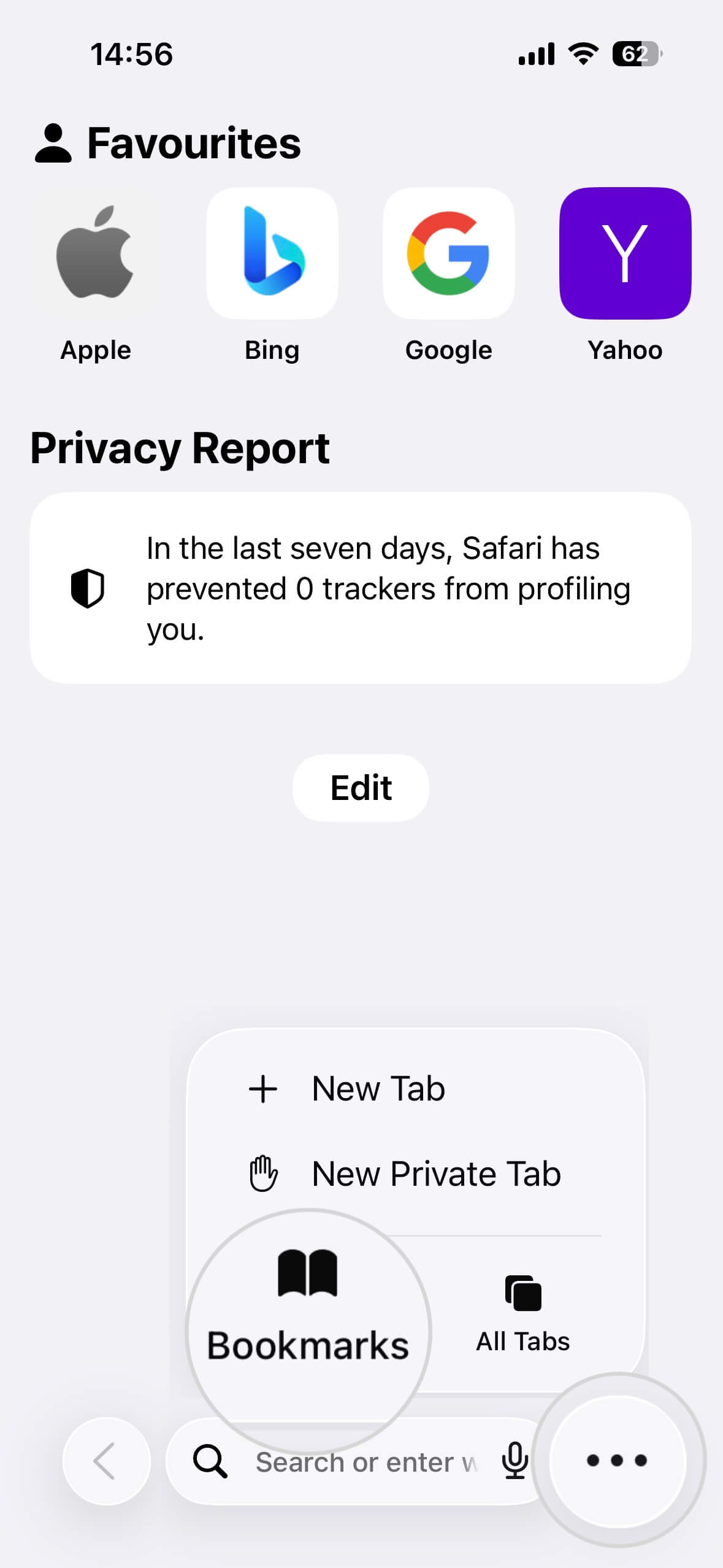
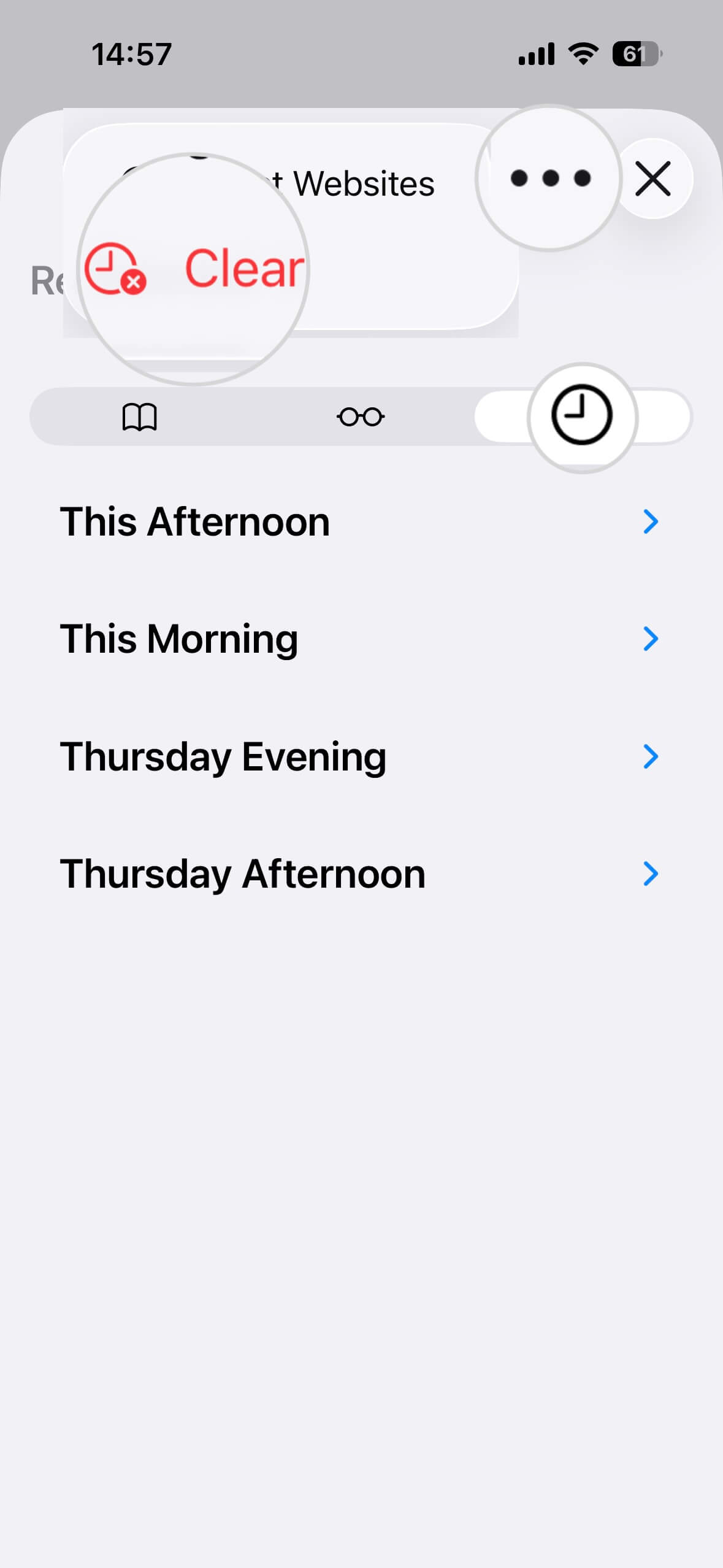
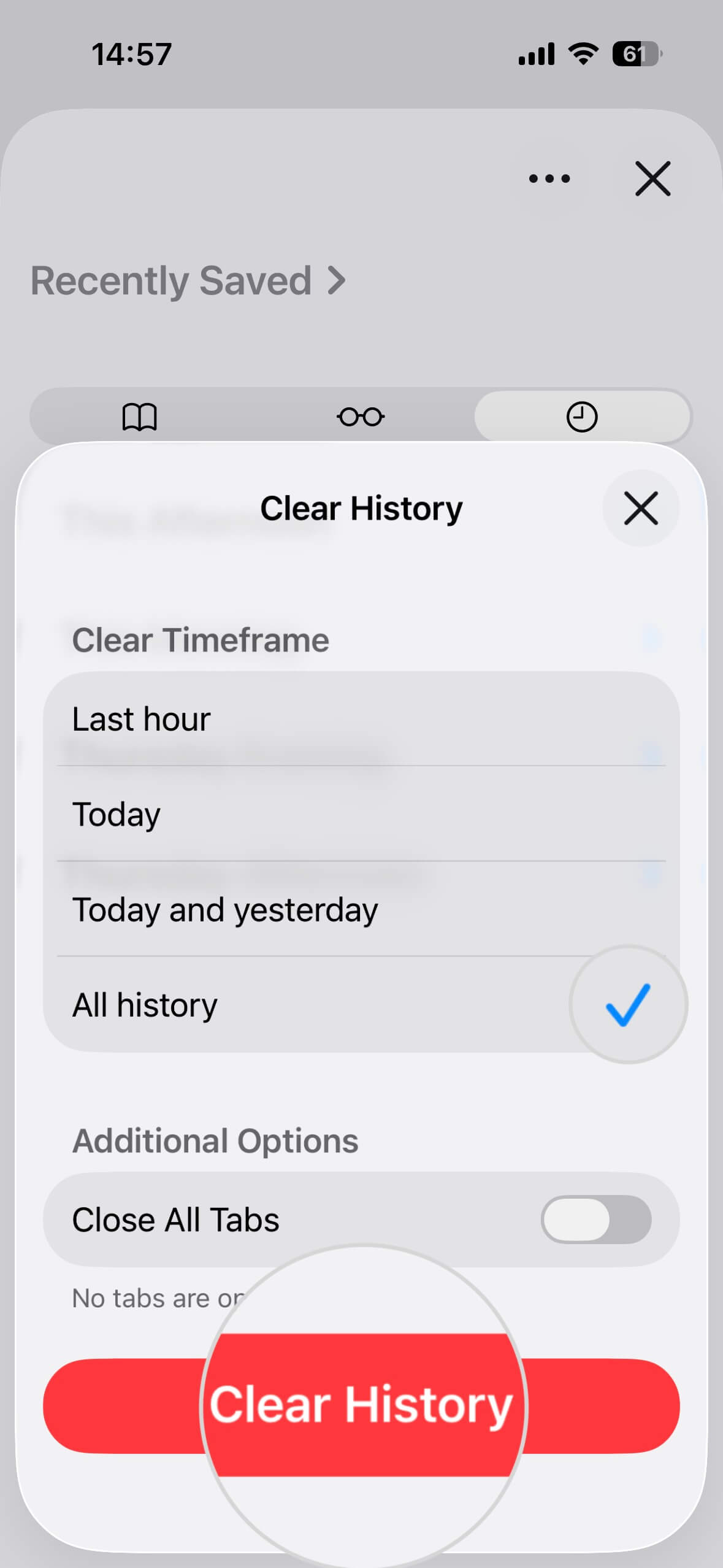
To clear the Safari cache and cookies for all websites, follow the steps below.
- Open the Safari app.
- Tap on the ellipsis (⋯) menu and select Bookmarks.
- Open the History tab and press the ellipsis (⋯) menu.
- Select Clear.
- Choose the period for which to delete the browsing data from the Clear Timeframe menu.
- Confirm with the Clear History button.
How to clear cache for a specific website
Instead of clearing the cache for all websites, you can focus on the ones giving you trouble.
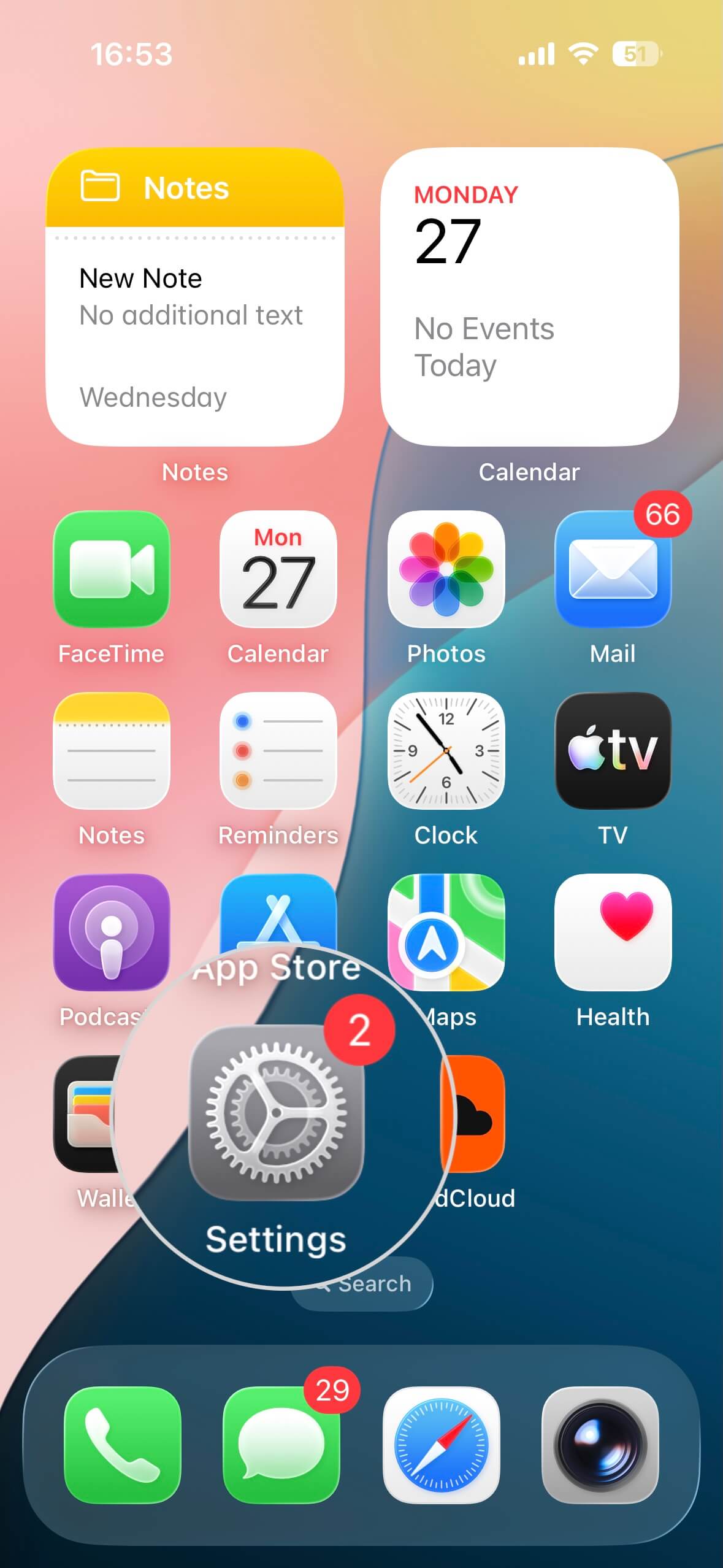
- Open Settings on your iPhone.
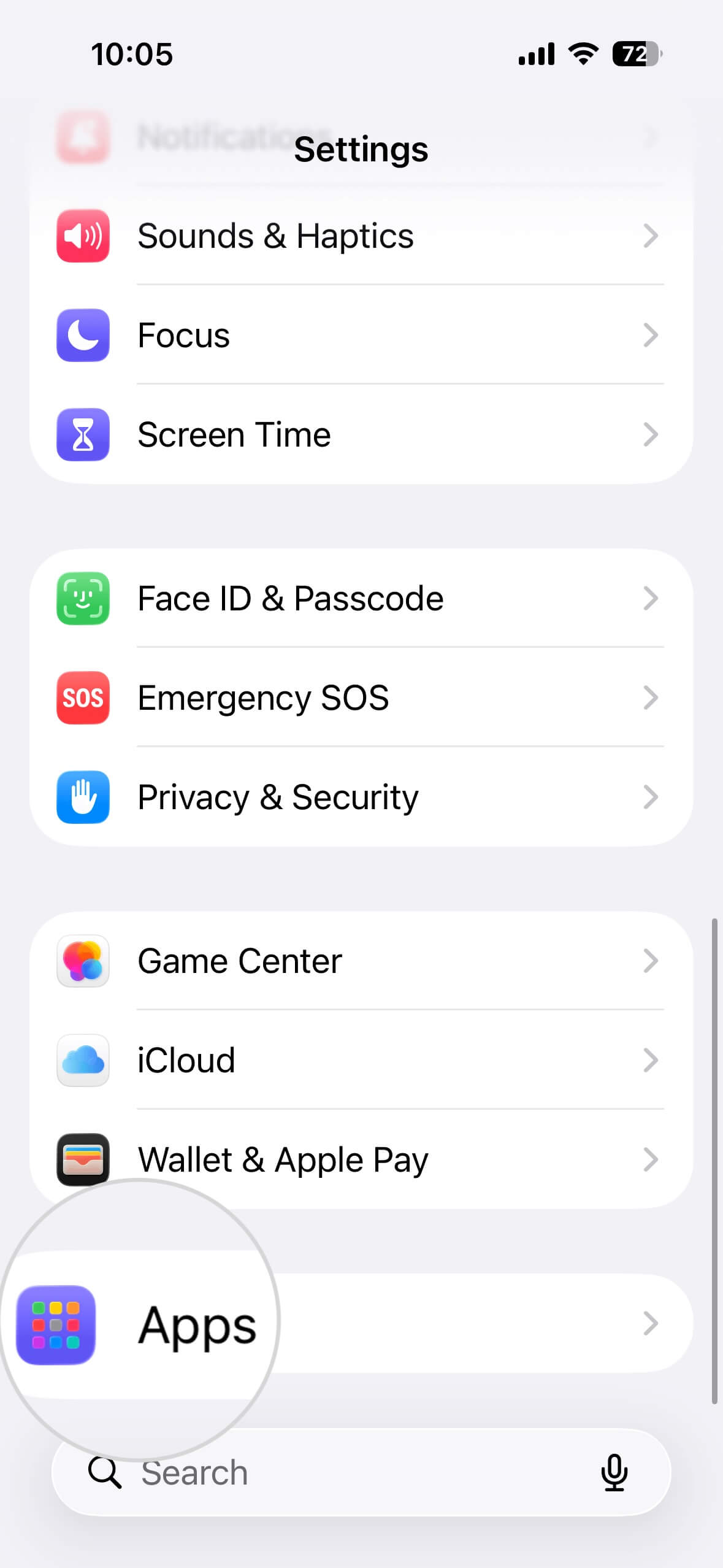
- Go to Apps.
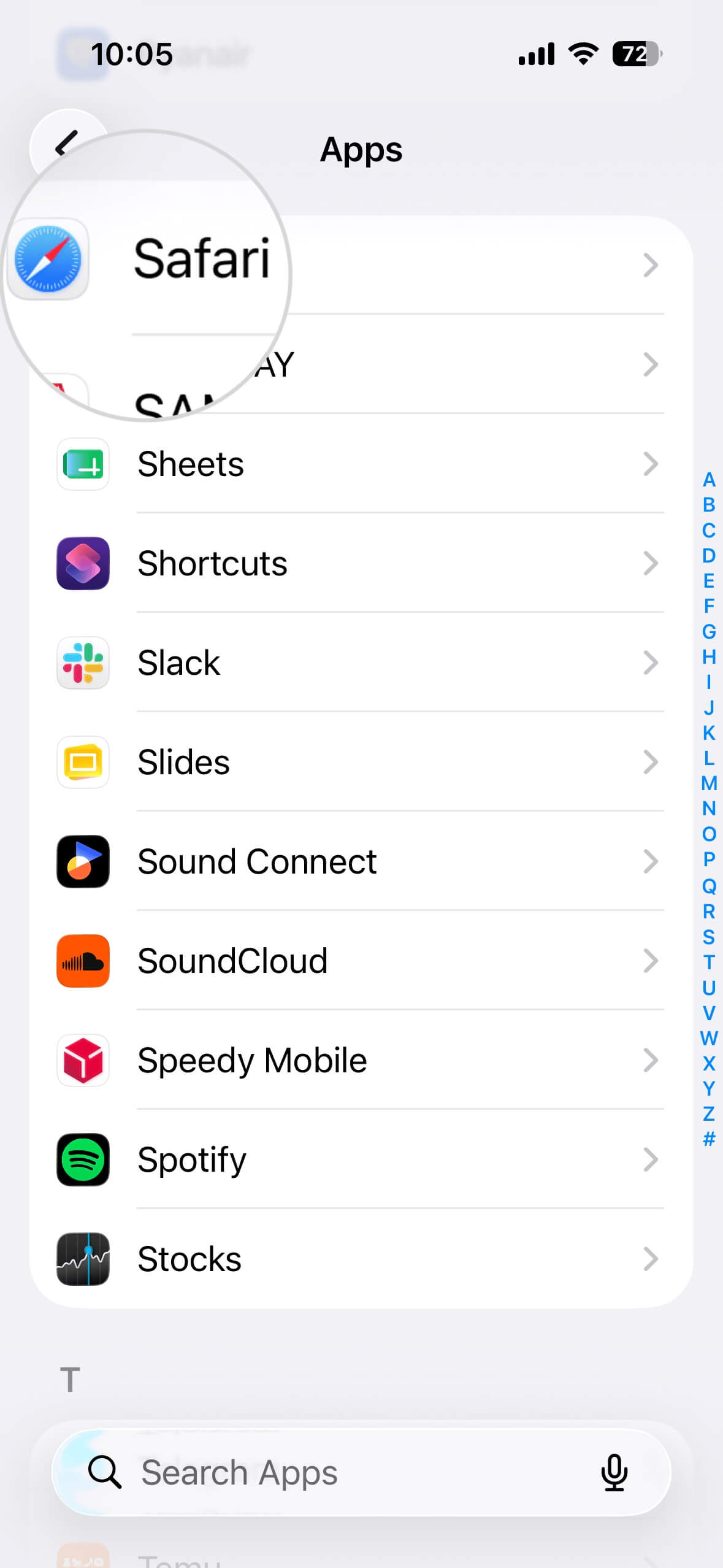
- Find Safari in the list and open it.
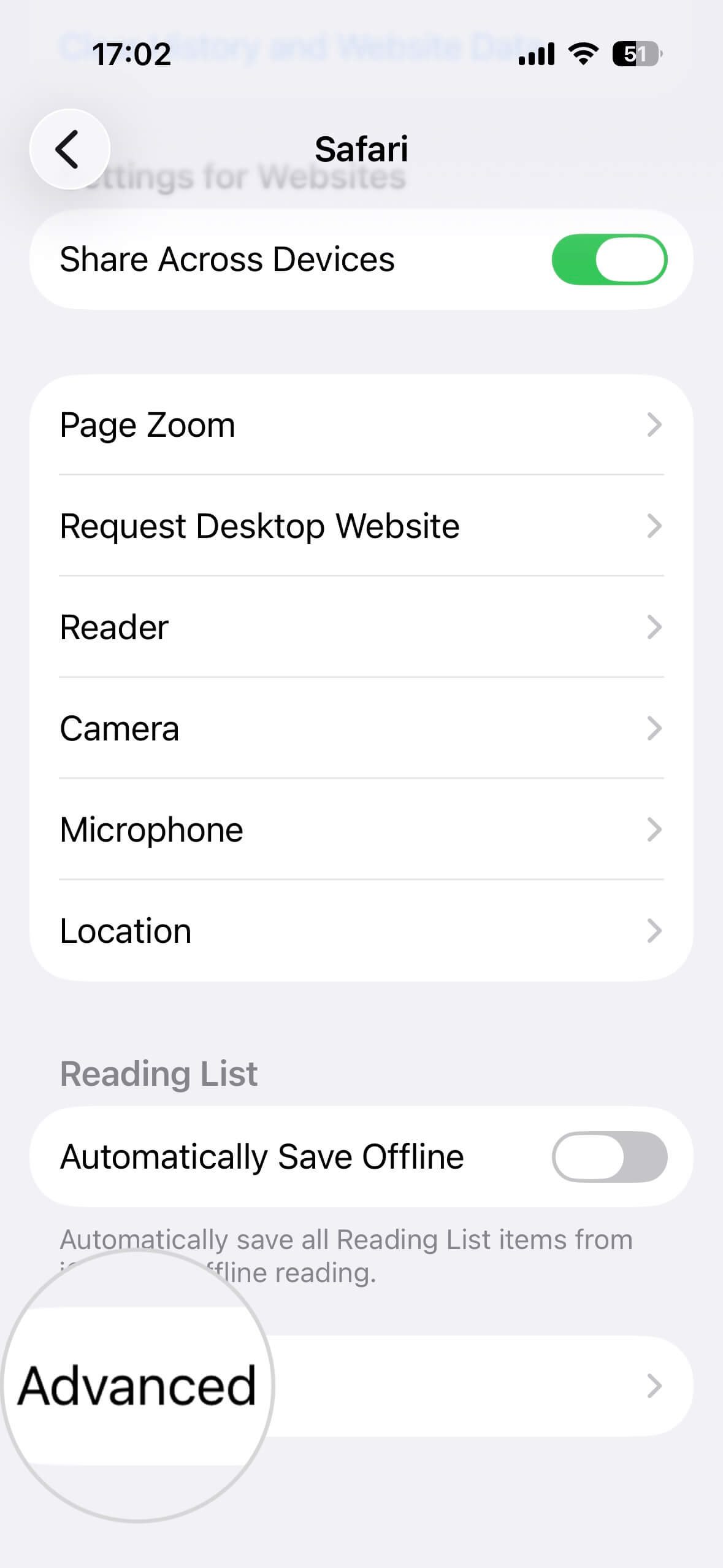
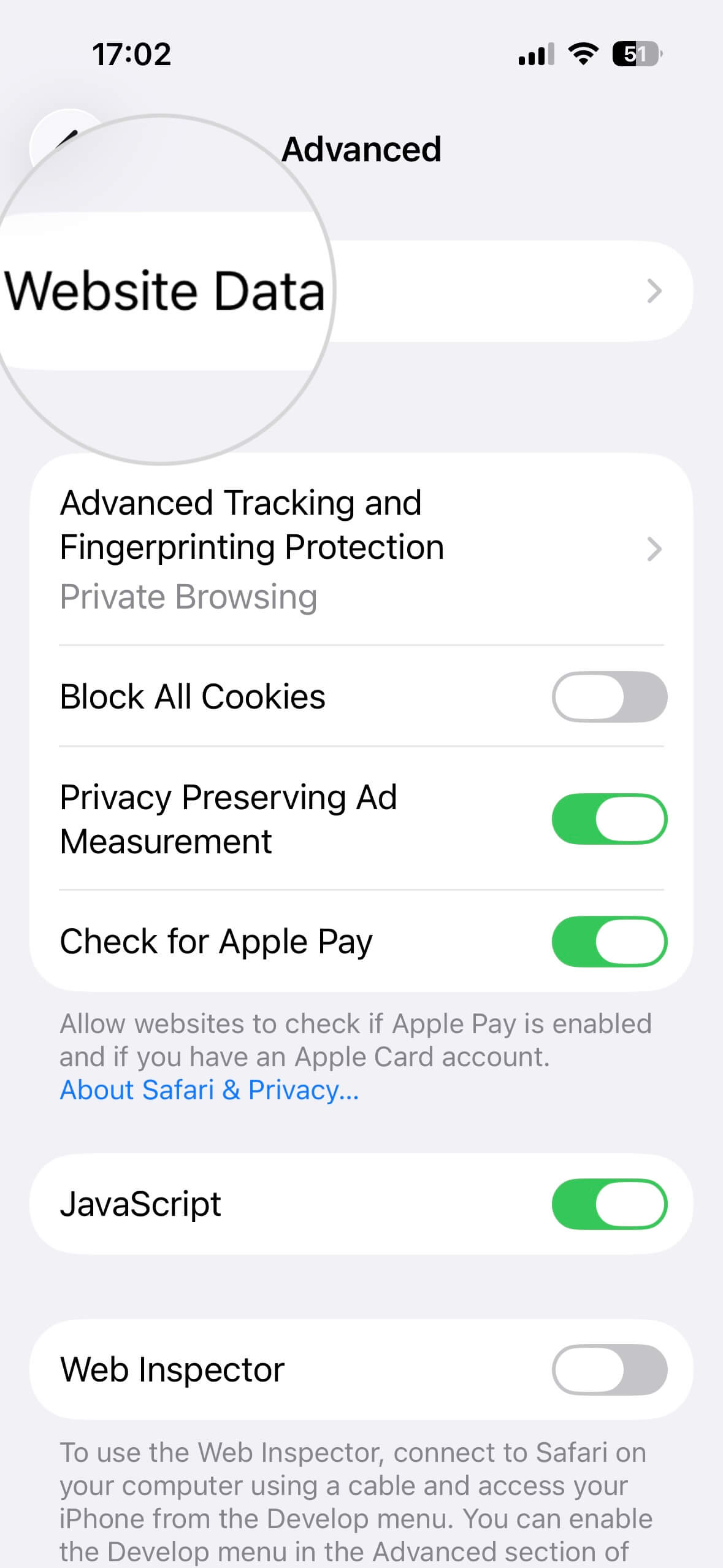
- Scroll down on the page and tap Advanced.
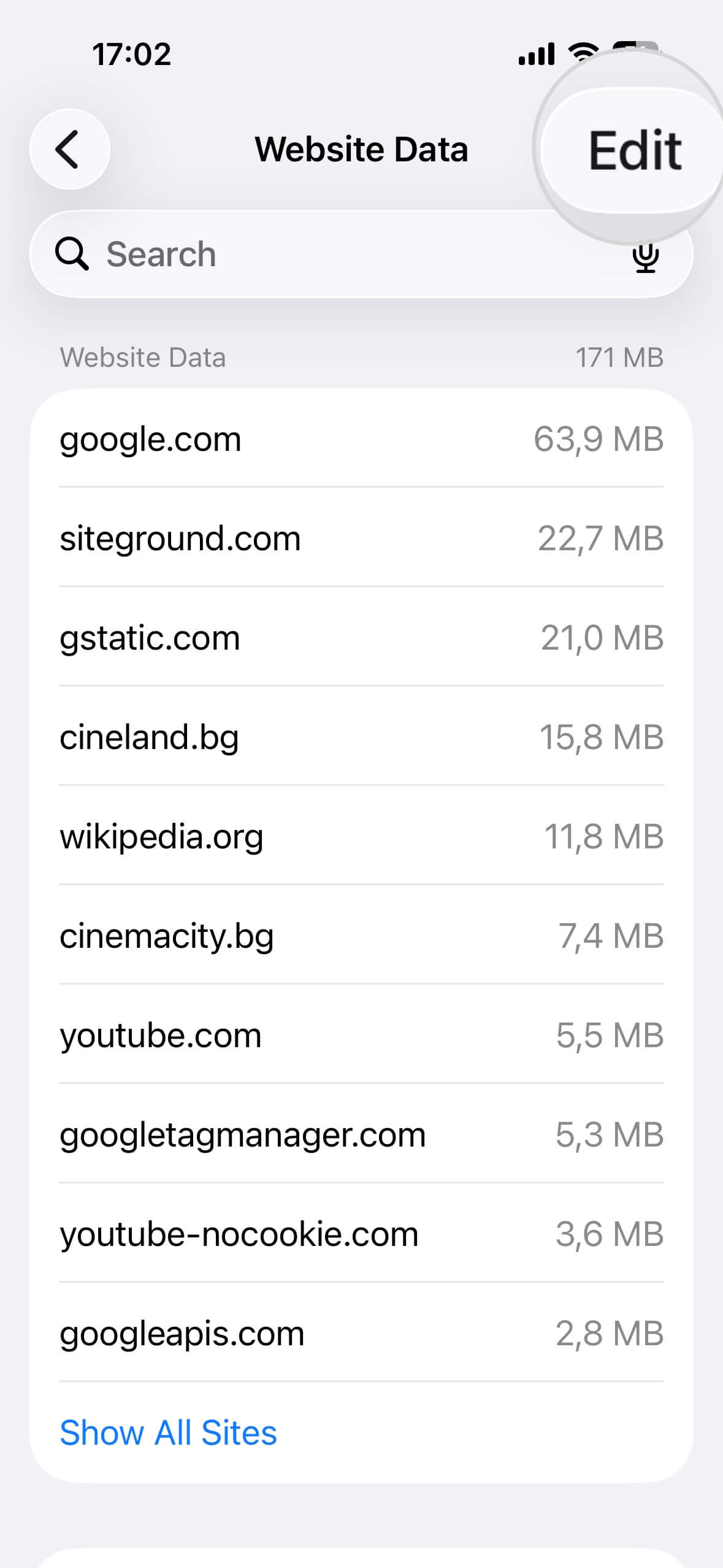
- Open Website Data.
- Tap the Edit button in the top-right corner.
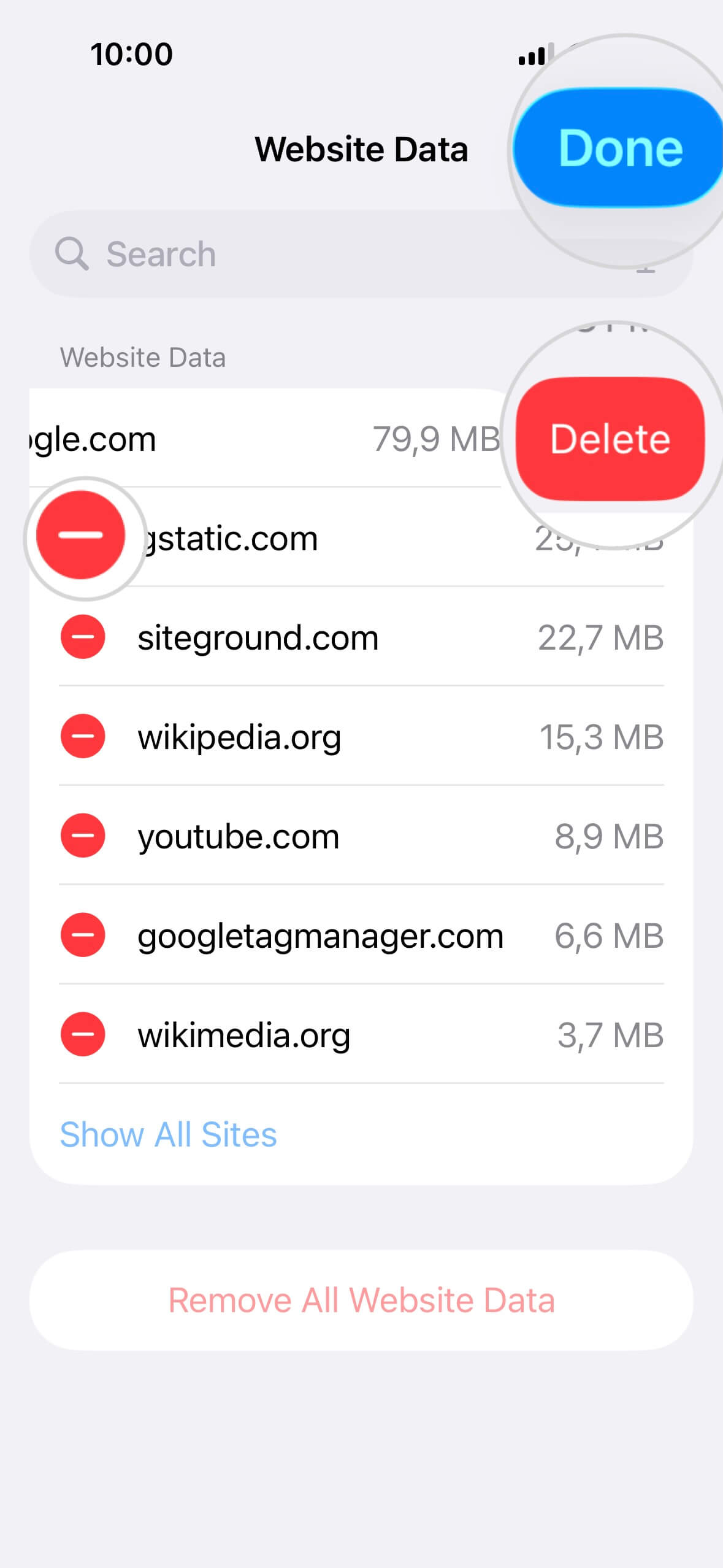
- Touch the red circle sign in front of the site whose data you wish to delete.
- Tap the Delete button that will appear on the right.
- Hit the Done button in the top-right corner to exit the menu.
How to clear Chrome cache on iPhone?
Another widely used browser on an iPhone is Google Chrome. If this is your preferred browser, here is how you can clear its cache.
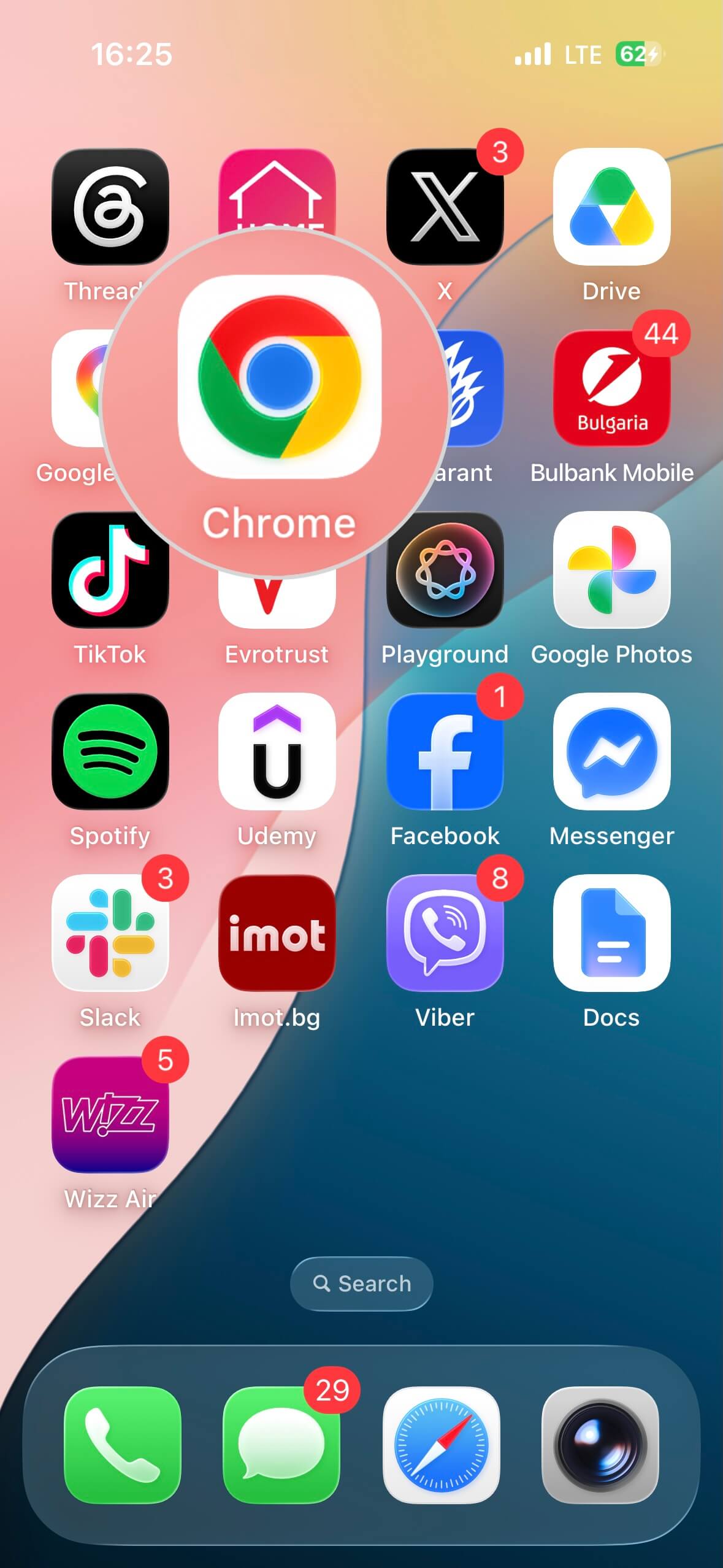
- Open the Chrome app by tapping on its icon.
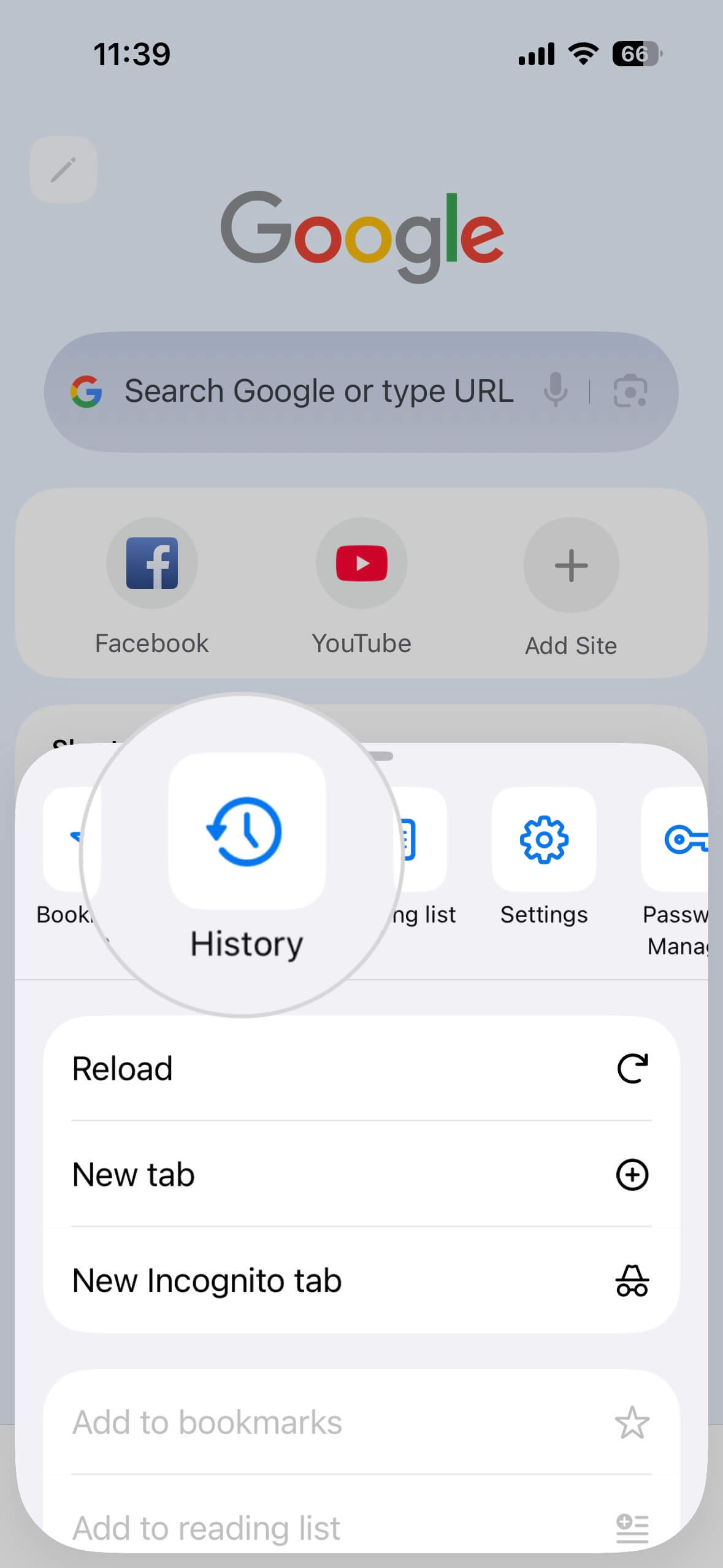
- Then tap on the ellipsis (⋯) menu in the lower right corner.
- Select the History tab.
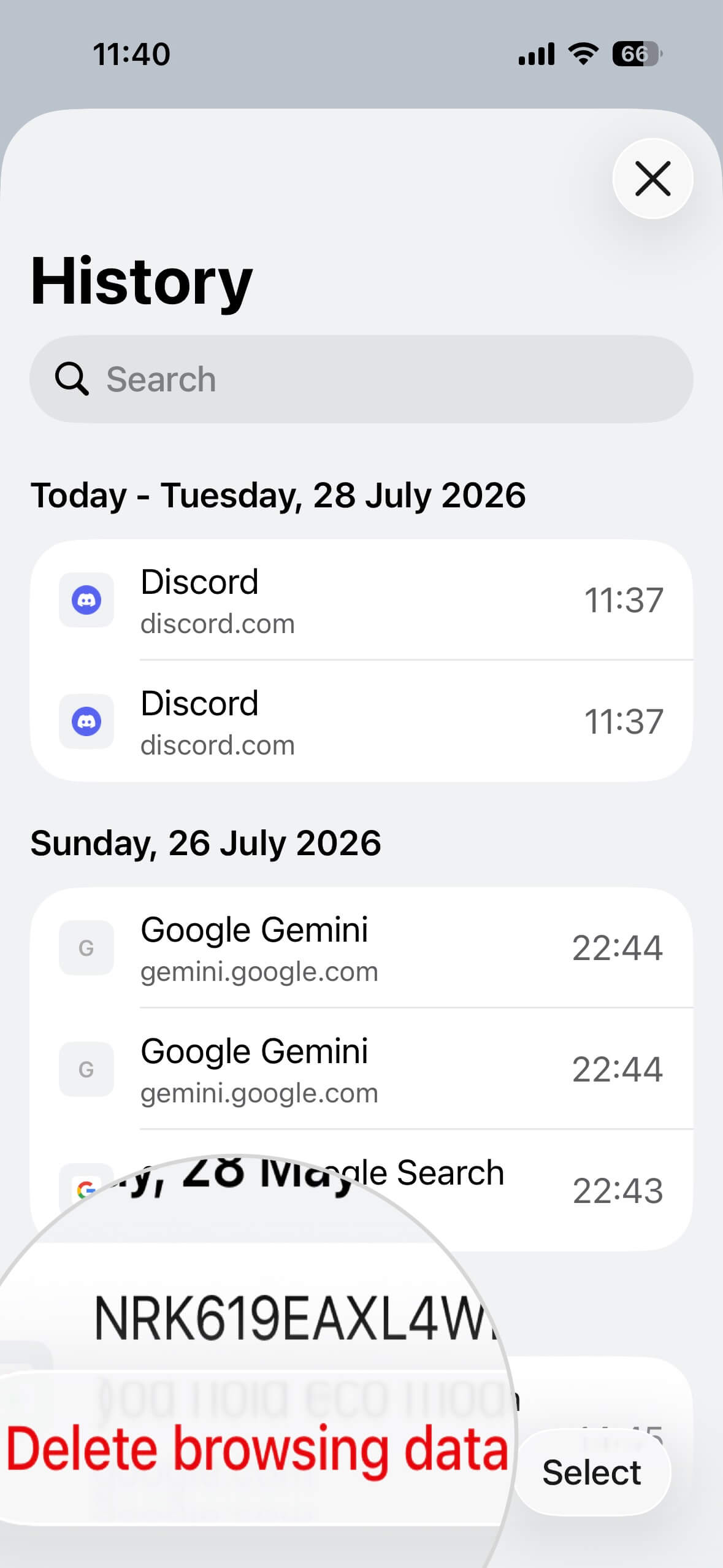
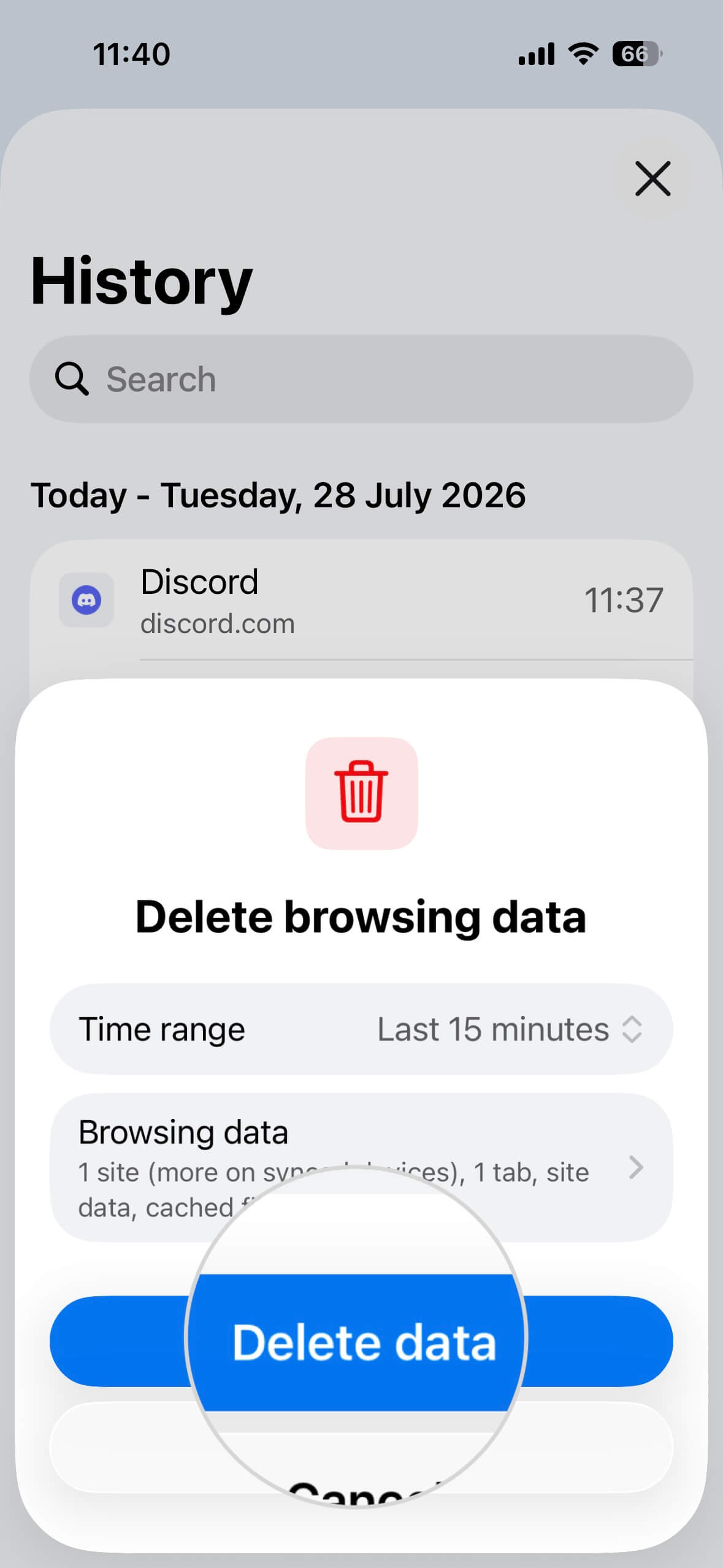
- Tap the Delete browsing data button at the bottom.
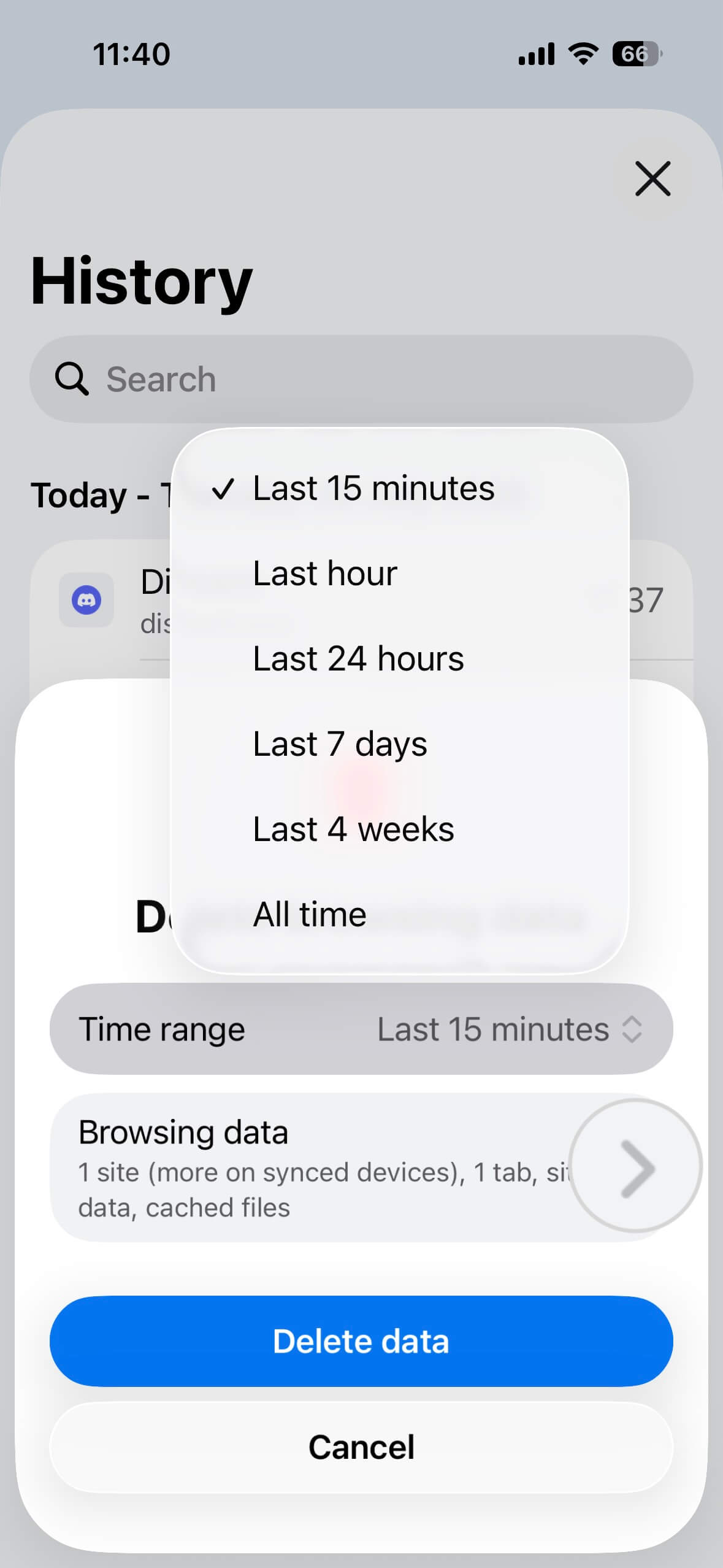
- Open the Time range menu to select the period for which you want to delete browsing data.
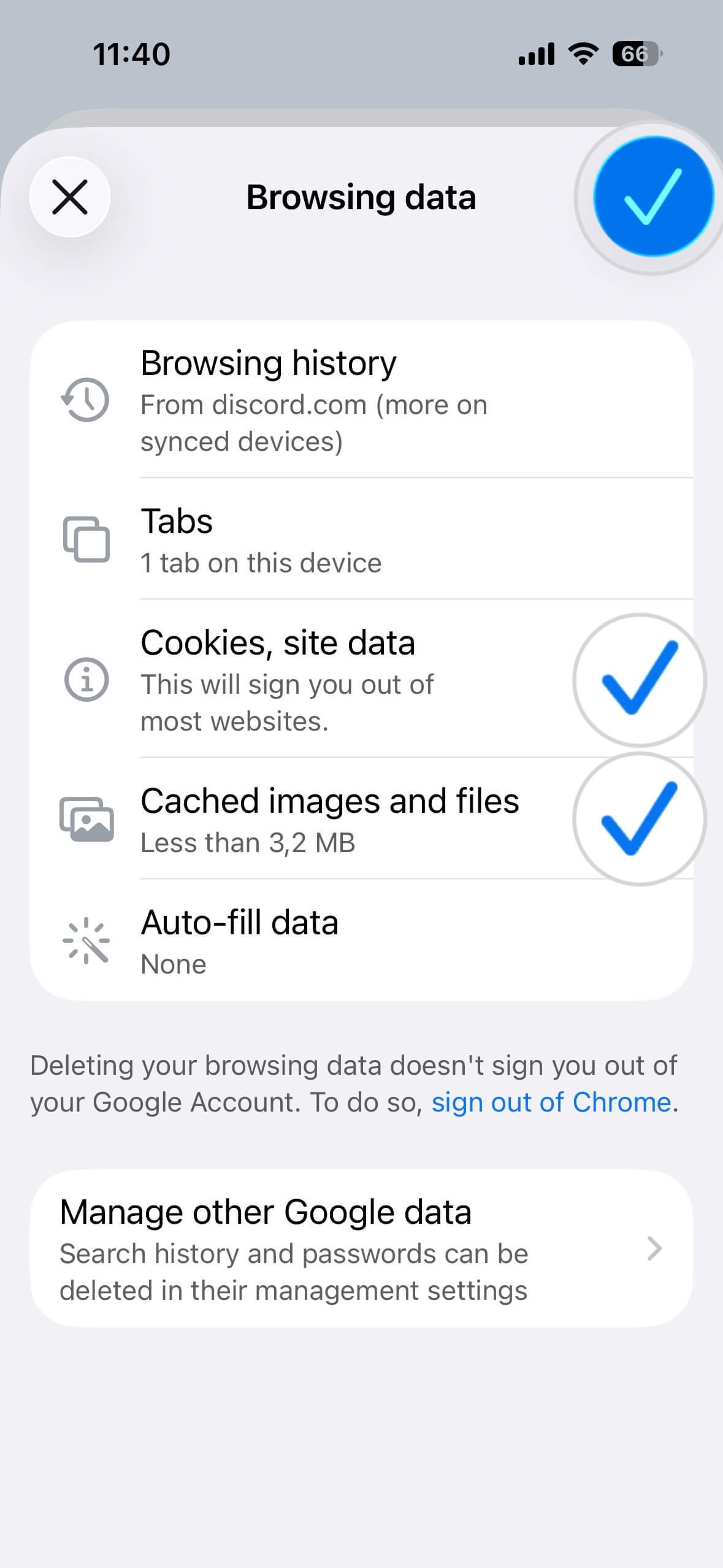
- Then click the arrow (>) next to Browsing data.
- In the following menu, select the data types you wish to delete. The most relevant types are Cookies, site data and Cached imaged and files. To confirm, press the blue checkmark (✔) at the top-right.
- Finally, tap Delete data.

How to clear TikTok cache on iPhone
Most apps do not have options for clearing temporary or non-essential files – you either offload them or completely delete them.
However, certain apps feature advanced options that allow you to exclusively delete their accumulated data without having to uninstall them.
TikTok is one of those apps. To clear its cache:
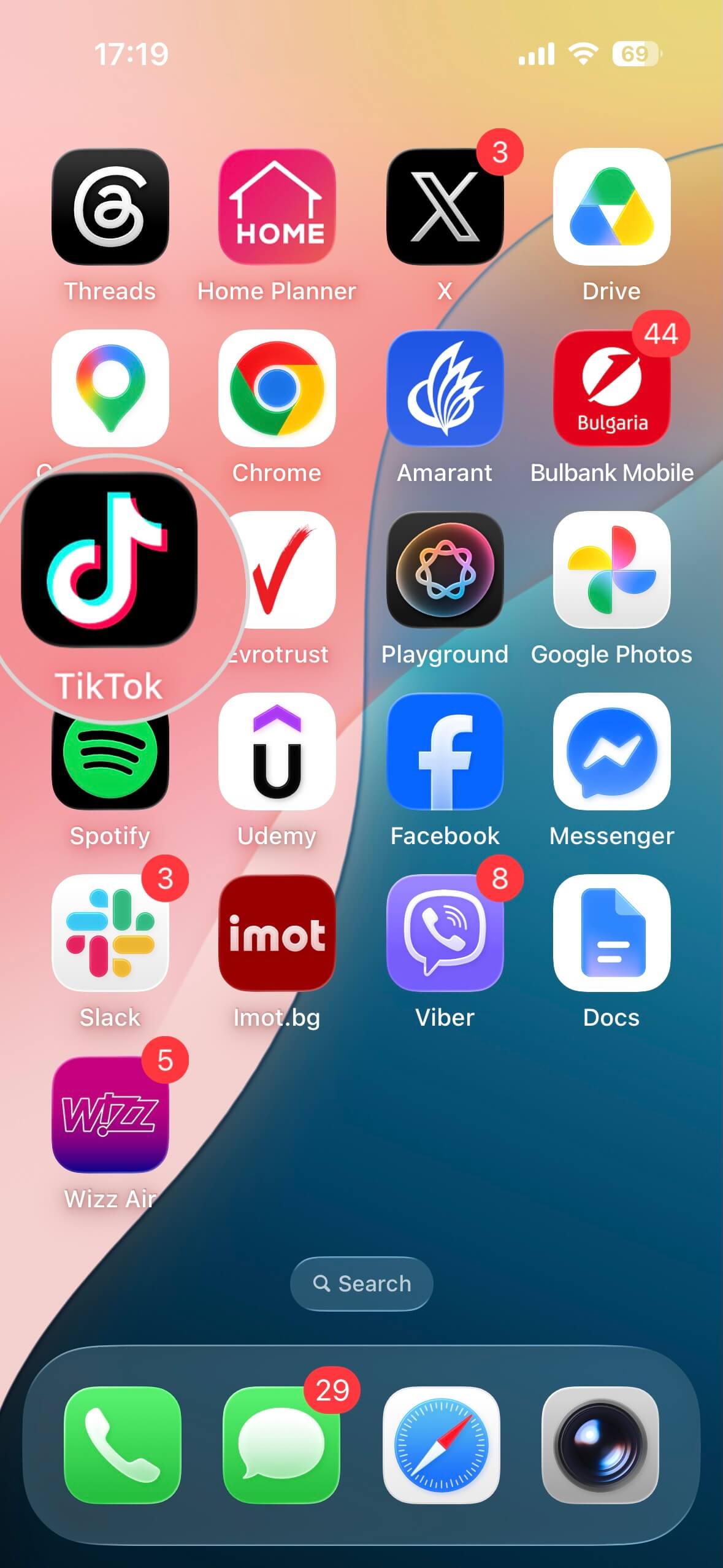
- Open the TikTok app.
- Tap the Profile icon in the bottom-right corner.
- Open the hamburger menu (☰) in the top-right.
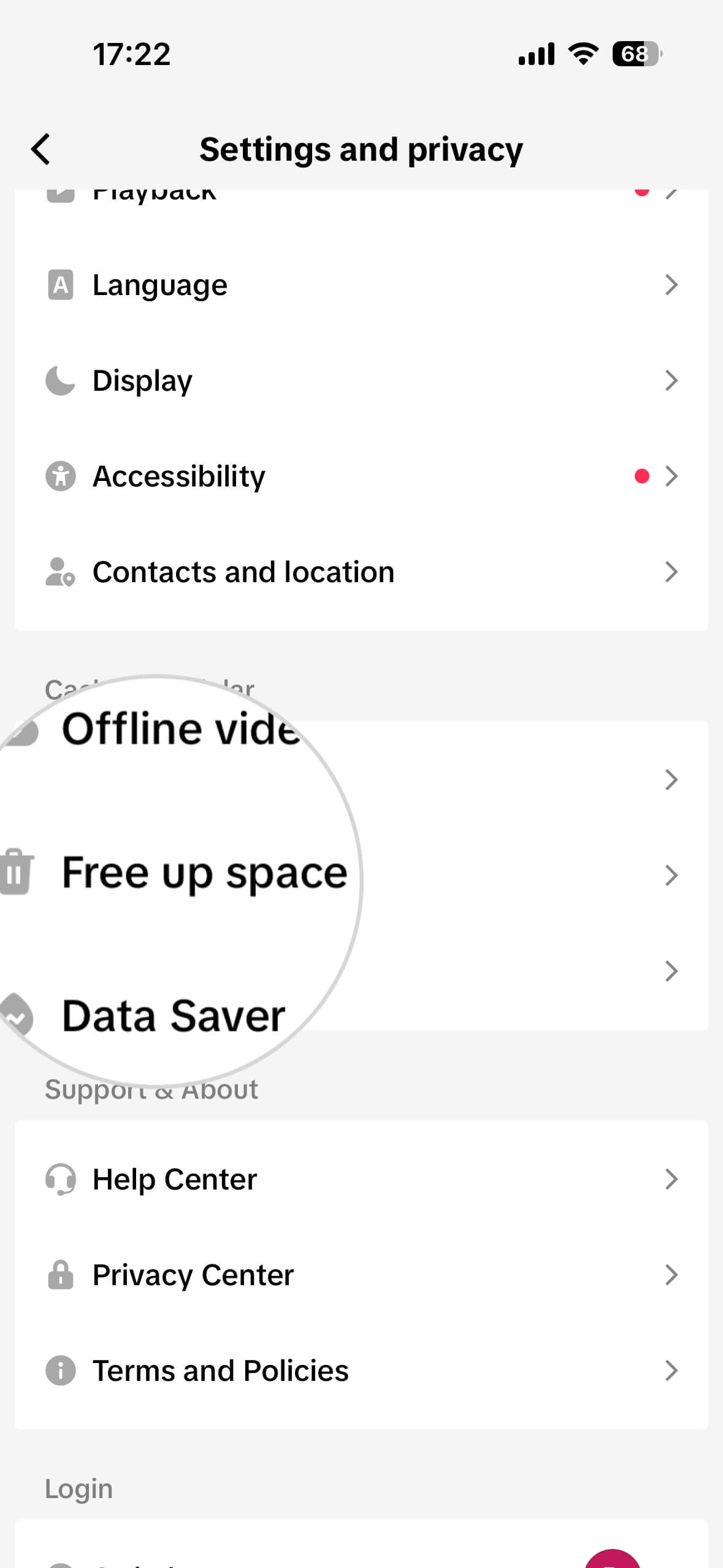
- Select Settings and privacy.
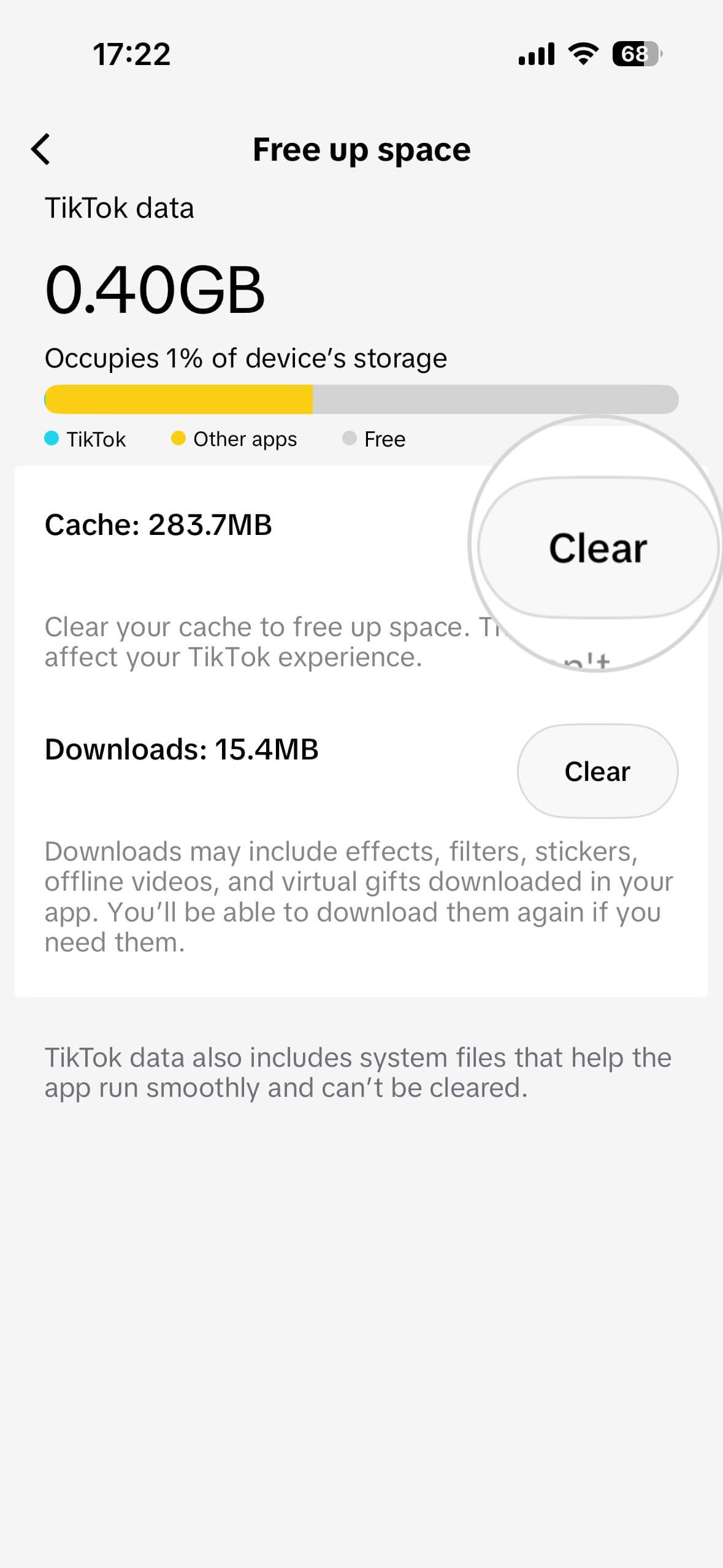
- Scroll down the page and find Free up space.
- Tap the Clear button for Cache and optionally for Downloads.


How to clear X (formerly Twitter) cache on iPhone
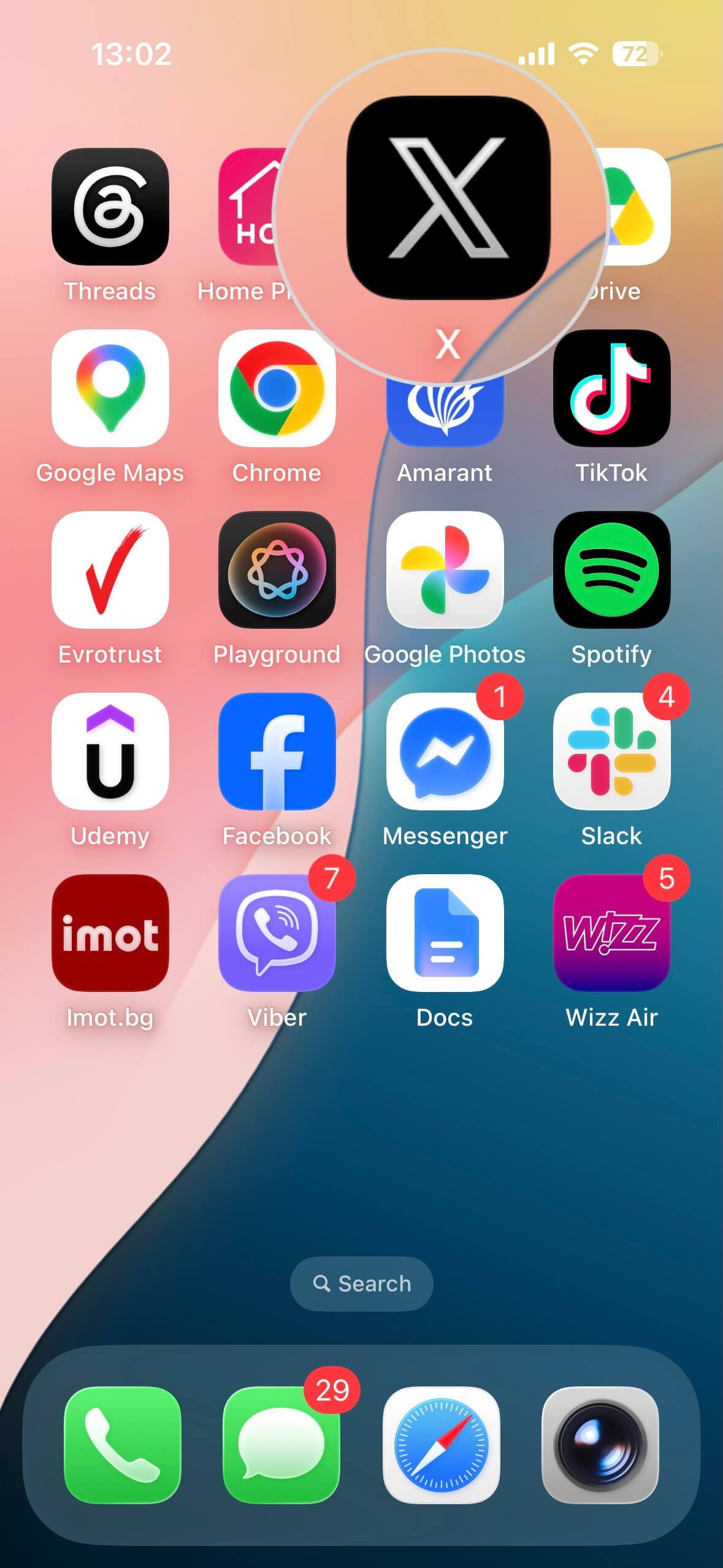
X (formerly Twitter) is another app that features dedicated options for clearing its cache on iPhone.
Here are the steps:
- Open your X (formerly Twitter) app.
- Tap on your profile logo in the top-left corner.
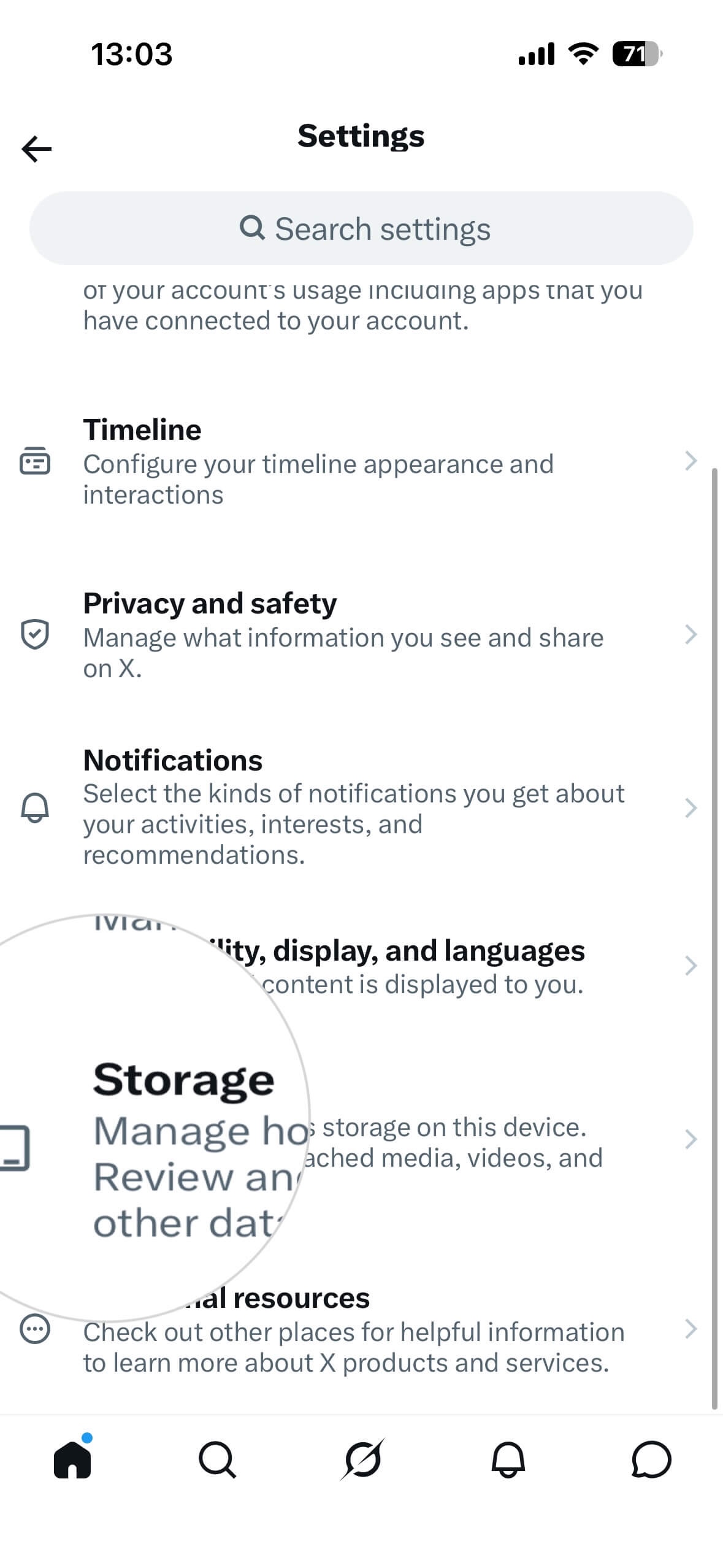
- Open Settings and privacy.
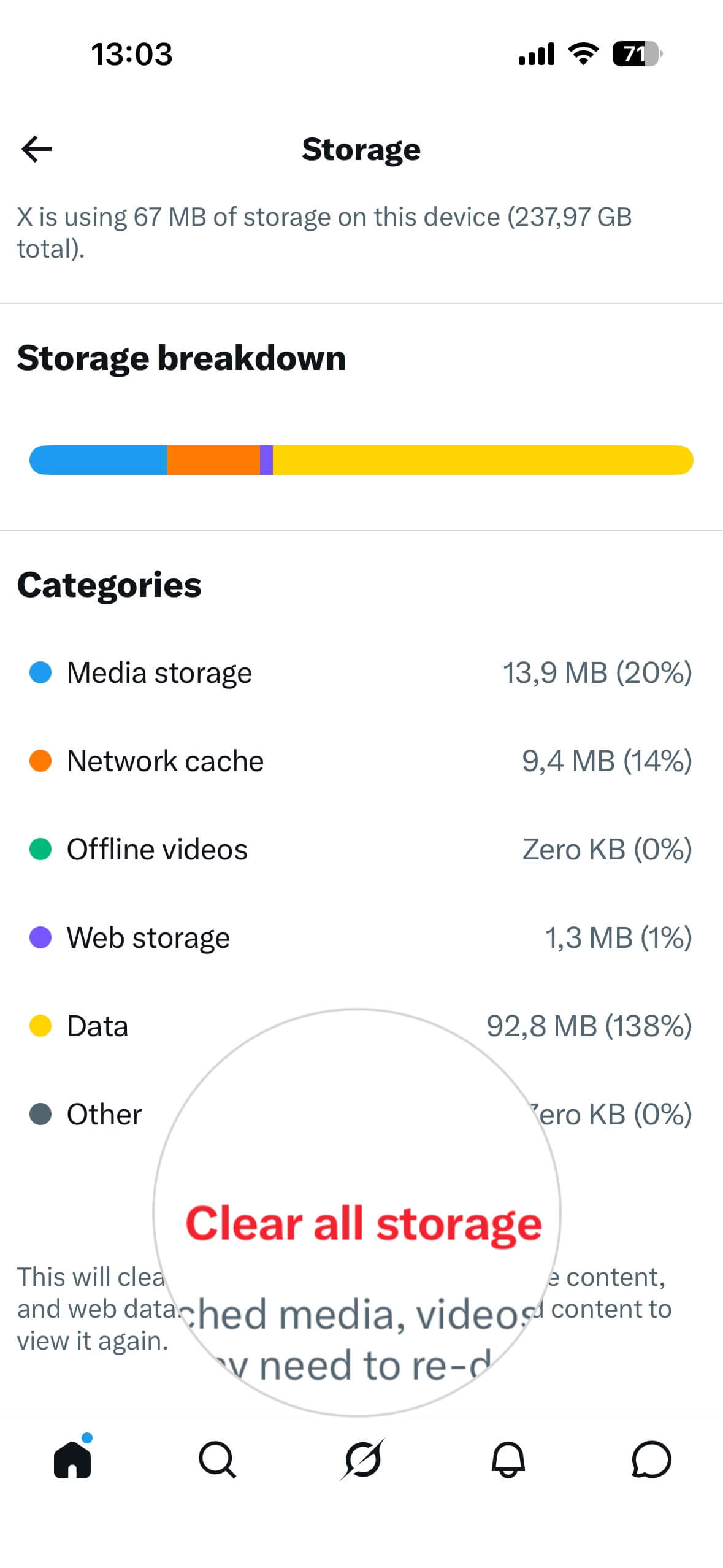
- Navigate to the Storage section.
- Tap Clear all storage.

How to clear app data on iPhone?
Most apps don’t offer a dedicated “clear cache” button — instead, you manage their storage footprint by offloading or deleting them entirely from Settings. This is the fastest way to free up space when an app (not just TikTok or X) is eating storage without a built-in cleanup option.
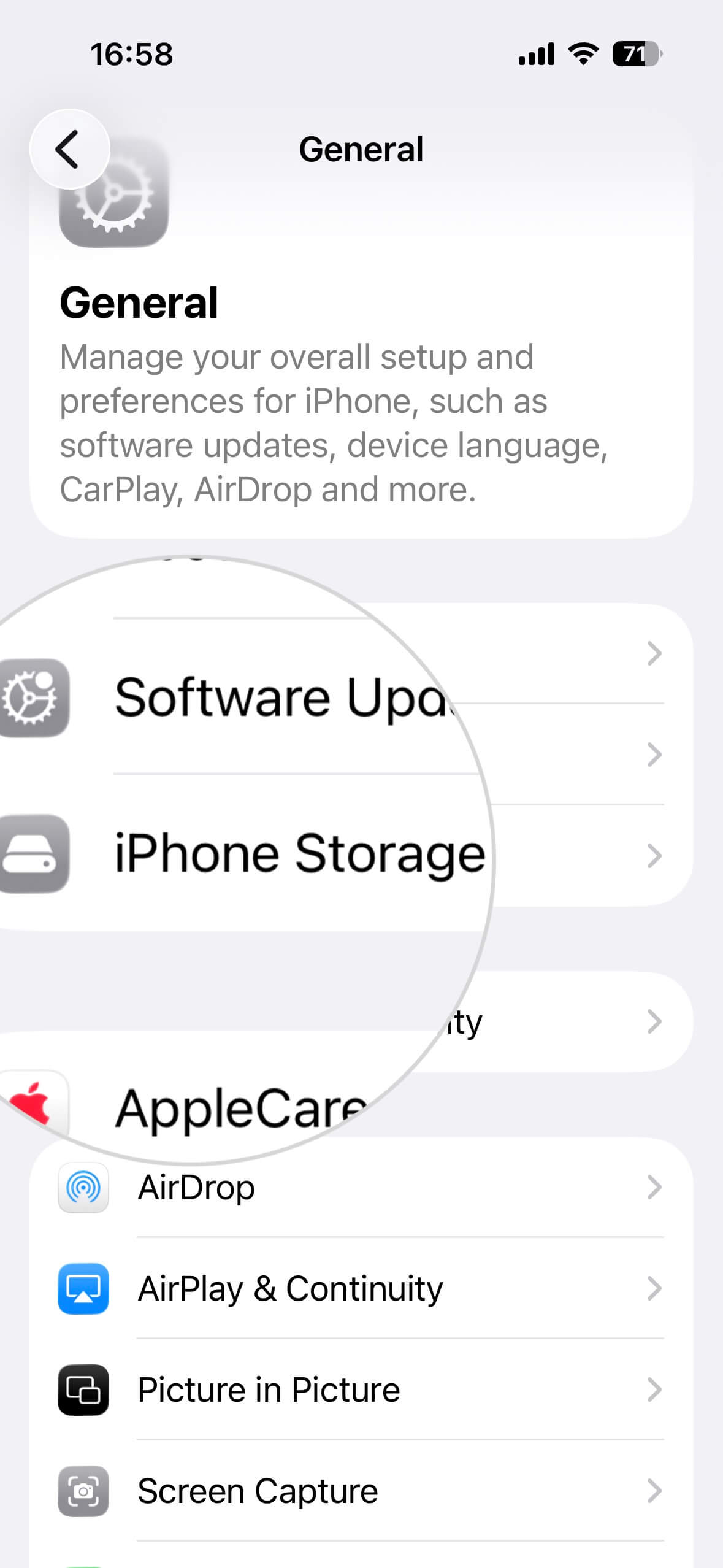
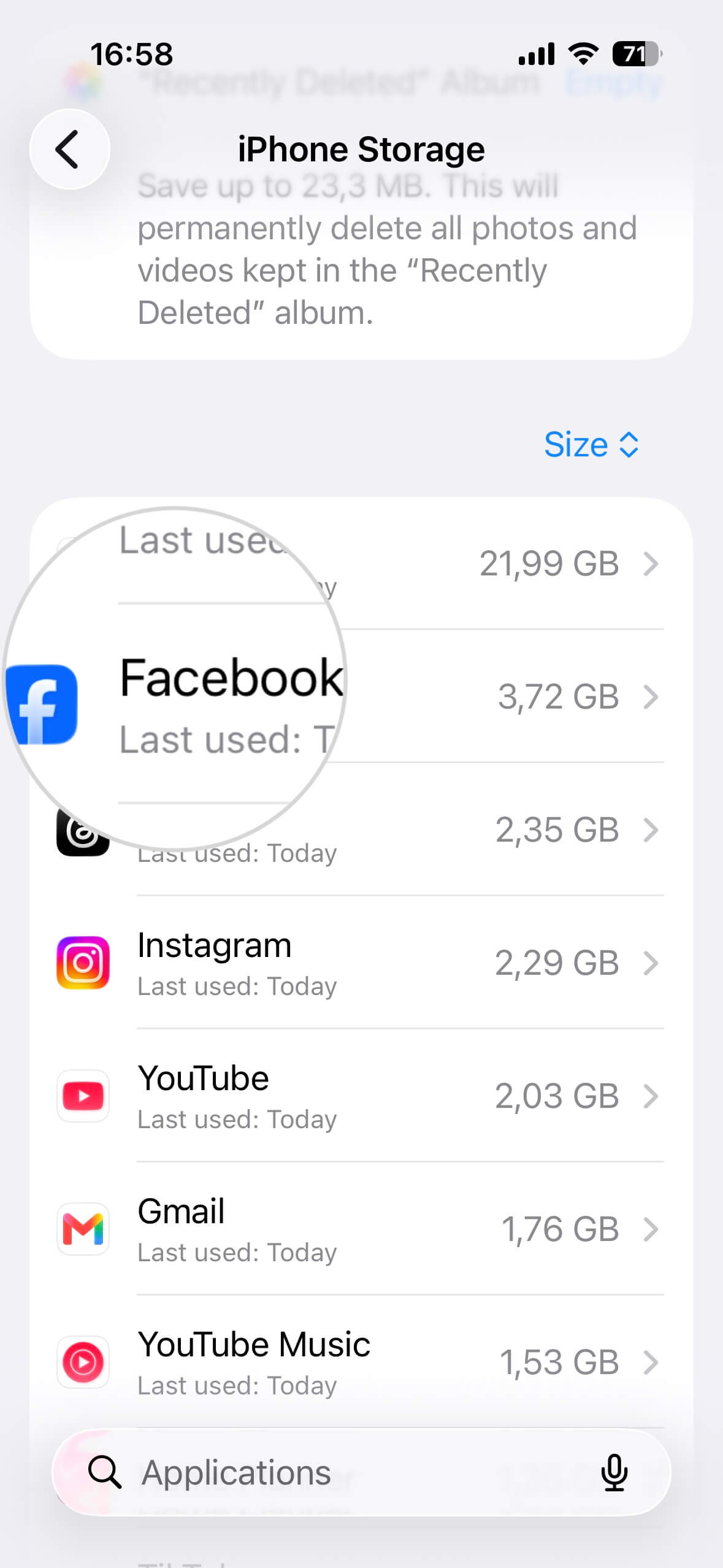
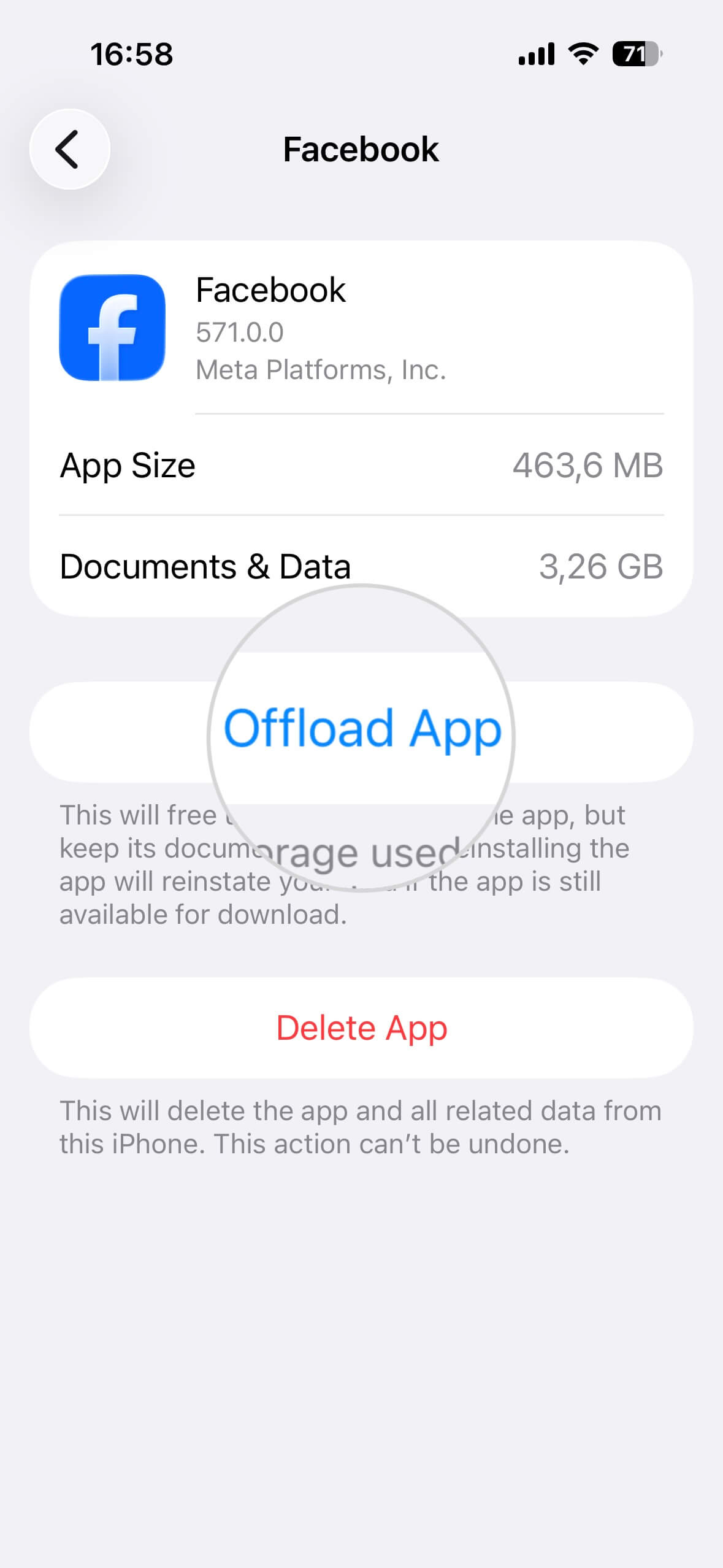
Let’s take a popular app as an example and delete its data. The steps below describe how to clear Facebook cache on an iPhone.
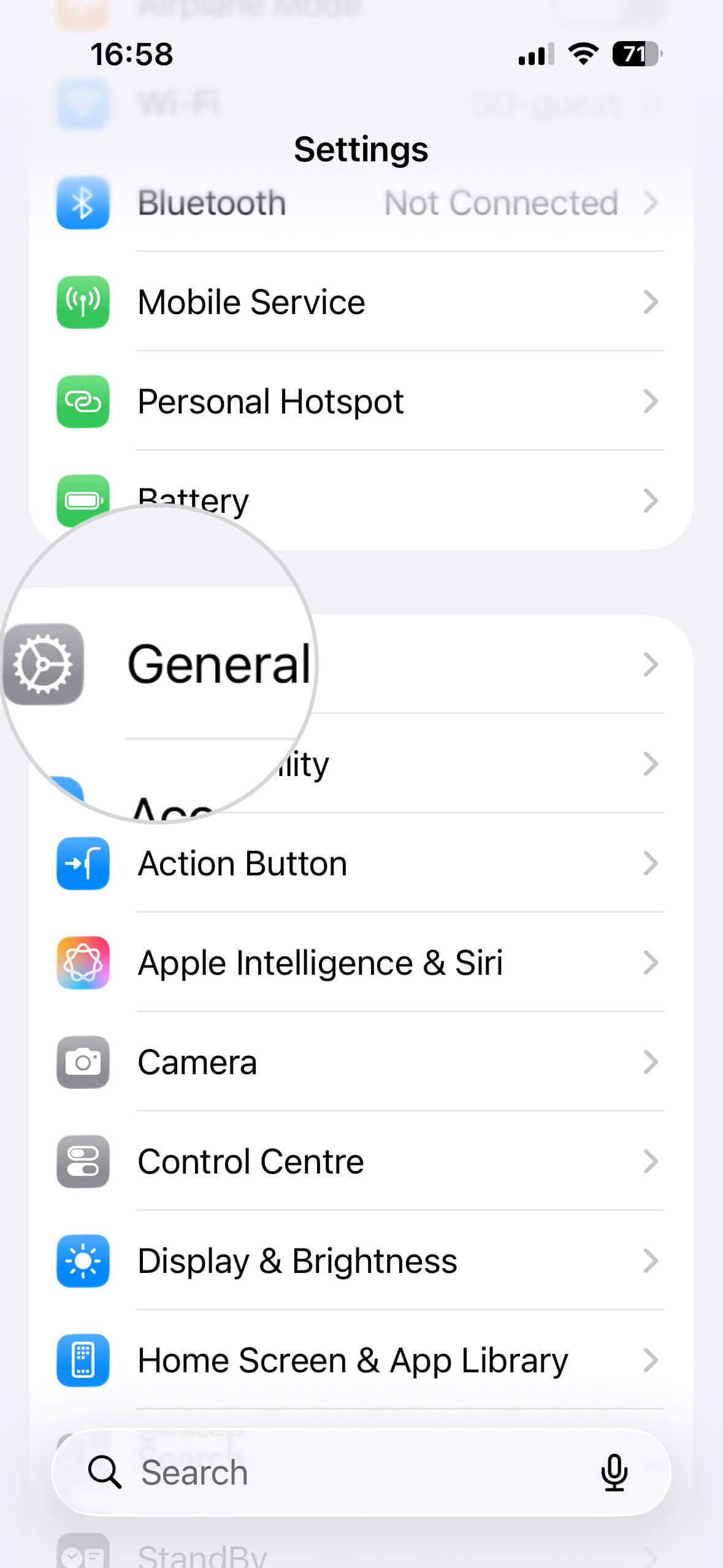
- Open Settings on your iPhone.
- Navigate to the General section.
- Select iPhone Storage.
- Choose the app whose data you wish to delete.
- Tap Offload App to uninstall the app while preserving its settings and documents. This will make the app ready-made to use once you reinstall it.
Alternatively, tap Delete App to completely remove it from your device.
Why do you need to clear the iPhone’s cache?
In short, clearing your iPhone’s cache is essential for reclaiming storage space, resolving app performance lag, and fixing web rendering issues.
The mobile apps generate cached copies of the files they use to boost your iPhone’s performance. These files are already stored locally and ready to load instead of being downloaded every time the apps need them.
For example, when you visit a website, your browser downloads the web page’s static contents, such as HTML files, CSS files, and JavaScript files. Those resources are then saved in the browser cache. Therefore, next time you visit the same web page, your browser doesn’t need to download the same files repeatedly. It directly loads the cached copies, significantly reducing the loading time.
However, the generated cached data can expire, become corrupted, or grow and clutter your device’s storage space over time. In such cases, your phone may work noticeably slower, or apps may unexpectedly crash.
For web browsers, in particular, expired cache or cookies may prevent you from loading a website and using its features properly.
On the other hand, multimedia apps may generate a significant amount of data from your previous sessions, exhausting your internal storage. This will inevitably result in poor performance of your phone.
Therefore, it is highly recommended to periodically check your storage and keep the cache well-managed for all apps, and especially browsers.
Summary
More often than not, expired or corrupted cache and increased data and storage usage can cause various problems. When your iPhone is not performing well or you have trouble loading a website, one of your first instincts should be to clear the cache and cookies.
This guide outlined how cache works and how to clear the app data on your iPhone.
In a similar way, you can clear the cache and cookies on Android phones. Read this guide on how to clear cache and cookies on Android.
For desktop browsers, read this tutorial on how to clear cache in Chrome, Firefox, Safari, and other browsers.
Frequently asked questions
How often should I clear the cache on my iPhone?
There is no “perfect” schedule, but a good rule of thumb is to clear your browser cache once every month. However, if you notice your iPhone is running out of storage space, if Safari feels sluggish, or if specific websites aren’t displaying correctly, you should clear it immediately to troubleshoot the issue.
How do I check my iPhone cache?
You can’t see a single “cache” number, but you can see how much space temporary data is taking up. Go to Settings > General > iPhone Storage. Here, you’ll see a list of apps. If you tap on an app like Safari, you can see “Website Data.” For other apps, look at the “Documents & Data” size—if this is significantly larger than the app itself, that’s where your cache is hiding.
Does clearing the cache improve my iPhone’s performance?
Yes, but perhaps not in the way you expect. Clearing the cache won’t necessarily make your processor faster, but it removes the “bloat” that causes lag. By freeing up storage and removing corrupted files that cause background errors, your iPhone will feel much more responsive and stable during daily use.
Is it safe to clear my iPhone cache?
Absolutely. Clearing your cache is a standard maintenance task. It does not delete your photos, contacts, or messages. The only minor “downside” is that you may be logged out of some websites in Safari, and those sites might take an extra second to load the next time you visit them as the cache rebuilds itself from scratch.