Website Builder Home Page Overview
The Home page is the launchpad for your Website Builder management in Site Admin. On this page, you can monitor your site’s performance, access and manage your quick actions, or find expert tips to grow your online presence.
Site Status Bar
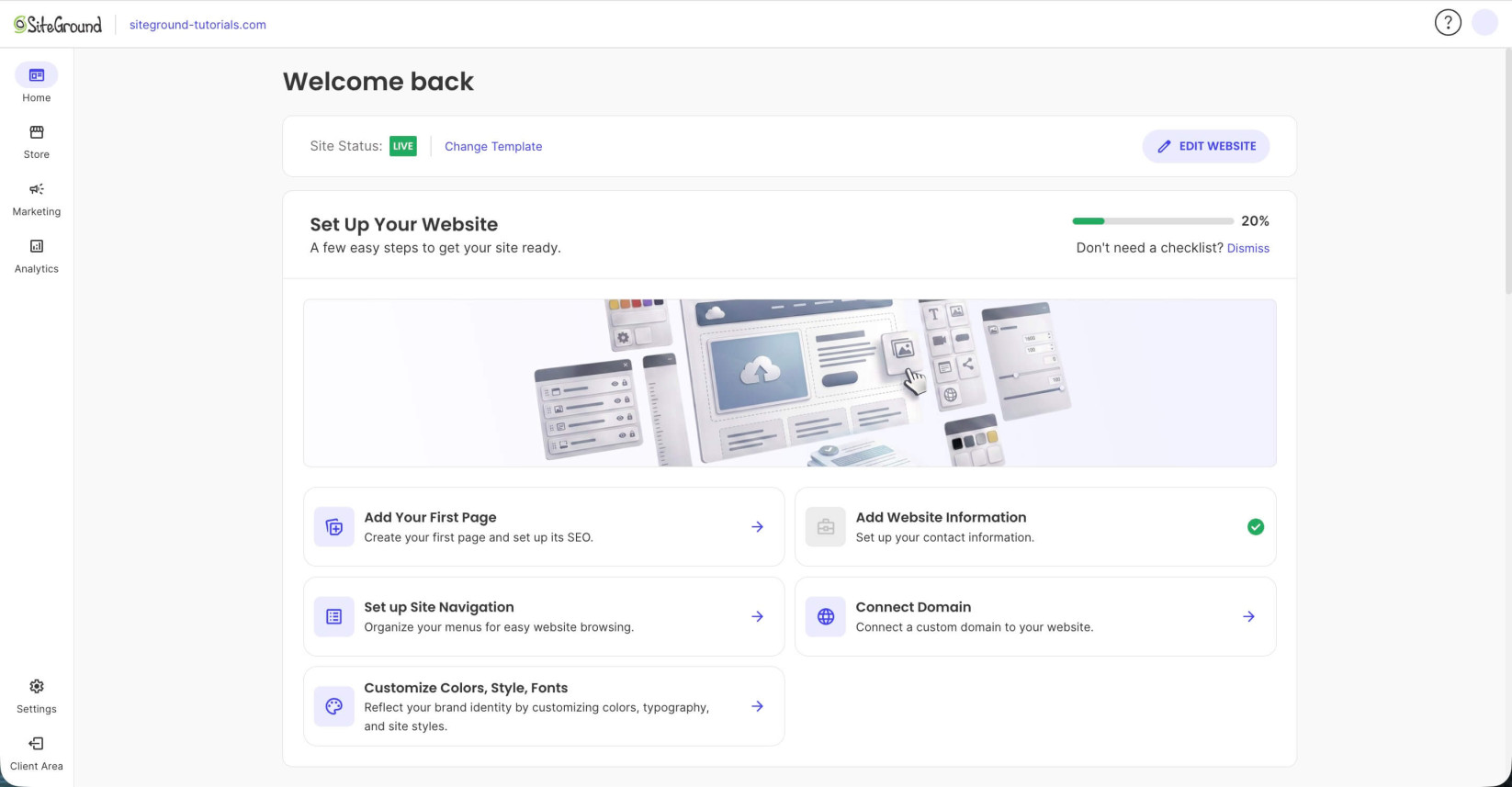
At the top of the Home page, you can see your site’s current status. Click Edit Website to open the Website Builder editor and customize your site’s style and pages.
Change Template allows you to preview and apply a different template to your site.
The Site Status checker indicates if your website is in Coming Soon or Live mode.
Setup Checklist
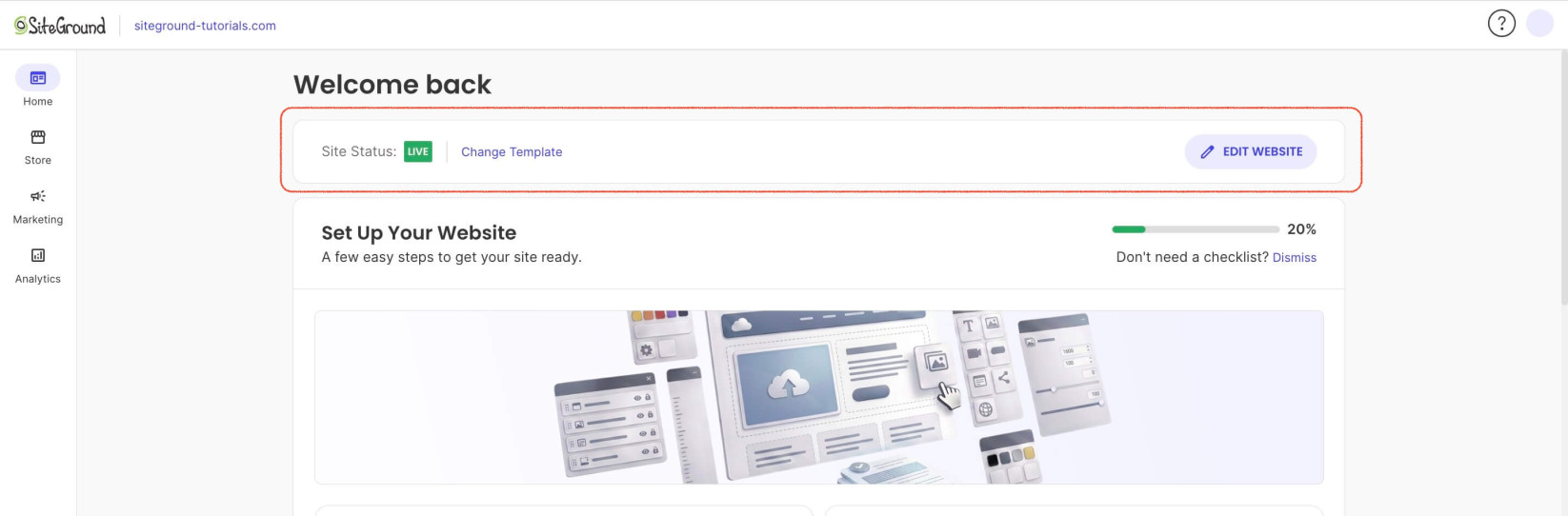
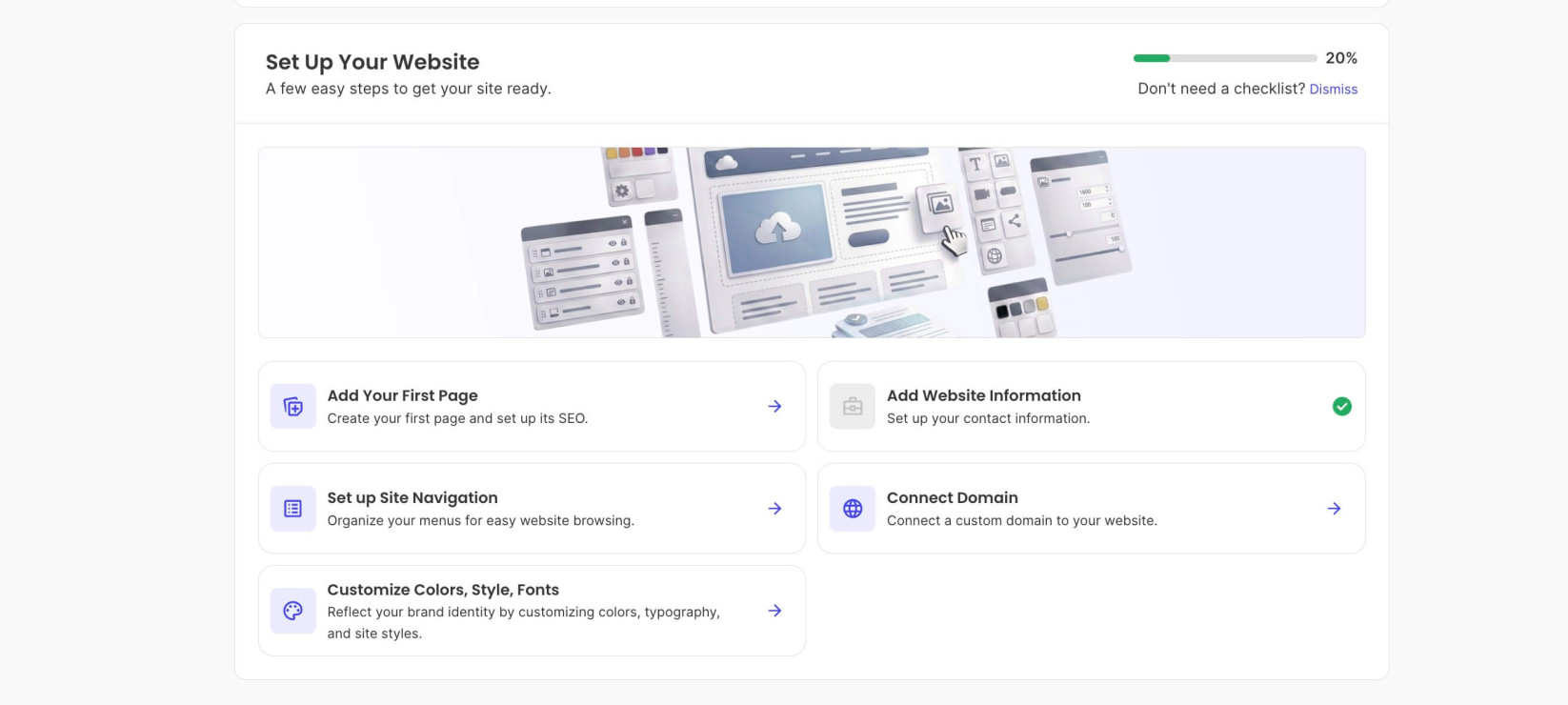
The site setup checklist appears for all newly created websites. It guides you through all the essential steps of launching a fully realized website. The progress bar fills as you complete each task.
The checklist includes:
- Add Your First Page — Create your website’s first page. You can start from scratch or choose from a variety of templates with different designs and features.
- Add Website Information — Add business information to improve your website’s credibility.
- Set Up Site Navigation — Create and manage navigation menus to improve user experience.
- Connect Domain — Configure your website to work with a custom domain name.
- Customize Colors, Style, Fonts — Customize the appearance of your website by changing its colors, shapes, and fonts.
If you wish to hide the checklist, click Dismiss next to the progress bar.
Quick Actions
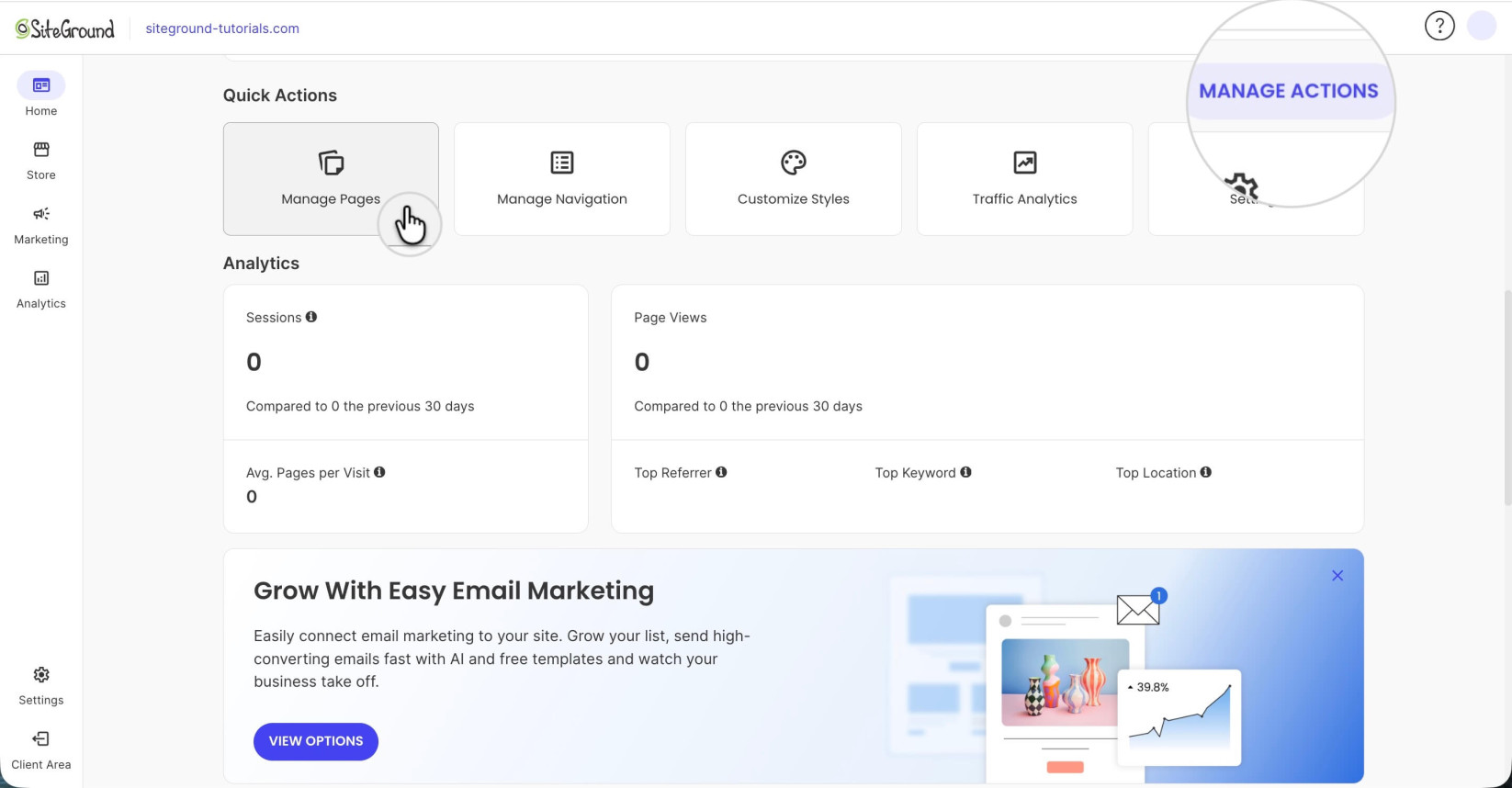
This section provides one-click shortcuts to your favorite tools. The default actions are:
- Manage Pages — takes you to the Website Builder’s Pages section
- Manage Navigation — opens the Nav section of Website Builder
- Customize Styles — goes to the Styles section of Website Builder
- Traffic Analytics — forwards you to the Analytics section of Site Admin
- Settings — opens the Settings section of Site Admin
Click Manage Actions to open the customization window where you can rearrange the quick actions.
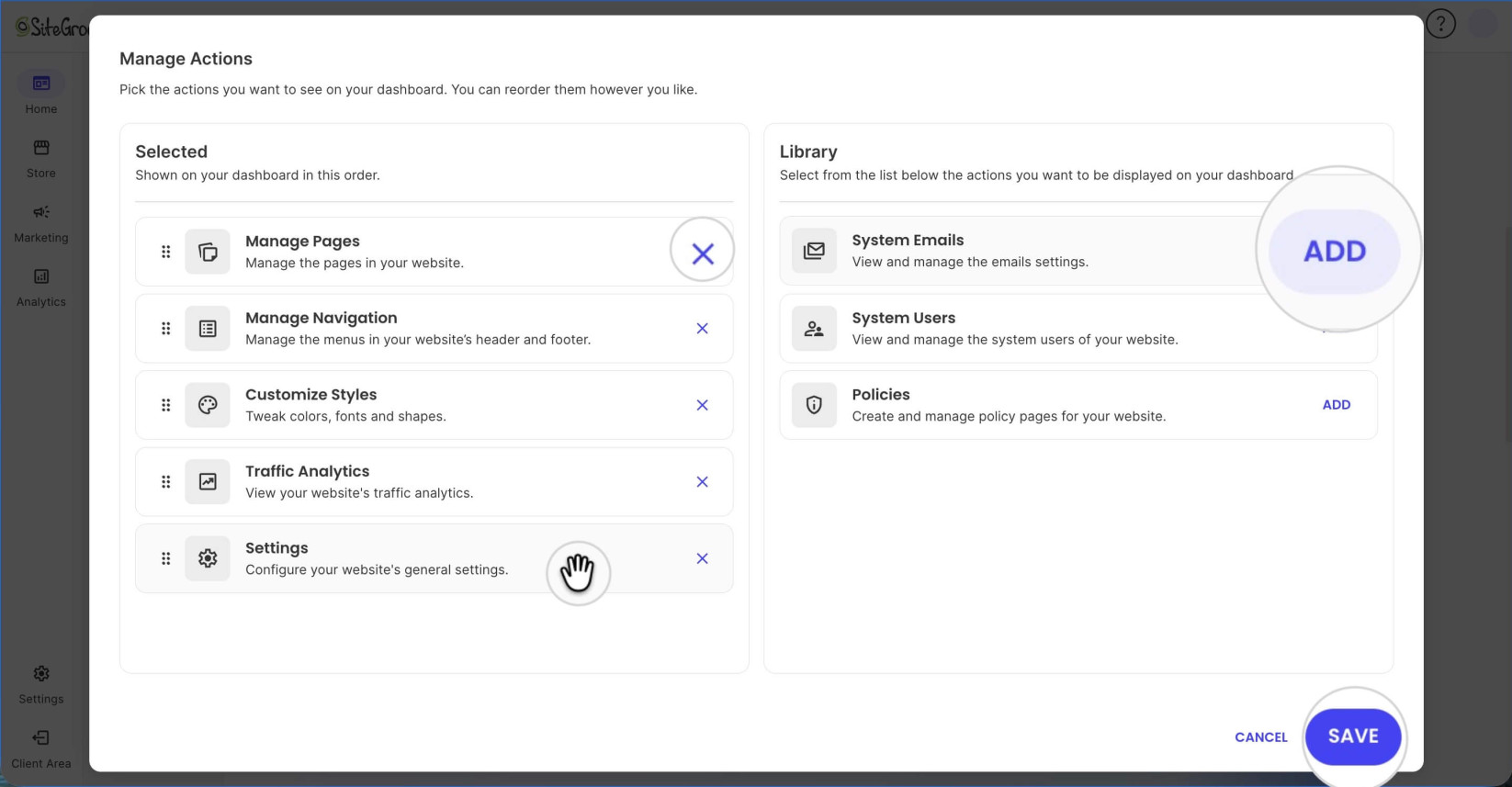
Browse the library, and click Add next to any action to include it as a shortcut on your Home page.
Use the drag-and-drop icon to reorder your selected actions, or click X on any action to return it to the library.
Press Save to confirm the changes to the Quick Actions menu.
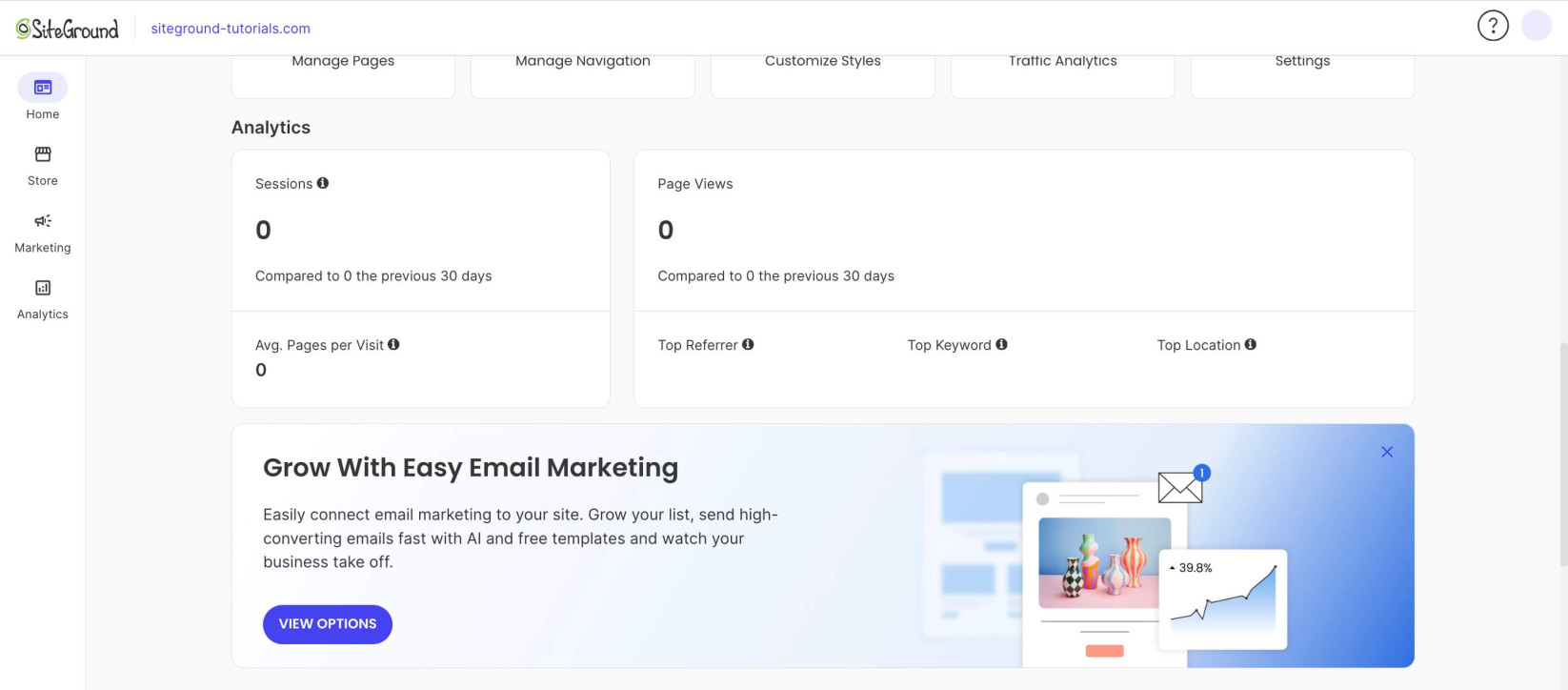
Analytics & Performance
This section displays key traffic data for your website. You can see an overview of your site’s visitor activity over the past 30 days.
Useful Tips & Tutorials
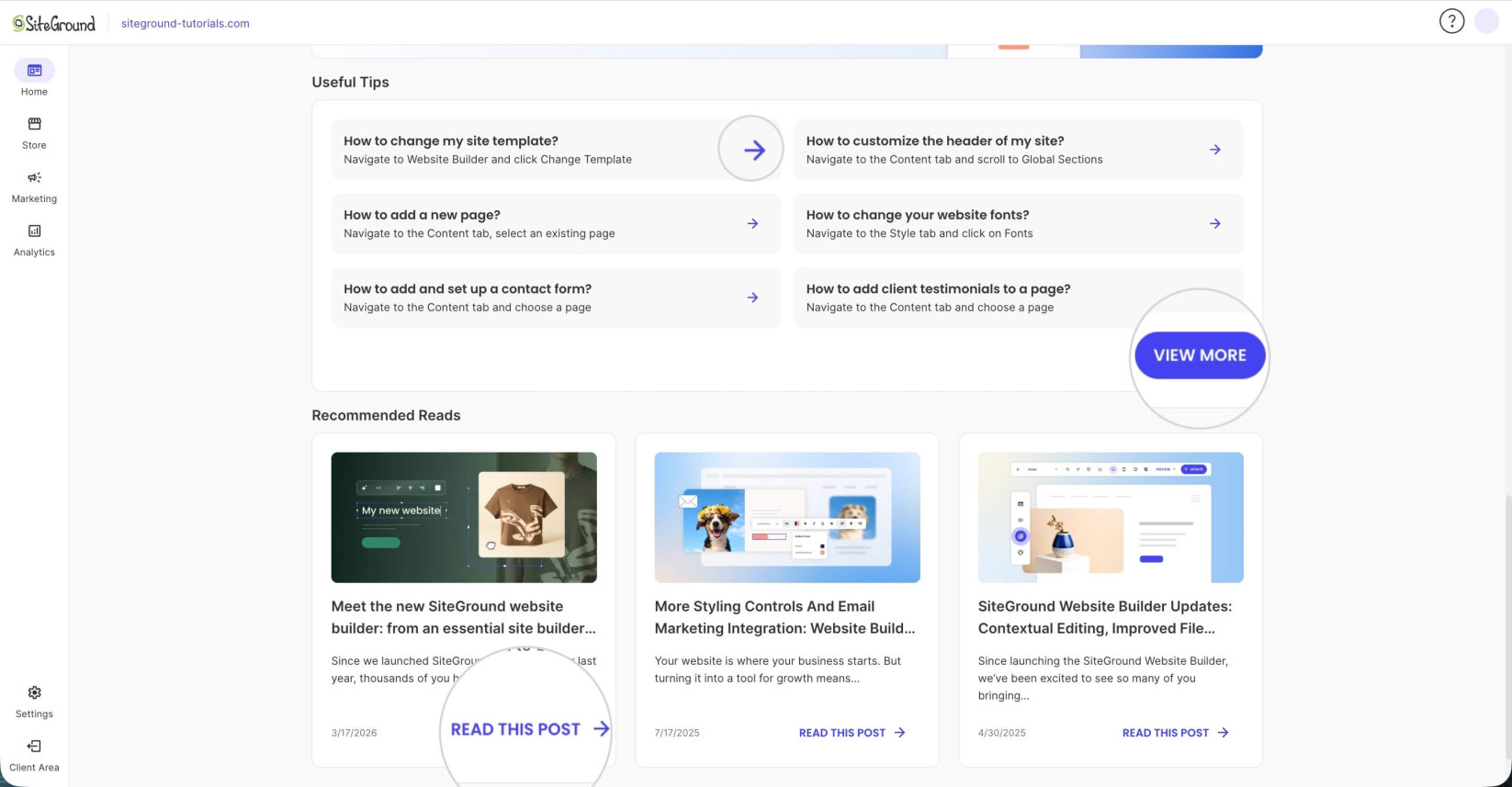
At the bottom of the Home page, you will find selected quick-help tips. They include shortcuts to common tasks such as changing your site template, adding pages, customizing fonts, and more. Click any tip to navigate directly to the relevant section. Click View More to see the full tips library.
Below the tips, you will also find Recommended Reads — a selection of blog posts and tutorials to help you realize the full potential of your website.